Transaction log
DASH writes one transaction entry for every attempt to deliver a released certificate. That covers the first send, every retry, every archival copy and every delivery of the sealed PDF. You can read these entries in two places:
- the Channel Log tab of a certificate, which shows that certificate’s attempts;
- the Transactions page, which shows every attempt across the account.
Use the transaction log to find out what happened when a delivery went wrong. To see who did what in the account, such as sign-ins, signatures and role changes, use the Audit log.
Read a certificate’s Channel Log
Section titled “Read a certificate’s Channel Log”- Open the certificate from Certificates.
- Select the Channel Log tab. Entries are listed newest first. If nothing has been sent yet, the tab reads “No transactions recorded for this certificate yet.”
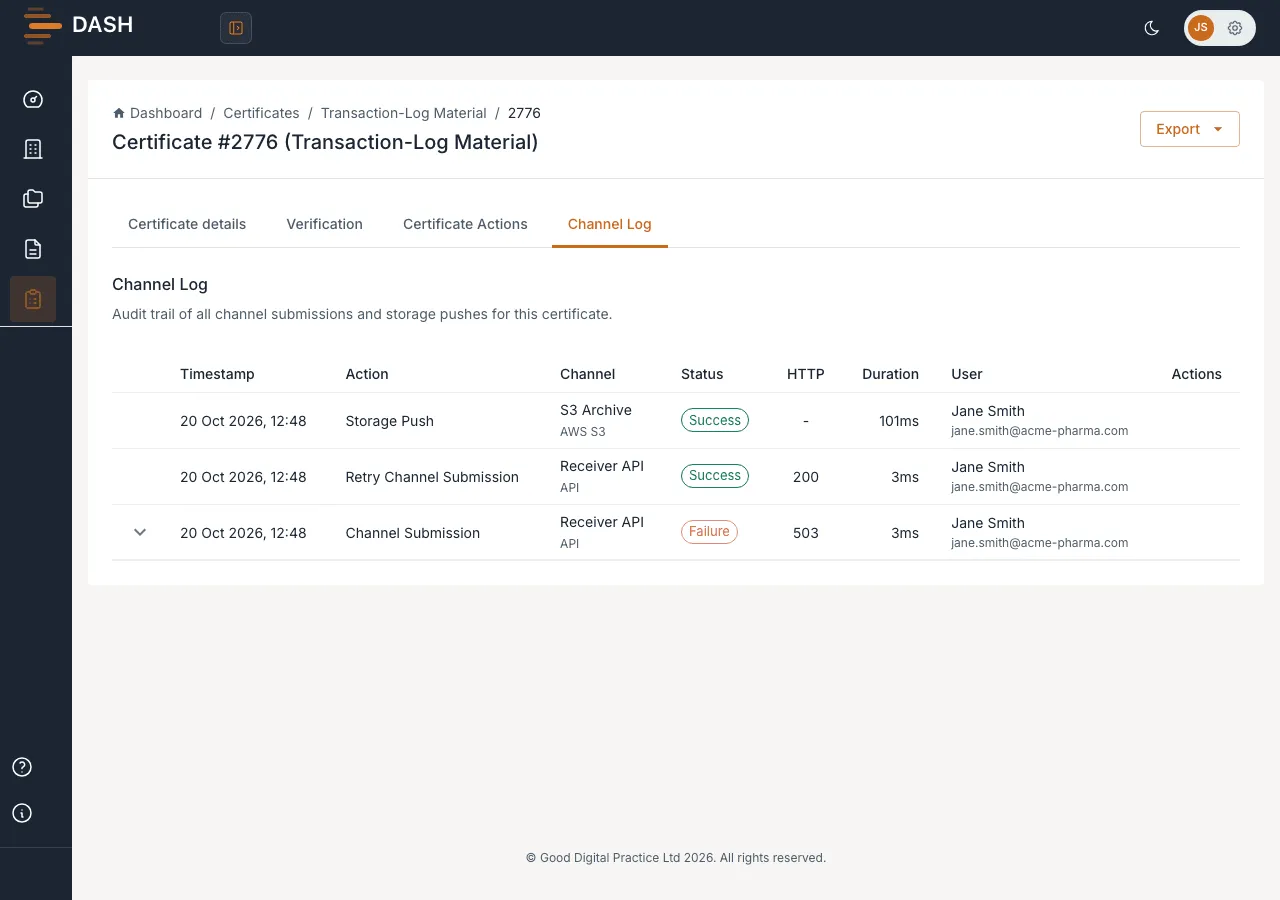
Each row shows:
| Column | What it shows |
|---|---|
| Timestamp | When the attempt finished. |
| Action | What was attempted (see the table below). |
| Channel | The channel’s name, with its type or connector underneath (API, Manual, AWS S3, SharePoint, Veeva Vault). |
| Status | Success or Failure. |
| HTTP | The status code the receiving system returned, or - where there is none (for example the DASH (Manual) channel or a storage upload). |
| Duration | How long the attempt took, in milliseconds. |
| User | The name and email of the person who triggered it, or System for an attempt DASH made by itself, such as a release that resumed automatically or a sealed-PDF delivery. |
A failed row has an arrow on the left. Select it to open Error Details, which holds the error message returned by the channel. That message usually points straight to the cause: a rejected credential, a wrong address, or a reply the receiver didn’t accept.
The Actions you’ll see in the log are:
| Action | Meaning |
|---|---|
| Channel Submission | The first send to the certificate’s submission channel. |
| Retry Channel Submission | A retry of a failed send. It is a separate entry, so the original failure stays on record. |
| Storage Push | An archival copy sent to a storage channel. |
| Retry Storage Push | A retry of a failed archival copy. |
| Signed PDF Delivery | The sealed PDF copy, delivered once sealing finished to a destination that keeps a PDF copy (AWS S3, SharePoint or Veeva Vault). |
What makes the transaction log trustworthy
Section titled “What makes the transaction log trustworthy”- One entry per attempt. Every send, retry and archival copy is recorded exactly once.
- Append-only. An entry is written when its attempt finishes and is never changed or deleted afterwards. No one can edit or remove an entry, including Admins. The protection applies in the database as well as in the app, so the Actions column never offers edit or delete.
- A snapshot of the channel. Each entry keeps the channel’s name, type and connector as they were at the time of the attempt. If the channel is renamed, changed or archived later, old entries still show how the delivery was actually made.
- The person is kept. The name and email of whoever triggered the attempt are stored with the entry and stay readable even if that person later leaves the account.
- No secrets. Channel credentials never appear in an entry, its error details or the stored summary of what was sent.
- It never gets in the way of a release. A problem writing a log entry can’t undo or alter the delivery it describes.
Sends and retries also appear in the account’s Audit log as Certificate Transmitted or Certificate Transmission Failed, each one naming the certificate, the channel and who triggered it.
Search the Transactions page
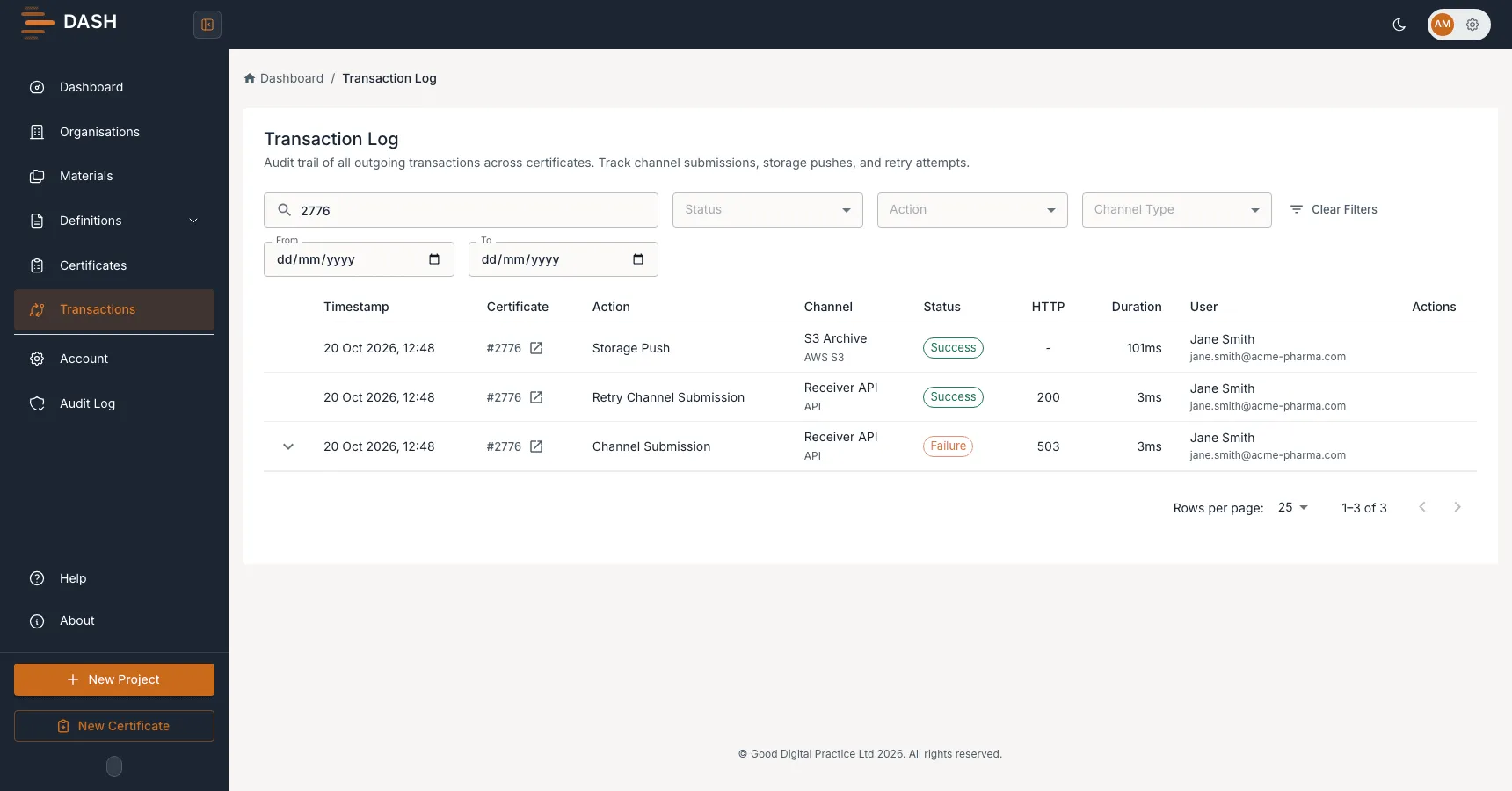
Section titled “Search the Transactions page”- In the sidebar, select Transactions. The Transaction Log page opens, with all entries newest first. It has the same columns as the Channel Log, plus Certificate.
- Narrow the list:
- Search by certificate ID, channel name or organisation.
- Status: All Statuses, Success or Failure.
- Action: All Actions, Channel Submission, Storage Push, Retry Channel or Retry Storage.
- Channel Type: All Channels, API, Storage or Manual.
- From and To: a date range.
- Select a certificate number (for example #1042) to open that certificate.
- Select Clear Filters to start again.