Edit and delete rules
A certificate can be changed freely while it is being prepared. Once it is signed, it becomes a regulated record: DASH locks it, and a certificate that has ever been signed can never be deleted. This page sets out exactly what you can do in each status, and what the messages mean when DASH refuses.
When a certificate can be edited
Section titled “When a certificate can be edited”| Status | Can you change it? |
|---|---|
| Draft (including while its file is being read, or after it couldn’t be read) | Yes. Change the details, upload a new source file, and review and correct the data. |
| Awaiting Approval | Yes. Uploading a new source file returns it to Draft. |
| Signing In Progress | No. Its details are locked while signatures are being collected. |
| Approved for Submission | Its details are locked. The only change allowed is a new source file, which voids every signature. |
| Validation Failed | Its details can’t be changed. Upload a corrected source file. |
| Submitting, Output generation failed, Pass, Fail | No. The certificate is being released or has been released. |
While a source file is still being read, you can’t upload another one until reading finishes or fails.
What you see on a signed certificate
Section titled “What you see on a signed certificate”When you open a signed certificate, Certificate details shows “This certificate has been signed, so its details are locked and cannot be edited.” The Definition Version, Definition Map and channel fields are greyed out, and the header offers neither Save nor Delete. If something tries to change it anyway, DASH refuses with “Only draft or awaiting approval submissions can be updated.”
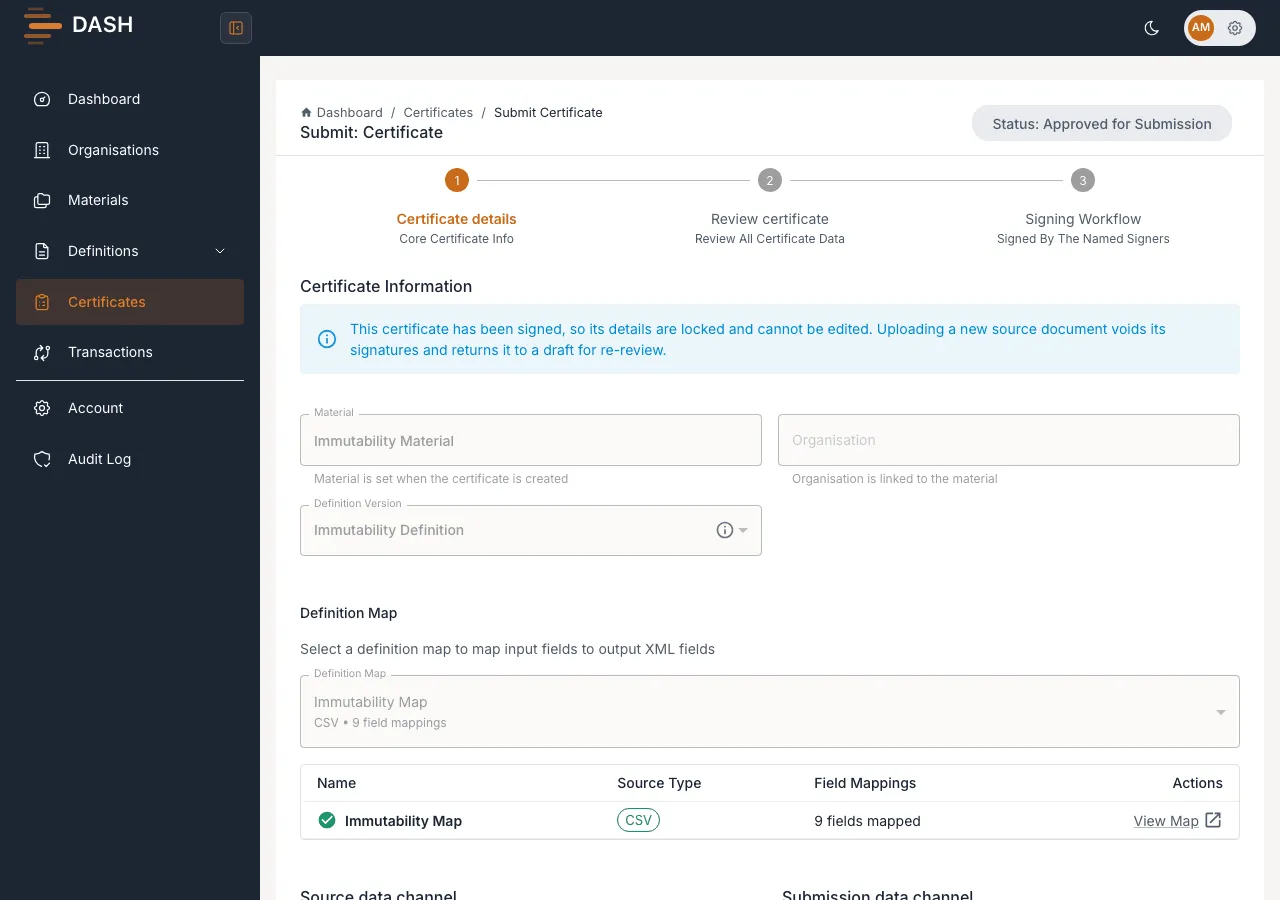
The Definition Map behind a signed certificate is locked as well, so nobody can change how its data is read while the signature stands. See Edit, lock & archive a definition map.
Correcting a signed certificate
Section titled “Correcting a signed certificate”If a signed certificate turns out to be wrong, the only way to change its data is to upload a corrected source file on Certificate details. DASH warns you first in the Replace signed certificate data? dialog. Selecting Void Signature & Upload permanently voids every signature, clears its validation result and returns the certificate to Draft. It must then be reviewed and signed again. The voided signatures stay on record.
You can do this while the certificate is Approved for Submission or Validation Failed. It is refused part-way through a signing workflow, and once release has started, with “This certificate can no longer accept a new source document.” After the certificate has been released, it is refused with “This certificate has been submitted and is sealed — it can no longer accept a new source document.” To correct a released certificate, create a new one.
The full procedure is in Void on change.
When a certificate can be deleted
Section titled “When a certificate can be deleted”You can delete a certificate only when all of these are true:
- you hold permission to delete certificates (by default, the Admin role);
- it is a Draft, Awaiting Approval, or a draft whose source file couldn’t be read;
- it has never been signed, not even with a signature that was later voided.
Signed and released certificates are permanent records. DASH keeps them, together with their signing history, for good.
Delete a certificate
Section titled “Delete a certificate”- Open the certificate and select Delete in the header. Or, on the Certificates page, open the row’s more actions menu and select Delete.
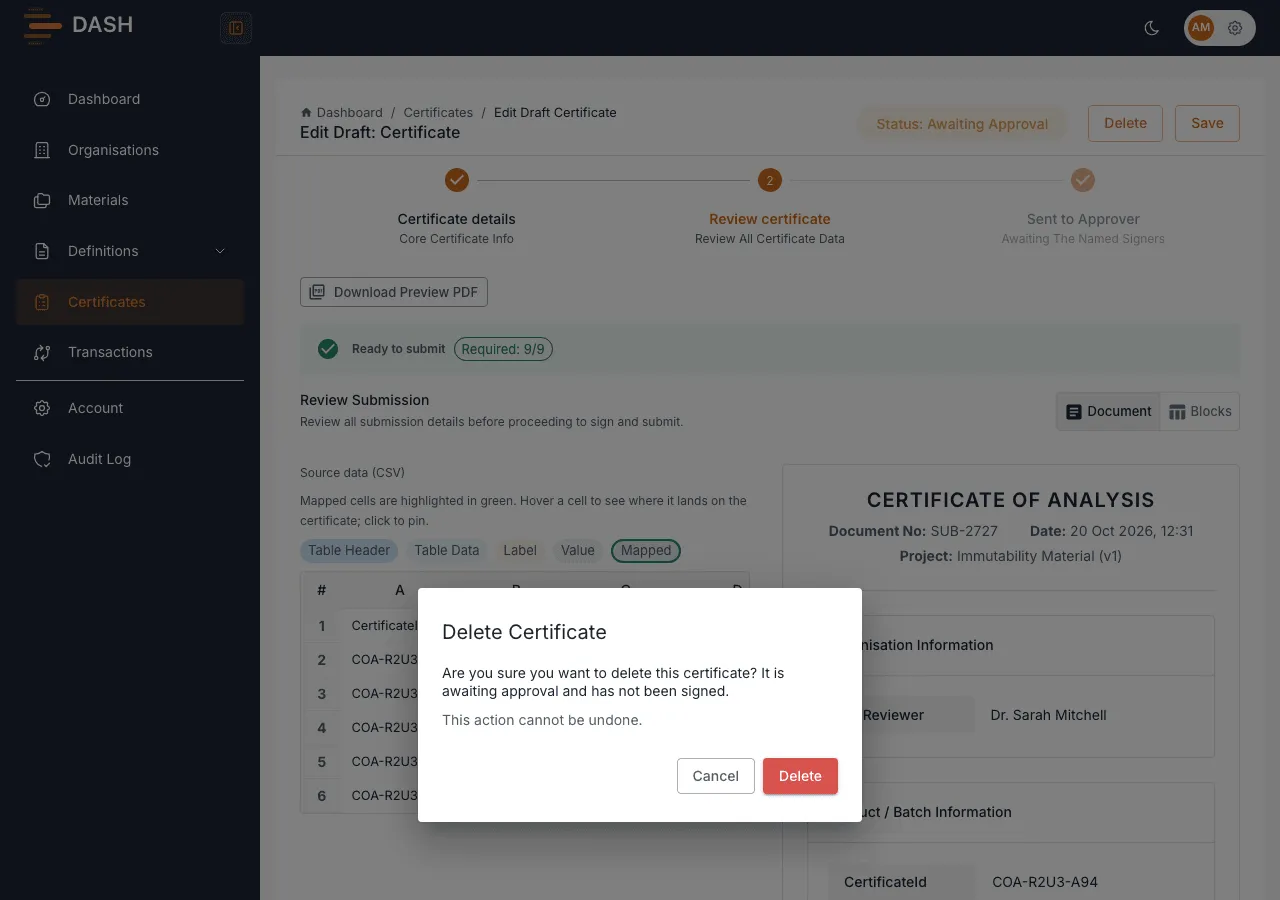
- The Delete Certificate dialog asks you to confirm. The question names the certificate’s state, for example “Are you sure you want to delete this certificate? It is awaiting approval and has not been signed.”, followed by “This action cannot be undone.”
- Select Delete. Nothing is deleted until you confirm. DASH confirms with Certificate deleted.
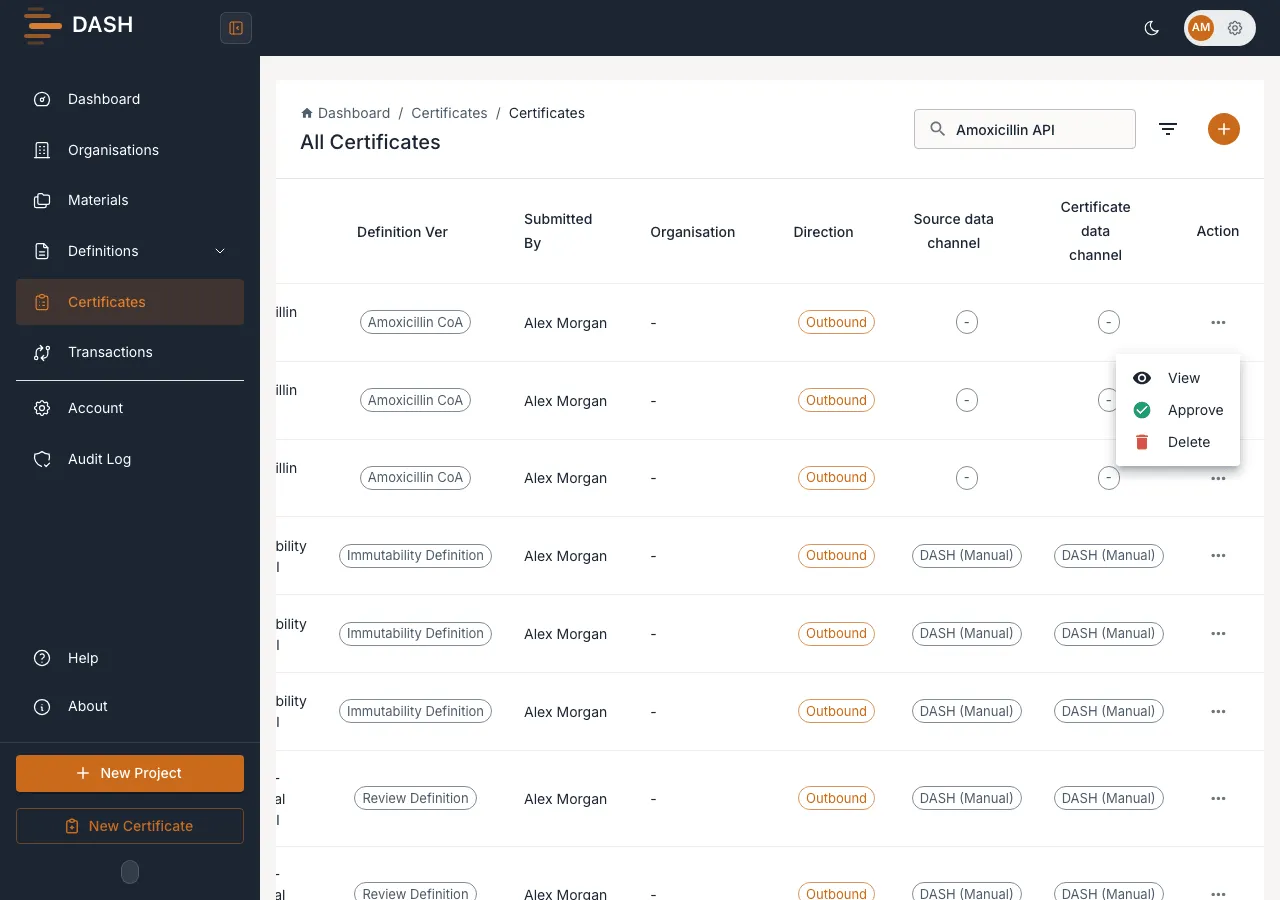
To delete several at once, tick them on the Certificates page and select the delete icon that appears above the list (Delete selected certificates). The dialog asks “Are you sure you want to delete these N certificates?” If any of them can’t be deleted, the icon is disabled and its tooltip says why. If one is refused after you confirm, the dialog stays open and lists the reason for that certificate.
When DASH refuses a deletion
Section titled “When DASH refuses a deletion”| What you see | Why | What to do |
|---|---|---|
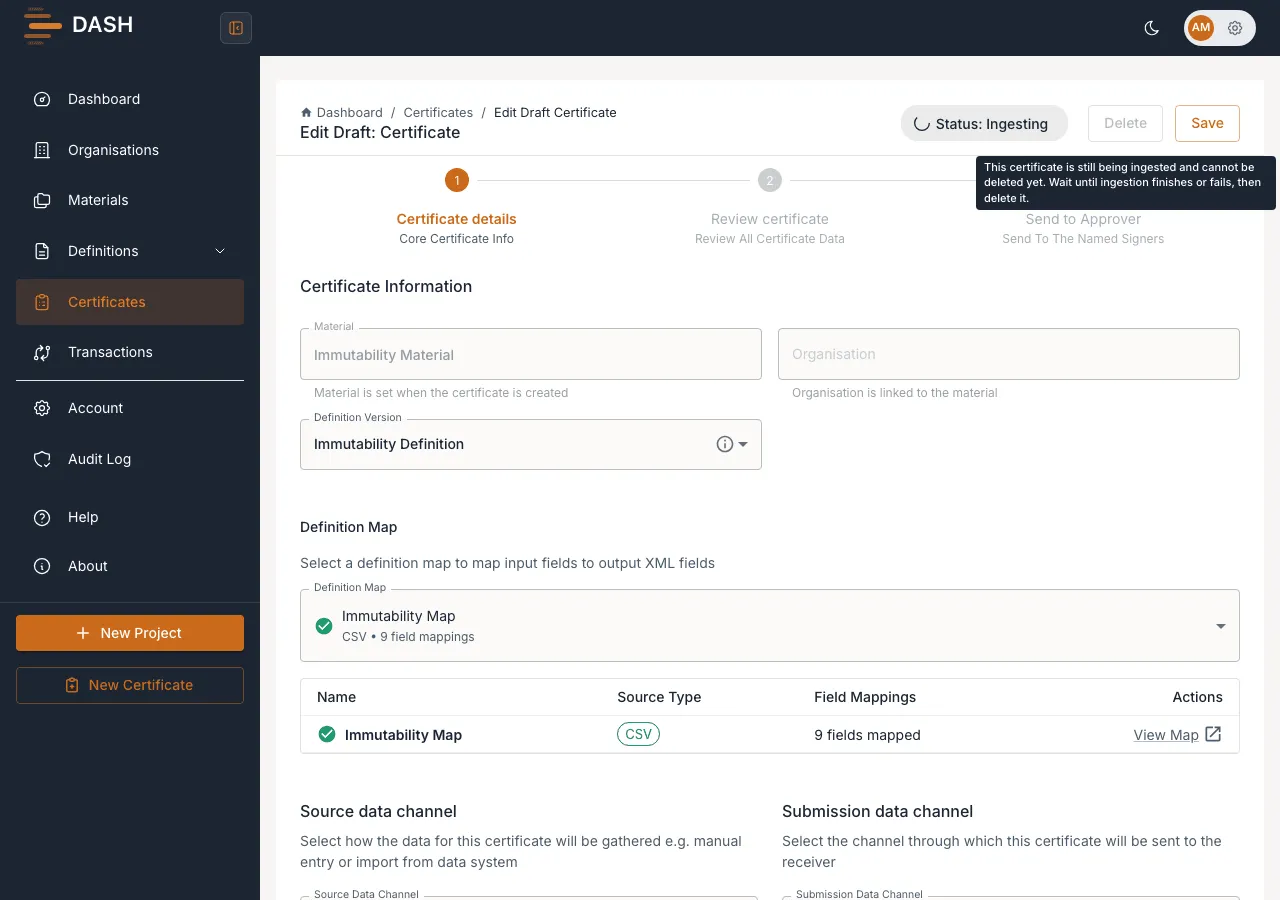
| Delete is greyed out. Hovering it shows “This certificate is still being ingested and cannot be deleted yet. Wait until ingestion finishes or fails, then delete it.” (In the row menu: Available once ingestion finishes or fails.) | DASH is still reading the source file. | Wait until reading finishes or fails, then delete it. |
| No Delete is offered, or the bulk delete tooltip says “Only draft, awaiting-approval or ingest-failed certificates can be deleted; signed or released certificates are kept as permanent records.” | The certificate is signed, being released, or released. | Nothing. It is kept as a permanent record. |
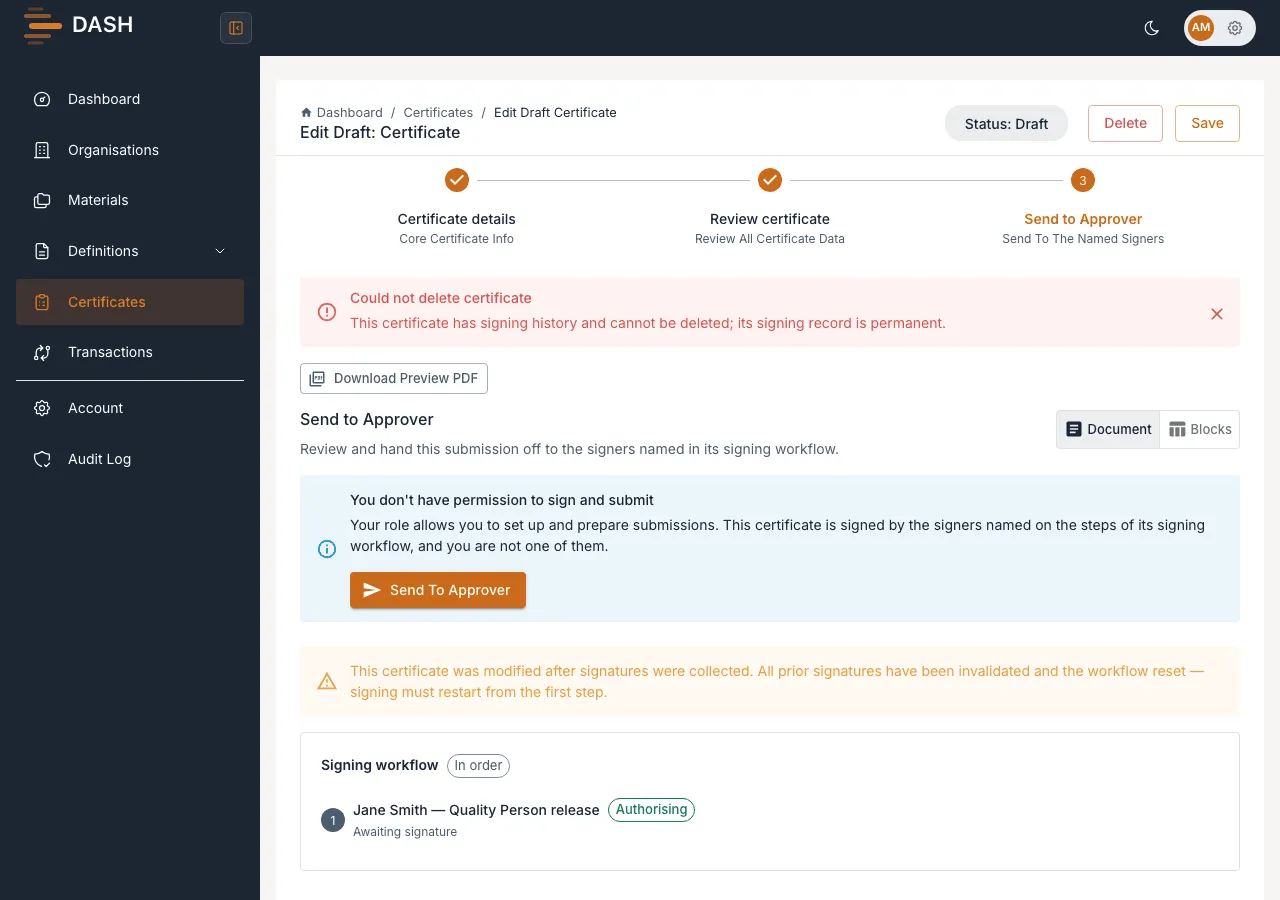
| Could not delete certificate — “This certificate has signing history and cannot be deleted; its signing record is permanent.” | It was signed at some point, even though the signature was later voided and it is a draft again. | Nothing. Its signing record is permanent. |
| “This certificate has been submitted and is sealed — it cannot be deleted.” | It has been released. | Nothing. Released certificates are kept. |