

Support access
To diagnose a problem, DASH support can sometimes work inside your account as one of your users and see exactly what that person sees. This is called impersonation. It’s tightly limited, and every session is recorded in your account’s own audit trail, so your administrators can always see who did what.
The limits on a support session
Section titled “The limits on a support session”- No more than the user’s own access. The support operator can do only what the person they’re acting as can do, with the same role, the same Material access and the same plan. They get no extra privileges.
- Not a back door to staff accounts. Impersonation can only target your users. It can’t be used to act as another DASH staff member.
- Started deliberately. Each session starts from a single-use hand-off that expires after 60 seconds, so it can’t be started casually or replayed.
- Clearly labelled throughout. While the session lasts, the operator’s screen shows an orange banner on every page: “[operator] is viewing as [user name] ([user email])”, with a Stop Impersonating button. The operator can end the session at any time and return to their own.
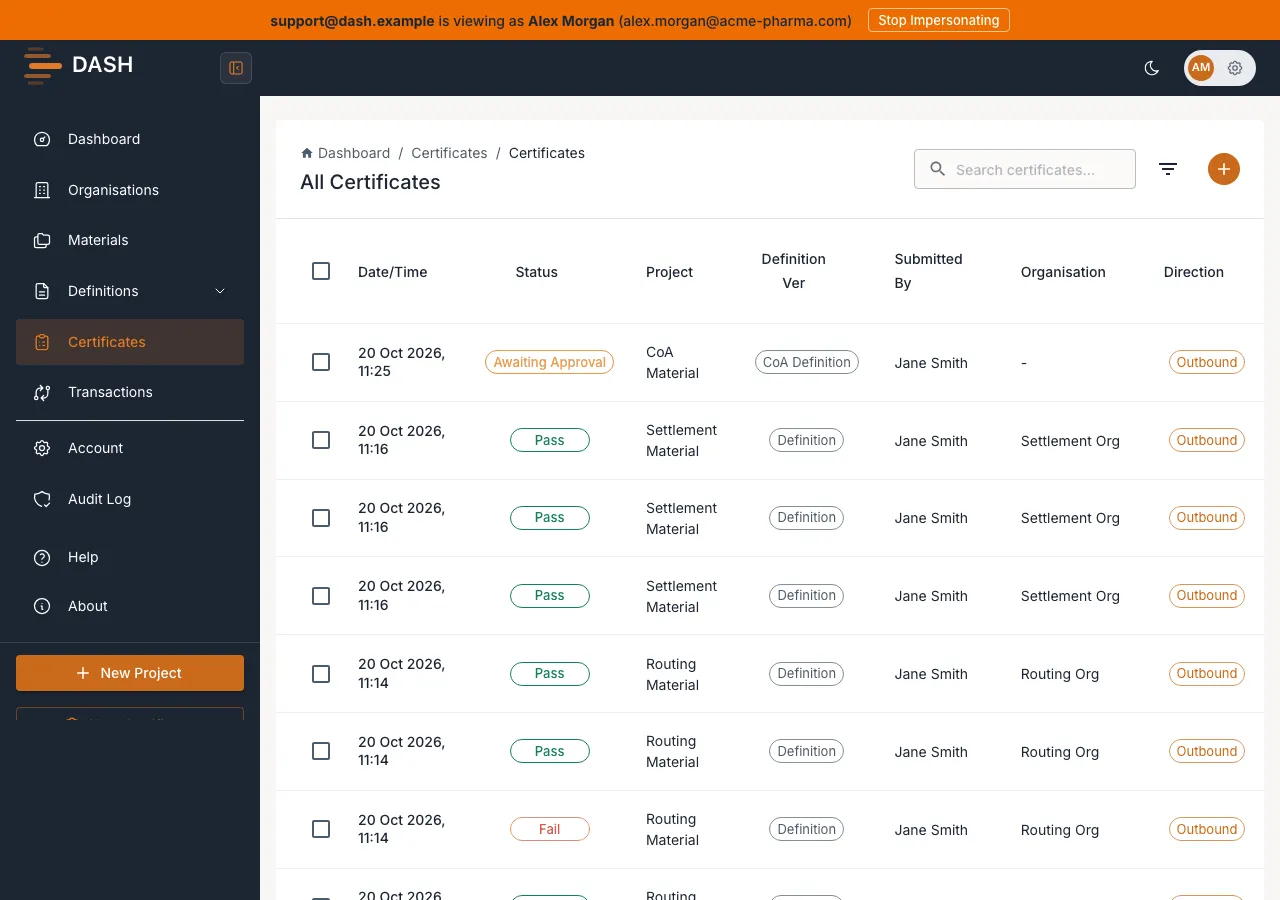
The banner appears in the operator’s session, not on your users’ screens. To know about a session afterwards, use the Audit Log.
Find support sessions in the Audit Log
Section titled “Find support sessions in the Audit Log”- Select Audit Log in the sidebar. The Auth Events tab opens.
- Open Action and choose Impersonation Started or Impersonation Stopped. Both are under Ownership & Impersonation.
- Each session’s start and end are listed, naming the operator and the user they acted as. Entries made during a session carry an orange impersonated chip.
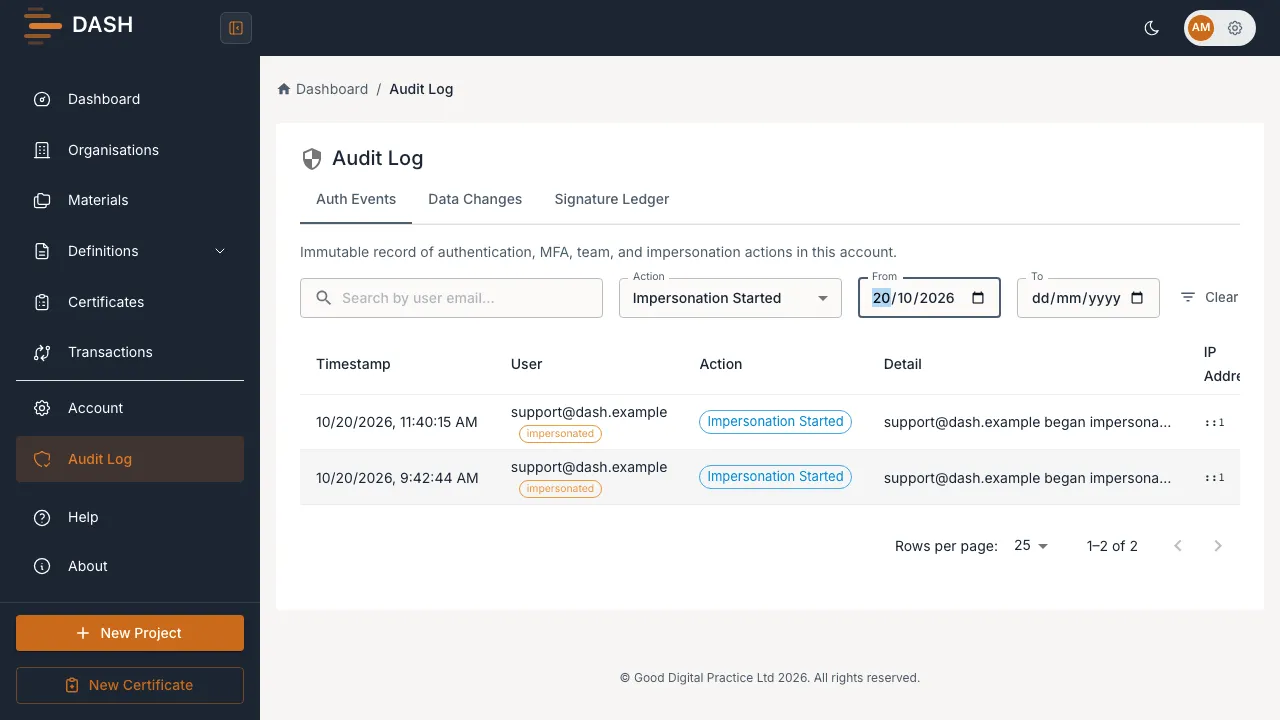
If the impersonated person belongs to more than one DASH account, each of those accounts records the session in its own Audit Log. Each account sees only its own entries.
See what was done during a session
Section titled “See what was done during a session”Anything changed during a session is recorded under the user’s name and the real operator’s, so you can always tell who actually did it.
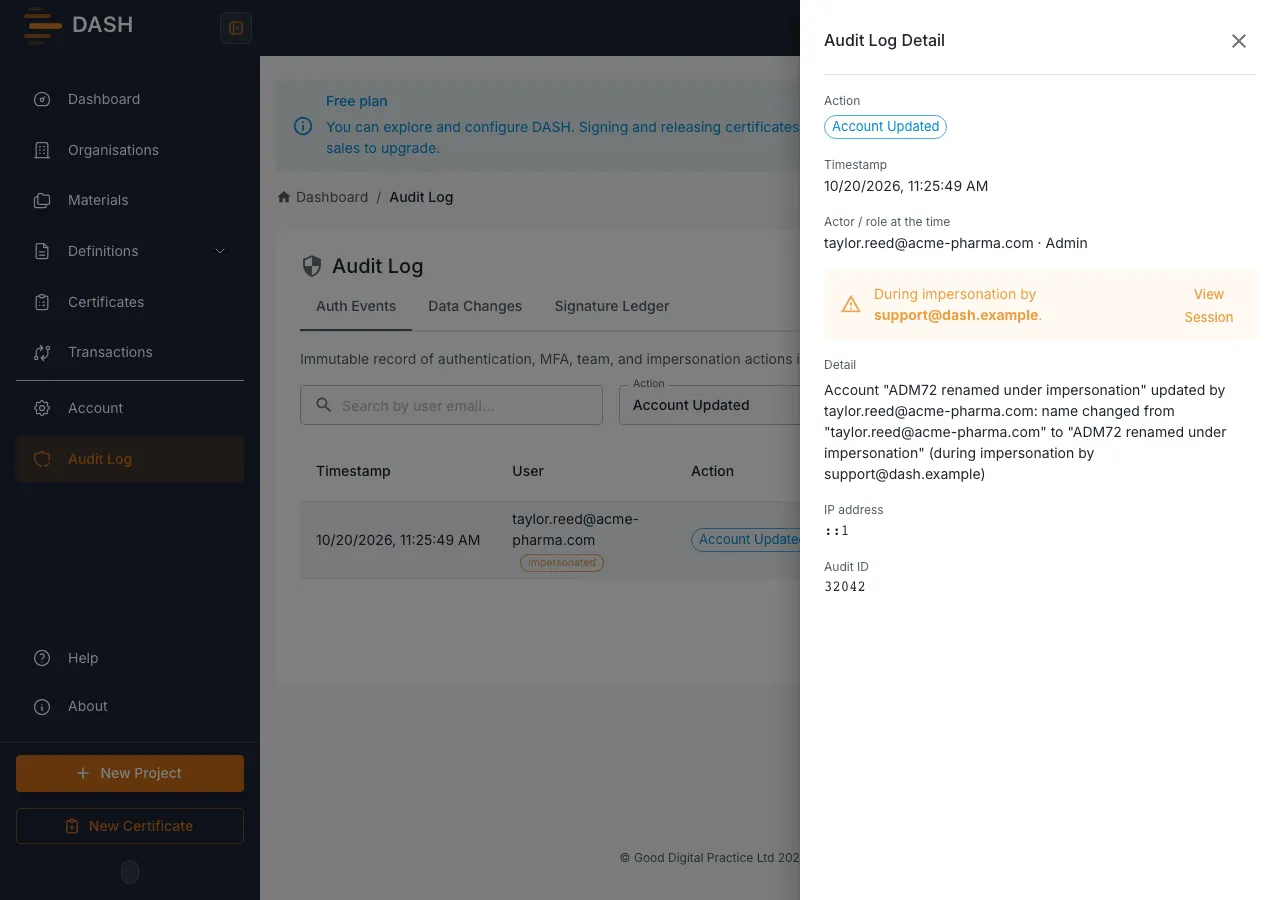
- Select an entry with the impersonated chip. The Audit Log Detail panel opens.
- It shows “During impersonation by [operator].” beside the entry’s normal details: the action, when it happened, Actor / role at the time and the detail. On the Data Changes tab the wording is “Performed while [operator] was impersonating this user.”
- Select View Session. You can also select the impersonated chip in the list.
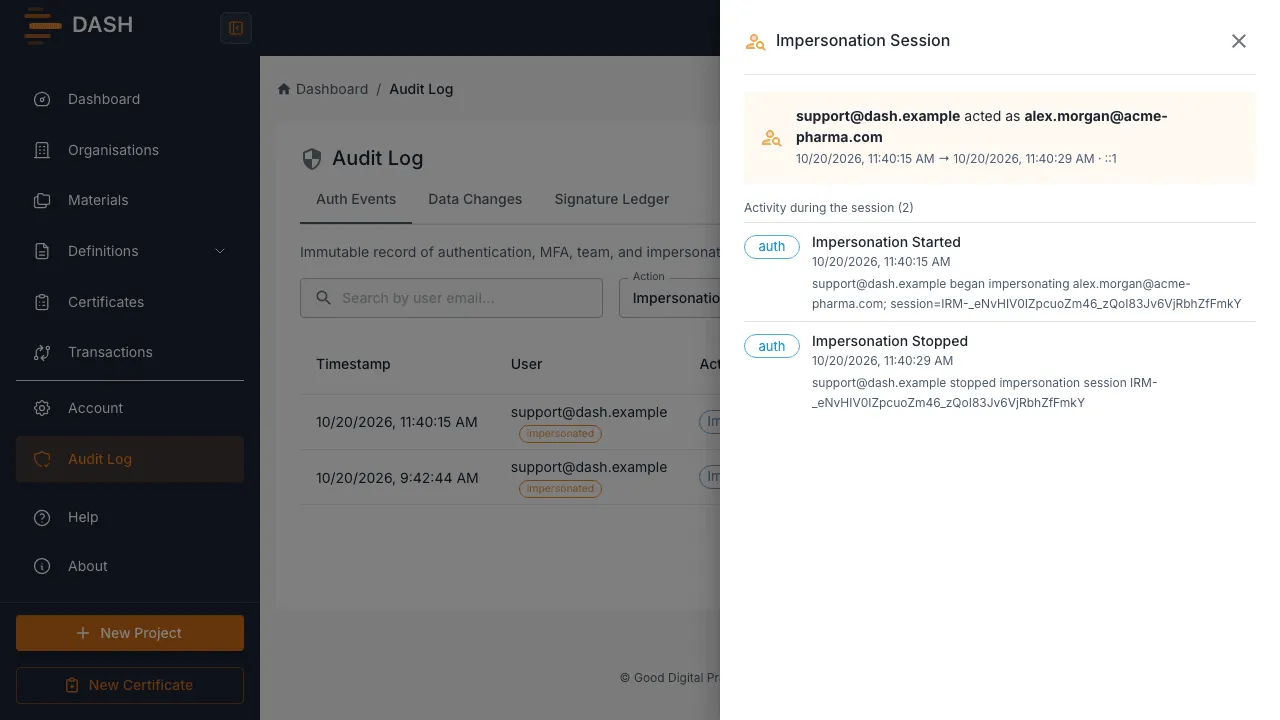
The Impersonation Session panel shows “[operator] acted as [user]”, the start and end times (or still active), and Activity during the session: every audited action from that session, in order.
Investigations beyond your account
Section titled “Investigations beyond your account”DASH staff can also review sign-in attempts and support sessions across the whole platform, for security investigations and to hold their own operators to account. If you need such an investigation, for example into activity that might involve more than your account, contact DASH support.