

Backup codes
Backup codes are your way back in if your authenticator device is lost, broken or not to hand. DASH issues eight of them when you set up an authenticator app. Each one finishes a single sign-in.
Sign in with a backup code
Section titled “Sign in with a backup code”- Sign in with your email and password as usual. DASH opens the Two-factor verification screen.
- Select Lost Your Authenticator? Use A Backup Code. The screen changes to “Enter one of your saved backup codes”.
- Type one of your codes into Backup code. You can include or leave out the hyphen, and upper or lower case both work.
- Select Verify. DASH signs you in.
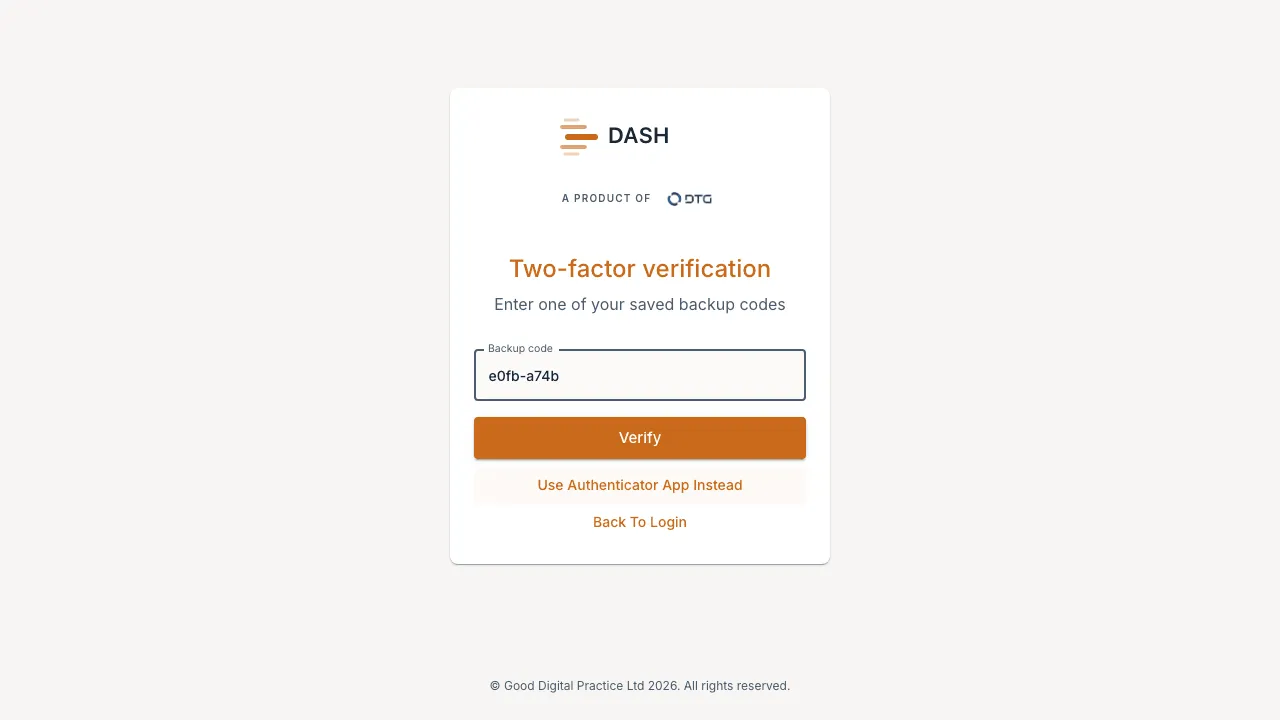
To go back to entering an authenticator code, select Use Authenticator App Instead.
The five-minute limit and the five-wrong-attempts limit apply here too, just as for authenticator codes. See MFA required at login.
Each code works once
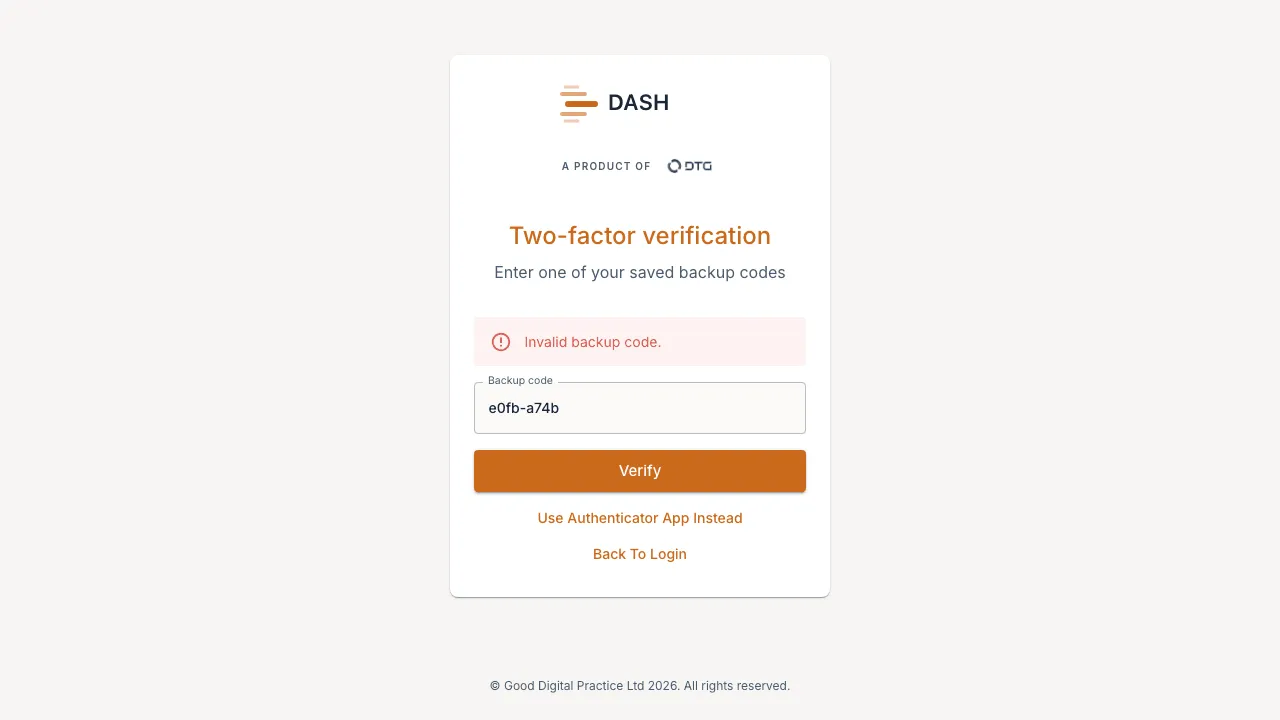
Section titled “Each code works once”A backup code is used up the moment it signs you in. If you try the same code again, DASH refuses it with “Invalid backup code.”
DASH never shows your codes again after the moment they are issued. It doesn’t store them in a form it can read back. The Security tab shows only how many you have left:
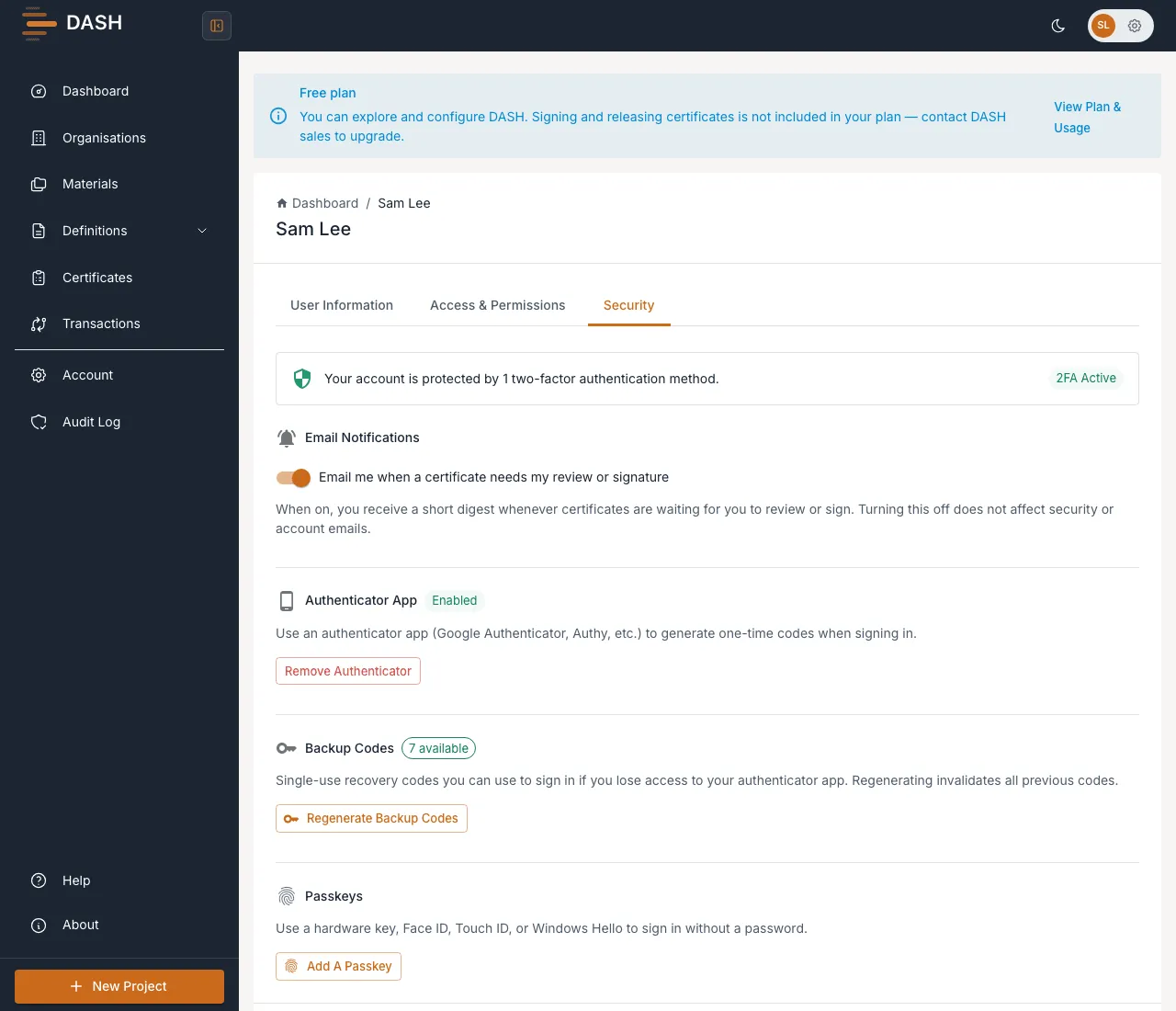
| Chip | Meaning |
|---|---|
| N available (green) | You have N unused codes. |
| N left (amber) | Only one or two codes remain. Generate a fresh set soon. |
| Not generated (amber) | Your account has never had backup codes. Select Generate Backup Codes. |
When you are running low
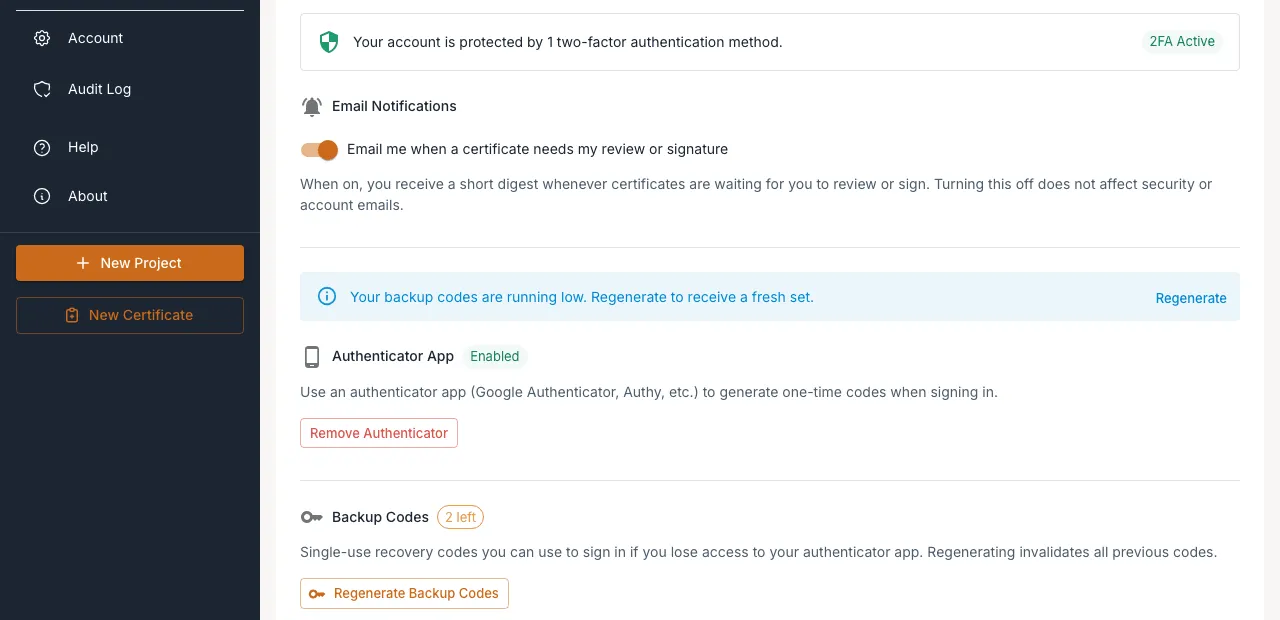
Section titled “When you are running low”When only one or two codes remain, the chip on the Backup Codes section turns amber and reads N left. If you have just signed in with a backup code and are down to two or fewer, the Security tab also shows the banner “Your backup codes are running low. Regenerate to receive a fresh set.” with a Regenerate button.
If your account has no backup codes at all, a similar banner says “No backup codes are saved for this account. Generate them now so you can recover access if you lose your authenticator.” with a Generate Now button.
Generate a fresh set of backup codes
Section titled “Generate a fresh set of backup codes”Generate a new set when you are running low, have used several, or think someone may have seen your codes.
- Select your avatar, then User Settings, then the Security tab.
- Select Regenerate Backup Codes, or Generate Backup Codes if you have none. You can also select Regenerate or Generate Now on the banner.
- In the Regenerate backup codes dialog, type the current code from your authenticator app into 6-digit code and select Generate Codes.
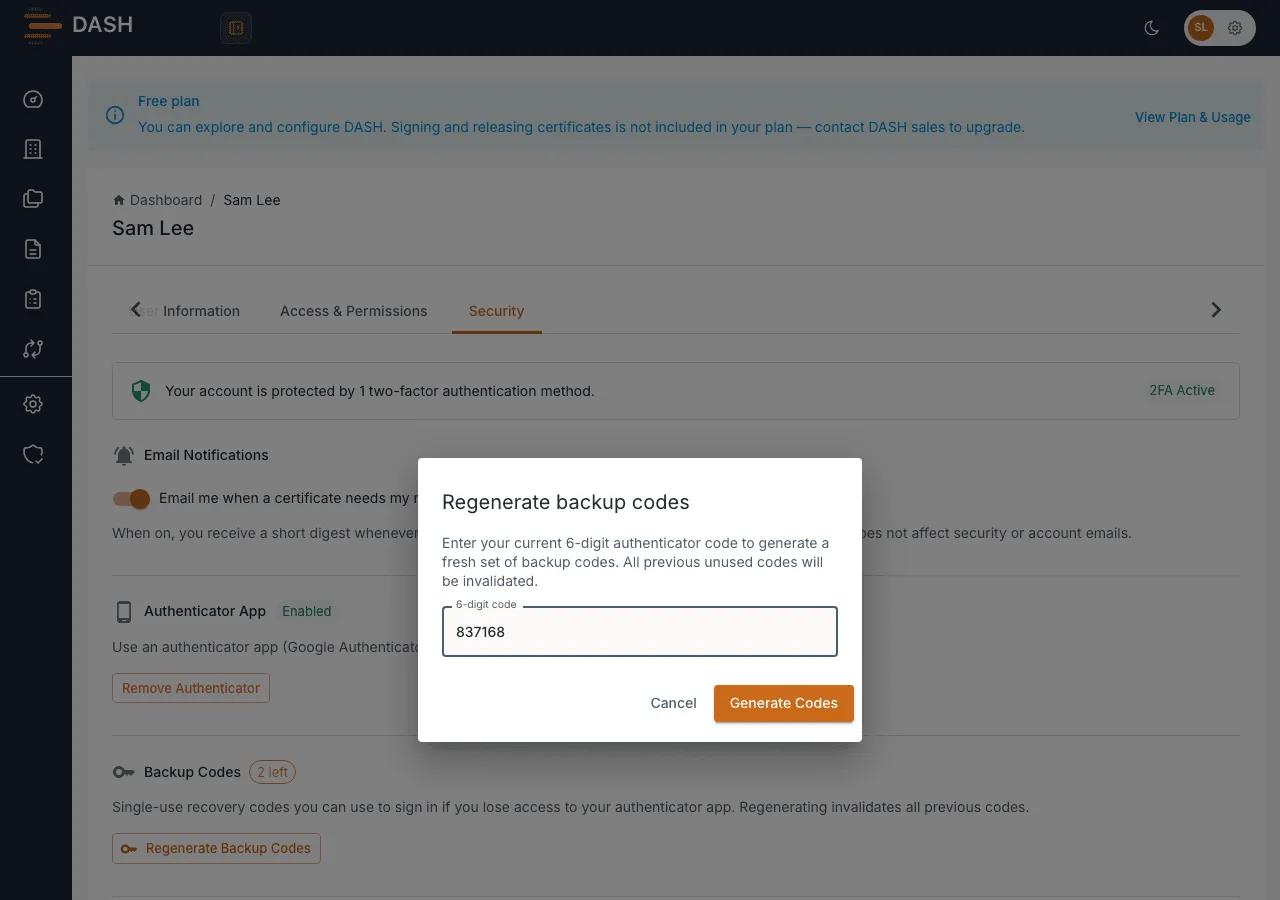
- The dialog changes to Your new backup codes and shows eight new codes. Save them straight away, then select Done.
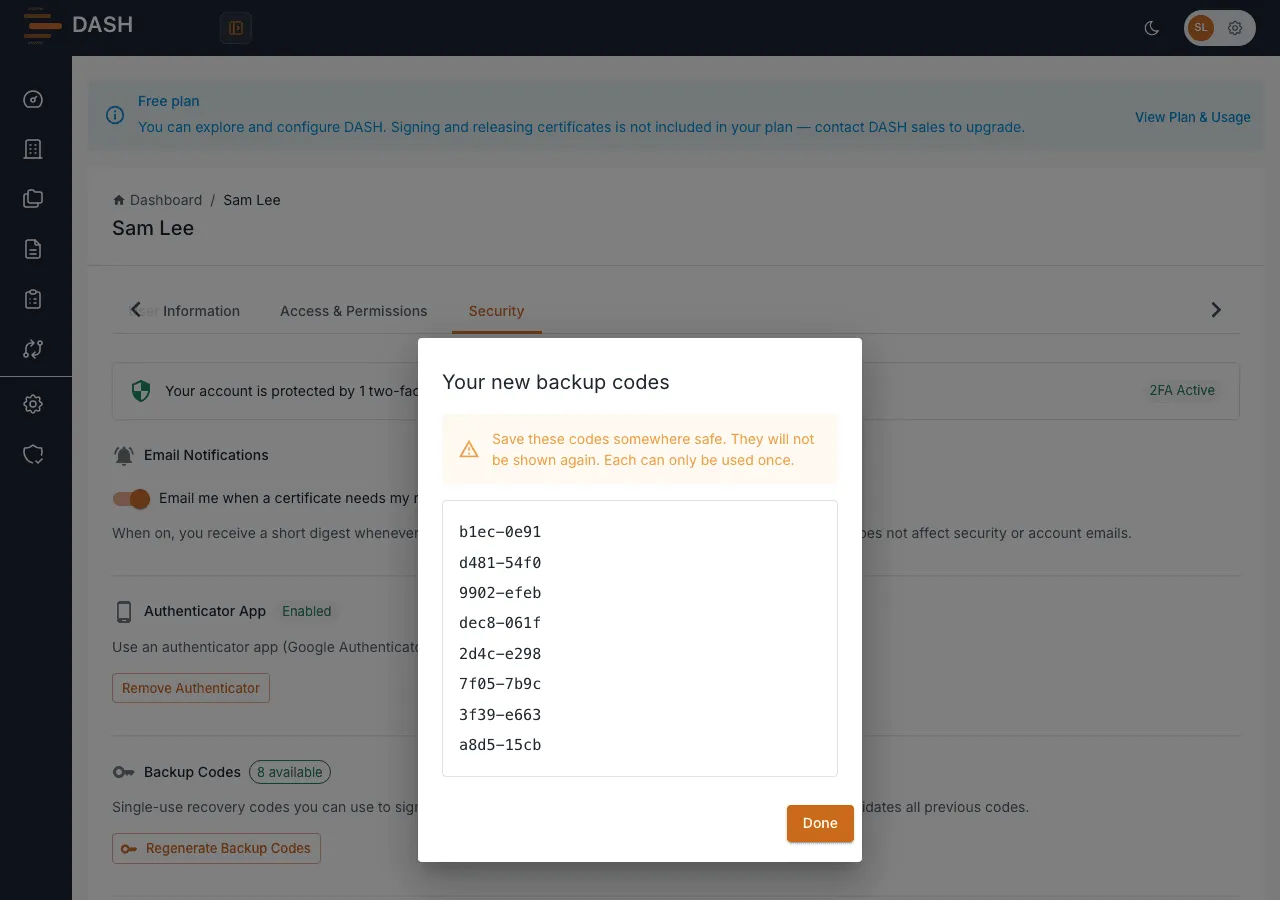
The authenticator code you use here counts as used, like any other. DASH won’t accept the same code again for sign-in or step-up.
If you have lost your authenticator
Section titled “If you have lost your authenticator”- You still have backup codes: sign in with one. Then, on the Security tab, remove the old authenticator and set up your new device. See Set up an authenticator app.
- You have a registered passkey: select Sign In With Passkey on the sign-in screen. No code is needed. See Passkeys.
- You have neither: you can’t complete sign-in yourself, and your account Admin can’t remove your authenticator for you. Contact DASH support.