Deactivate and reactivate users
When someone leaves the team or changes job, deactivate their membership. They lose access to your account straight away. Nothing they did is erased: their row stays in the user list and every audit entry still names them. If they come back, reactivate them and they get their previous role back.
Membership statuses
Section titled “Membership statuses”| Status | Meaning |
|---|---|
| Pending | Invited, but the invitation hasn’t been accepted yet. |
| Active | A current member who can work in the account. |
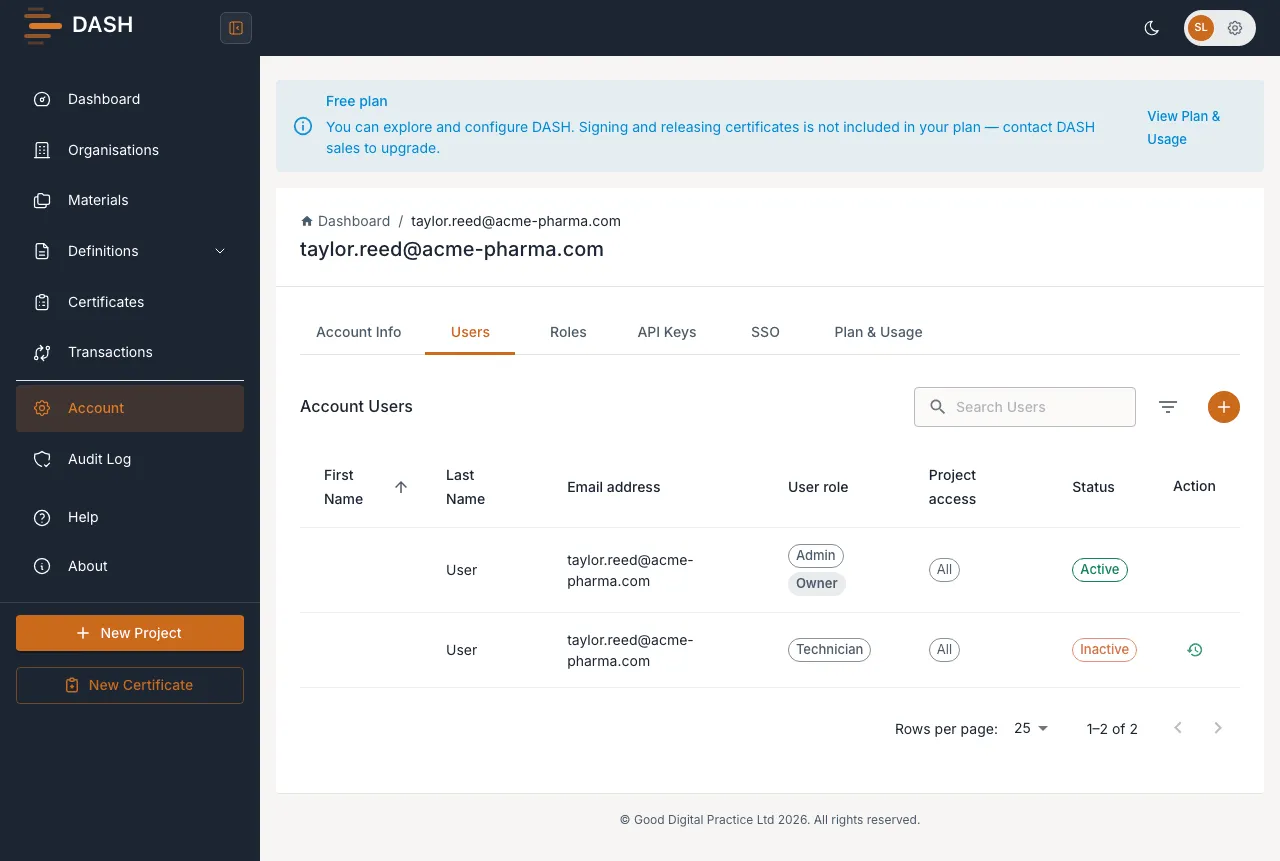
| Inactive | Deactivated. The membership and its role are kept, but the person can’t act in this account. |
Deactivate a member
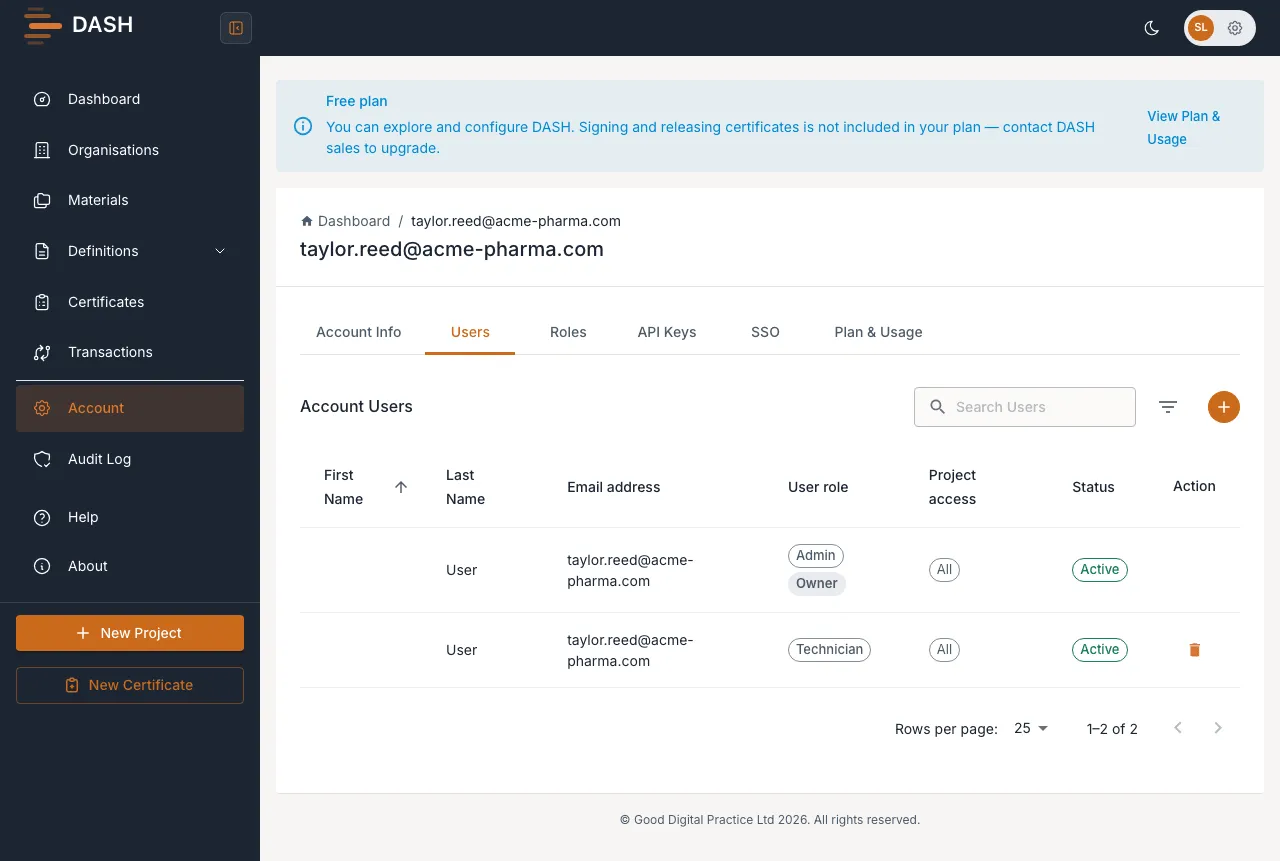
Section titled “Deactivate a member”- Select Account in the sidebar, then the Users tab.
- Find the member. Type a name or email in Search Users if the list is long.
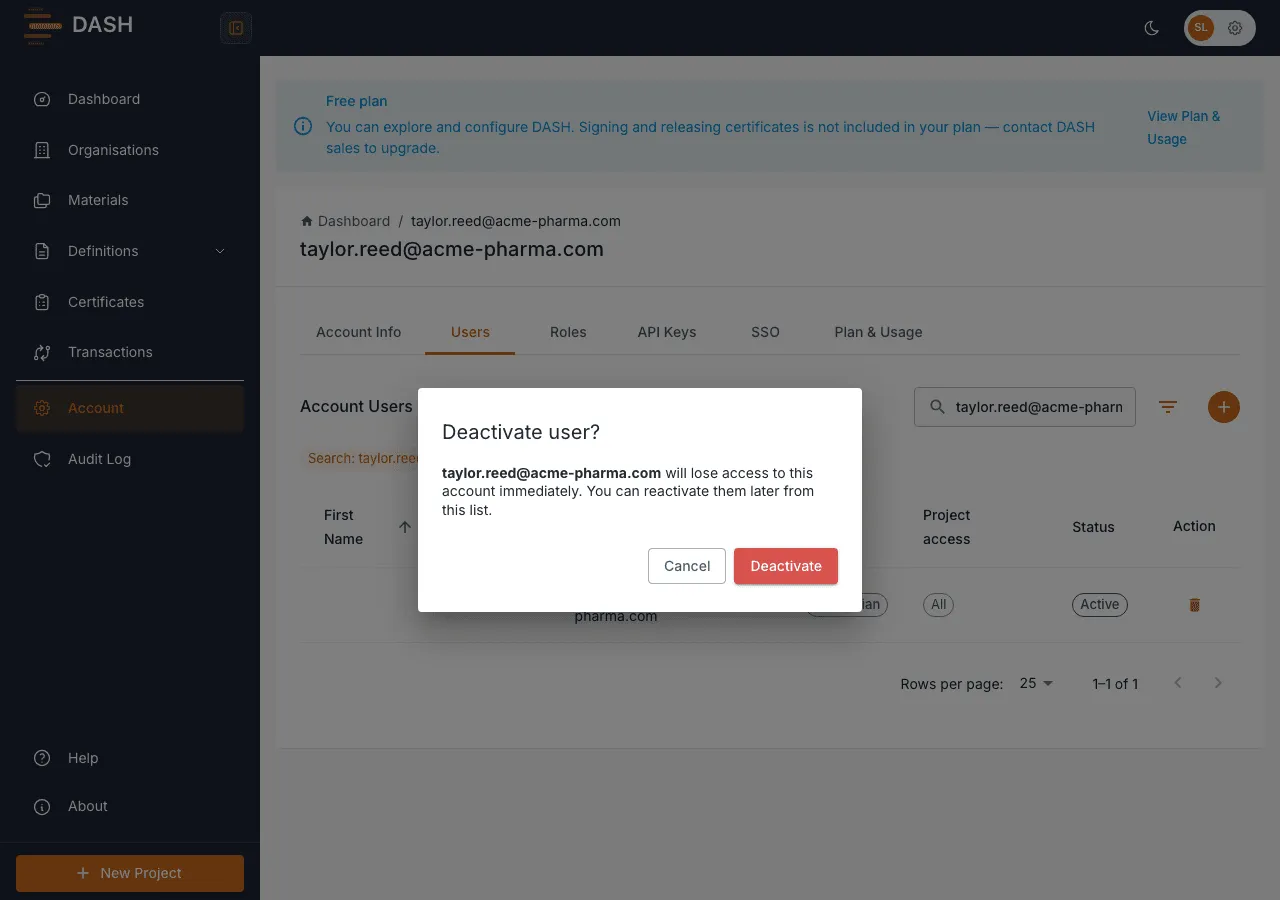
- In the member’s row, select the red bin icon (tooltip “Deactivate user”). The Deactivate user? dialog opens: “[email] will lose access to this account immediately. You can reactivate them later from this list.”
- Select Deactivate. DASH confirms “User deactivated successfully” and the status changes to Inactive.
You can also deactivate from the member’s own record: select the row to open it, and on the User Information tab select Deactivate. The same confirmation appears. The record doesn’t offer Deactivate for a member who is still Pending. Use the bin icon in the list instead.
DASH refuses to deactivate the account’s only active Admin: “Cannot remove the only admin. Promote another user to Admin first.” For the owner it says “Cannot deactivate the account owner. Transfer ownership first.”
What deactivation does and doesn’t do
Section titled “What deactivation does and doesn’t do”- It takes effect immediately. The person can no longer act in your account.
- It affects your account only. If the person also belongs to other DASH accounts, they keep full access to those. When they next sign in, your account simply isn’t offered to them.
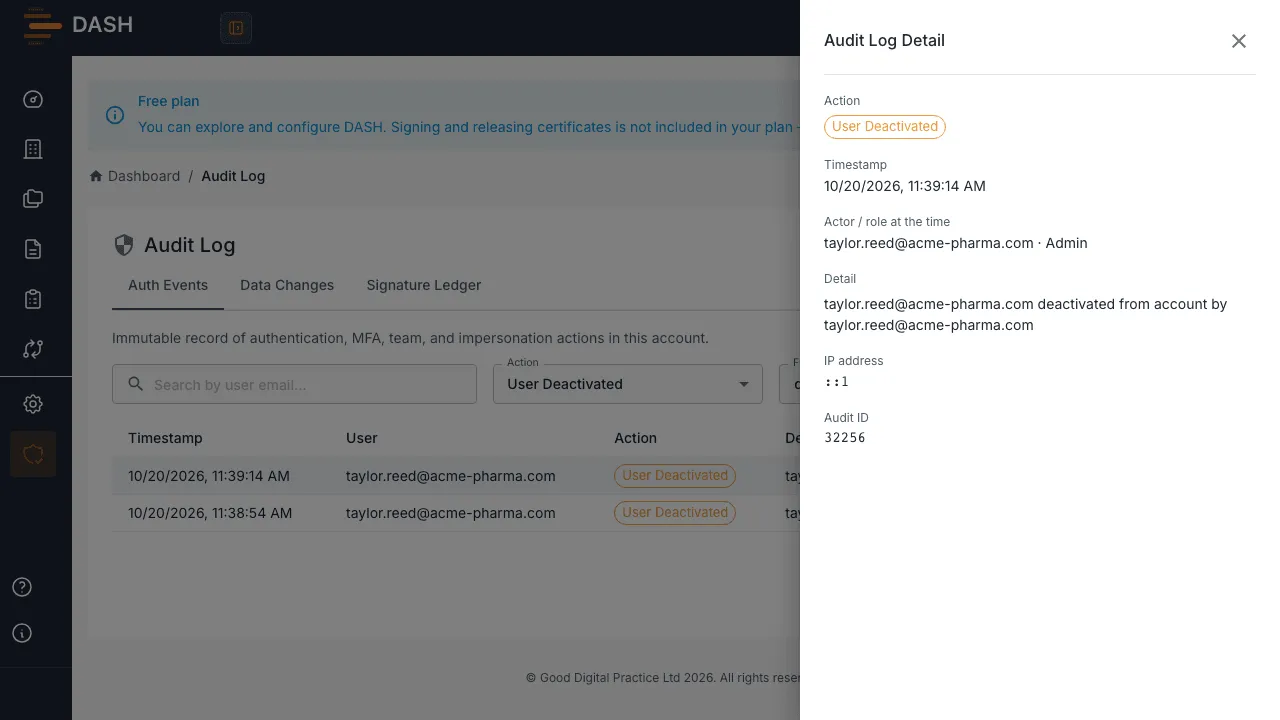
- It keeps their history. The membership stays in your list as Inactive, with its role, and every audit entry still names them and the role they held at the time.
- It doesn’t delete the person. DASH has no “delete user” action for accounts. If DASH ever has to remove a person’s record entirely, their past entries stay readable and show them as a removed user.
Find deactivated members
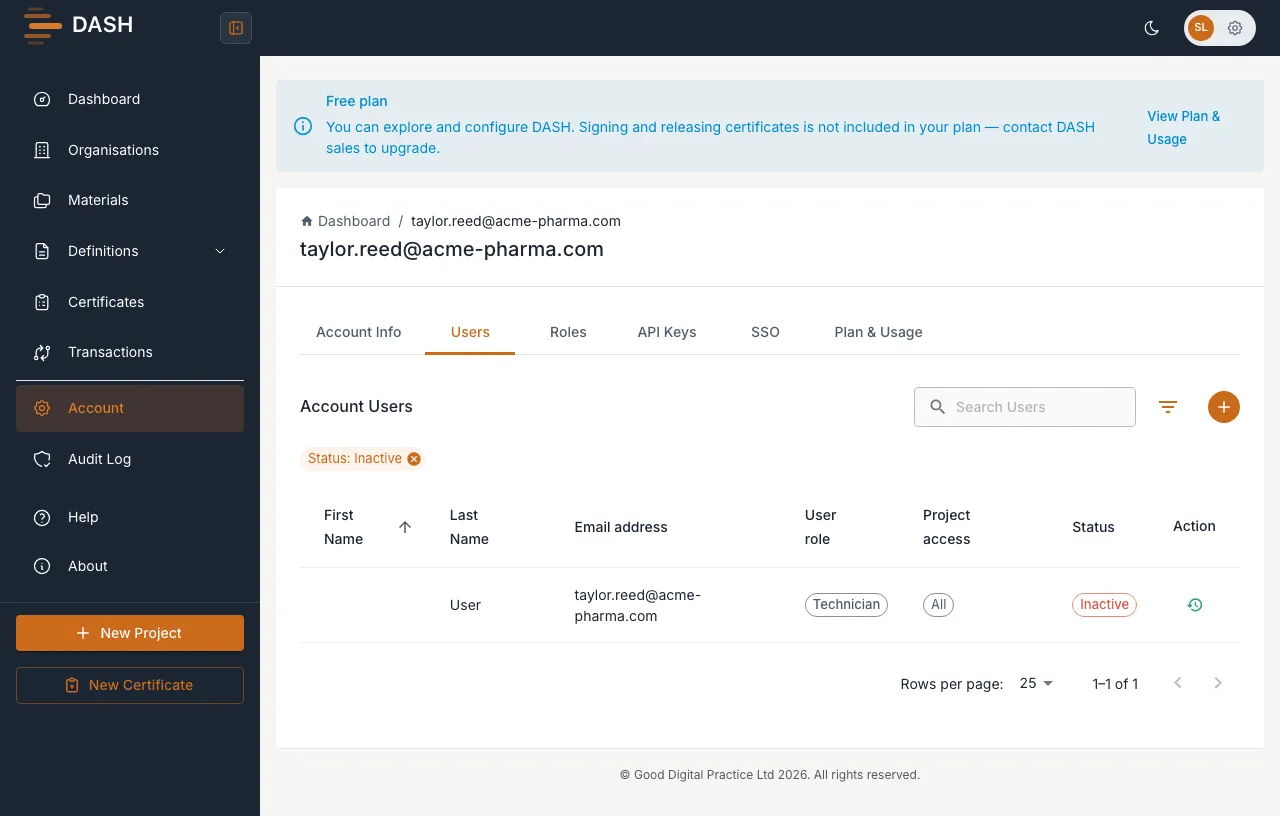
Section titled “Find deactivated members”- On the Users tab, select the Filter icon.
- Under Filter by Status, choose Inactive. You can also choose Active, Pending or All Statuses, and filter by role under Filter by Role.
- The active filters appear as chips above the list. Select Clear All Filters in the same menu to remove them.
Reactivate a member
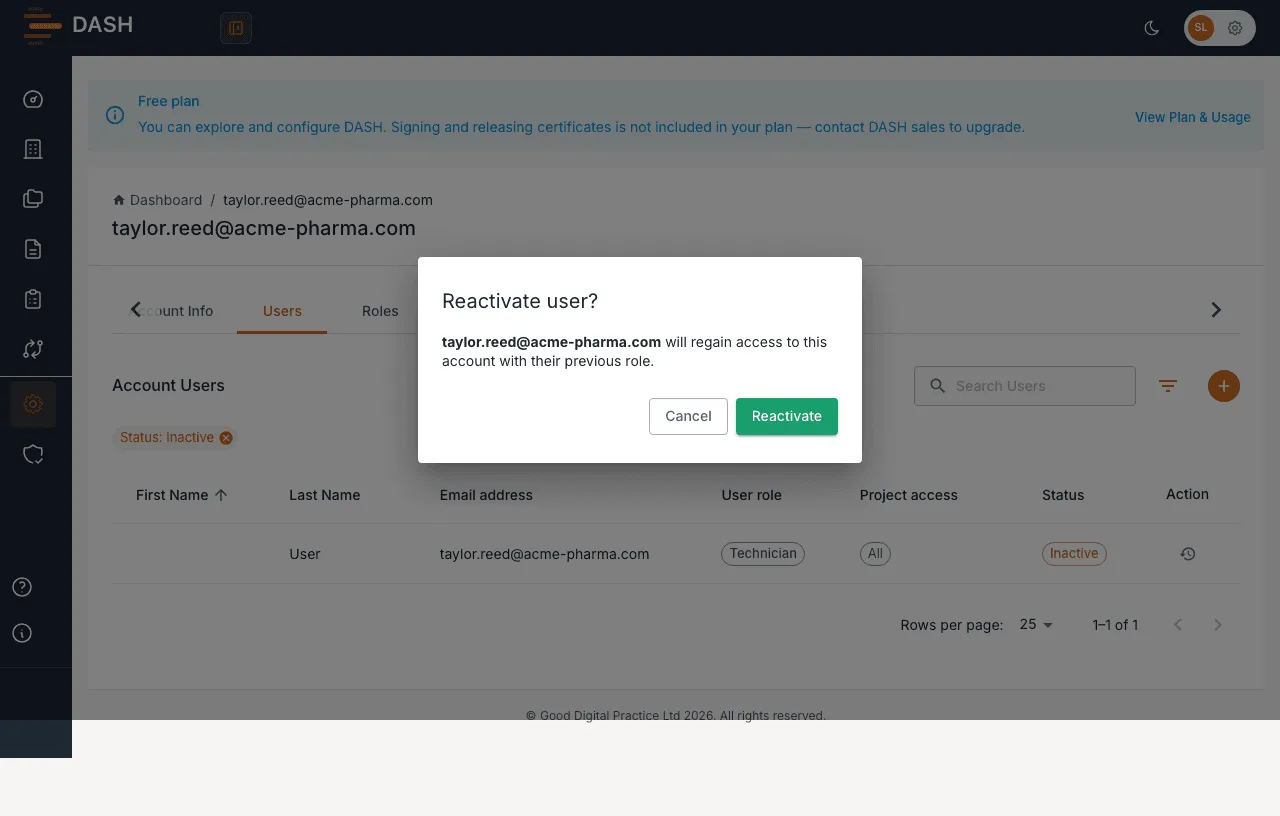
Section titled “Reactivate a member”- In the member’s row, select the green restore icon (tooltip “Reactivate user”). The Reactivate user? dialog opens: “[email] will regain access to this account with their previous role.”
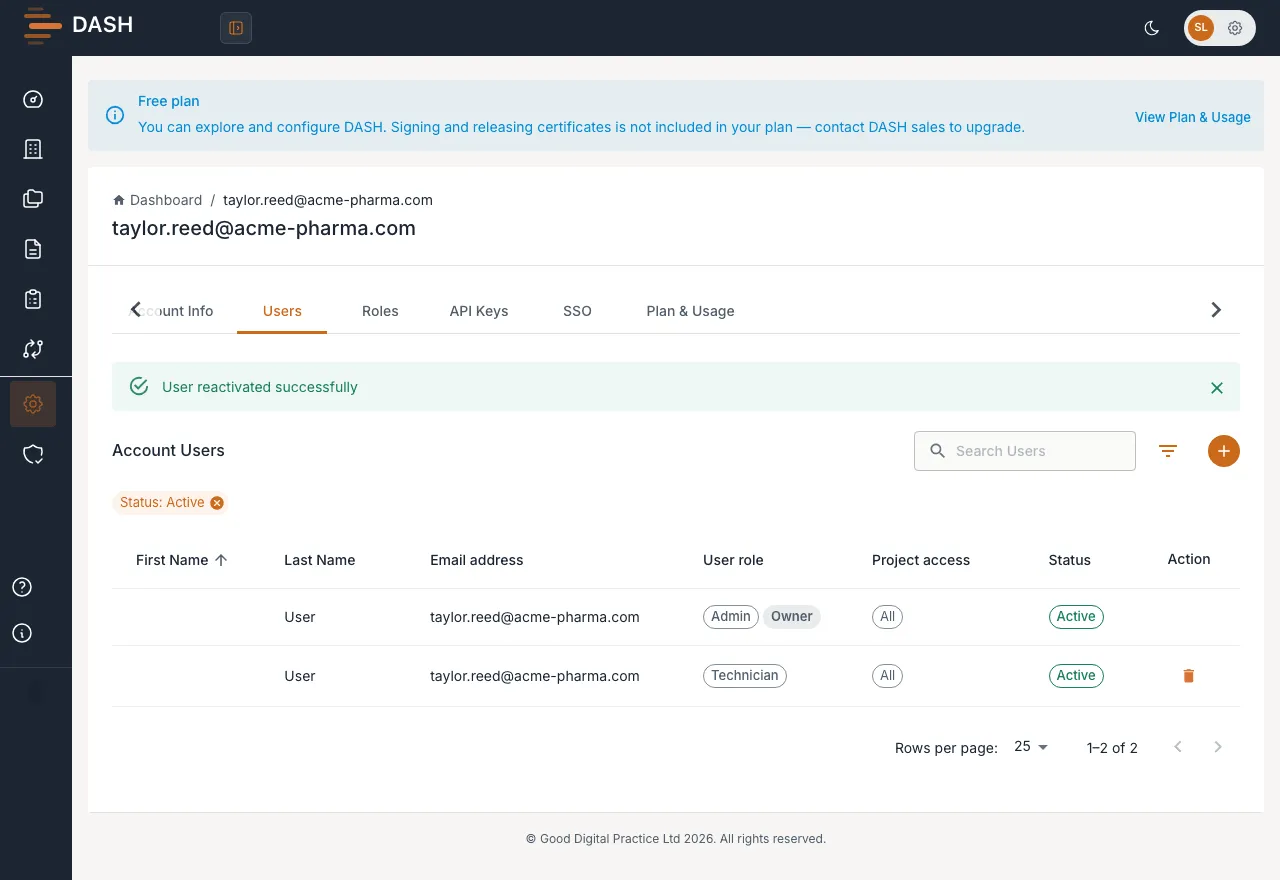
- Select Reactivate. DASH confirms “User reactivated successfully” and the status returns to Active, with the role they had before.
Reactivating counts towards your plan’s member allowance. If you’ve reached it, DASH refuses and asks you to contact DASH sales. See Limits and features.
The audit trail
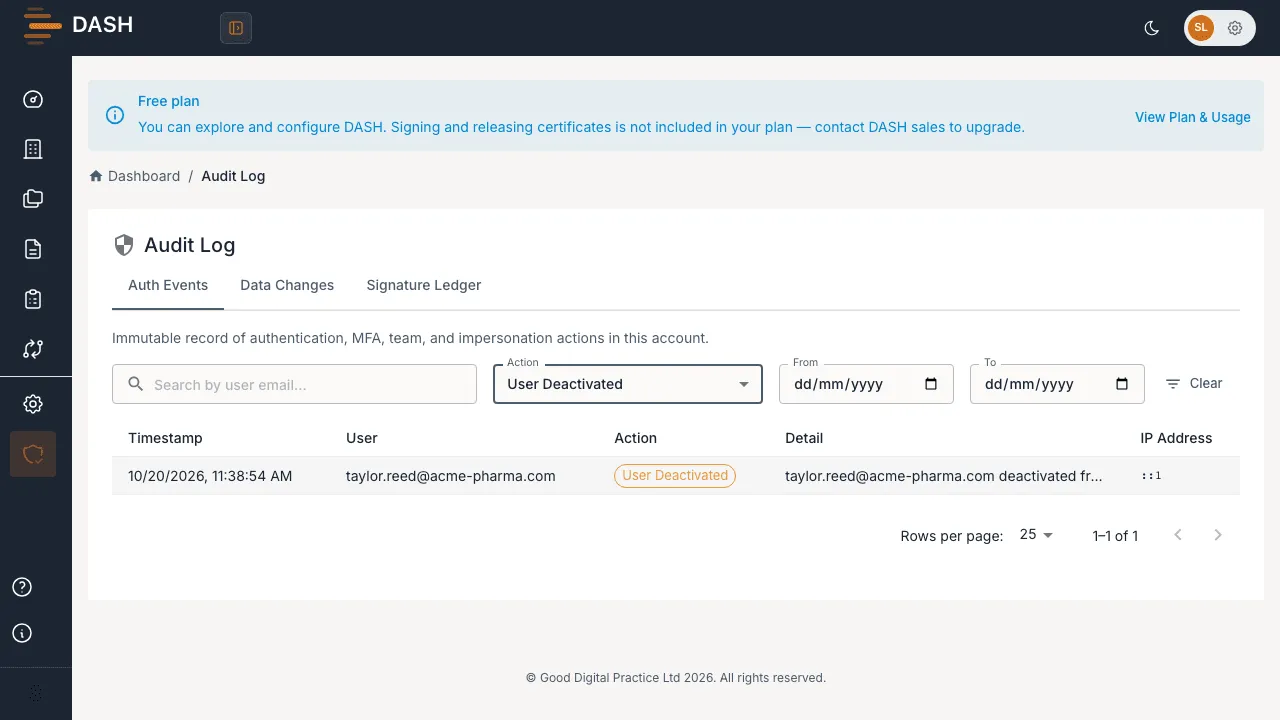
Section titled “The audit trail”Each deactivation is recorded as User Deactivated and each reactivation as User Reactivated, naming the member and the administrator who did it. Find them under Audit Log → Auth Events, filtered by Action. See Audit log.