

Validation rules
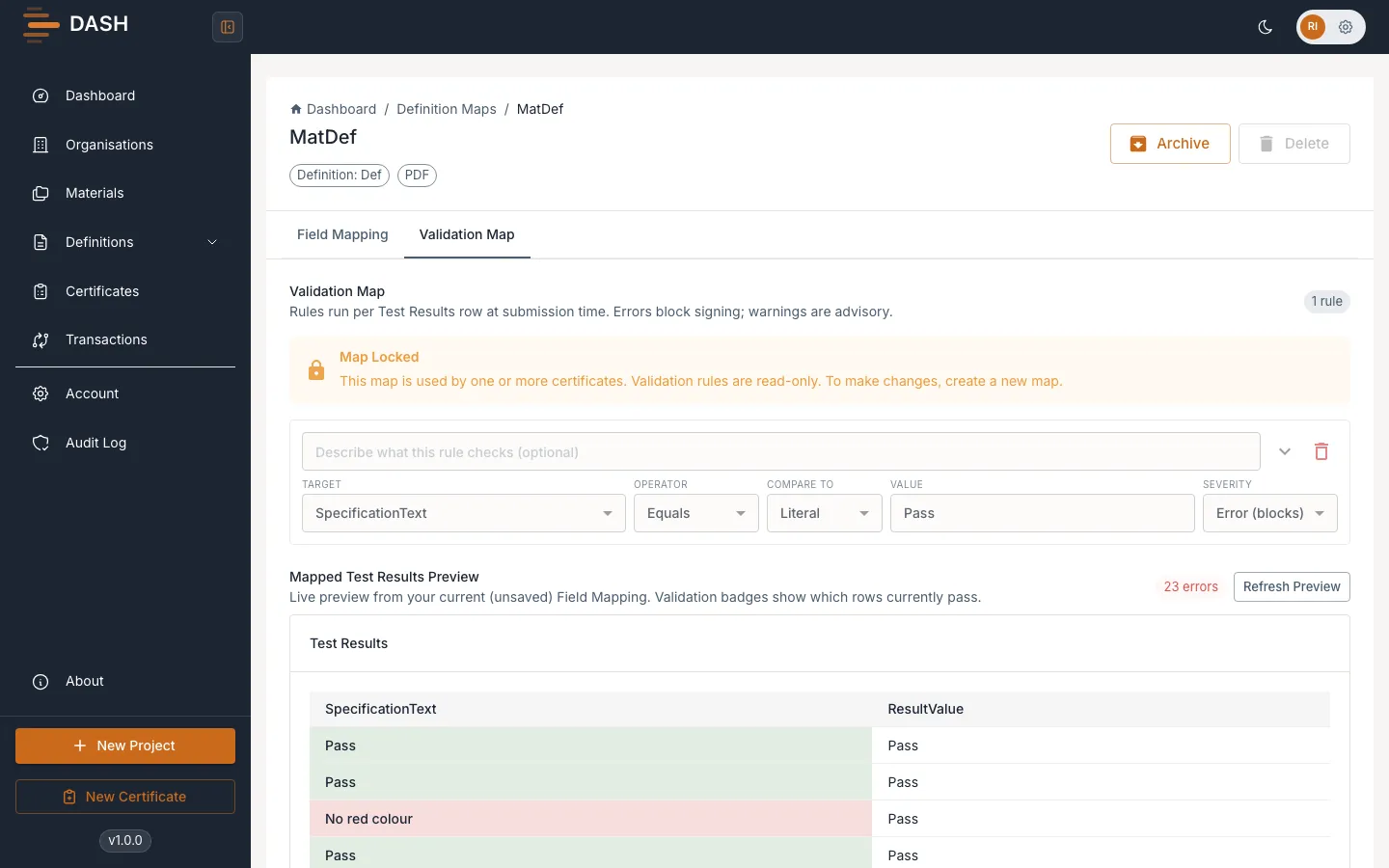
Validation rules are the acceptance criteria for your mapped data. Each rule checks a test-result value against a limit or against another value in the same row, and DASH runs them before a certificate is signed. An error rule that fails blocks signing; a warning rule is advisory and lets signing proceed.
Rules live on the map, not the definition, so different suppliers can have different acceptance criteria for the same definition.
Add a rule
Section titled “Add a rule”- Open the map and select the Validation Map tab.
- Select Add rule.
- Configure the rule:
- Target — the test-result property being checked.
- Operator — one of Equals, Not Equals, >, >=, <, <=, Between, In Set, Is Blank or Is Not Blank.
- Compare to — Property to compare against another test-result property, or Literal to type a value. For Between you provide a low and a high; for In Set you provide the allowed entries.
- Severity — Error (blocks) to block signing when the rule fails, or Warning to allow signing but flag it.
- Description — an optional label that appears in the validation report.
- Repeat for each rule you need. You can reorder rules and delete any with Delete rule.
Numbers vs text
Section titled “Numbers vs text”How a value is compared depends on the target property’s type. Integer and Float properties are compared numerically (comma decimal separators are handled), and everything else is compared as text. So use numeric types for results you want to range-check.
Conditional rules: “Only apply when”
Section titled “Conditional rules: “Only apply when””A single results table can mix rows — some with a PASS/FAIL result and others with a number. Handle
this with the Only apply when condition on a rule so it runs only on the rows that match. For
example:
- Only apply when the test is Sterility → result In Set
PASS,FAIL. - Only apply when the test is Assay → result Between the lower and upper specification limits.
A rule whose condition doesn’t match a given row is reported as skipped for that row, not as a failure.
Preview before signing
Section titled “Preview before signing”Below the rules, the Mapped Test Results Preview shows how your rules behave against your sample data — the badges show which rows currently pass. Select Refresh preview to re-run it against your latest, unsaved mappings. You can also run Run validation to check all active rules against the current input data before signing.