

Password rules
DASH applies one password standard everywhere a password is set. The same rules apply when you register, when you set your password from an invitation and when you reset your password. The rules are checked by DASH itself, not only by the page you are on, so there is no way to set a weaker password.
The rules
Section titled “The rules”A password must:
- be at least 12 characters long;
- contain at least one letter (A to Z or a to z);
- contain at least one number (0 to 9);
- contain at least one symbol: any character that is not a letter or a number, such as ! or # or a hyphen. A space also counts.
DASH also refuses a password that:
- is a commonly used password;
- is made up of numbers only;
- is too similar to your own name or email address.
The live checklist
Section titled “The live checklist”As you type in the Password field, a checklist appears under it. Each rule shows a green tick when it is met and a red cross when it is not:
- At least 12 characters
- Contains letters
- Contains numbers
- Contains at least one symbol
When every rule is met, Password requirements met appears.
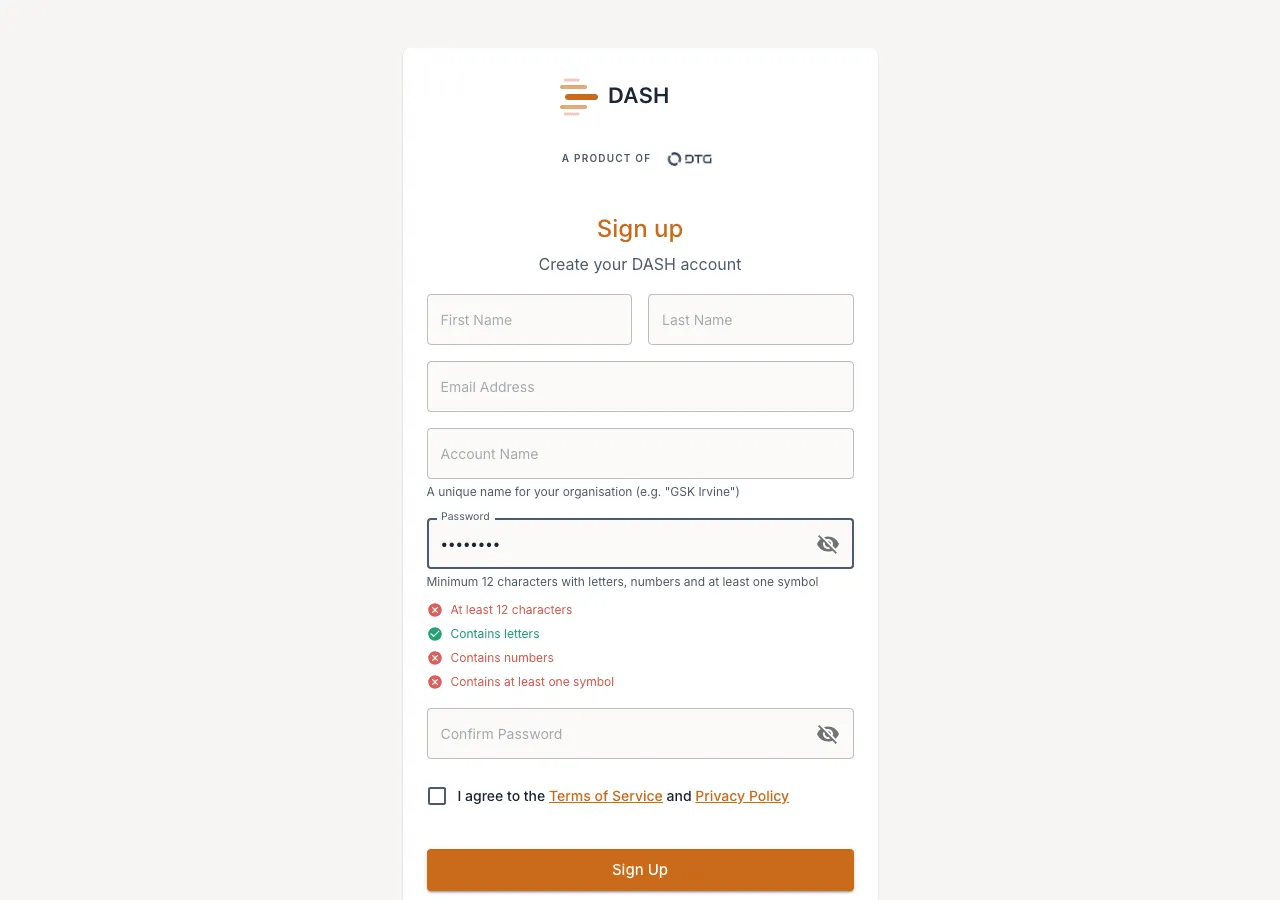
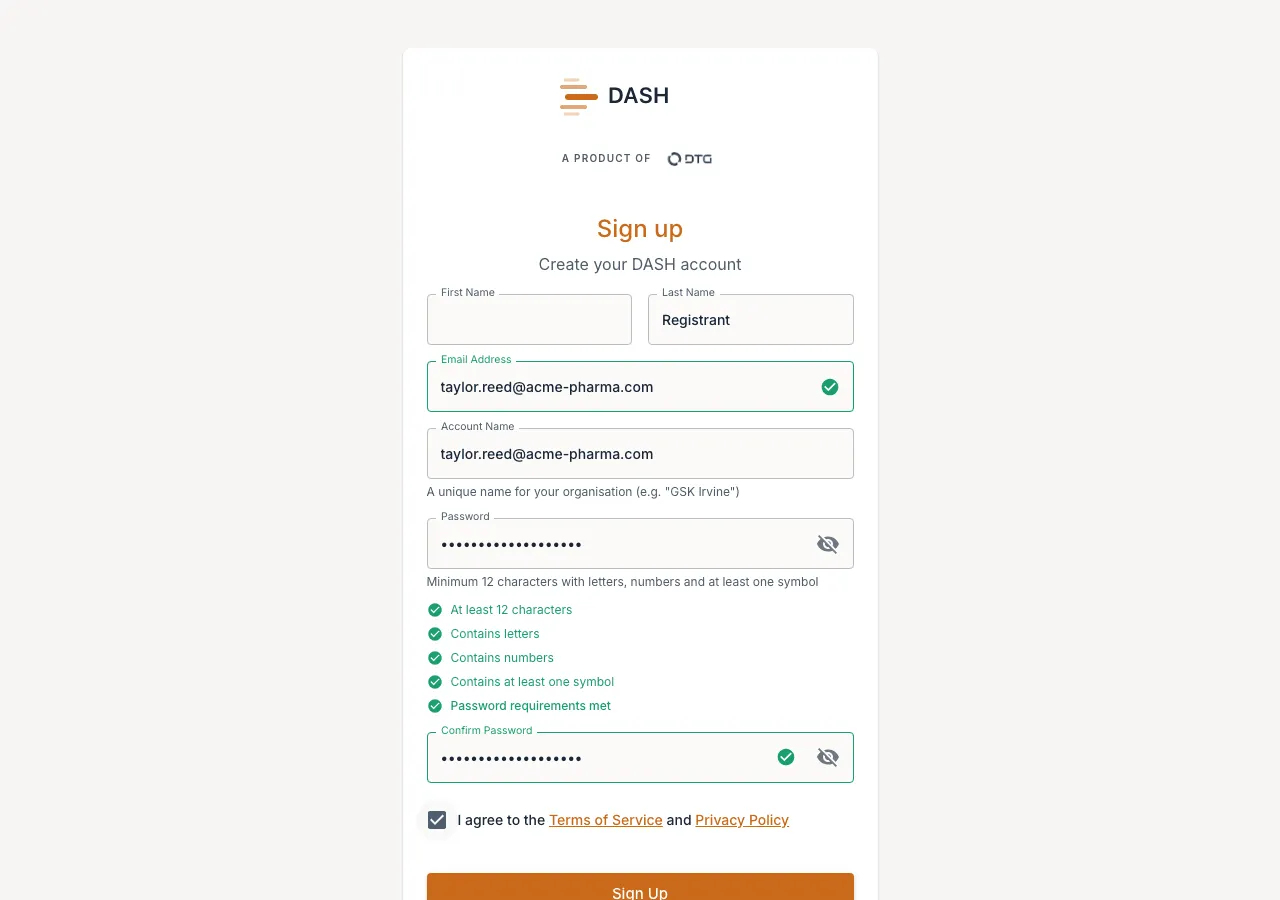
The checklist covers the four composition rules. The checks for common, numbers-only and name-like passwords happen when you submit. If one of them fails, DASH shows the reason under the Password field and you choose another password.
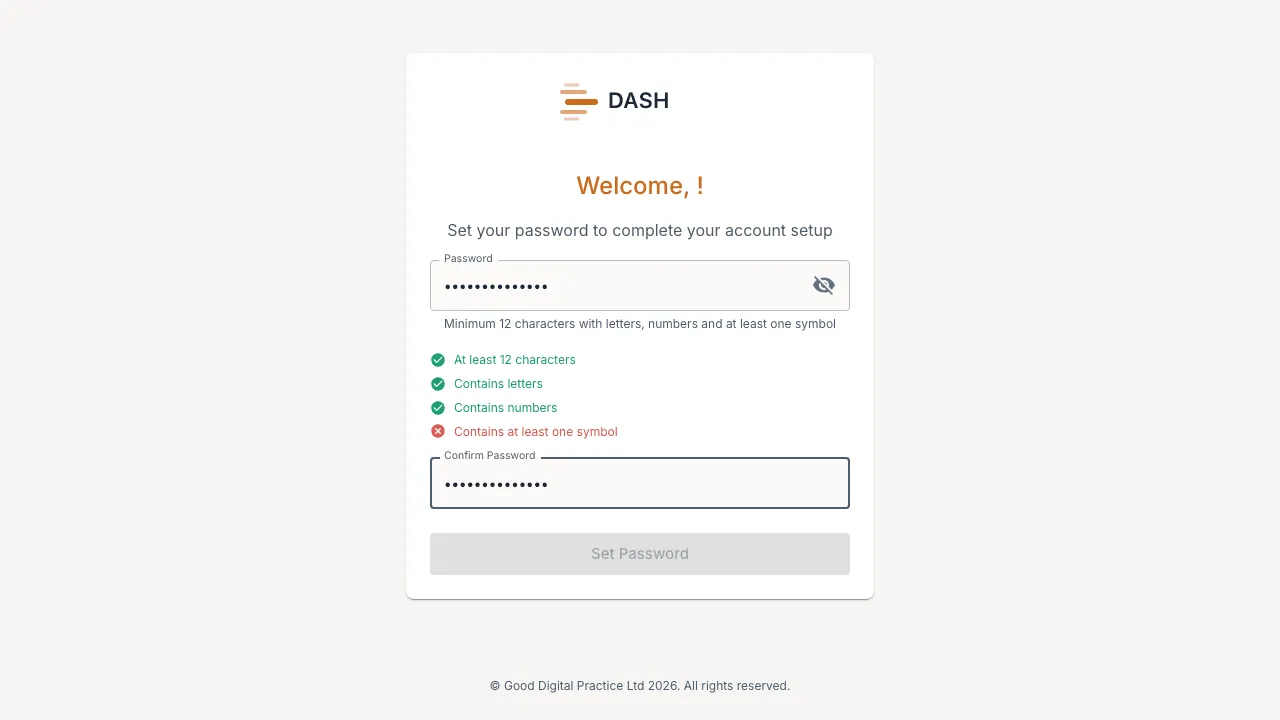
The same checklist appears on every screen where you set a password: Sign up, the invitation’s Set Password screen and Reset Password. On the invitation and reset screens, the Set Password and Reset Password buttons stay unavailable until every rule is met.
Passwords never expire
Section titled “Passwords never expire”DASH does not ask you to change your password on a schedule. Frequent forced changes tend to produce weaker, predictable passwords. DASH relies instead on a strong password plus a second factor.
On the Security tab of your own user settings (avatar, top right → User Settings → Security), DASH shows whether a second factor protects your sign-in and invites you to add one with Set Up Authenticator or Add A Passkey.
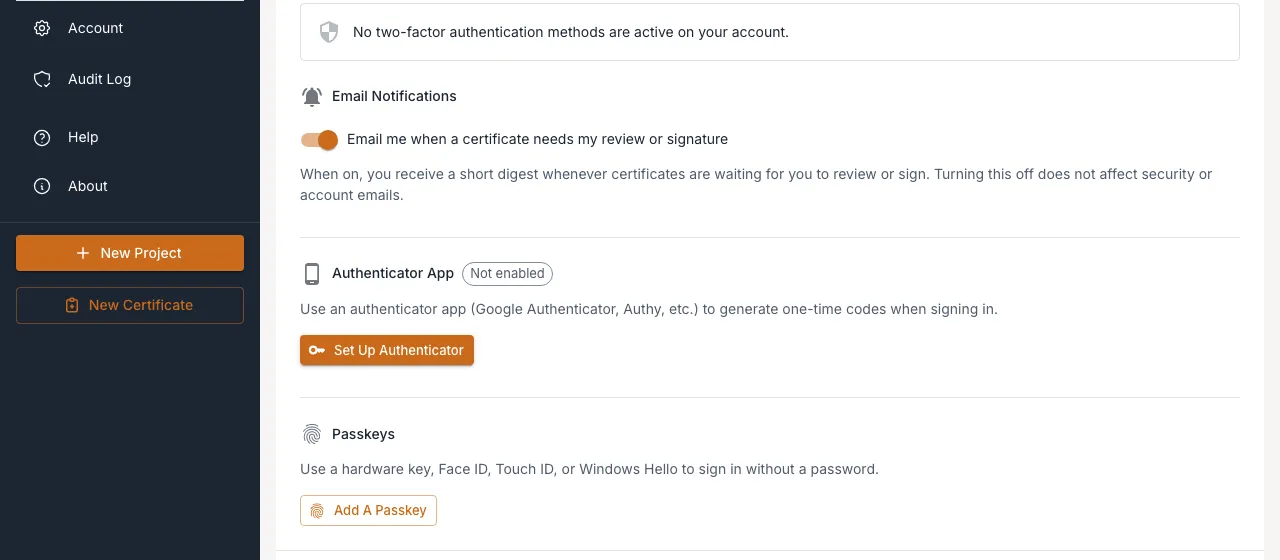
We strongly recommend adding one. See Multi-factor authentication overview, Set up an authenticator app and Passkeys.
Changing your password
Section titled “Changing your password”There is no change-password screen inside DASH. To change your password at any time, sign out and use Forgot Password? on the sign-in page. See Reset your password.
If you sign in through your organisation’s single sign-on, your password belongs to your organisation’s identity provider and these rules do not apply to it.