

Output branding
Certificate PDFs generated by your account carry a letterhead in the top-left corner. If you upload a company logo, DASH uses it there. Without a logo, DASH prints your account name instead.
Upload a logo
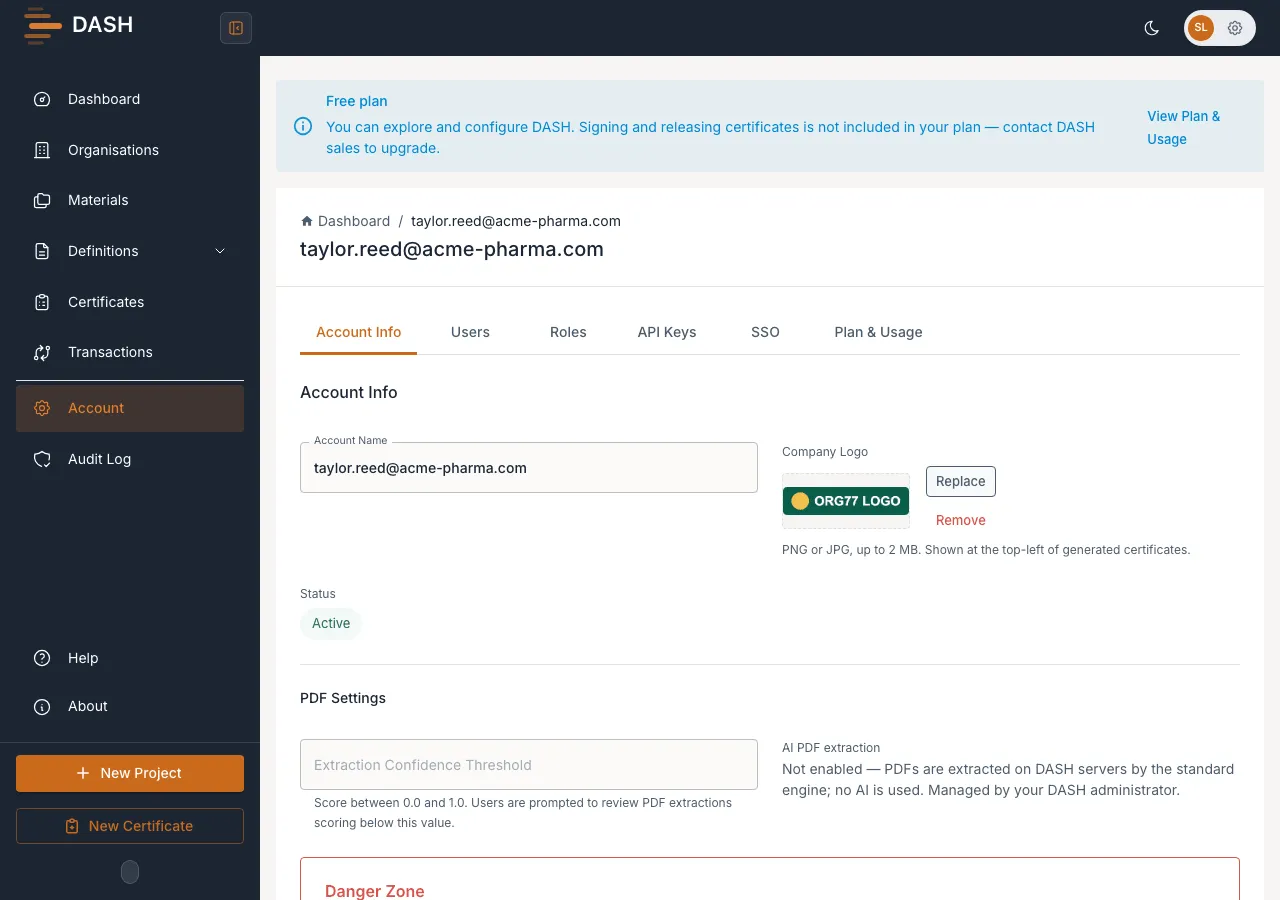
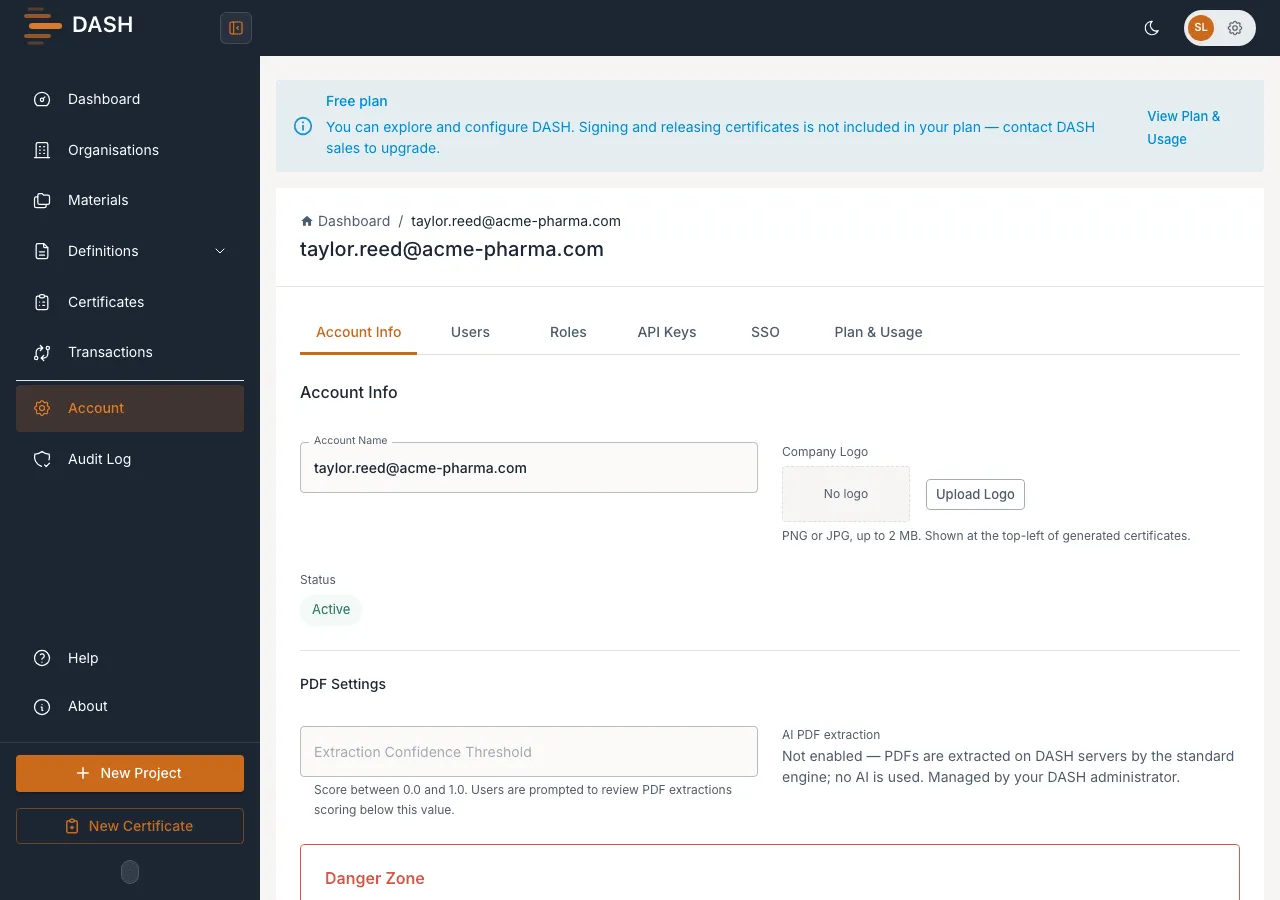
Section titled “Upload a logo”- Select Account in the sidebar. The Account Info tab opens.
- Under Company Logo, select Upload Logo and choose your file.
- The logo is uploaded straight away and appears in the Company Logo box. You don’t need to select Save: that button applies only to the name and threshold fields.
DASH checks the file before uploading it. You may see:
- “Logo must be a PNG or JPG image.” The file is another format, such as GIF, SVG or PDF.
- “Logo must be 2 MB or smaller.” Make the file smaller and try again.
If the upload is refused because your plan doesn’t include the logo feature, the message names Company logo on certificates and asks you to contact DASH sales. See Limits and features.
Where the logo appears
Section titled “Where the logo appears”The helper text under the box sums it up: “PNG or JPG, up to 2 MB. Shown at the top-left of generated certificates.”
- Certificate PDFs. The logo is the letterhead at the top-left of the first page, scaled to fit. This includes the unsigned preview PDF and the PDF produced when a certificate is released.
- Not in XML output. Machine-readable XML files carry data only, with no branding.
- Without a logo, the letterhead shows your account name as text.
A new logo applies to PDFs generated after the change. A sealed, signed certificate PDF is never altered afterwards, so it keeps the letterhead it was sealed with. See Sealed PDF and long-term validity and Output: XML and PDF.
Replace or remove the logo
Section titled “Replace or remove the logo”- On Account Info, under Company Logo:
- select Replace and choose a new file, or
- select Remove to delete the logo.
- Either change takes effect straight away. After Remove, the box reads No logo and offers Upload Logo again.
Each upload, replacement and removal is recorded as Account Updated in the Audit log.