Archival copies
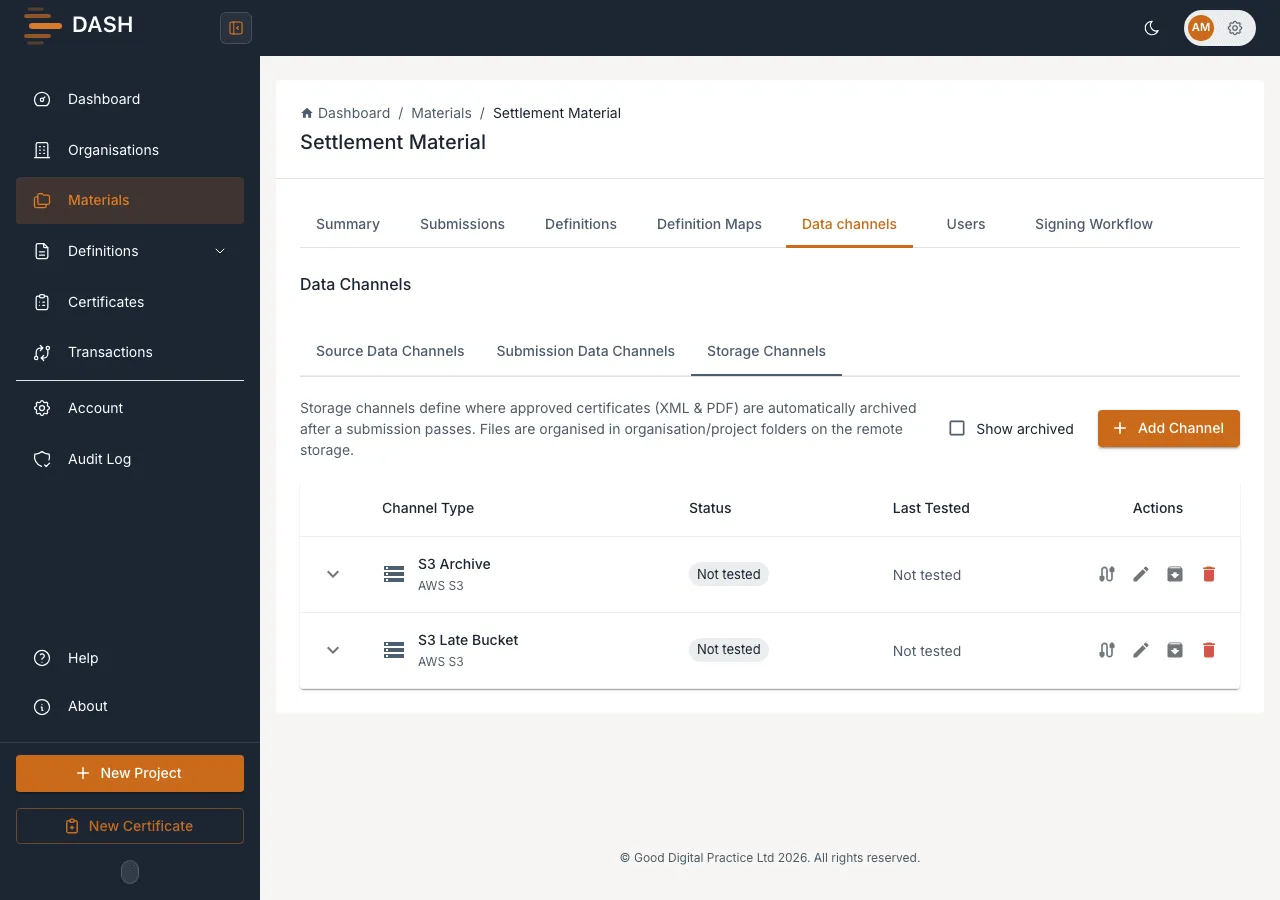
As well as sending a released certificate to the receiving organisation, DASH can file a copy in your own archive: an AWS S3 bucket, a SharePoint library or a Veeva Vault. Each archive is a storage channel on the Material. This page explains when copies are made, what they contain and how to recover a copy that failed.
When copies are made
Section titled “When copies are made”- After a pass. DASH files the copies once the primary delivery has passed, whether straight away or after a successful retry. A certificate whose delivery failed isn’t archived until it passes.
- To every active storage channel. Each storage channel on the Material that isn’t archived gets its own copy. An archived storage channel receives no new copies.
- Best effort. A failed copy is recorded against that one destination. It never changes the certificate’s Pass and never affects the other copies.
What a copy contains
Section titled “What a copy contains”Each copy is the stored, sealed released document, byte for byte. DASH doesn’t produce it again for the archive, so the copy is always identical to the record that was signed and sent. Where the human-readable PDF copy has already been sealed, it is filed alongside the machine-readable file.
The sealed PDF follows separately
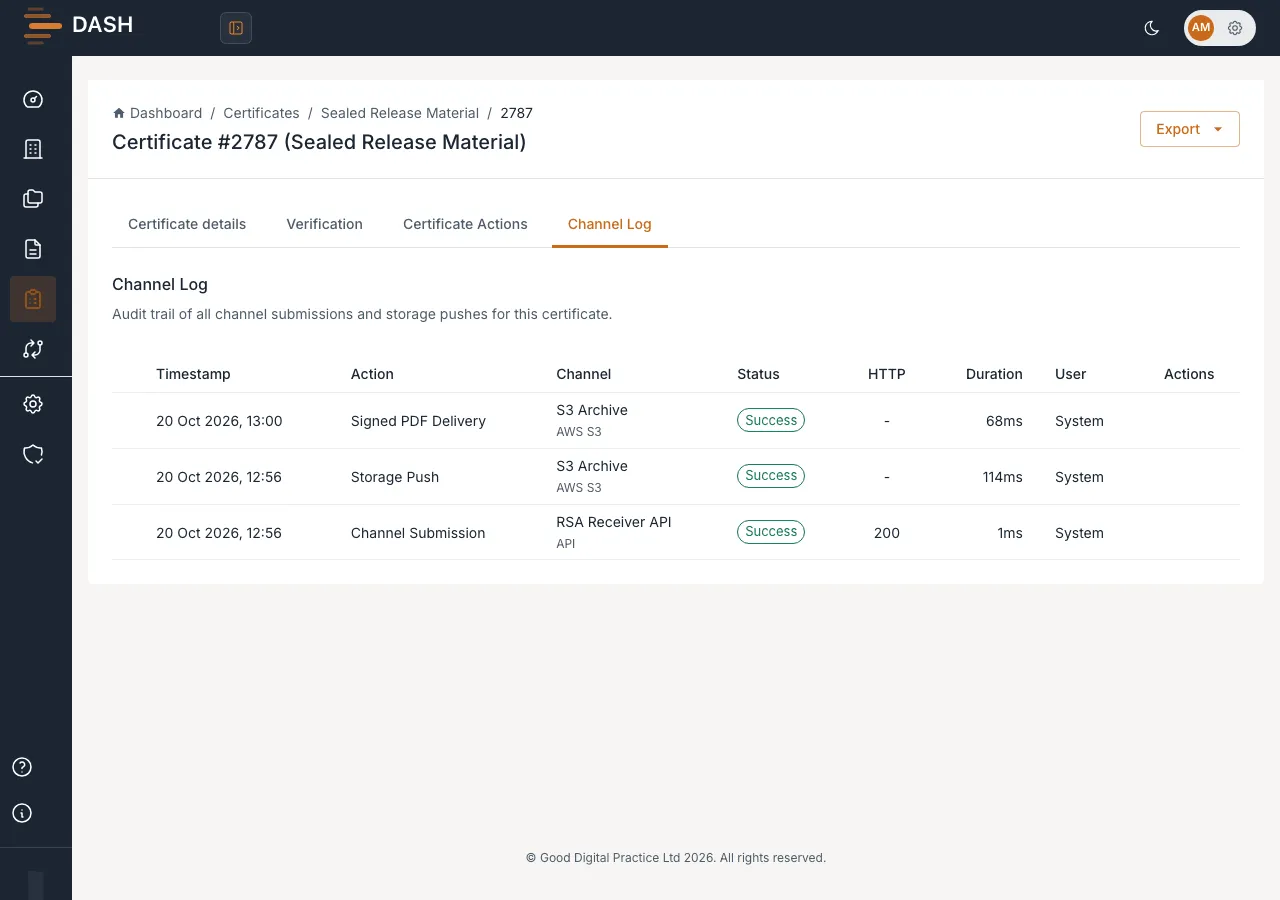
Section titled “The sealed PDF follows separately”DASH seals the PDF copy shortly after release. If a copy is filed before sealing has finished, DASH delivers the sealed PDF to each destination automatically as soon as it is ready. The delivery then appears in the Channel Log as its own Signed PDF Delivery row, with System as the user.
- DASH never files an unsealed PDF, and delivers the sealed PDF to each destination only once.
- If a PDF delivery fails, DASH retries it automatically at increasing intervals. There is no button for it.
- The release doesn’t wait for the PDF. The certificate has already passed.
For how sealing works, see Sealed PDF and long-term validity.
Check the copies
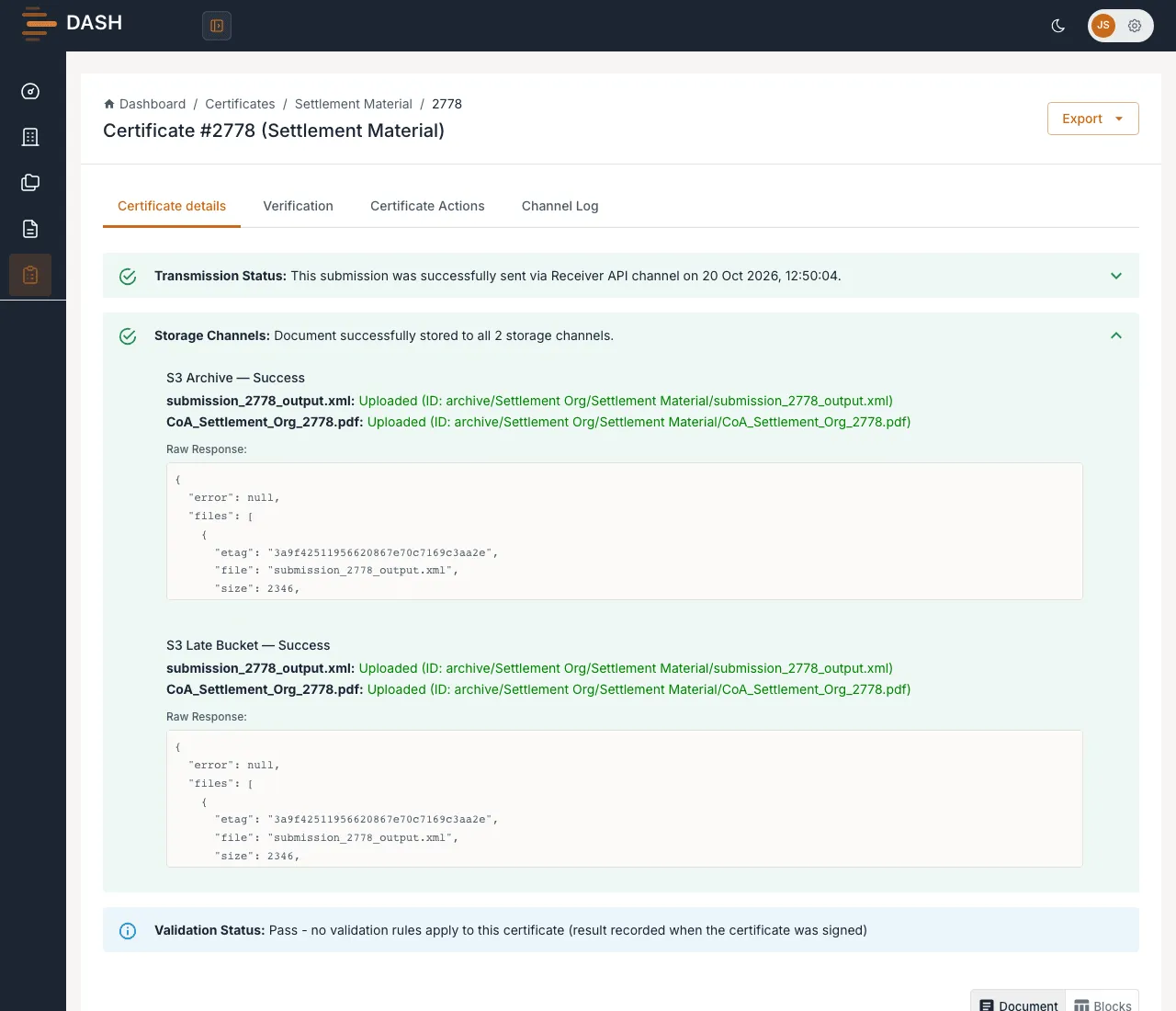
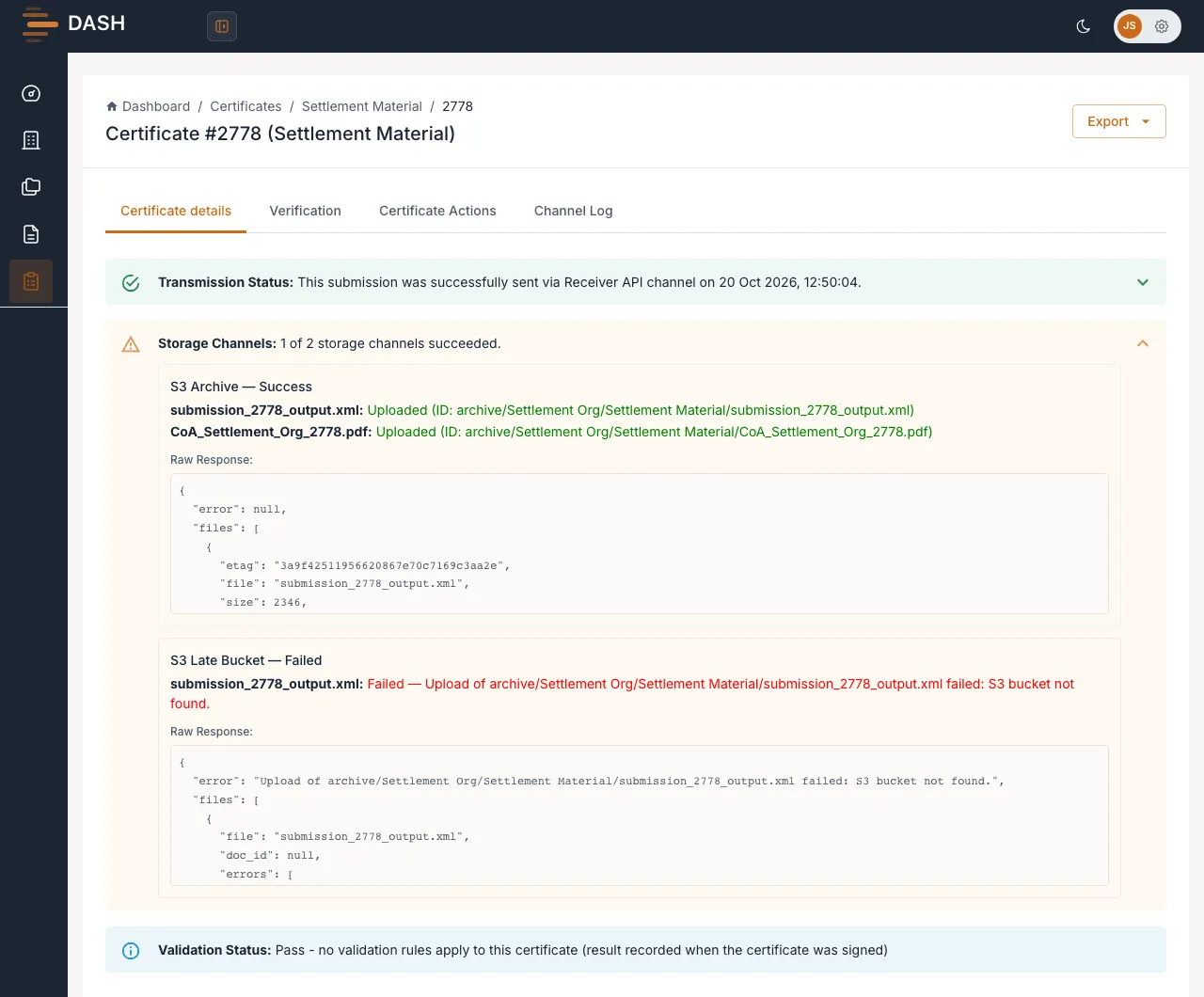
Section titled “Check the copies”Open the certificate from Certificates. Below the Transmission Status, the Storage Channels banner summarises the copies:
- “Document successfully stored to all n storage channels.” (or to the channel’s name, if there is only one);
- “n of m storage channels succeeded.”;
- “Failed to store document to all n storage channels.”
Select the arrow on the banner to see each destination marked — Success or — Failed, with the files uploaded, any error, and the storage service’s Raw Response.
Every copy also has its own row in the Channel Log tab (Storage Push), and on the account’s Transactions page. See Transaction log.
Retry a failed copy
Section titled “Retry a failed copy”- Fix the cause first, for example a missing bucket or an expired credential. Someone who manages the Material’s data channels corrects the storage channel and runs Test Connection. See Credentials and testing.
- Open the certificate and select the Channel Log tab. There is one retry button for each destination that failed, labelled Retry followed by the channel name (for example Retry Archive Bucket). Destinations that succeeded have no button.
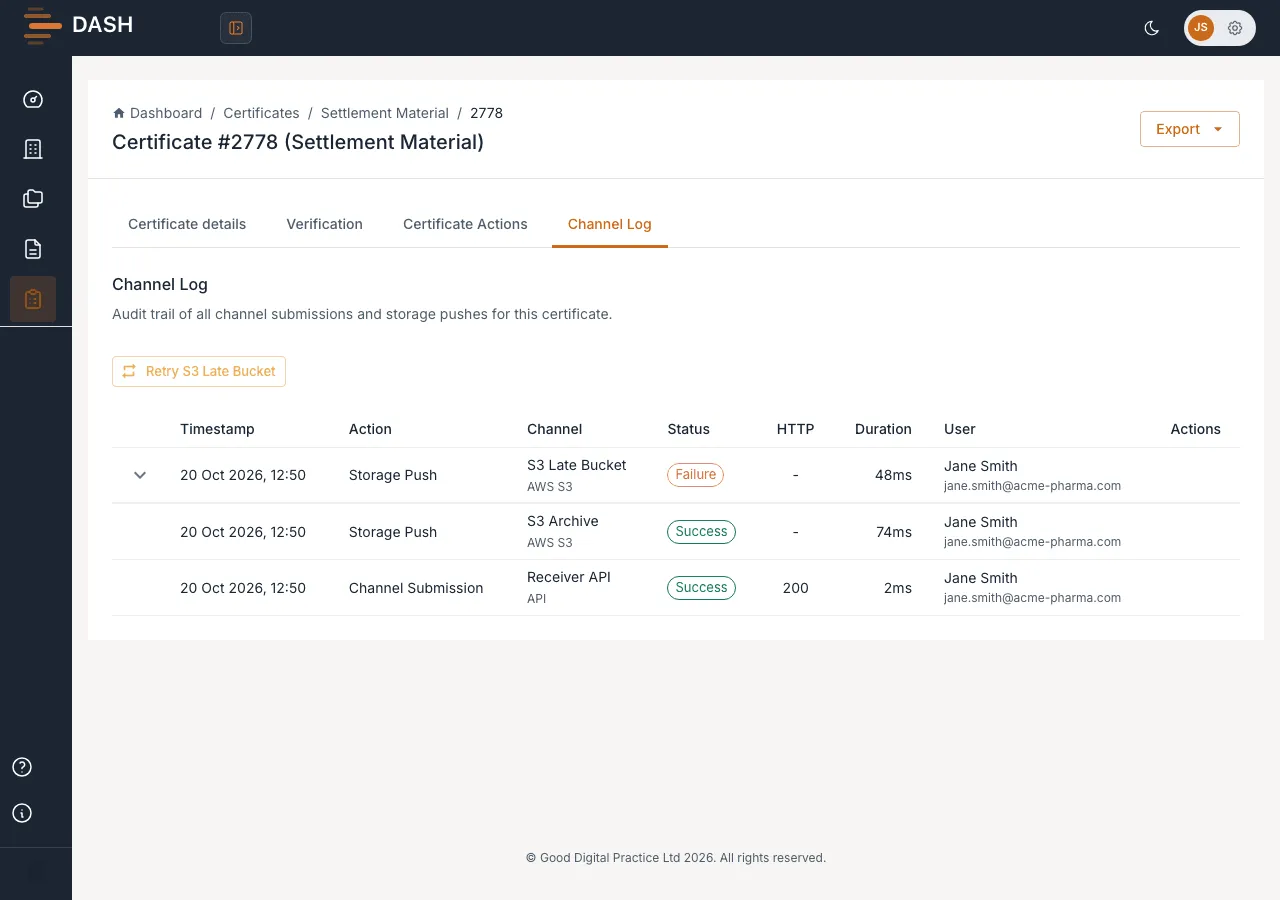
- Select the button. DASH re-sends the same stored document to that destination only. The other copies and the primary delivery are left as they are.
- Check the result. The Storage Channels banner updates, and the Channel Log gains a Retry Storage Push row.