

Just-in-time provisioning
With just-in-time provisioning, you don’t need to invite each person before they can use DASH. The first time someone on your verified domain signs in with SSO, DASH creates their user in your account automatically, with a role taken from your settings. Their name and email come from your identity provider.
If you prefer to control membership yourself, switch provisioning off. People then need an invitation before they can sign in with SSO.
Switch provisioning on or off
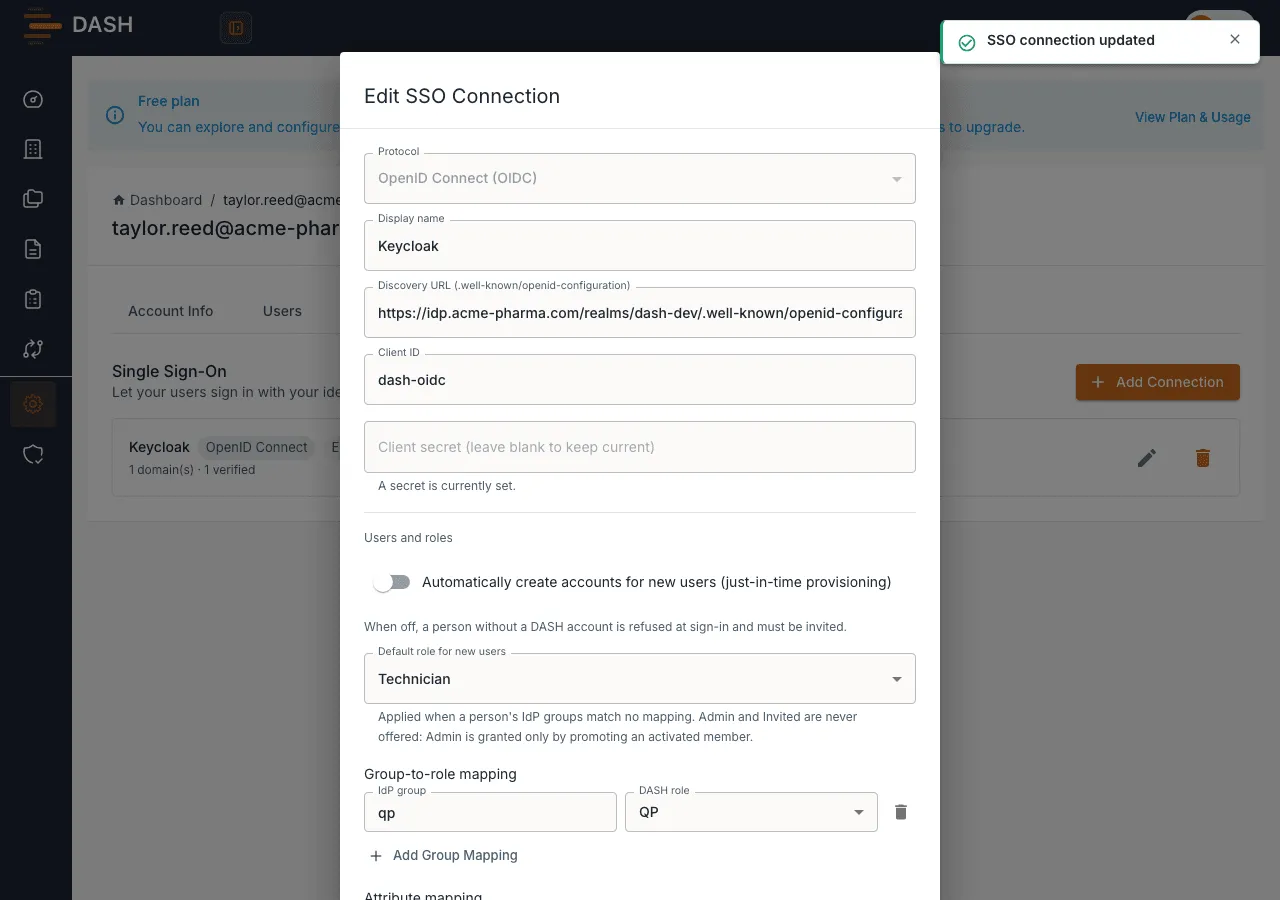
Section titled “Switch provisioning on or off”- Go to Account → SSO and open the connection with the edit (pencil) icon.
- Under Users and roles, set Automatically create accounts for new users (just-in-time
provisioning):
- On (the default for a new connection): DASH creates new joiners automatically.
- Off: “When off, a person without a DASH account is refused at sign-in and must be invited.”
- Choose the role new users get. Set Default role for new users, and add group mappings if your identity provider sends groups. See Group-to-role mapping. If no group matches and there is no default role, DASH refuses the person instead of creating them.
- Select Save. DASH shows “SSO connection updated”.
If your plan doesn’t include provisioning, DASH refuses to switch it on with “SSO just-in-time provisioning is not included in your subscription. Please contact DASH sales to add it.” Once it is on, a later plan change never switches it off.
What a new joiner experiences
Section titled “What a new joiner experiences”- Before their first sign-in, the person doesn’t appear in Account → Users.
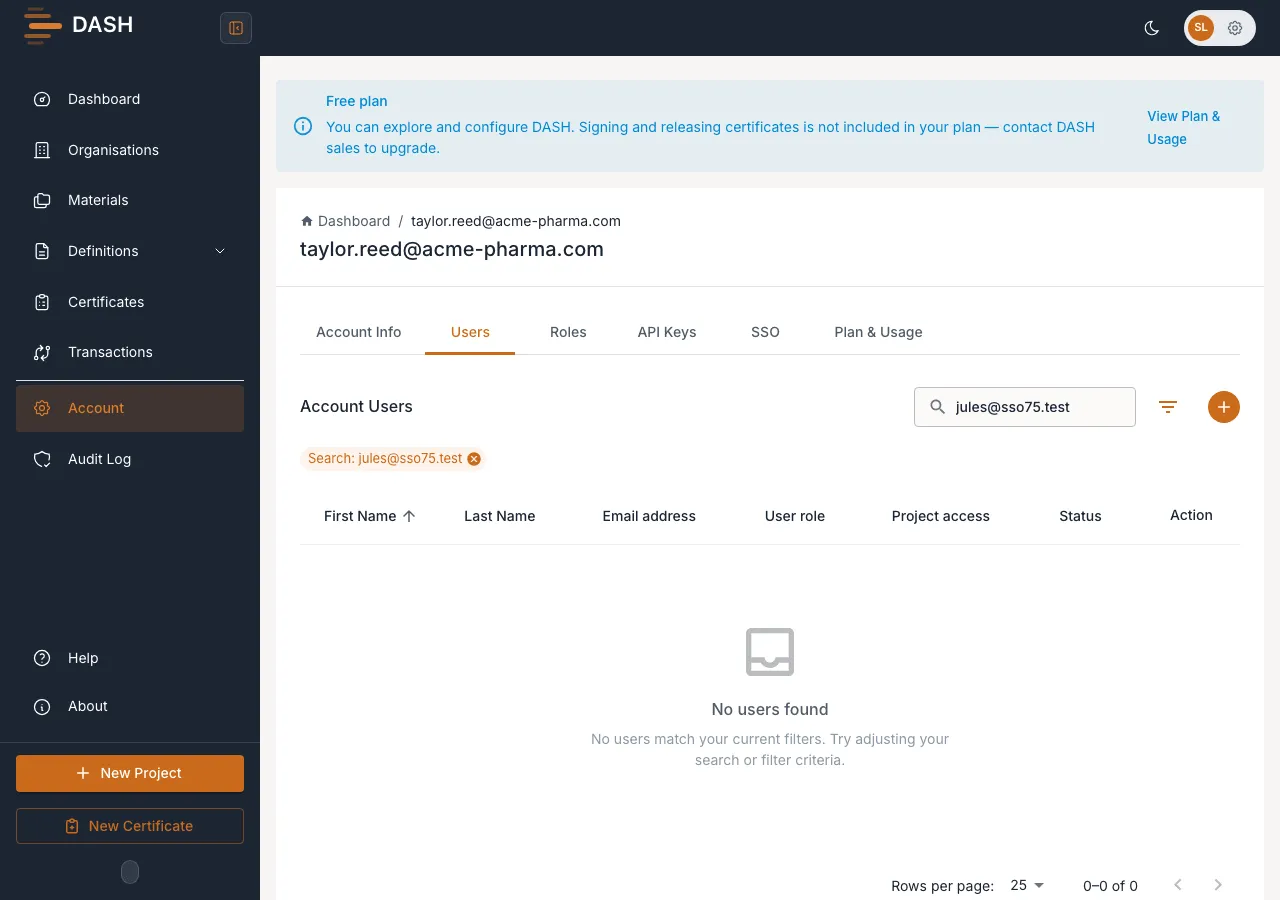
- They select Continue With … on the sign-in page and sign in at your identity provider.
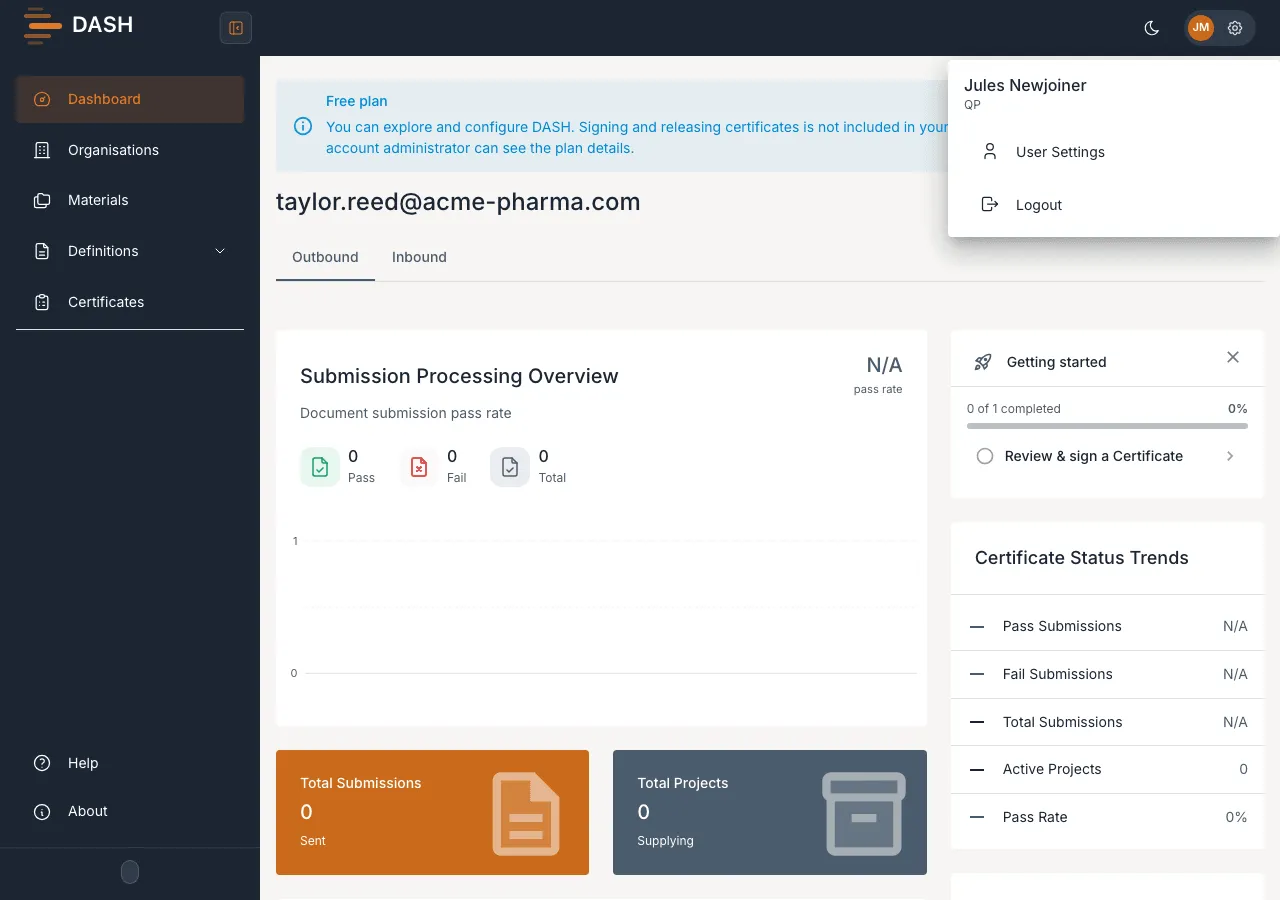
- DASH creates their user and lands them on the Dashboard of your account, with the role from your settings.
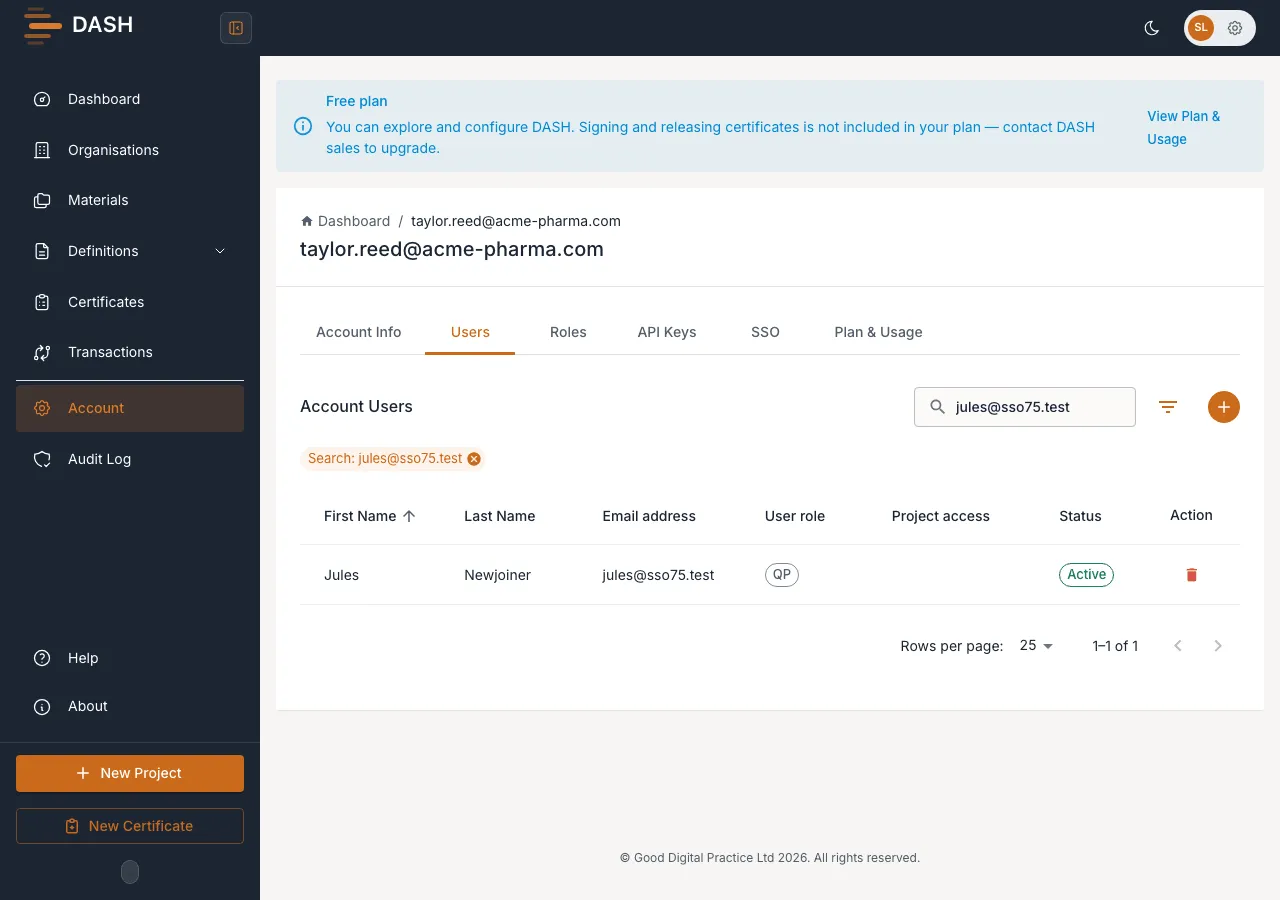
- They now appear in Account → Users with that role and the status Active.
The Audit Log records each creation as SSO User Provisioned. See SSO in the audit log.
When provisioning is off
Section titled “When provisioning is off”A person who has no DASH account and signs in with SSO is refused. They return to the sign-in page with “You do not have a DASH account yet, and automatic account creation is turned off for your organisation. Ask your administrator to invite you.” The refusal is recorded in the Audit Log as SSO Login Denied.
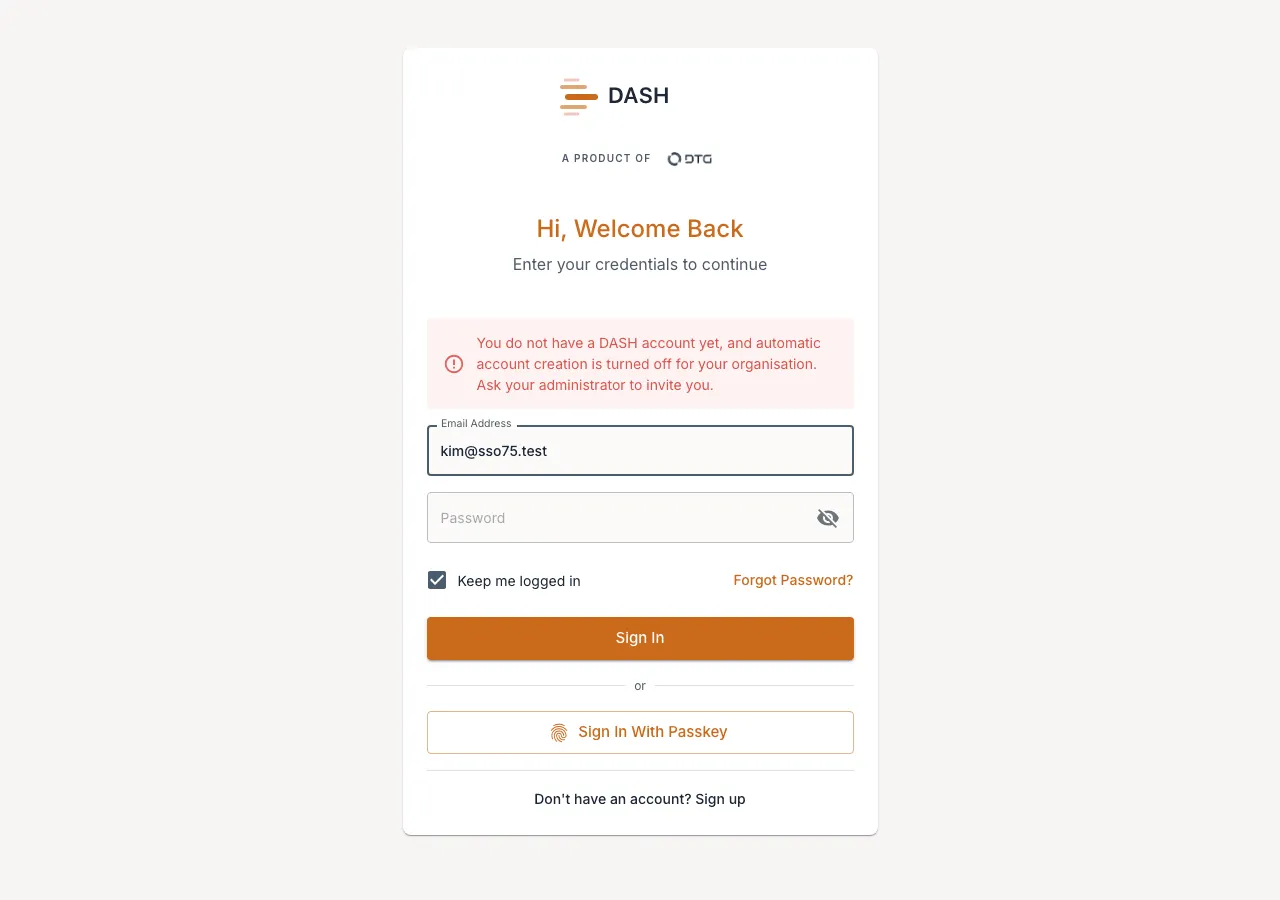
To let them in, invite them from Account → Users. See Invite team members. Once invited, they can sign in with SSO, as long as your group mapping or default role gives them a role. Note that at each SSO sign-in DASH sets their role from your group mapping, which can replace the role you chose in the invitation.
To stop someone using DASH, deactivate them in DASH as well as at your identity provider. A deactivated member is refused at SSO sign-in with “Your access to this DASH account has been deactivated. Contact your administrator.” SSO never reactivates them.
Users created through SSO have no DASH password
Section titled “Users created through SSO have no DASH password”A user DASH creates through SSO can reach DASH only through your identity provider:
- they have no DASH password, and a password typed on the sign-in page is refused with “Invalid email or password.”;
- Forgot Password? sends them nothing (they see the same neutral confirmation as everyone else);
- they sign in with Continue With … only.
This keeps your identity provider in control: when you disable someone there, they can no longer reach DASH through it.
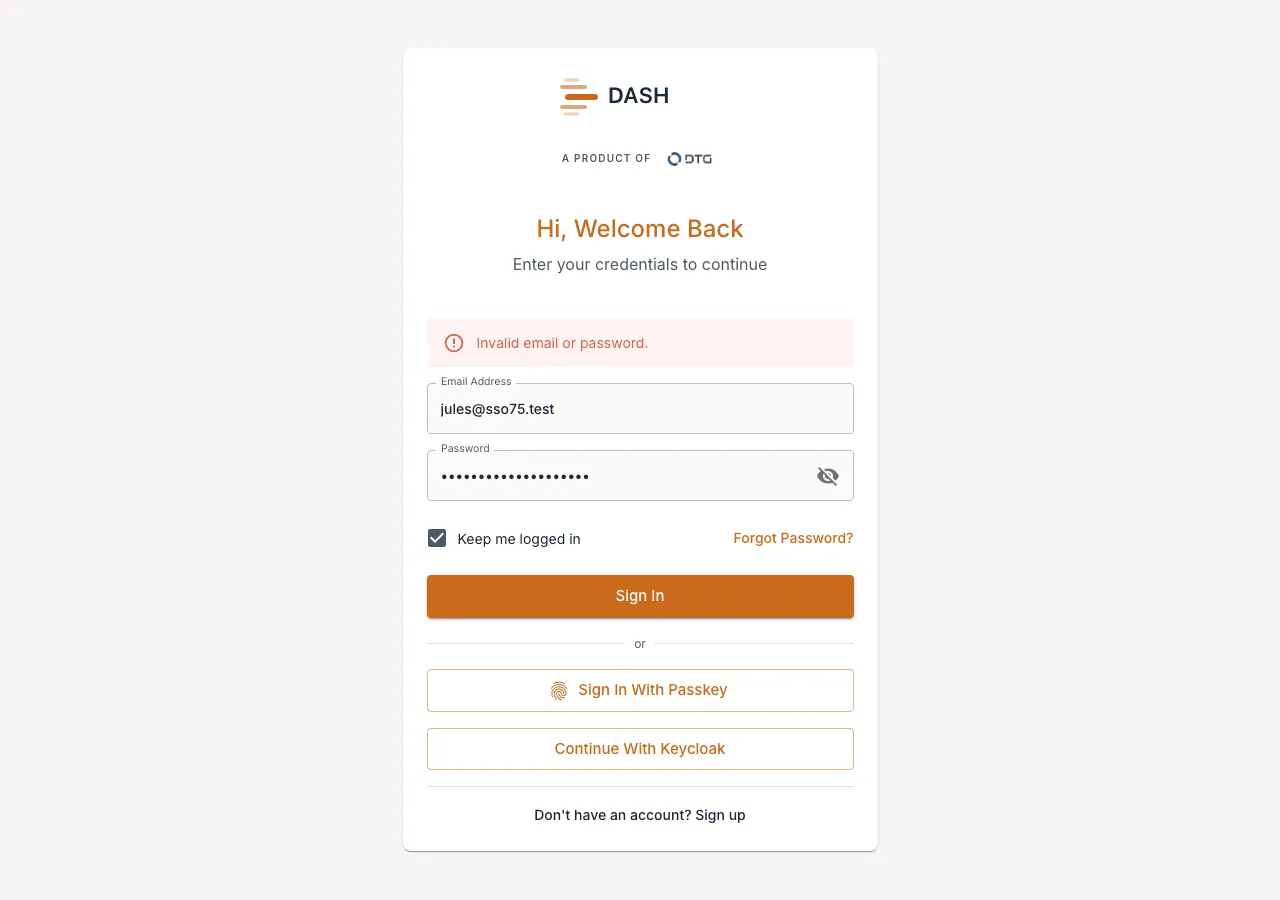
People who already had a DASH account before they first signed in with SSO keep their own password. See Account linking.
Seat limits
Section titled “Seat limits”If your account has no free member seat (or no free signer seat, for a role that signs), DASH refuses to create the person and shows “Your organisation has no free user seats on its DASH subscription, so you could not be added. Contact your administrator.” Existing members are never refused for a seat limit. To add seats, contact DASH sales.