Edit, lock & archive a definition map
You can refine a definition map for as long as no signed certificate depends on it. Once a Quality Person (QP) signs a certificate built on the map, the map locks, so the way that certificate’s data was read can never change underneath the signature. A map you no longer need can be deleted if it isn’t locked, or archived if it is.
Edit a map
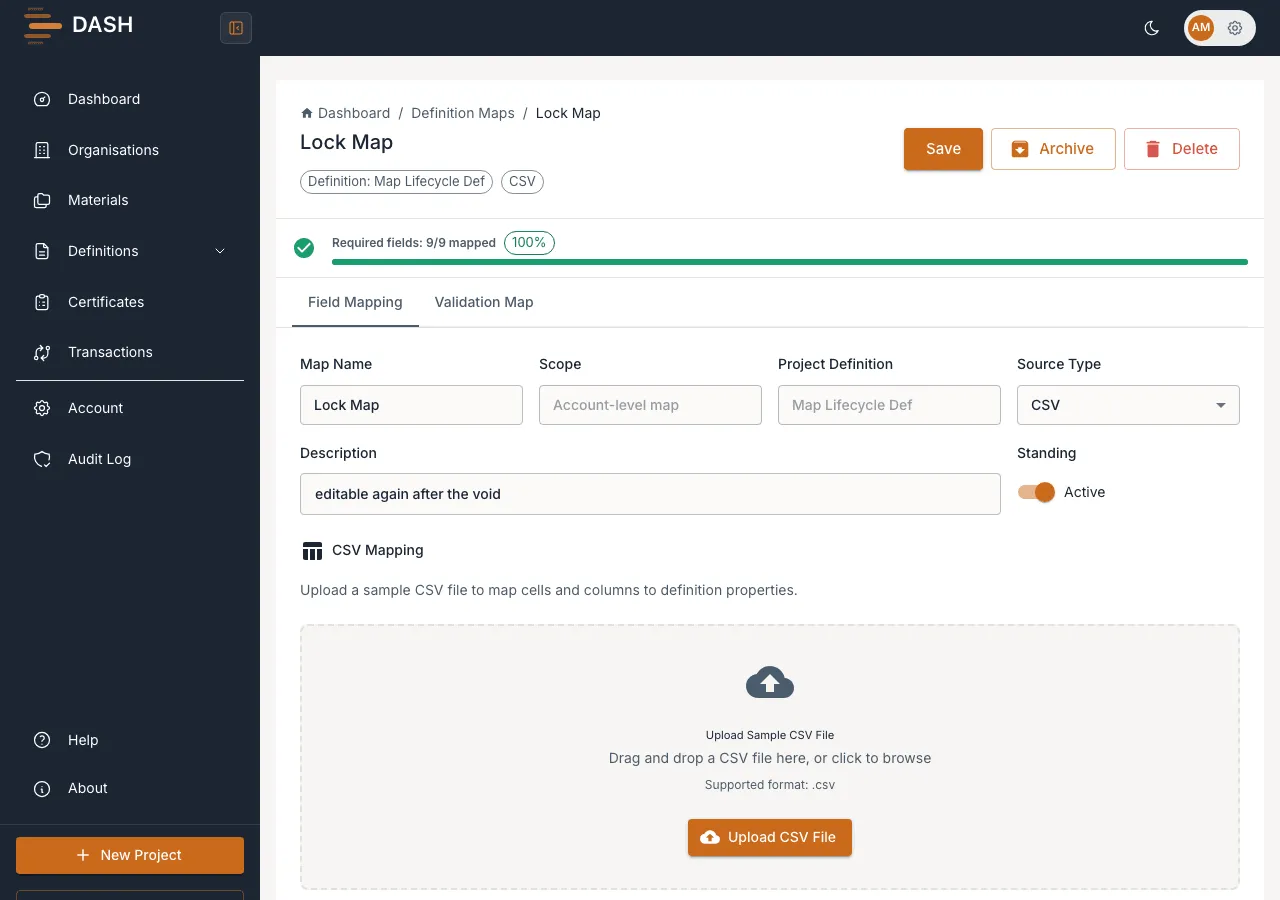
Section titled “Edit a map”- Open the map from Definitions → Definition Maps.
- On the Field Mapping tab, change what you need:
- Map Name and Description;
- Standing: switch between Active and Inactive;
- Source Type, between CSV, Excel and PDF (you’ll need to map the fields again for the new type);
- the field mappings, for example adding a column or removing a binding. See CSV & Excel mapping.
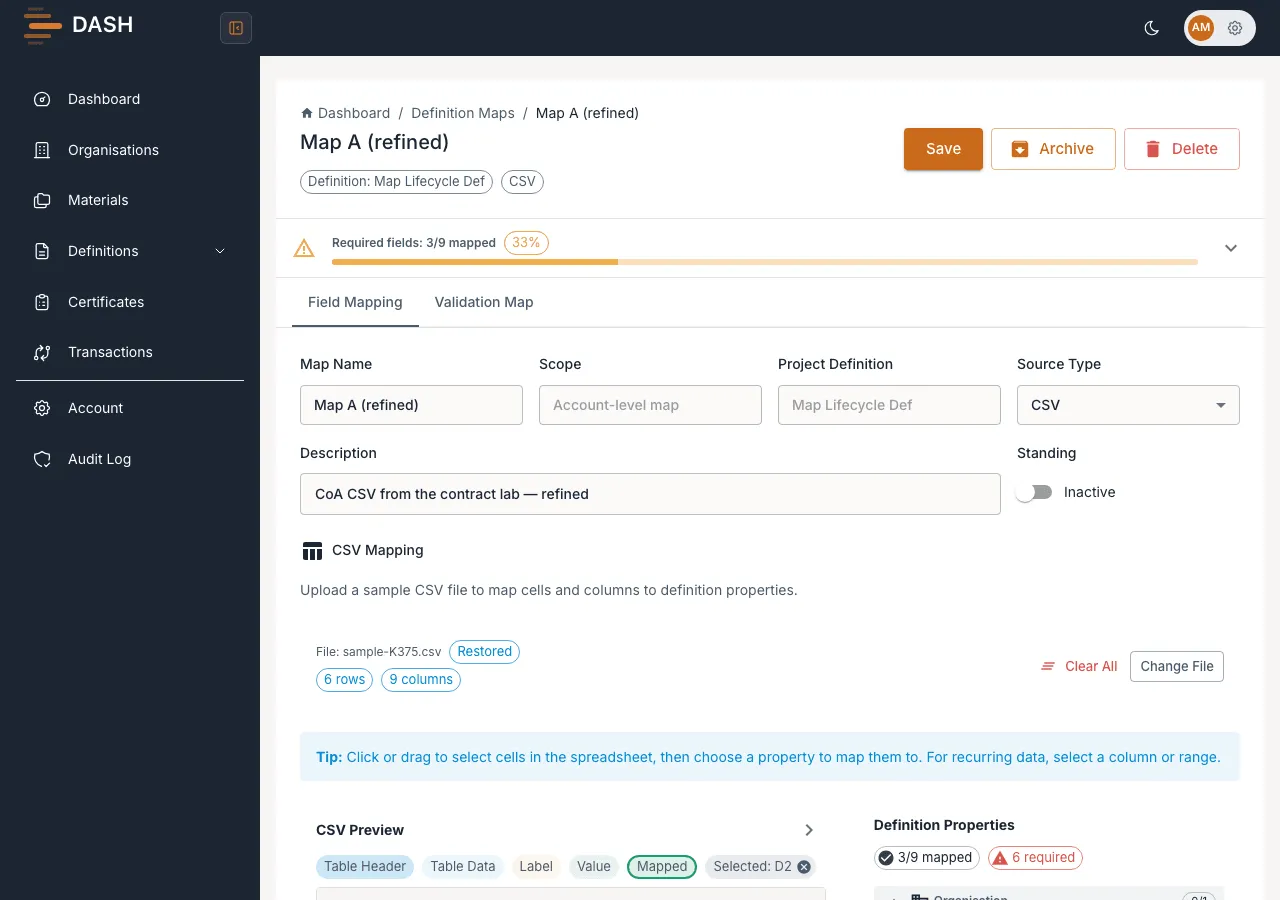
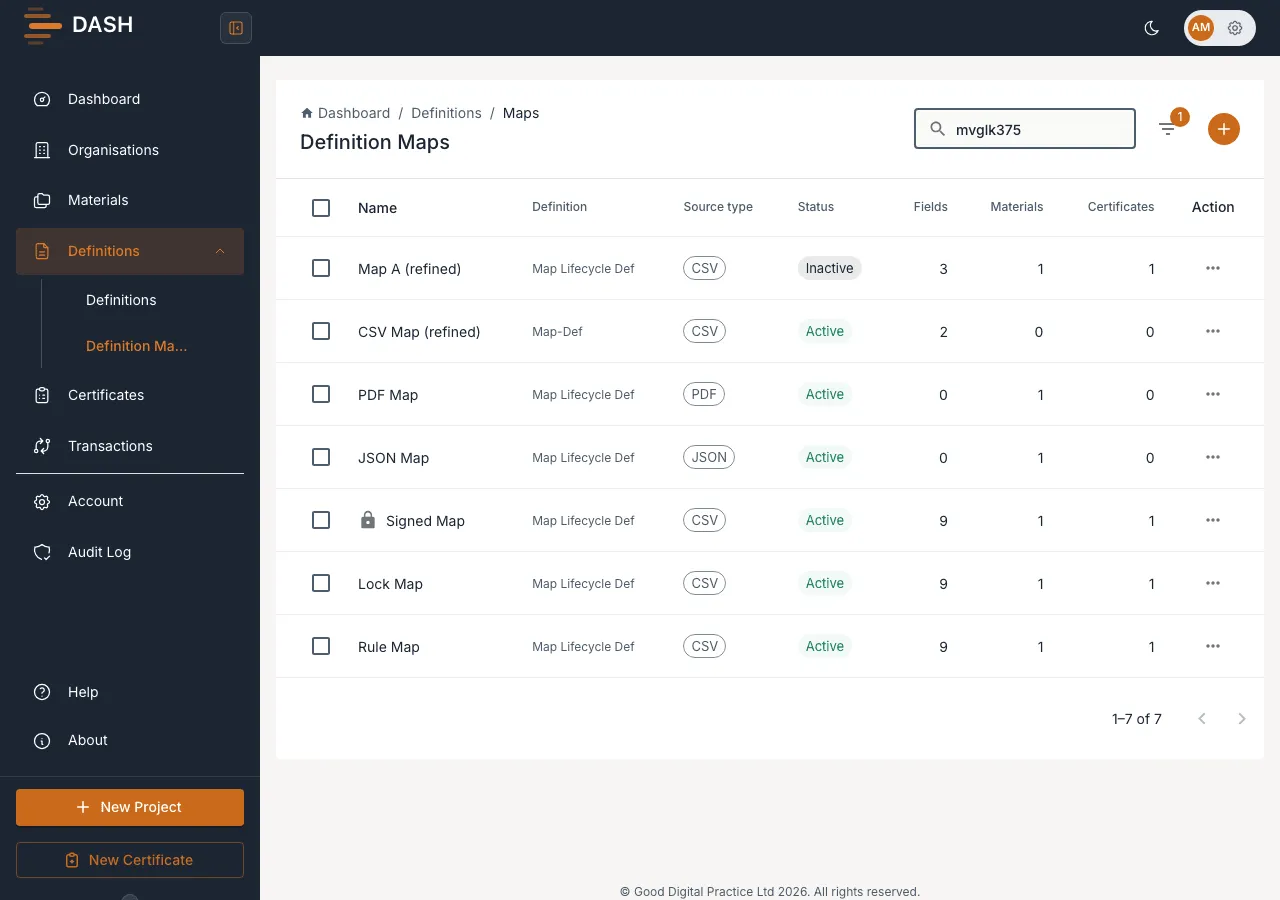
- Select Save at the top of the map. The Definition Maps list shows the new name, status and field count.
Validation rules are edited on the Validation Map tab. See Validation rules.
When a map locks
Section titled “When a map locks”Certificates that are Draft or Awaiting Approval don’t lock a map; it stays fully editable. As soon as a certificate built on the map is signed, the map locks completely:
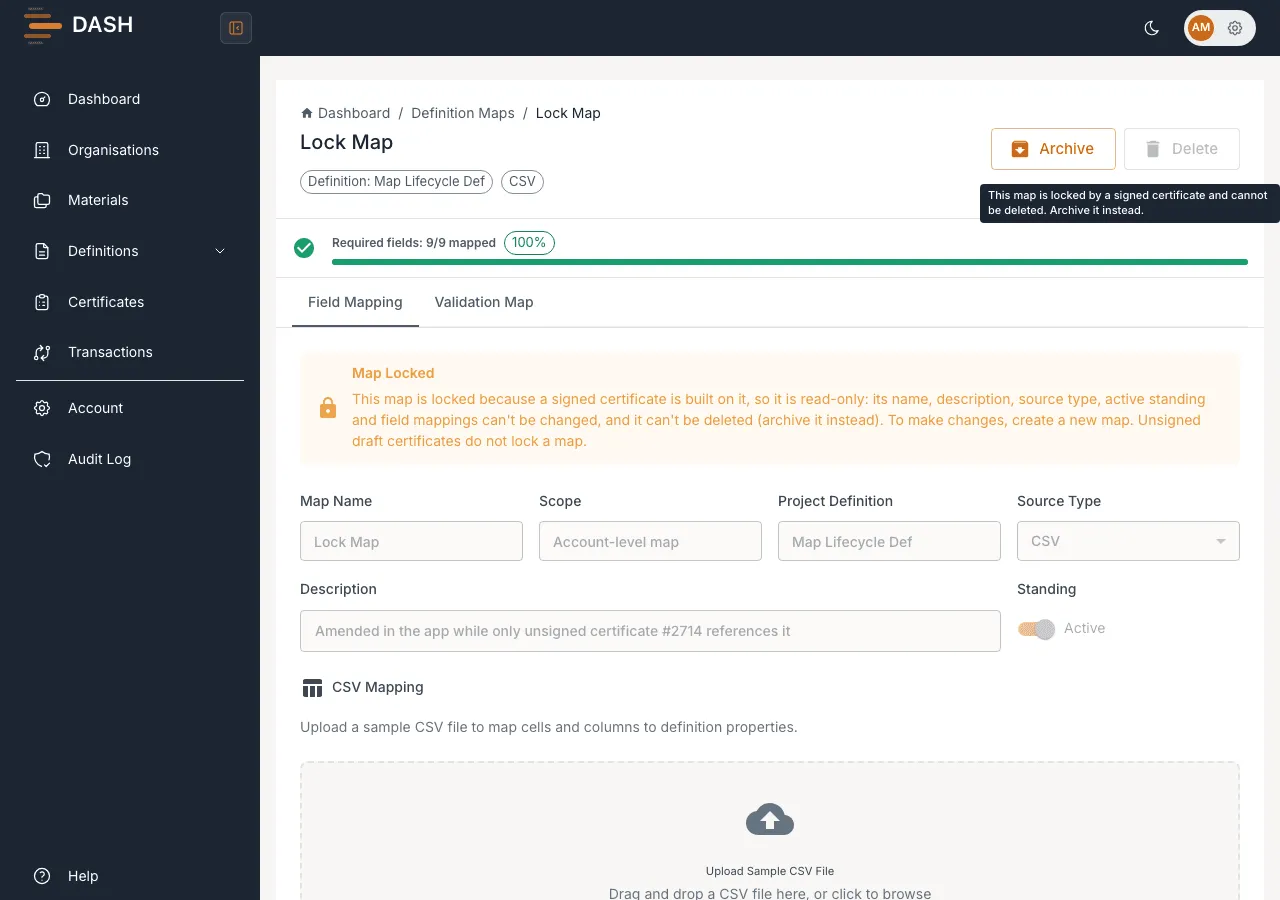
- the Map Locked banner appears: “This map is locked because a signed certificate is built on it, so it is read-only… To make changes, create a new map. Unsigned draft certificates do not lock a map.”;
- there is no Save button, and the details, mappings and validation rules can’t be changed. You can still scroll through the sample and the mappings to review them;
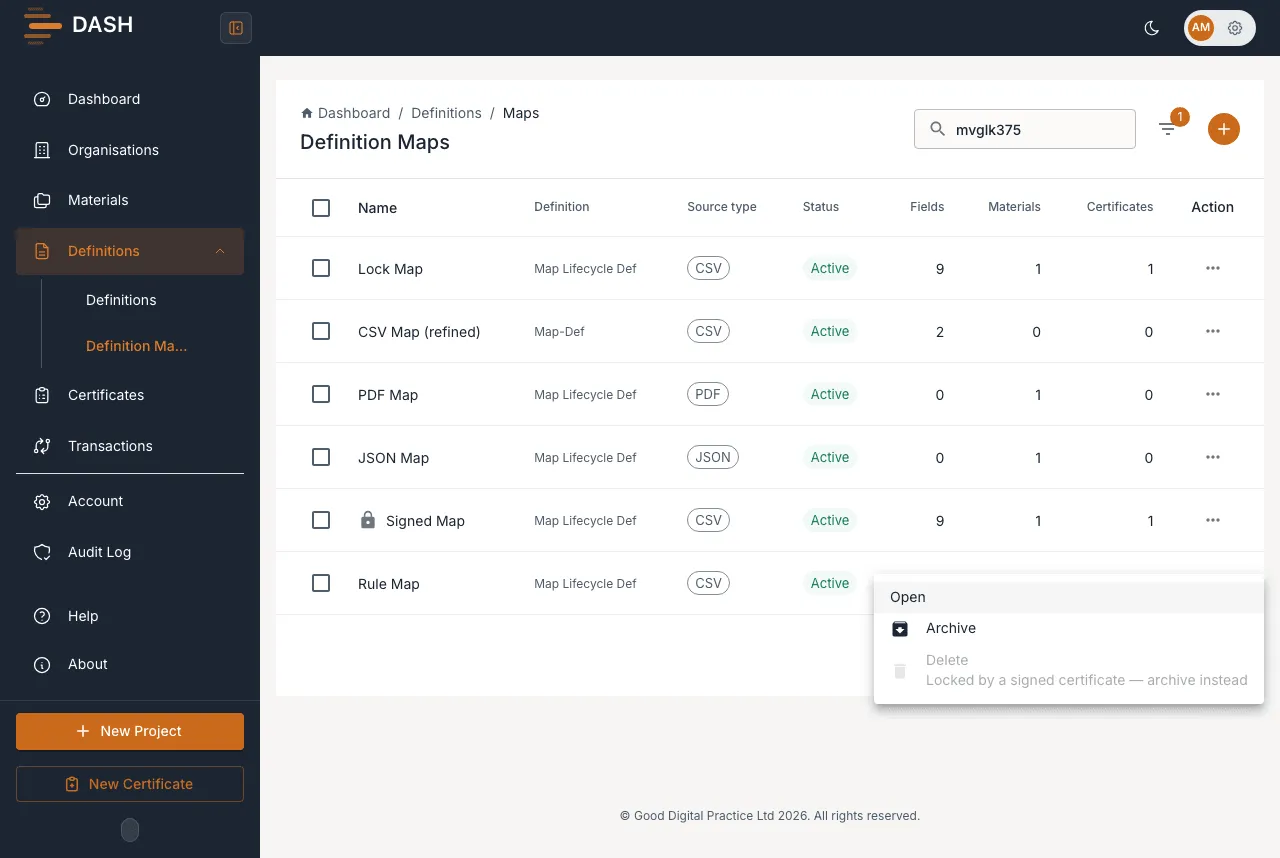
- Delete is disabled with the tooltip “This map is locked by a signed certificate and cannot be deleted. Archive it instead.”;
- in the Definition Maps list, a lock icon appears next to its name.
A locked map can still be used for new certificates. If something tries to change it anyway, DASH refuses with “Cannot modify a definition map locked by a signed certificate.”
To change how documents are read after the map has locked, create a new map (see Create a definition map) and use it for new certificates. Certificates already built on the old map keep it.
When the lock is released
Section titled “When the lock is released”If a signed certificate’s source file is replaced, its signatures are voided (see Void on change). Once no signed certificate is built on the map any more, the lock is released: the banner disappears, Save returns and Delete is enabled again. If another signed certificate still uses the map, it stays locked.
Make Comply on a certificate
Section titled “Make Comply on a certificate”On a certificate’s review screen, Make Comply changes the map’s date formatting so a date-like value is converted to the material’s output format. Because that changes the map for every certificate that uses it, DASH refuses it:
- with “Cannot modify a definition map locked by a signed certificate.” when the map is locked, or when this certificate already carries a signature (including part-way through a signing workflow);
- with “This map is used by other certificates and is locked. Create a new map to change its date formatting.” whenever any other certificate uses the map, even if none of them is signed.
In either case, create a new map with the date mapped using Date format conversion (see Field transforms & row rules), and use it for new certificates. See also Review & edit a certificate.
Delete a map
Section titled “Delete a map”You can delete a map that isn’t locked, even if unsigned certificates use it.
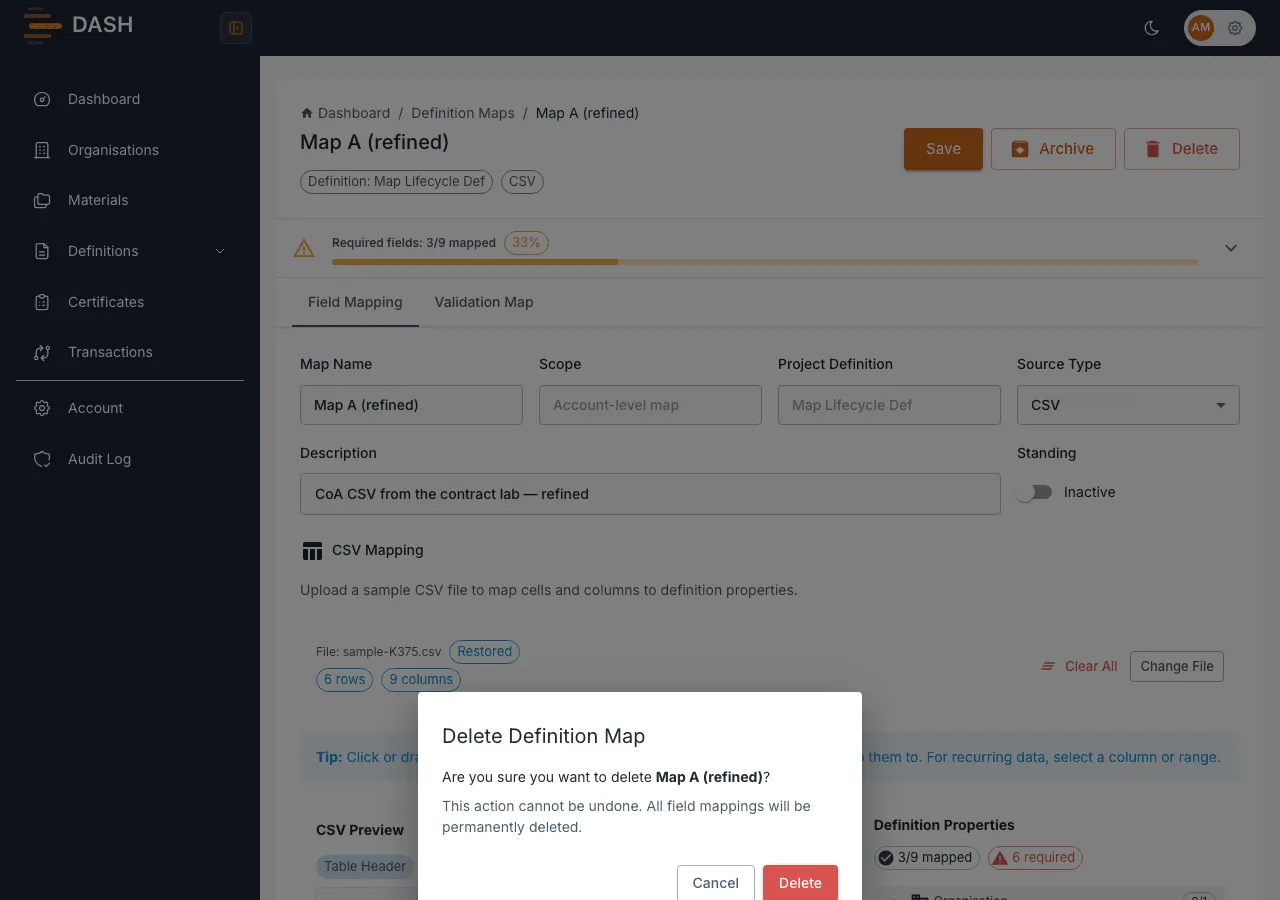
- On the map, select Delete. Or, in the Definition Maps list, open the row’s ⋯ menu and select Delete.
- The Delete Definition Map dialog asks you to confirm: “This action cannot be undone. All field mappings will be permanently deleted.” Select Delete.
For a locked map, the row menu’s Delete is disabled and reads “Locked by a signed certificate — archive instead”. If you select several maps and delete them together, DASH skips the locked ones.
Archive or unarchive a map
Section titled “Archive or unarchive a map”Archiving hides a map from the default list without deleting it, and you can reverse it at any time. It is the way to retire a locked map.
- On the map, select Archive. Or, in the list, open the row’s ⋯ menu and select Archive. You can also tick several maps and archive them together.
- The map leaves the default list. To see it, select Filter → Show archived maps. Archived maps appear faded with the status Archived.
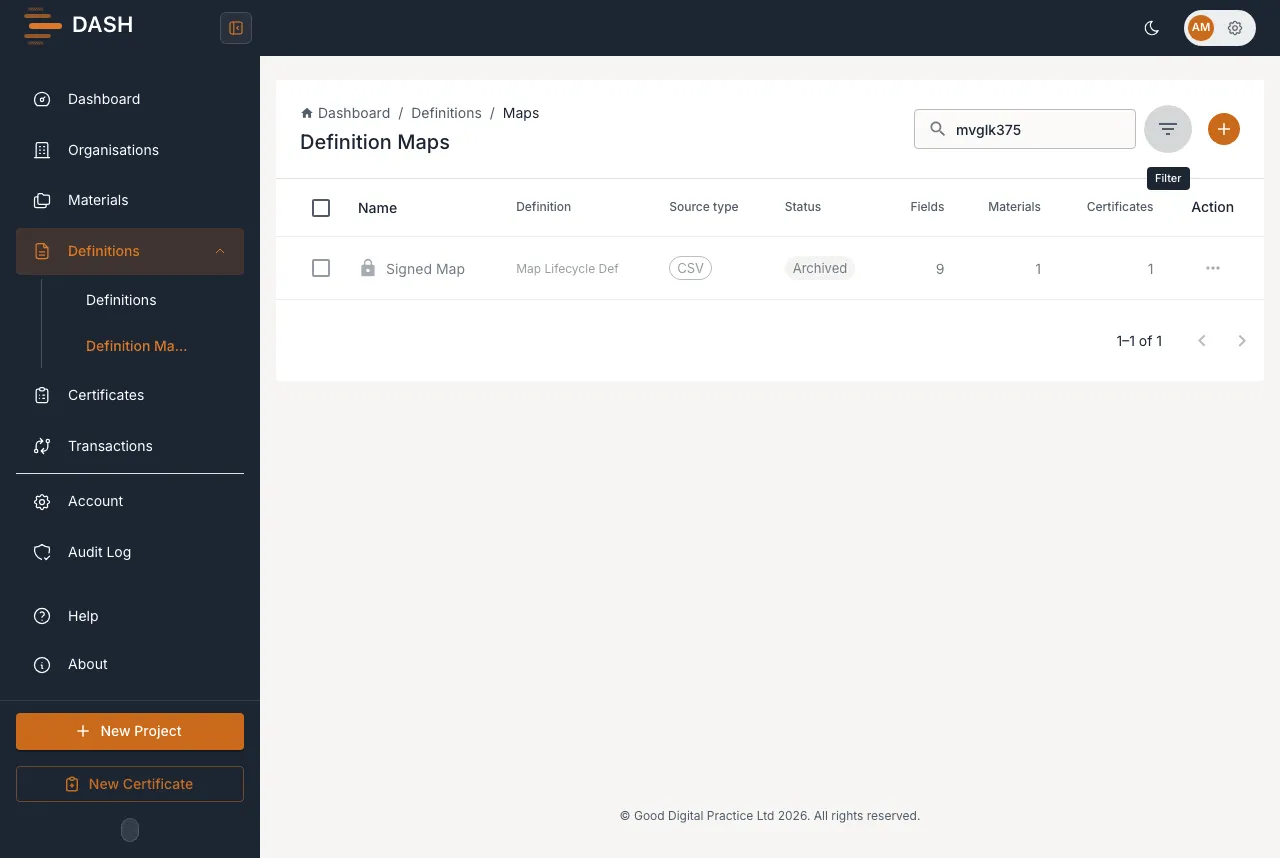
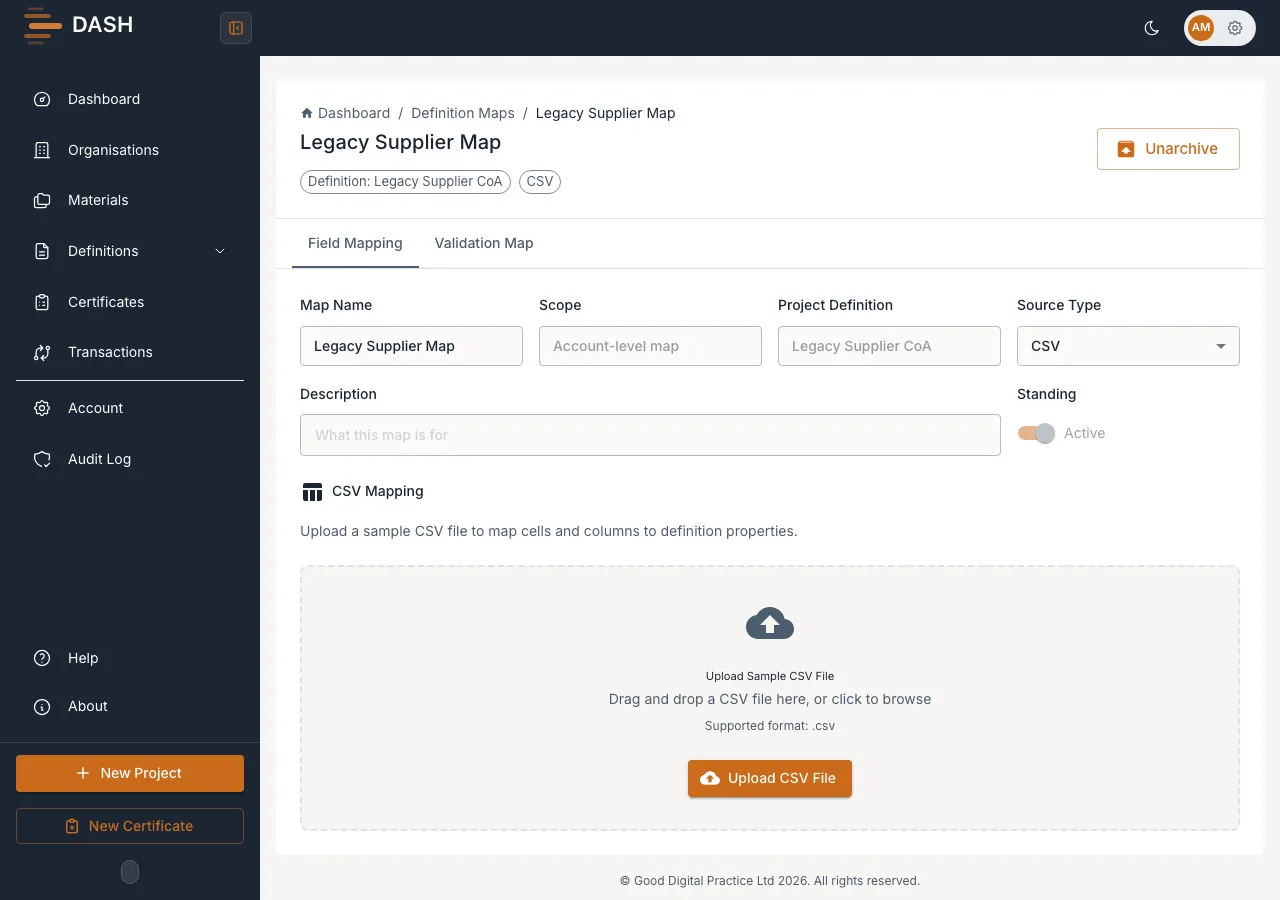
- To bring it back, open the archived map and select Unarchive, or choose Unarchive in its row menu. An archived map can’t be edited until you unarchive it.