

Account linking
Some people who sign in through your SSO connection already have a DASH login, for example because they work with another organisation that uses DASH, or they had their own account before your organisation adopted SSO. DASH doesn’t create a second, duplicate user for them. Instead it links their existing login to your account, so each person has one identity in DASH and keeps their history.
When DASH links an existing user
Section titled “When DASH links an existing user”DASH joins an existing user to your account automatically when all of these are true:
- they sign in through your connection with the same email address as their existing DASH login;
- that address is on one of the connection’s Verified domains;
- Automatically create accounts for new users (just-in-time provisioning) is switched on for the connection;
- your group mapping or default role gives them a role, and you have a free seat.
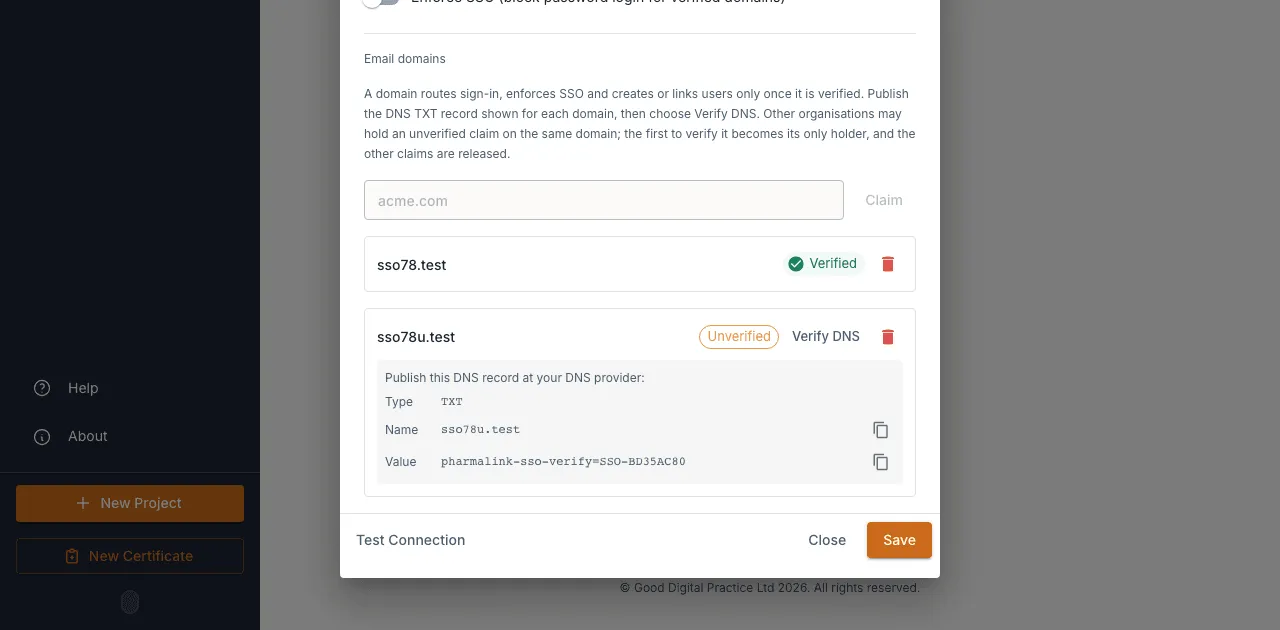
They then appear once in Account → Users, with the role from your settings. DASH updates their name from your identity provider.
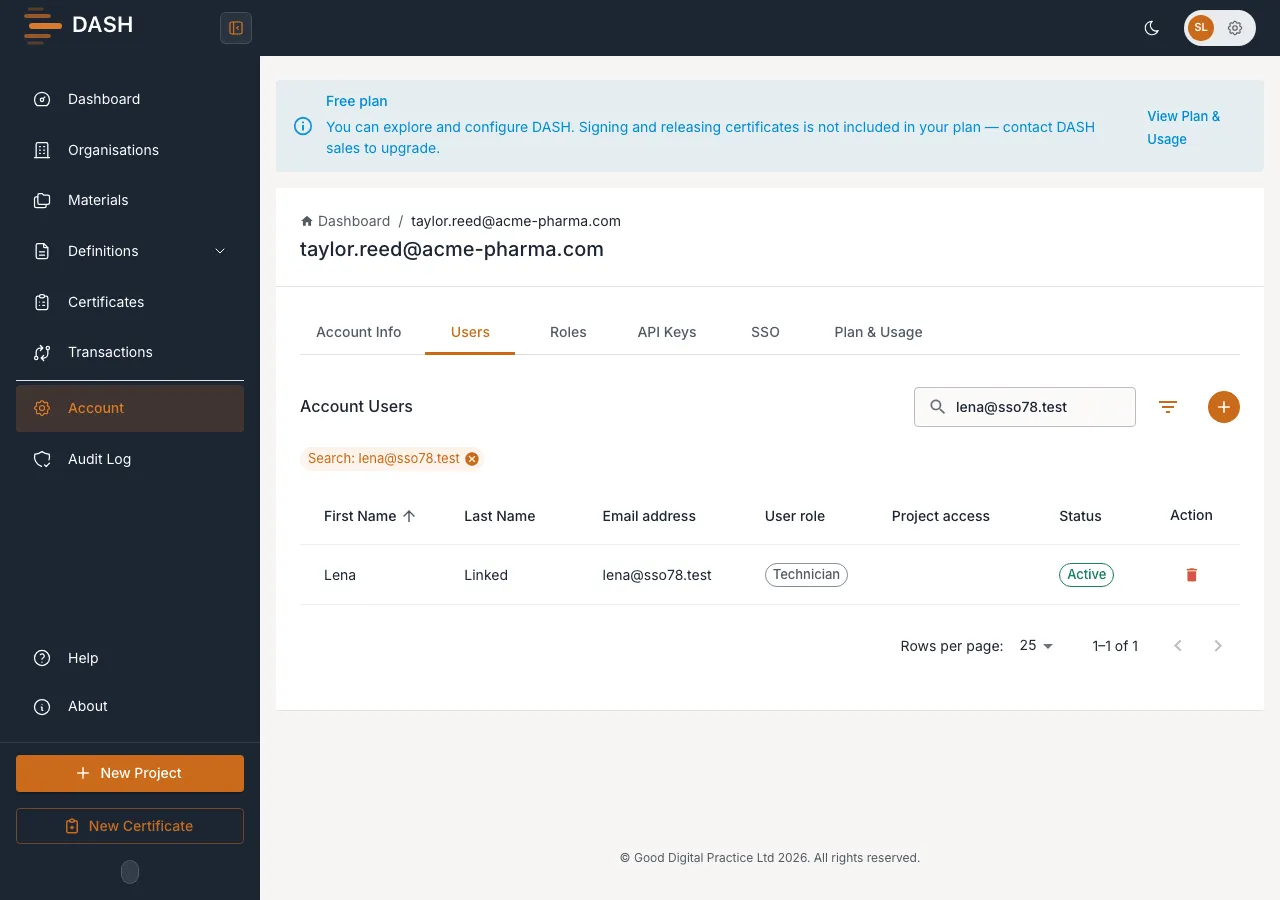
Nothing else about their existing login changes:
- they keep their other DASH accounts and their history;
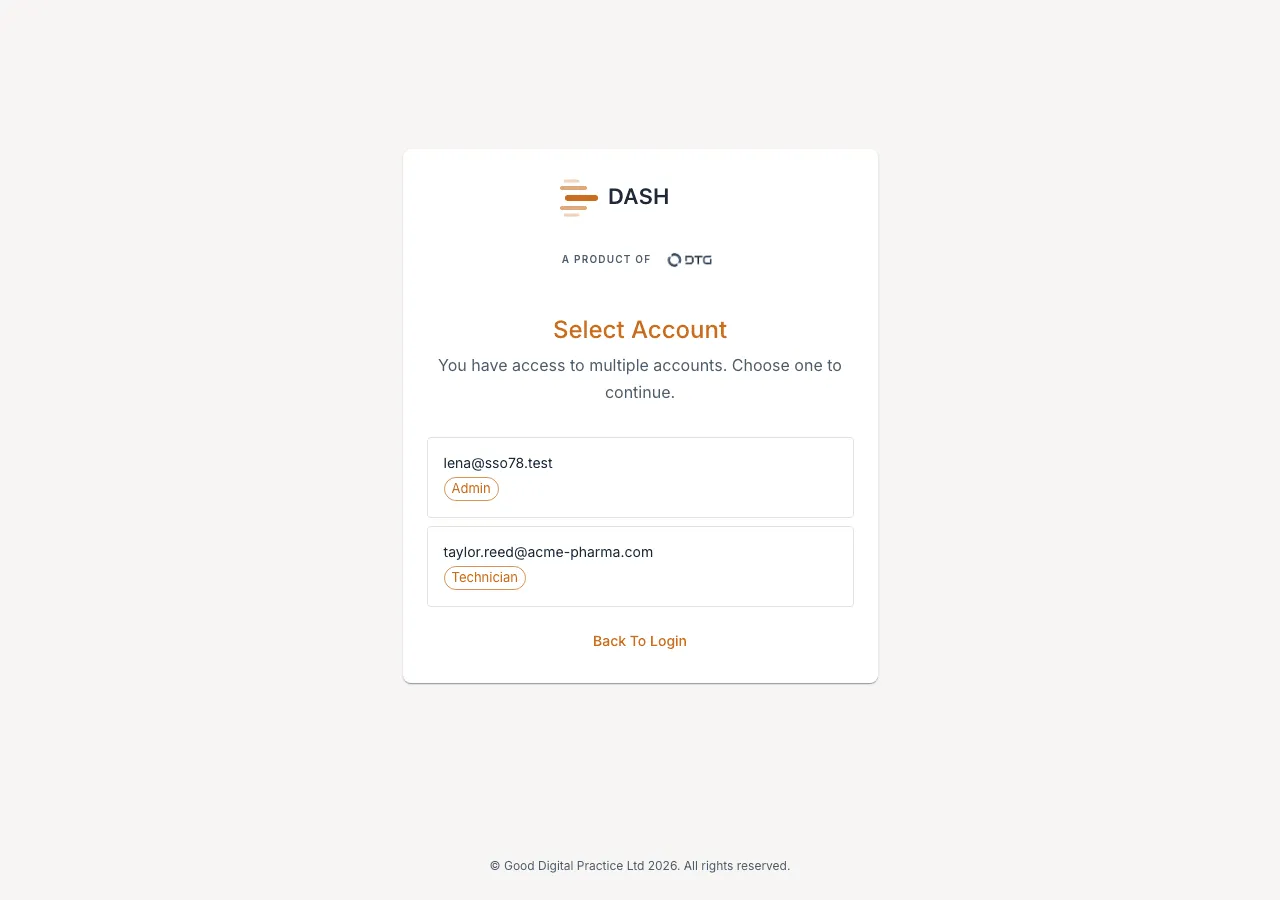
- they keep their own DASH password, so they can still sign in with it and choose between their accounts on Select Account;
- signing in with Continue With … always takes them straight into your account.
The Audit Log records each link as SSO Linked to Existing User. See SSO in the audit log.
When DASH doesn’t link
Section titled “When DASH doesn’t link”- Provisioning is off. DASH doesn’t join the person automatically. They are refused at sign-in, and you add them by invitation instead. See Invite team members.
- The domain isn’t verified. DASH never joins someone silently on a domain your account hasn’t proved it owns. Without this rule, anyone could set up a connection and take over other people’s DASH logins. People on an unverified domain aren’t offered Continue With … at all. If they reach the connection some other way, DASH refuses: “Your email domain is not verified for single sign-on with this organisation, so you could not be signed in. Contact your administrator.”
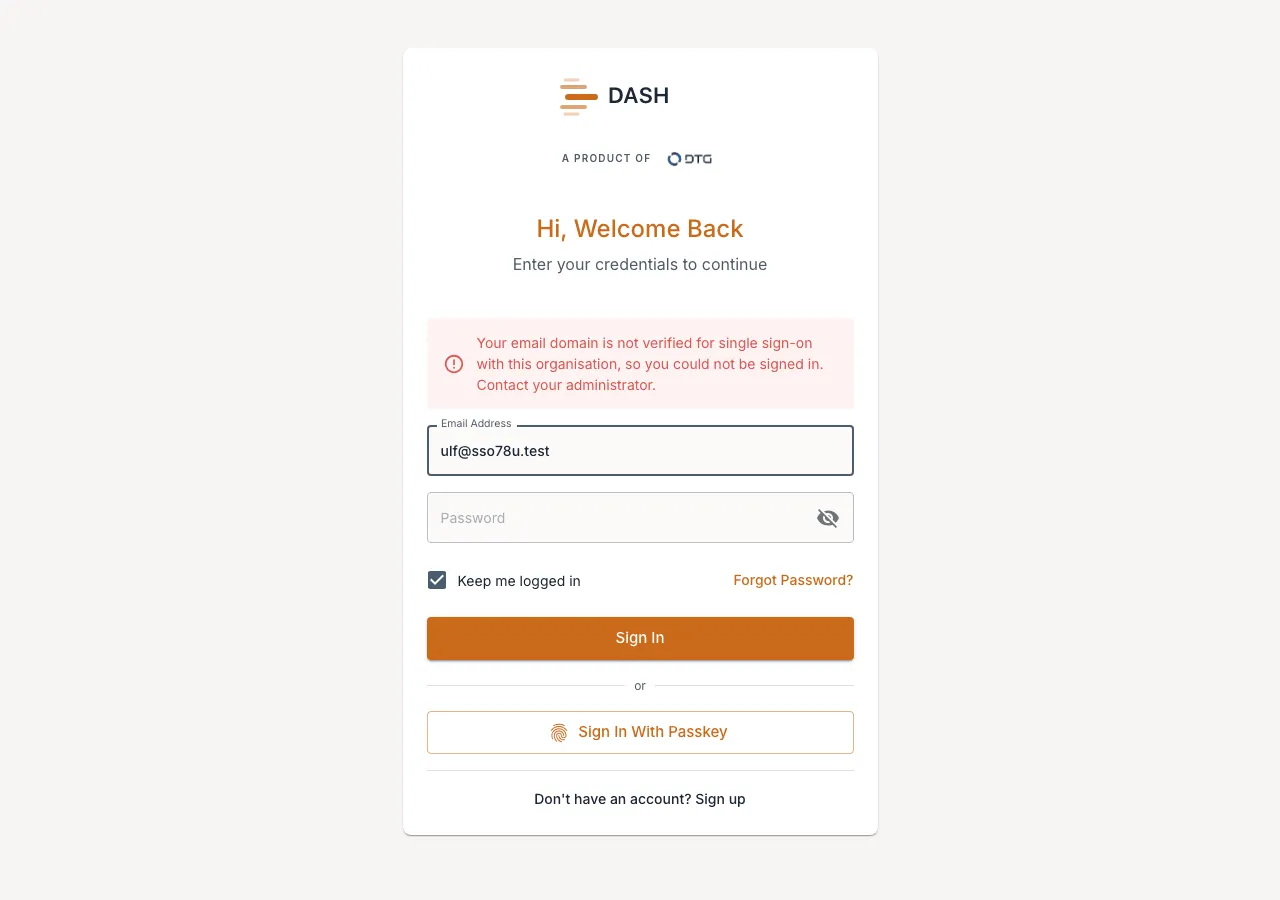
Each refusal is recorded in the Audit Log as SSO Login Denied.
To let these people in, verify their domain (see Verify a domain) and switch on provisioning, or invite them.