

Submit a certificate and track it
Once a certificate is fully signed, the Quality Person (QP) submits it. DASH then produces, seals and sends the released document in the background. This page shows how to submit, and how to tell from the certificate itself whether the receiving organisation accepted it.
Submit the certificate
Section titled “Submit the certificate”- Open the certificate from Certificates. A signed certificate opens on its last step, Sign and submit. Check that the chip at the top reads Status: Approved for Submission and that the signing workflow panel shows Fully signed.
- Select Submit at the bottom of the page. The button reads Submitting… while DASH works.
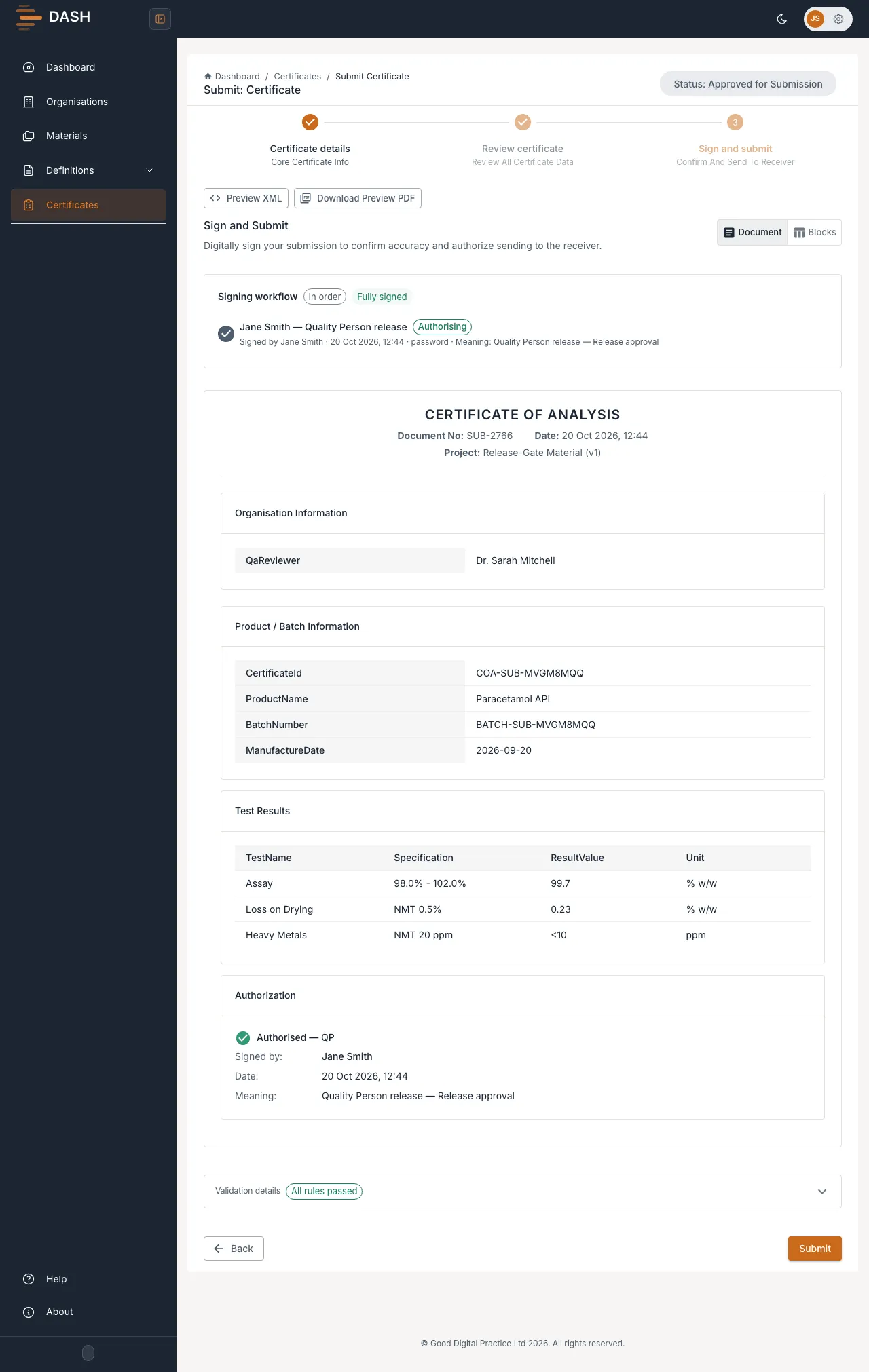
- When DASH has an outcome, it takes you back to Certificates and shows one of these messages:
- “Certificate submitted successfully!”: the receiver confirmed delivery.
- “Certificate submitted with errors. Please check the certificate details.”: the release stopped or the receiver reported a failure. Open the certificate to see why.
- “Release on hold until a signing key is available — it will continue automatically”: see Release on hold below.
If Submit is disabled, the hint beside it tells you why: “Sign and accept the agreement to submit.” (a signature is still missing) or “Resolve required fields and validation errors before submit.”
Follow progress on the certificate
Section titled “Follow progress on the certificate”Open the certificate from Certificates to see its record. The status chip and the banners at the top of the Certificate details tab tell you where it is.
| Status chip | What it means |
|---|---|
| Submitting | DASH is checking, producing, sealing or sending the output. |
| Pass | The receiving channel confirmed delivery. |
| Fail | The receiving channel reported a failure, or couldn’t be reached. |
| Validation Failed | An error rule failed at the final check, and nothing was sent. |
| Output generation failed | The released document couldn’t be produced, and nothing was sent. |
The filter on the Certificates page uses slightly different words for some of these: Passed for Pass, Submit Failed for a failed send, Generating XML and XML Failed for the production stages. See Certificate statuses for the full mapping.
While the certificate is being sent
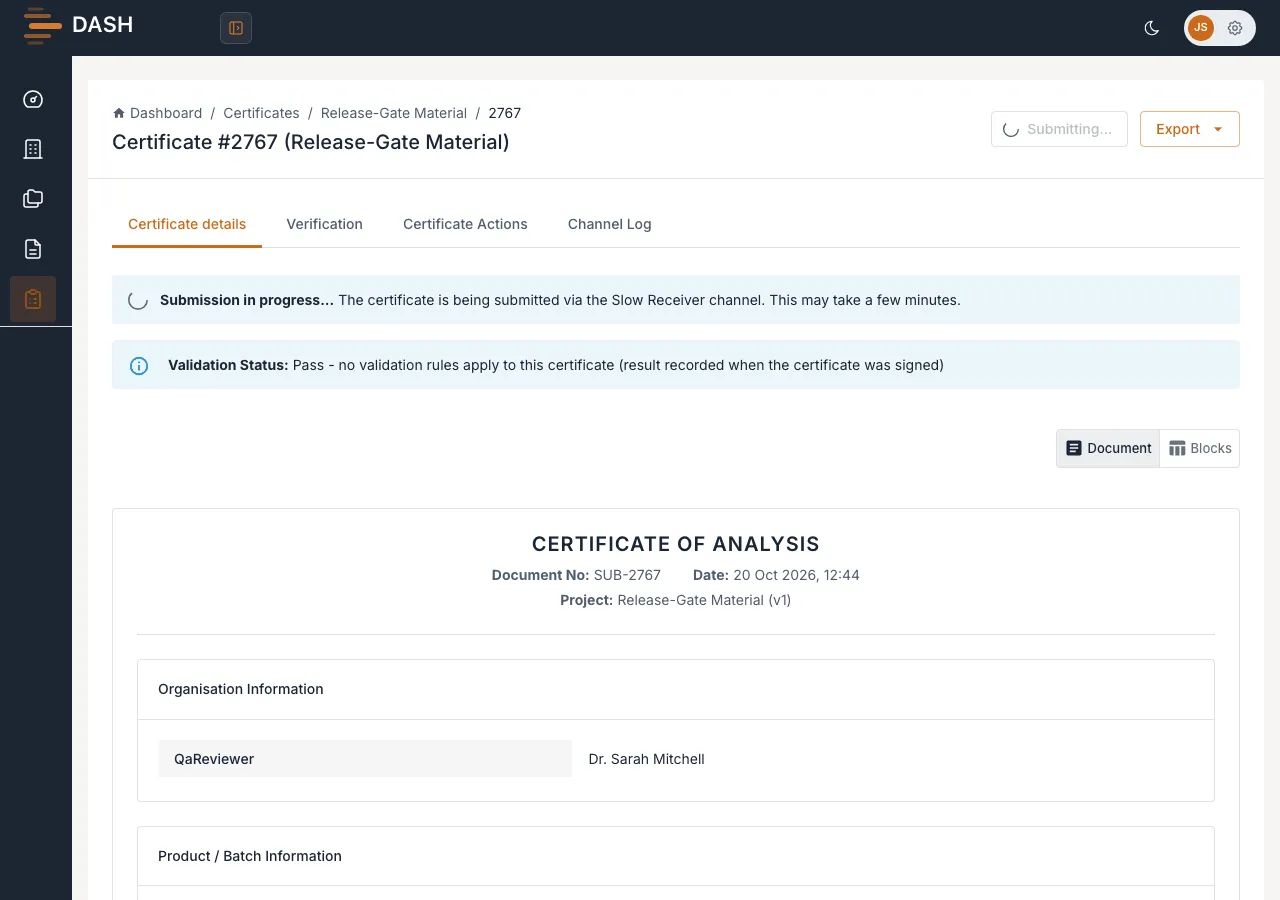
Section titled “While the certificate is being sent”The record shows “Submission in progress… The certificate is being submitted via the [channel] channel. This may take a few minutes.” and a disabled Submitting… button. DASH never runs two sends of the same certificate at once, so nobody can start a second send while this one is running.
When the receiver has answered
Section titled “When the receiver has answered”The Transmission Status banner gives the outcome and the time of the attempt:
- “This submission was successfully sent via [channel] channel on [date and time].”
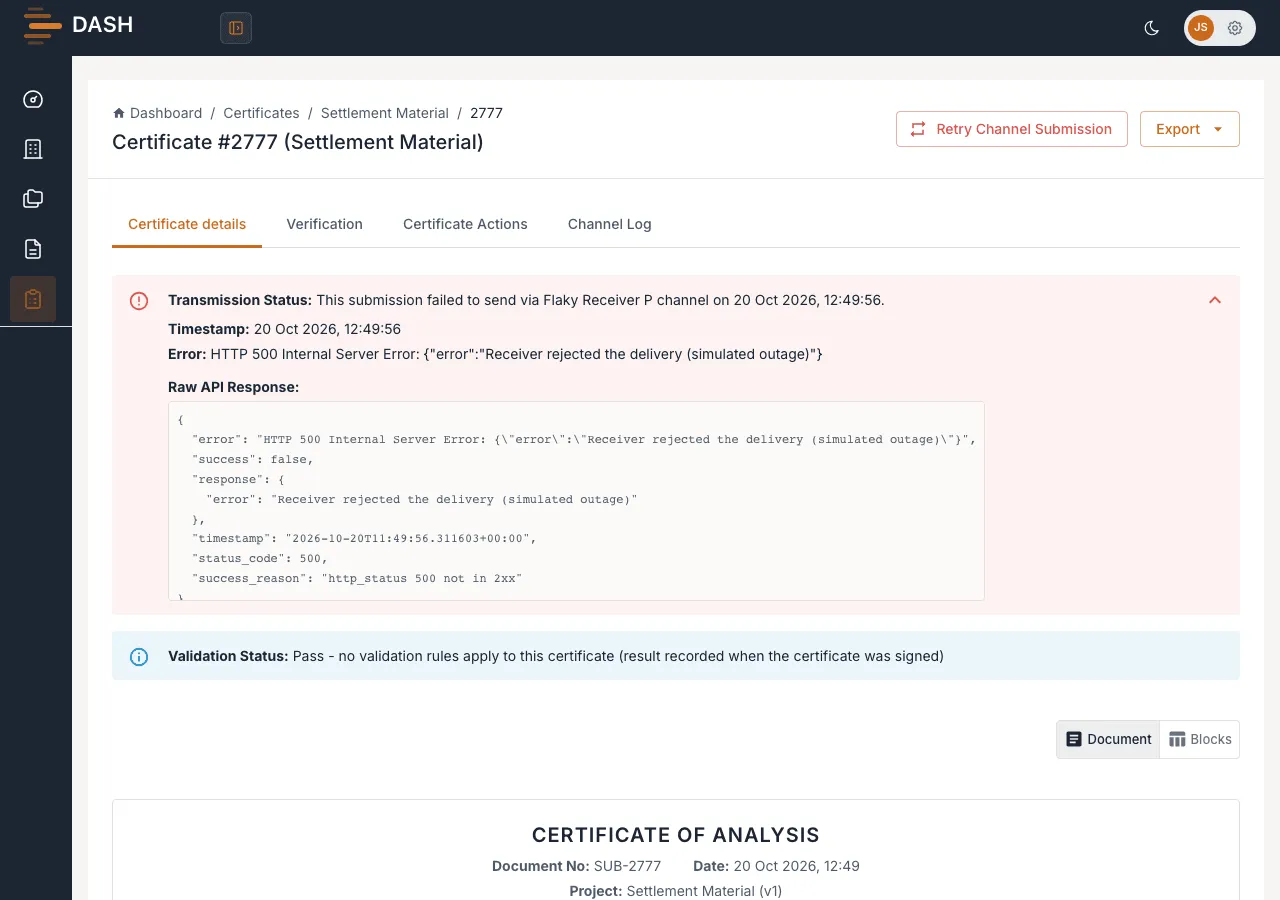
- “This submission failed to send via [channel] channel on [date and time].”
After a retry, the sentence ends with (retry).
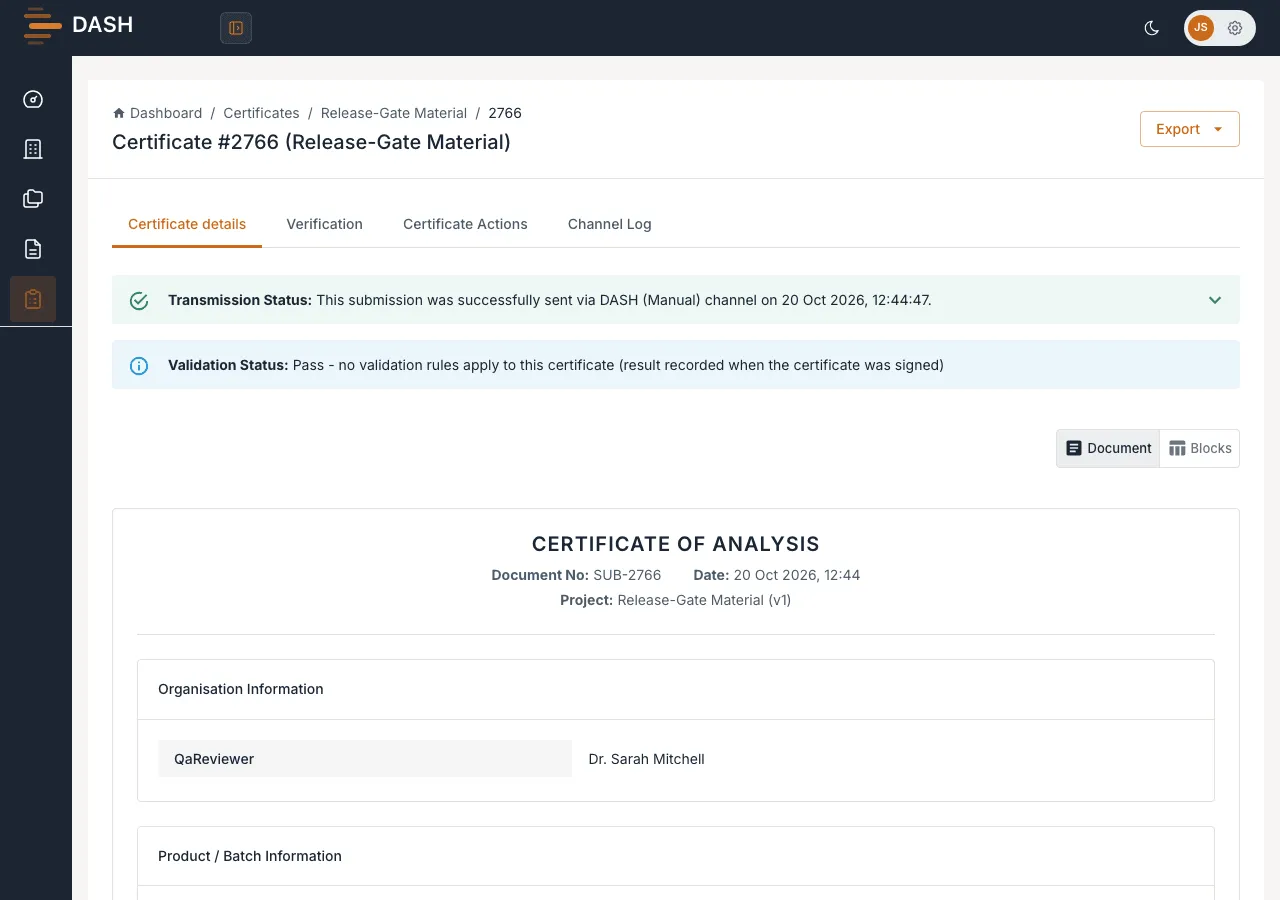
Select the arrow on the right of the banner to expand it. You’ll see the timestamp, any error and the Raw API Response, which is the receiving system’s own answer. DASH takes Pass or Fail from that answer, never from its own assumption that a send worked.
If the Material has storage channels, a Storage Channels banner below it shows how the archival copies went. See Archival copies.
Every attempt, on the Channel Log tab
Section titled “Every attempt, on the Channel Log tab”Open the Channel Log tab for the certificate’s full delivery history: one row per attempt, with timestamp, action, channel, status, HTTP code, duration and the person who triggered it. See Transaction log.
Release on hold
Section titled “Release on hold”Rarely, the platform’s signing key isn’t available when you submit. DASH then holds the release instead of sending an unsealed document:
- the status chip reads Submitting;
- the record shows “Release on hold until a signing key is available — it will continue automatically. Nothing has been sealed or transmitted yet.”
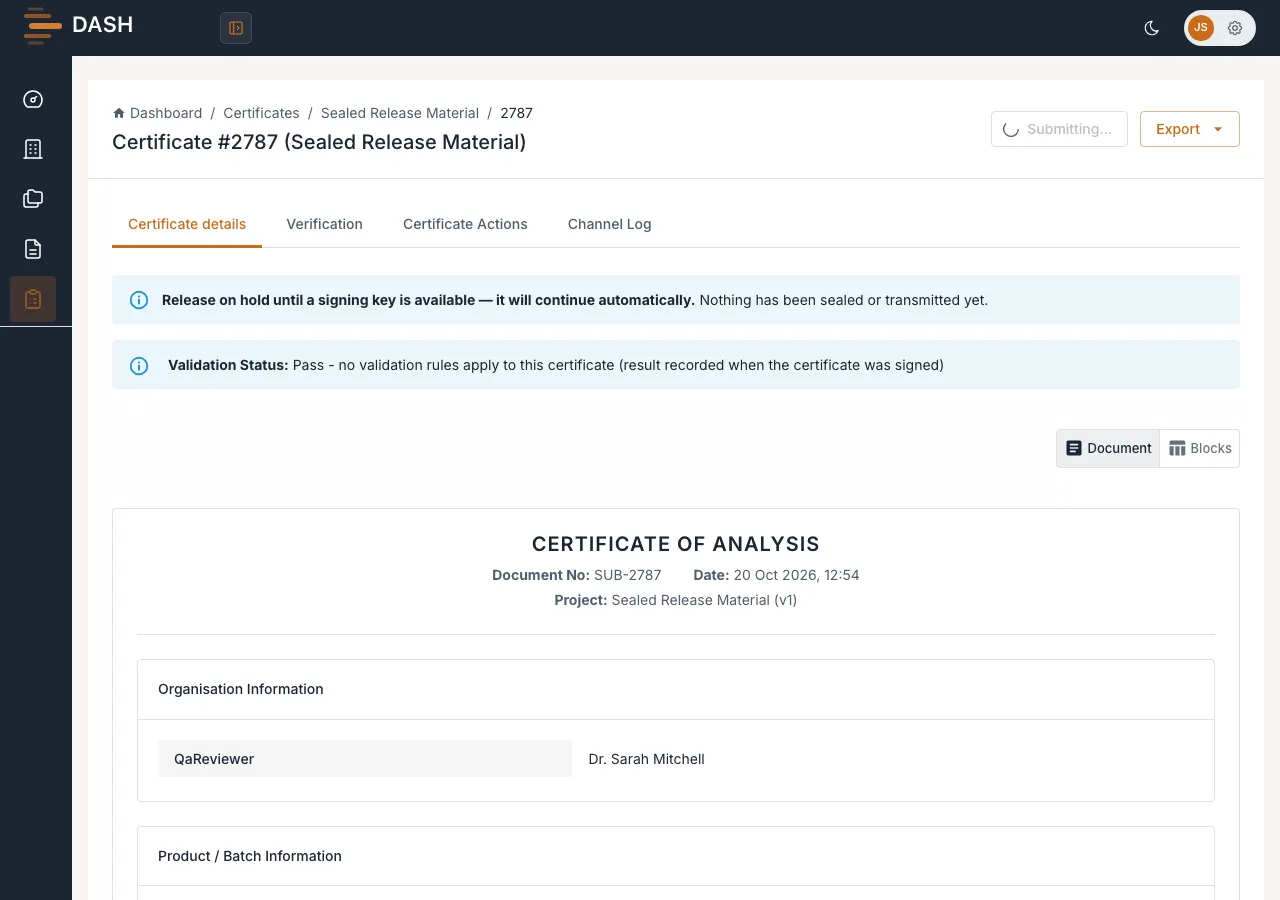
You don’t need to do anything. DASH tries again at least every 15 minutes, and straight away when a key becomes available, and then completes the release unchanged. The Channel Log shows System as the user for an attempt DASH made by itself. Signing keys are managed by DASH staff. If a hold lasts longer than you expect, contact DASH support. See Sealed PDF and long-term validity.
If the submission fails
Section titled “If the submission fails”- Fail: fix the cause, then the QP selects Retry Channel Submission. See Retry a failed transmission.
- Output generation failed or Validation Failed: these aren’t transmission failures. See Retry a failed transmission for how each one is recovered.
- More causes and fixes: Submission failures.