

Group-to-role mapping
Your identity provider already knows which team each person belongs to. Group-to-role mapping lets DASH use that: you link each group at your identity provider (for example dash-qp) to a DASH role (for example QP). People then get the right role when they sign in with SSO, and it stays in step with your directory.
Map groups to roles
Section titled “Map groups to roles”- Go to Account → SSO and open the connection with the edit (pencil) icon.
- Under Group-to-role mapping, select Add Group Mapping. A new row appears.
- In IdP group, type the group name exactly as your identity provider sends it.
- In DASH role, choose the role for that group.
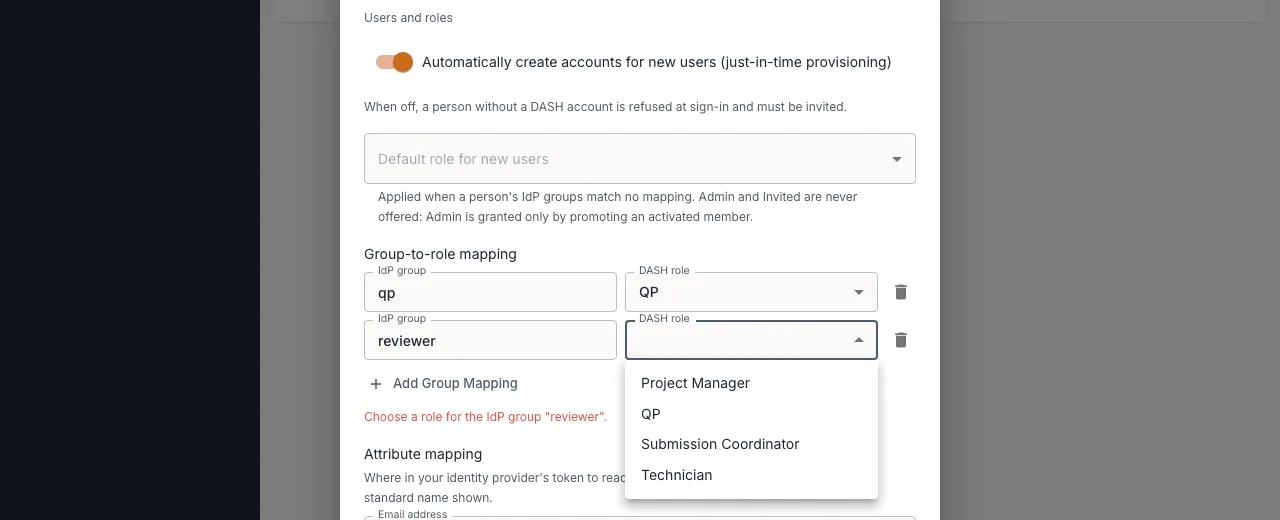
- Repeat for each group. To remove a row, select its delete (bin) icon.
- Select Save. DASH shows “SSO connection updated”.
The DASH role list offers the account’s working roles, such as Project Manager, QP, Submission Coordinator and Technician, and any custom roles that don’t carry account administration rights. See System and custom roles.
DASH checks the rows before saving. It refuses a row with no group name (“Every group-to-role mapping needs an IdP group name.”), a group with no role (“Choose a role for the IdP group “…”.“) and a group mapped twice (“The IdP group “…” is mapped more than once.“).
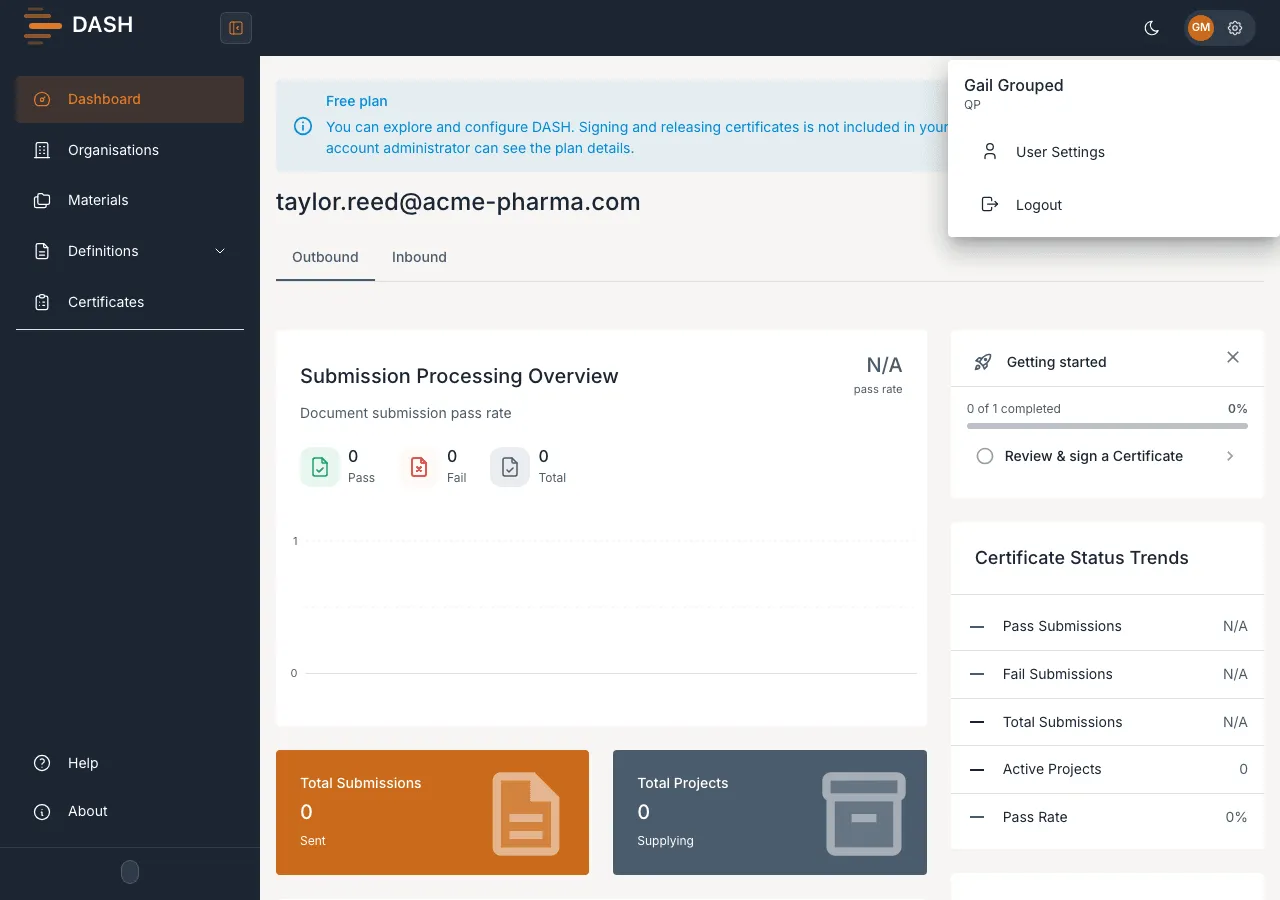
The next time someone in a mapped group signs in, they get that role.
Set a default role
Section titled “Set a default role”The default role is for people whose groups match none of your mappings.
- Open Default role for new users.
- Choose a role, or None (deny if no group matches).
- Select Save.
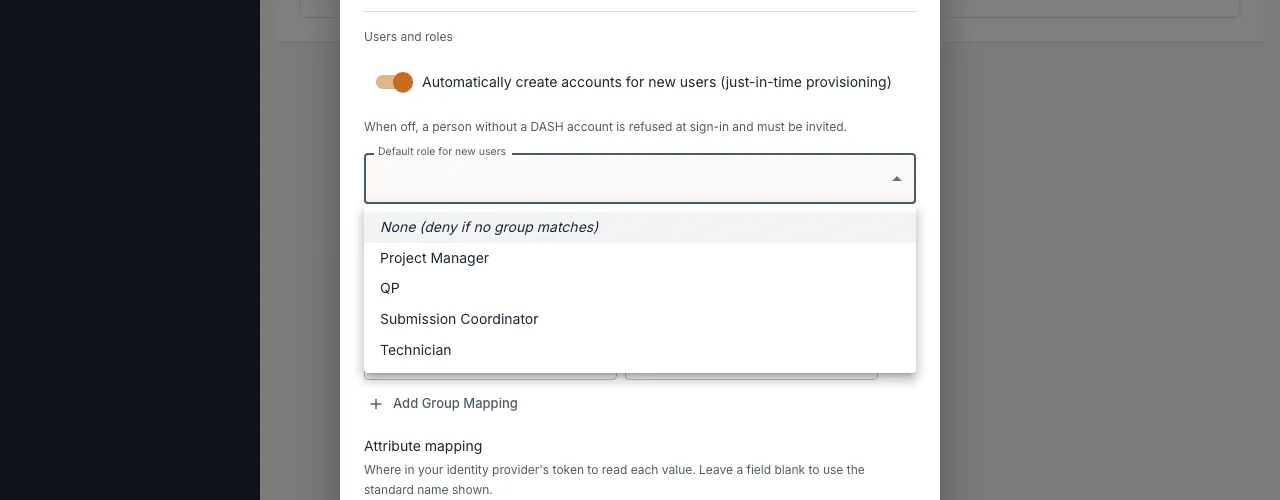
With a default role set, someone outside every mapped group is still let in, with that role.
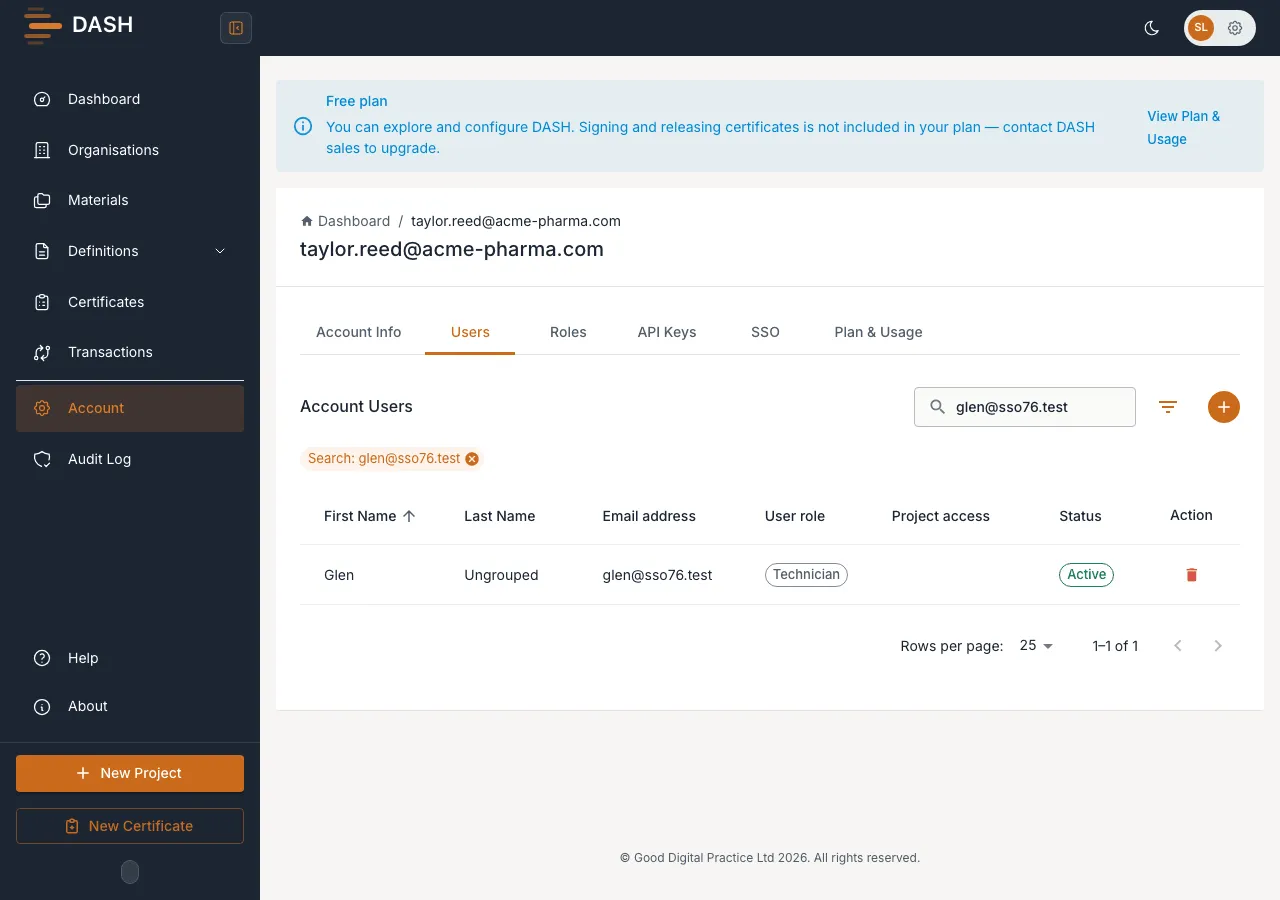
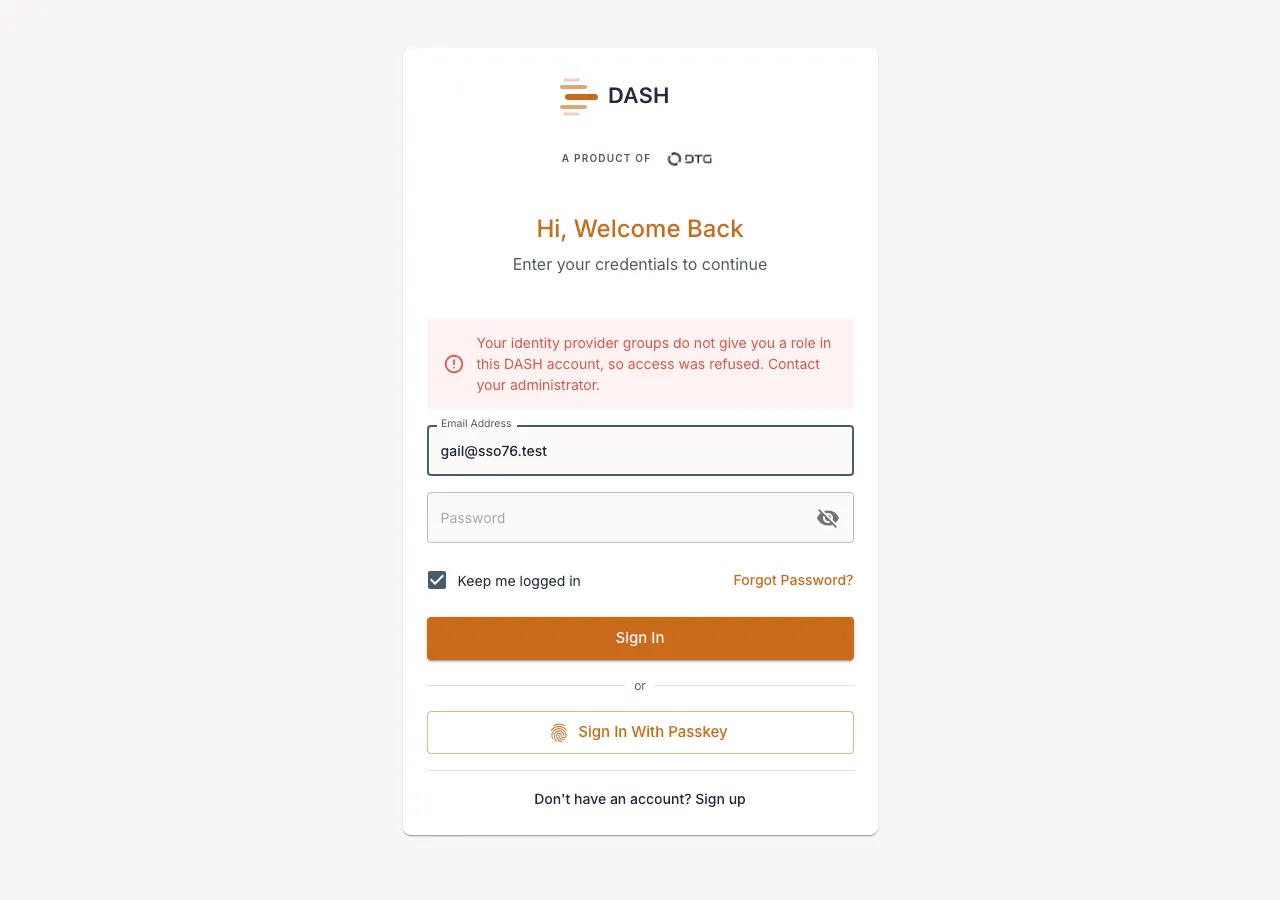
With None (deny if no group matches), DASH refuses anyone whose groups match no mapping. It never falls back to a role you didn’t choose. They see “Your identity provider groups do not give you a role in this DASH account, so access was refused. Contact your administrator.” This applies to existing members too: an existing member who no longer matches any group is refused at sign-in. Their DASH membership itself is left unchanged.
Choose the least-privileged role that suits your organisation as the default, or None if everyone should be in a mapped group.
Roles are updated at every SSO sign-in
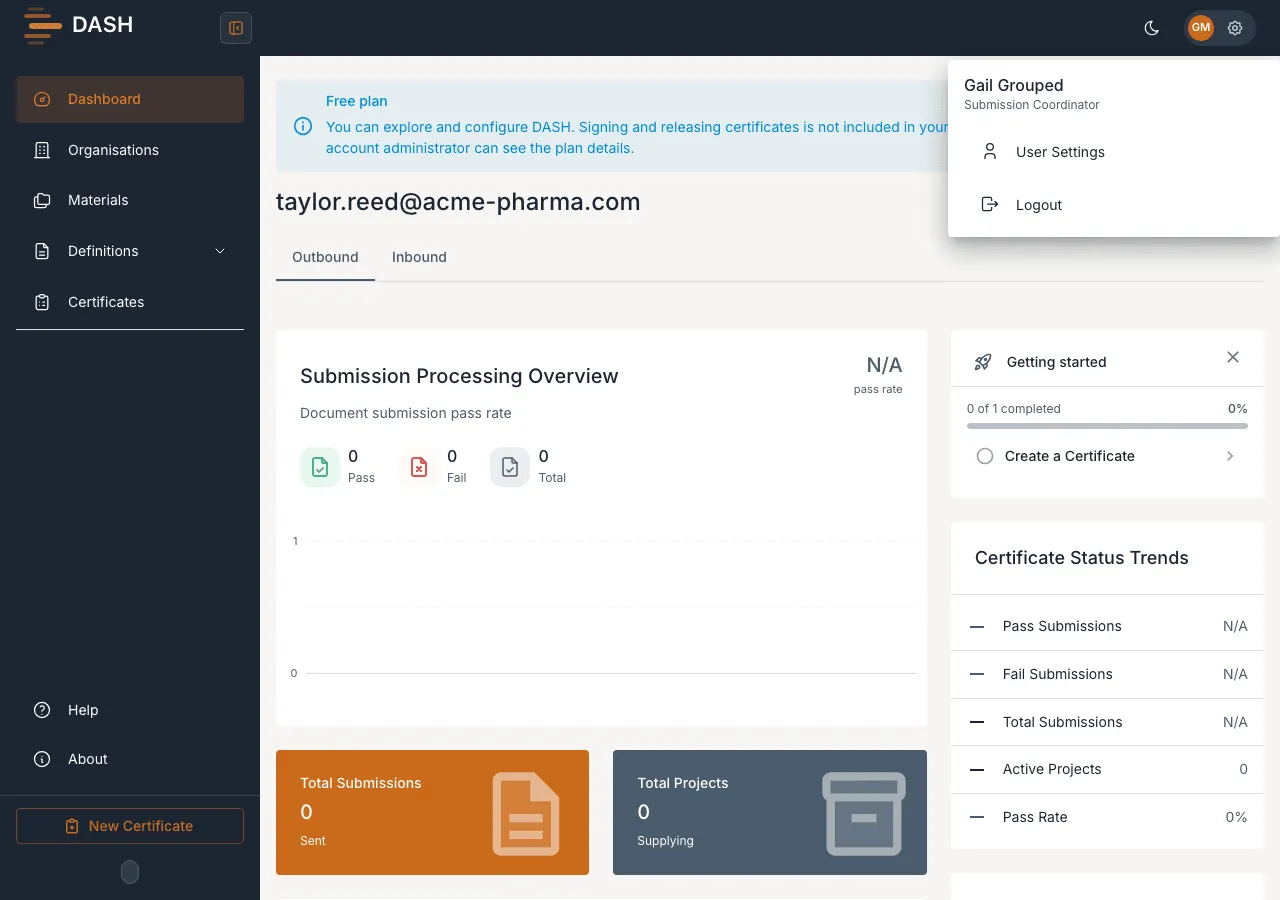
Section titled “Roles are updated at every SSO sign-in”DASH works out each person’s role from their groups every time they sign in with SSO, not just the first time. If you move someone to a different group at your identity provider, or remove them from a group, their DASH role changes at their next sign-in. This applies to every member who signs in with SSO, including people you invited with a particular role.
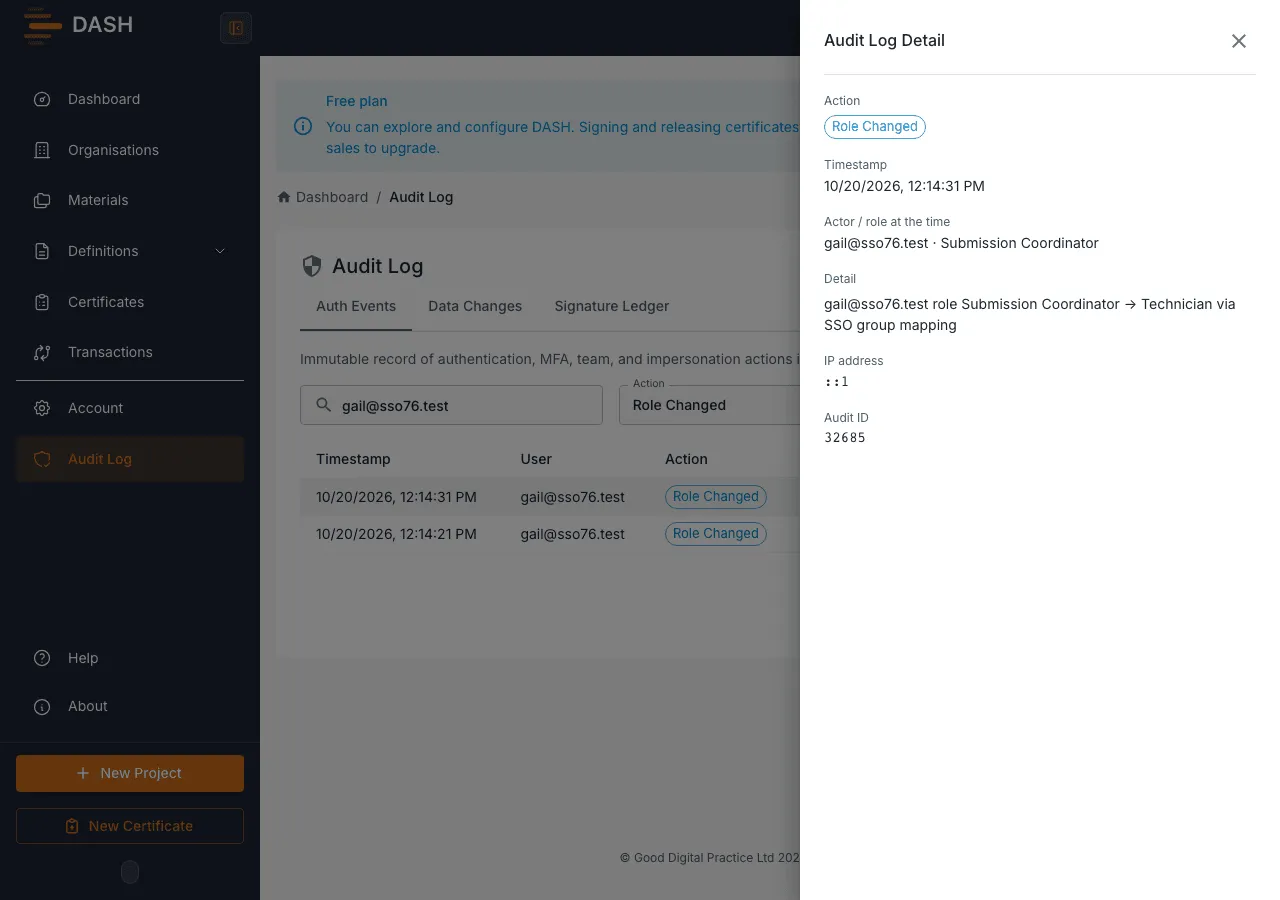
Each change is recorded in the Audit Log as Role Changed, with “via SSO group mapping” in the detail.
If the new role would sign certificates and your account has no free signer seat, DASH keeps the person’s current role and still signs them in.
The Admin role is never given or taken by SSO
Section titled “The Admin role is never given or taken by SSO”SSO can’t make anyone an Admin, and the role lists never offer Admin or Invited. As the dialog says: “Admin is granted only by promoting an activated member.” An Admin promotes a member in DASH, confirmed with an authenticator code. See Assign roles and segregation of duties.
The reverse also holds: once someone is an Admin, SSO never changes or removes their role, whatever groups they are in. (SSO can still refuse their sign-in if their groups give no role at all and there is no default role.)