

Choose your account at sign-in
One DASH user can belong to several accounts. For example, Sam Lee might work in Acme Pharma’s account and also be a member of Northwind Labs’ account. Sam signs in once, with one email address and one password, and then chooses which account to work in on the Select Account screen. Only one account is in force at a time.
Choose the account to work in
Section titled “Choose the account to work in”- Sign in as usual, including any second-factor step.
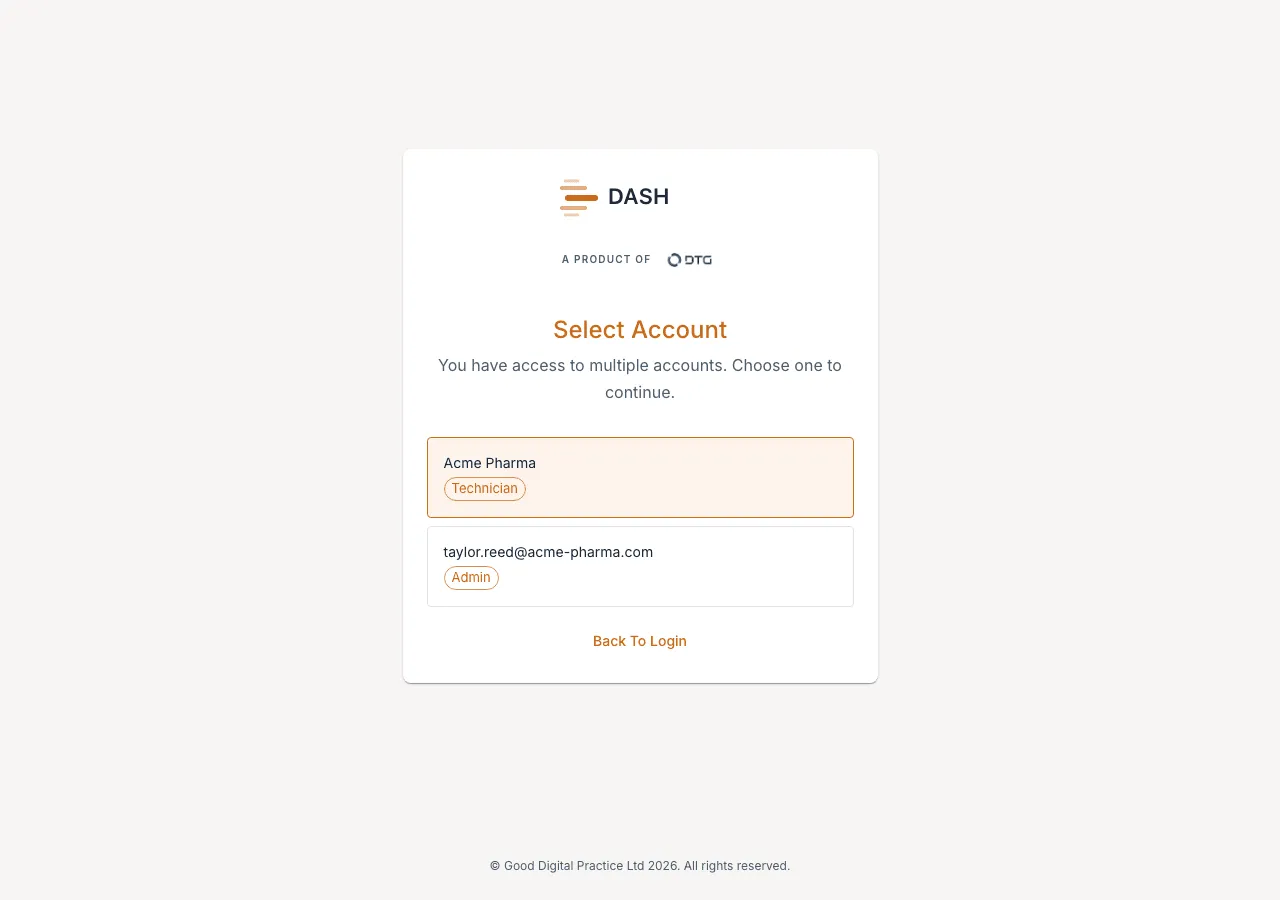
- Select Account appears: “You have access to multiple accounts. Choose one to continue.” Each account is listed by name, with a chip showing your role in that account.
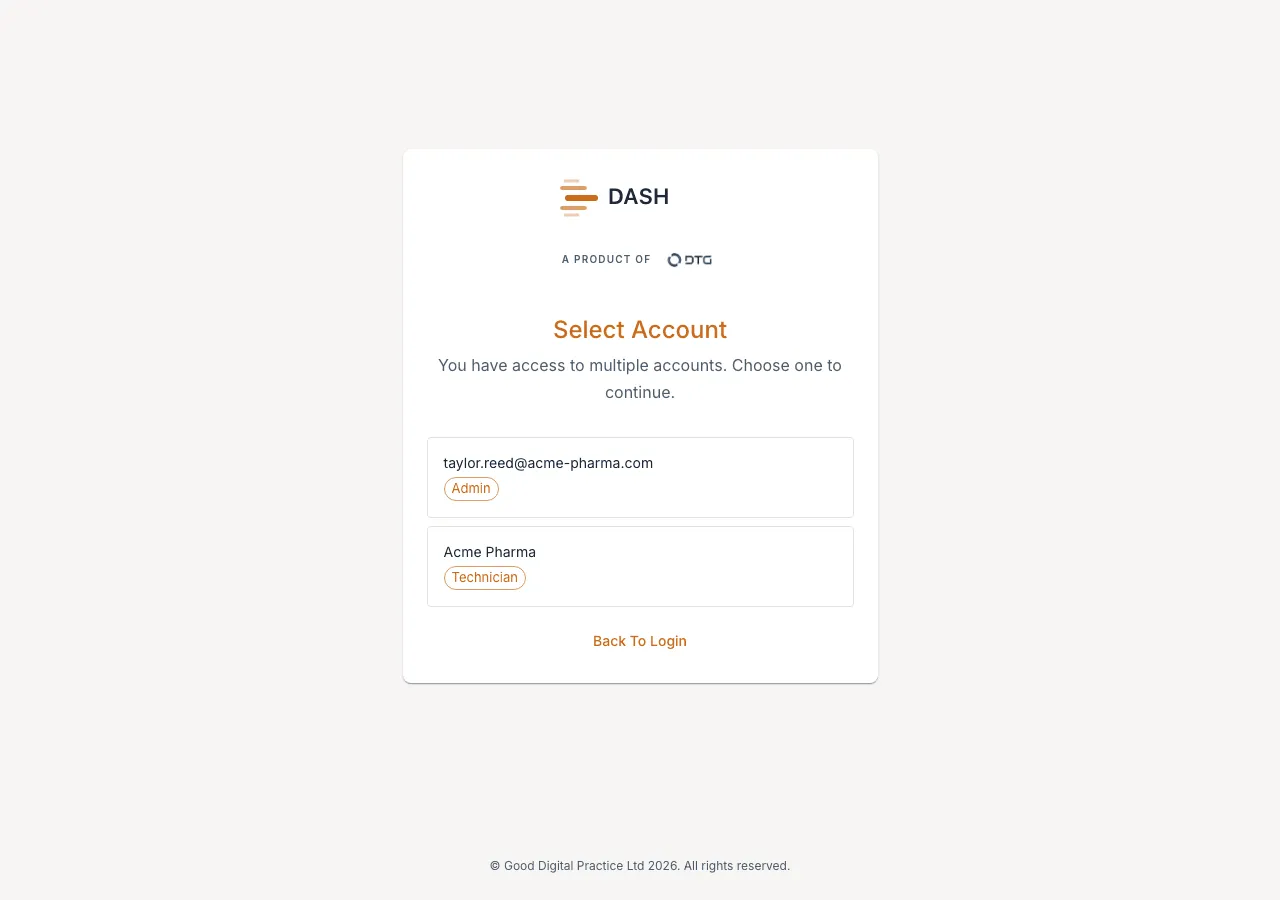
- Select the account you want. DASH opens it and takes you to the page you asked for, or to the Dashboard. The workspace is headed with the account’s name.
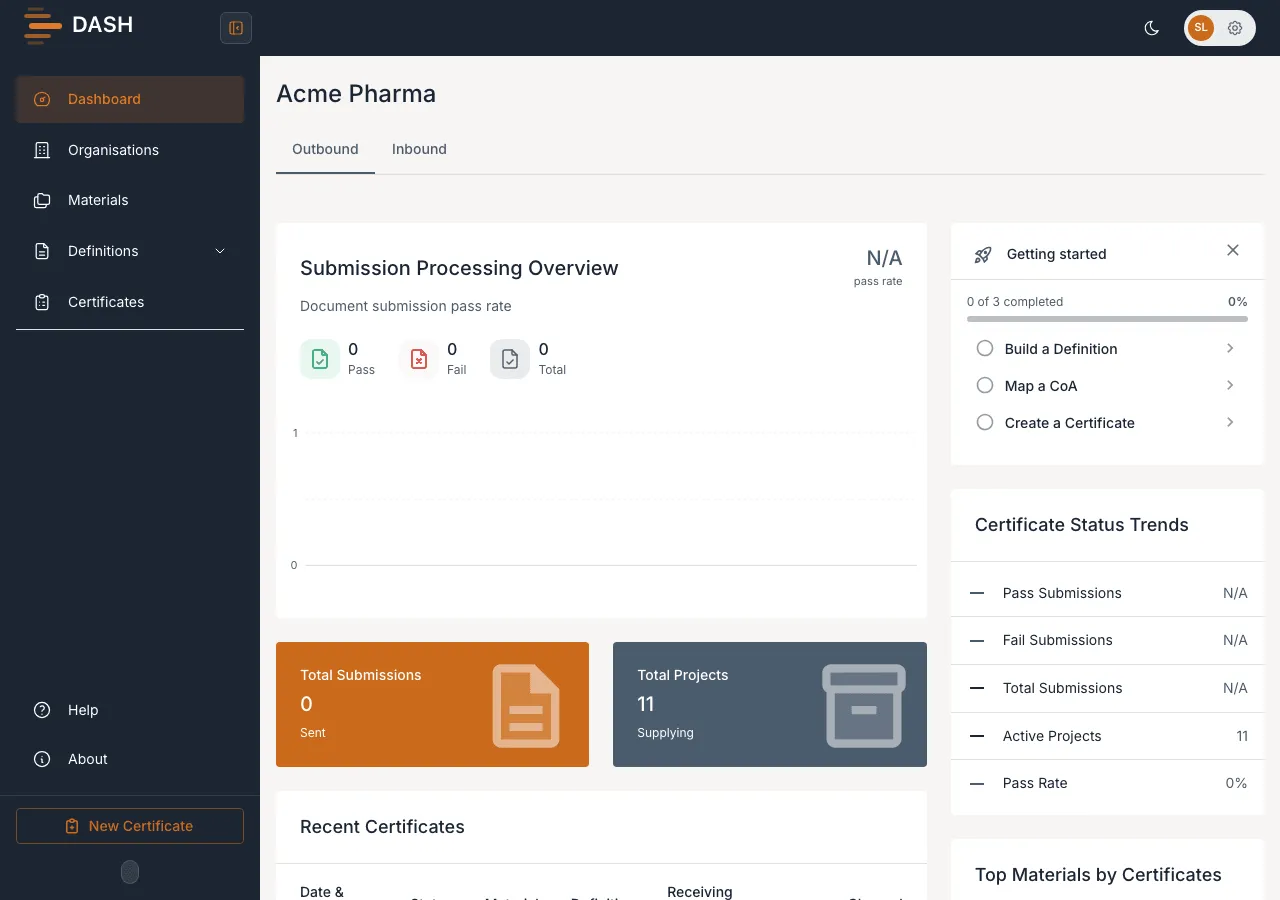
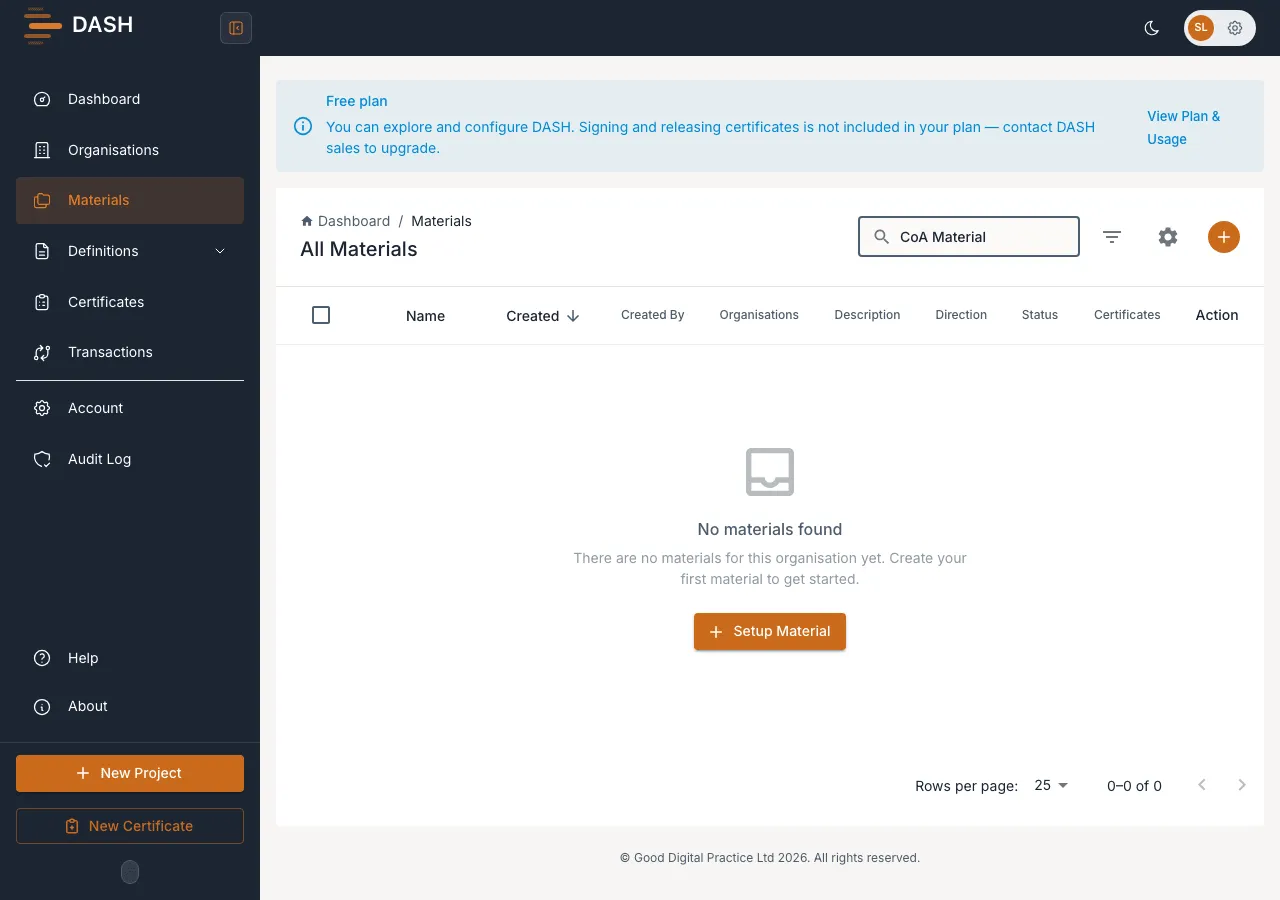
From now on, every list, search and action applies to that account only. Searching Materials, for example, shows only that account’s materials.
Back To Login at the bottom of the screen signs you out and returns you to the sign-in page without choosing an account.
Nothing is shown until you choose
Section titled “Nothing is shown until you choose”Until you choose an account, DASH shows no workspace, no navigation and no account data. If you open a link to a DASH page (from an email, a bookmark or a colleague) before choosing, DASH shows Select Account first and keeps the page you asked for. Once you choose an account, it opens that page in the chosen account.
Move to a different account
Section titled “Move to a different account”There is no account switcher inside DASH. To work in another account:
- Open the profile menu (your avatar, top right) and select Logout.
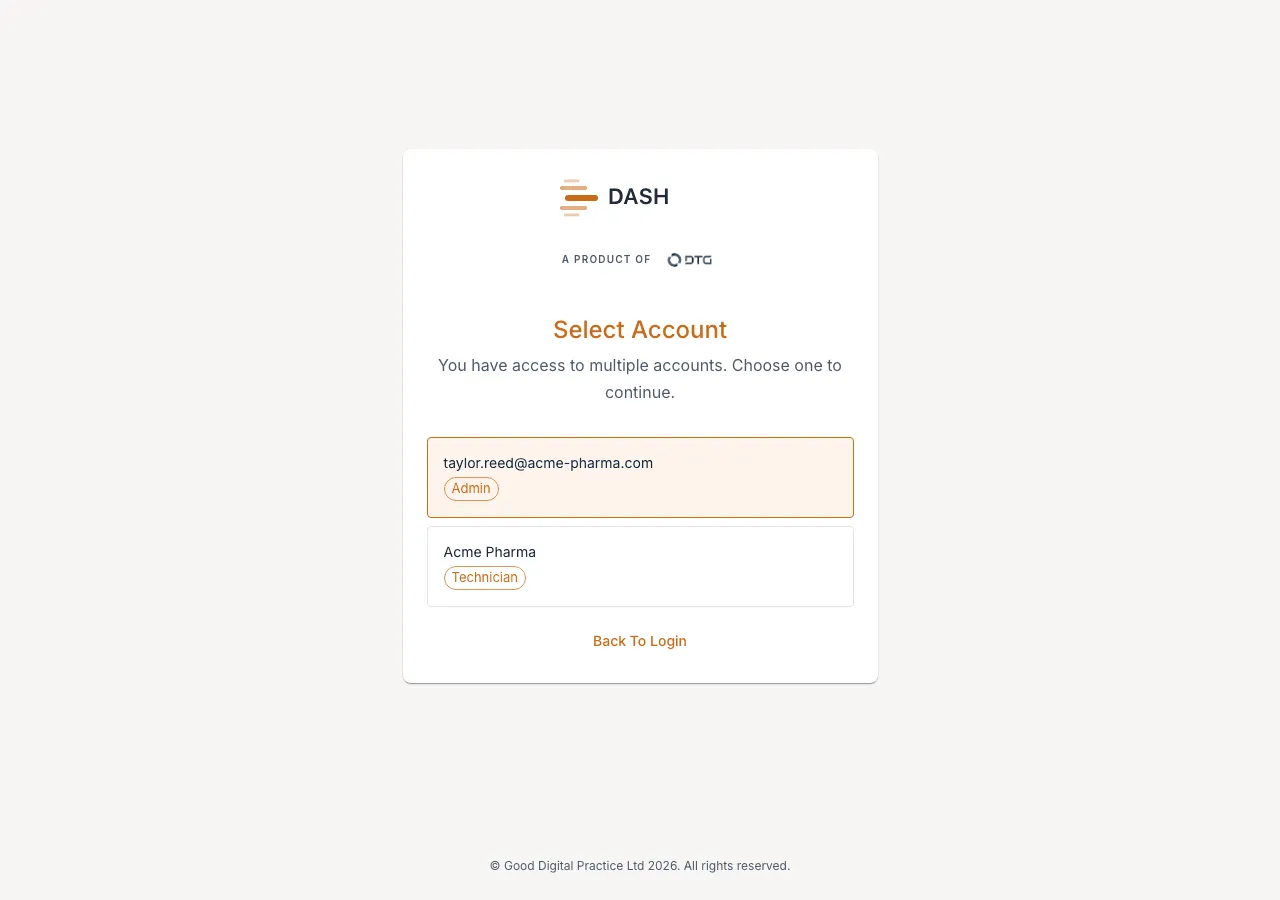
- Sign in again. Select Account lists your accounts again.
- Select the other account.
Nothing from the previous account carries over. Its data, its settings and the role you held there all stay behind. Records that exist only in the first account do not appear in the second.
Why an account might be missing
Section titled “Why an account might be missing”Select Account lists only accounts where your membership is Active.
- You were deactivated in an account. It no longer appears, and you lose access to it immediately. Your other accounts are not affected. If only one active account remains, DASH takes you straight into it without showing Select Account. See Deactivate and reactivate users.
- Your invitation is not yet accepted. An account you were invited to appears once you have set your password from the invitation email.
- You have no active account at all. DASH shows “You have no active account to work in.” Contact the administrator of the account you expect to use.
Membership is the only way into an account. Knowing an account’s name or having a link to one of its pages does not give you access.