

Navigating DASH
After you sign in, DASH opens your Dashboard. The page has three parts: a sidebar on the left, a header bar along the top, and the work area in the middle. This page explains each part and how your role changes what you see.
The sidebar
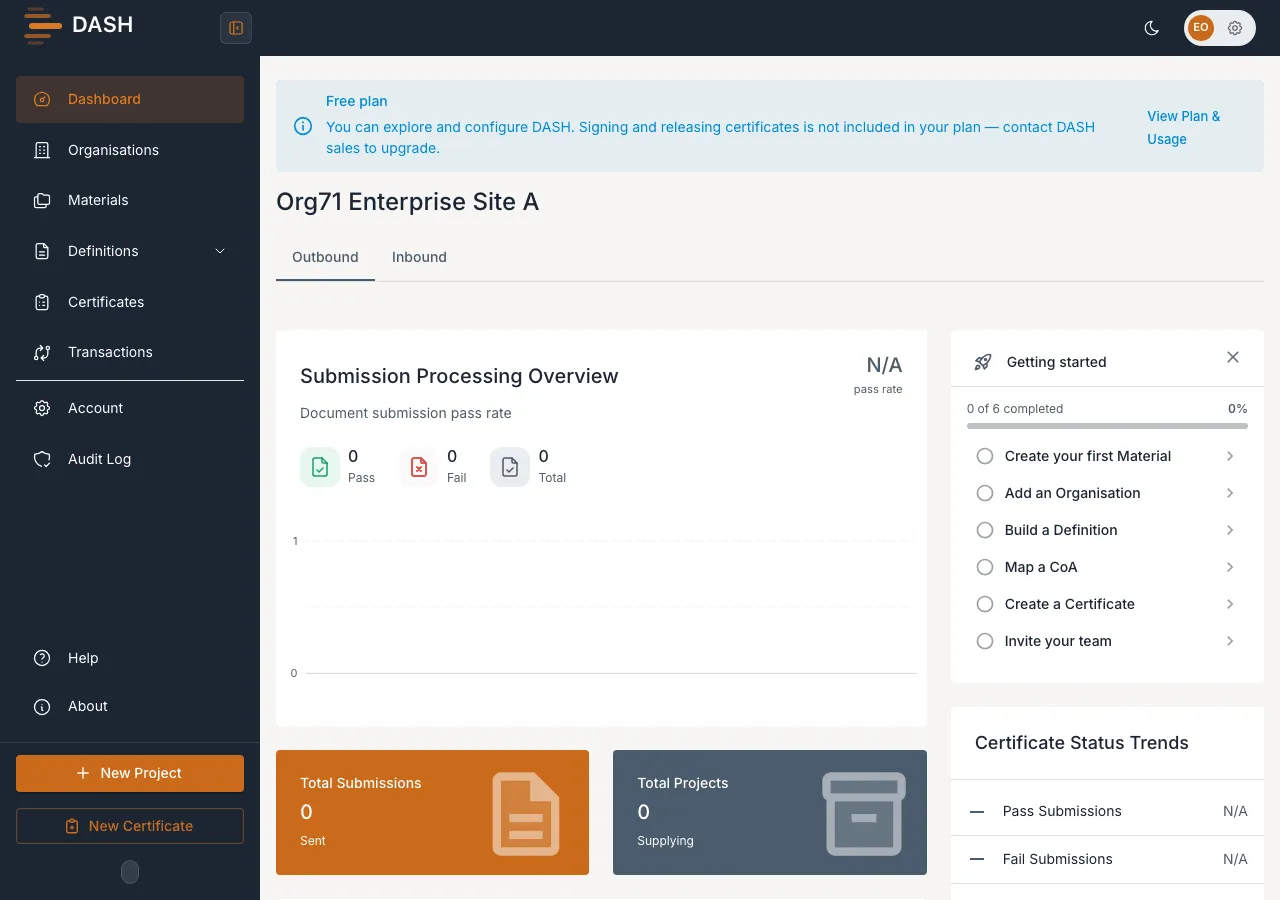
Section titled “The sidebar”The sidebar is your main navigation. From top to bottom:
| Item | What it opens | Who sees it |
|---|---|---|
| Dashboard | Your landing page with activity figures and recent certificates | Everyone |
| Organisations | All Organisations: the suppliers and customers you exchange certificates with | Roles that can view Organisations |
| Materials | All Materials: your products or data streams, with their fields, users, signing workflow and data channels | Roles that can view Materials |
| Definitions › Definitions | Your data structures | Roles that can view Definitions |
| Definitions › Definition Maps | The maps that read incoming files onto a Definition | Roles that can view Definition Maps |
| Certificates | The certificates hub, with views such as Awaiting Your Signature and Draft Certificates | Roles that can view certificates |
| Transactions | The Transaction Log of every send and filing attempt | Account administrators |
| Account | Account settings, users, roles, API keys, SSO and Plan & Usage | Account administrators |
| Audit Log | The account’s audit trail and signature ledger | Account administrators |
| Help | This help centre, in a new browser tab | Everyone |
| About | Product information and the version you are using | Everyone |
Definitions is a folder: select it to show Definitions and Definition Maps underneath.
“Account administrators” means the built-in Admin role, or a custom role that grants the Account Admin area. With the built-in roles, only the Admin sees Transactions, Account and Audit Log.
The quick-action buttons
Section titled “The quick-action buttons”At the bottom of the sidebar there are up to two buttons:
- New Project starts the Setup Material wizard. “Project” is an older name for a Material: this button creates a Material. You see it if your role can create Materials (Admin and Project Manager). See Create a material (wizard).
- New Certificate opens the Create new manual certificate dialog. You choose the Material in the Project field and select Create. You see it if your role can create certificates (Admin, Technician and Submission Coordinator). See Create a certificate.
The small chip below the buttons shows the DASH version.
To give the work area more room, select the panel icon next to the DASH logo. The sidebar shrinks to icons only. Select it again to expand it.
The header bar
Section titled “The header bar”On the right of the header:
- The moon or sun icon switches between dark and light mode.
- Your avatar (your initials) opens the profile menu. It shows your full name and the role you hold
in the account you are working in, and two options:
- User Settings opens your own user record. The Security tab is where you set up an authenticator app, backup codes and passkeys, and choose whether to receive email notifications. See Multi-factor authentication overview.
- Logout signs you out. See Sessions and signing out.
There is no “Users” item in the sidebar. Your own security settings are always under avatar → User Settings → Security.
The dashboard
Section titled “The dashboard”The dashboard is headed with the name of the account you are working in. If you belong to several accounts, this tells you which one is in force. Below the name:
- Outbound and Inbound tabs split the figures into certificates you send and certificates you receive.
- Cards show totals, the submission pass rate, Recent Certificates and Top Materials by Certificates. See Dashboard.
- The Getting started card lists the first tasks your role can do, such as Create your first Material or Build a Definition. Select a task to read what it involves, then select its Go To … button to open the right page, or Maybe Later to close it. Select the cross to dismiss the card for good. See Setup checklist.
The plan notice
Section titled “The plan notice”If your account’s plan does not include regulated release, a notice appears at the top of every page, for example “Free plan — You can explore and configure DASH. Signing and releasing certificates is not included in your plan — contact DASH sales to upgrade.” Admins also see a View Plan & Usage button. See Regulated release and your plan.
Why your menu looks different
Section titled “Why your menu looks different”DASH builds the sidebar from your role. A Technician, for example, sees Dashboard, Organisations, Materials, Definitions and Certificates, plus the New Certificate button. There is no Transactions, Account, Audit Log or New Project, and the Getting started card lists only the Technician’s own tasks.
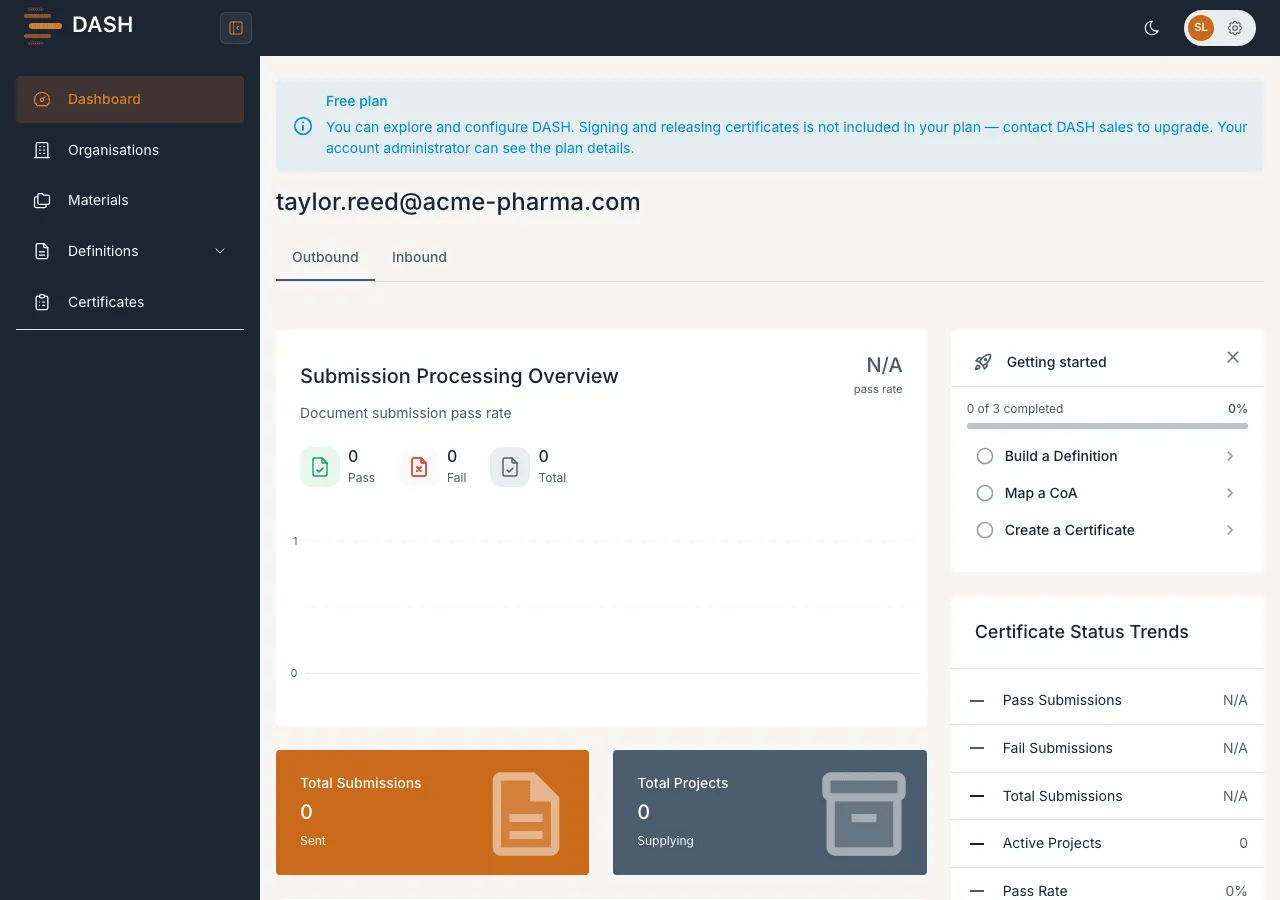
If you need an area you cannot see, ask your account administrator. See Roles & permissions.