Invite team members
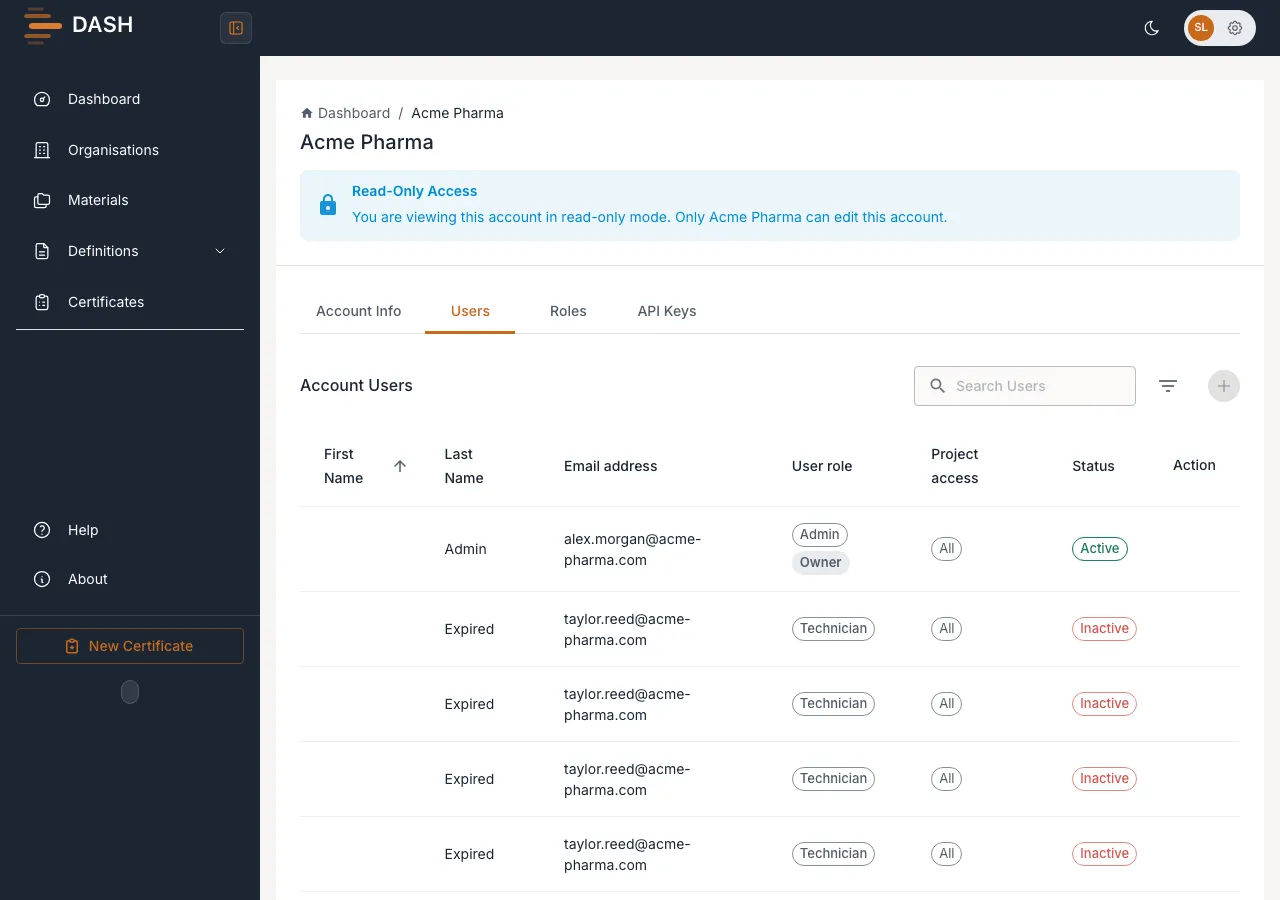
People get into your DASH account only through an invitation from one of your administrators. Each invitation creates a membership: the link between that person and your account, carrying their role and the Materials they can reach. This page shows how to invite someone and what happens next.
Invite someone
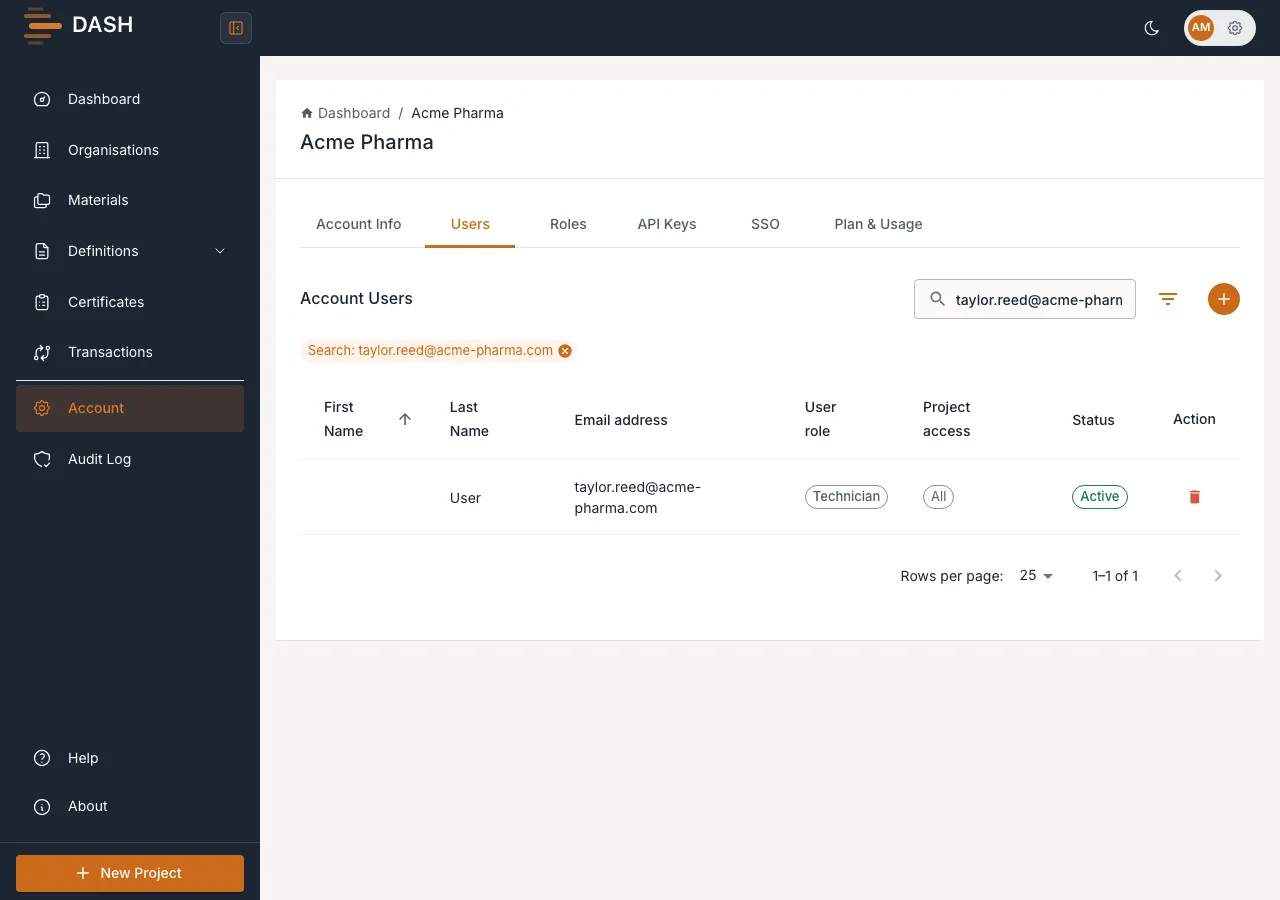
Section titled “Invite someone”- Select Account in the sidebar, then the Users tab. The Account Users list opens.
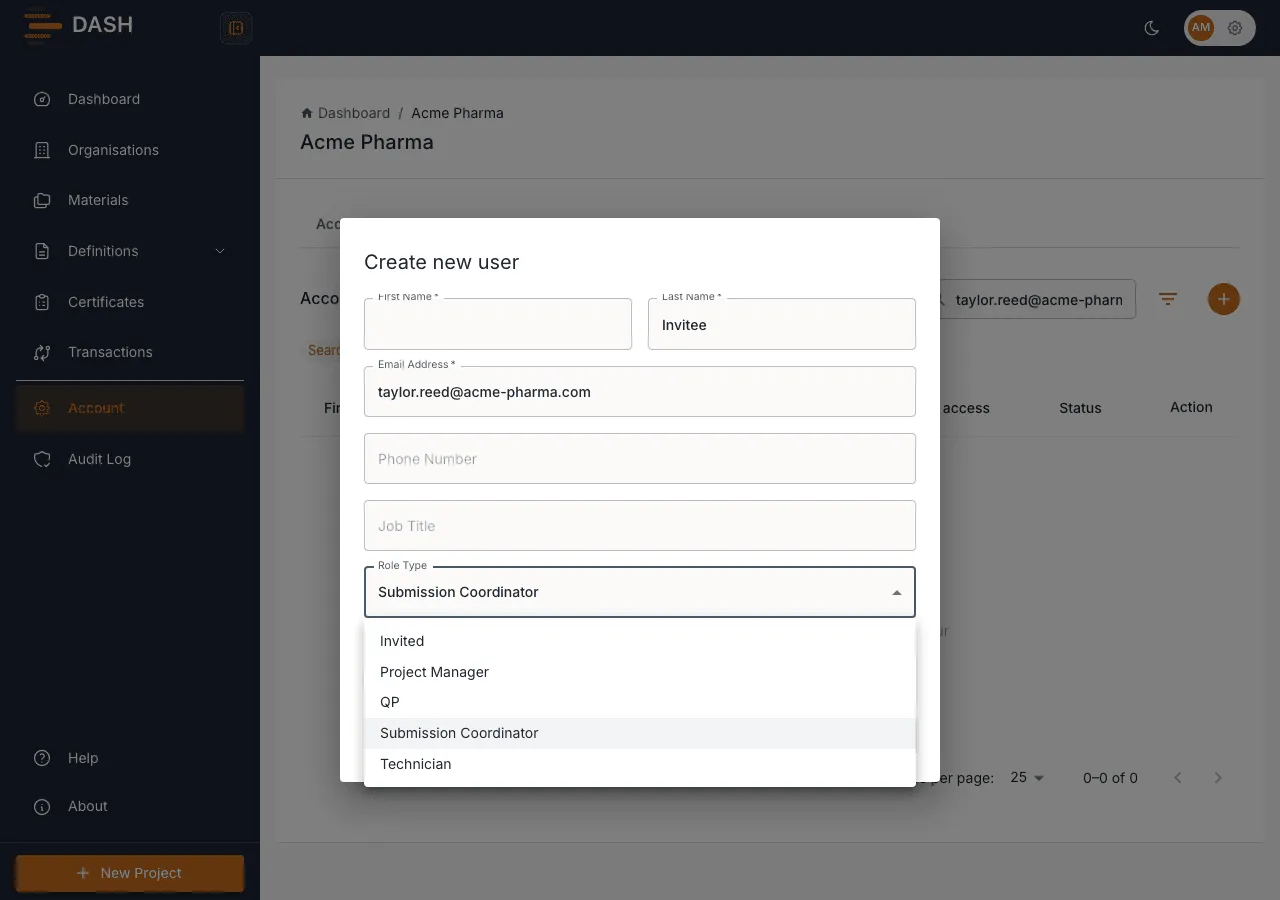
- Select the + button at the top right (tooltip “Add User”). The Create new user dialog opens.
- Enter First Name, Last Name and Email Address. These are required. Phone Number and Job Title are optional.
- Choose a Role Type. It starts on Submission Coordinator, the least-privileged working role.
- Choose Project Access: leave All Projects to give access to every Material, now and in future, or untick it and pick specific Materials. See Project access scoping.
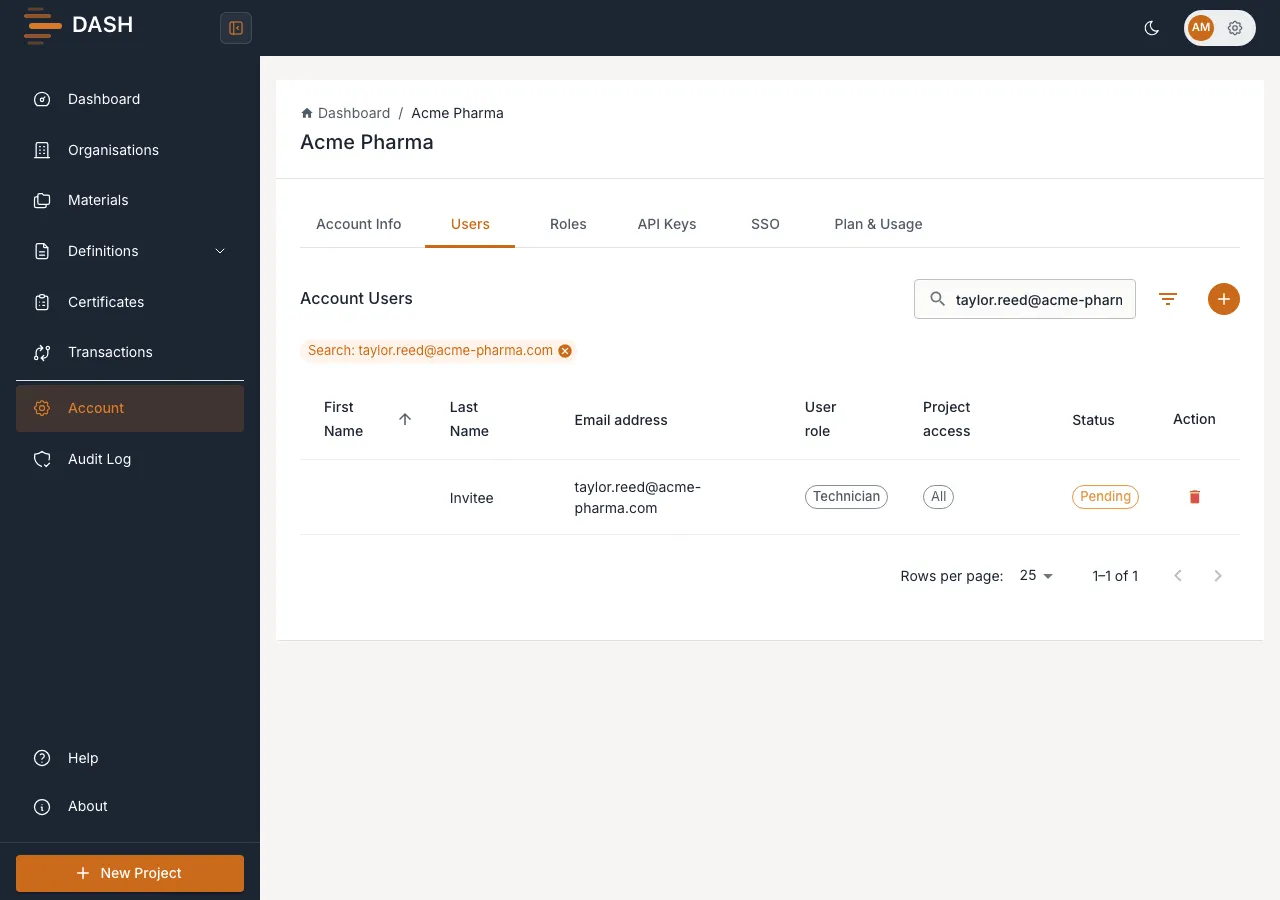
- Select Invite. DASH confirms “User invited successfully” and the person appears in the list with the status Pending.
What the invited person sees
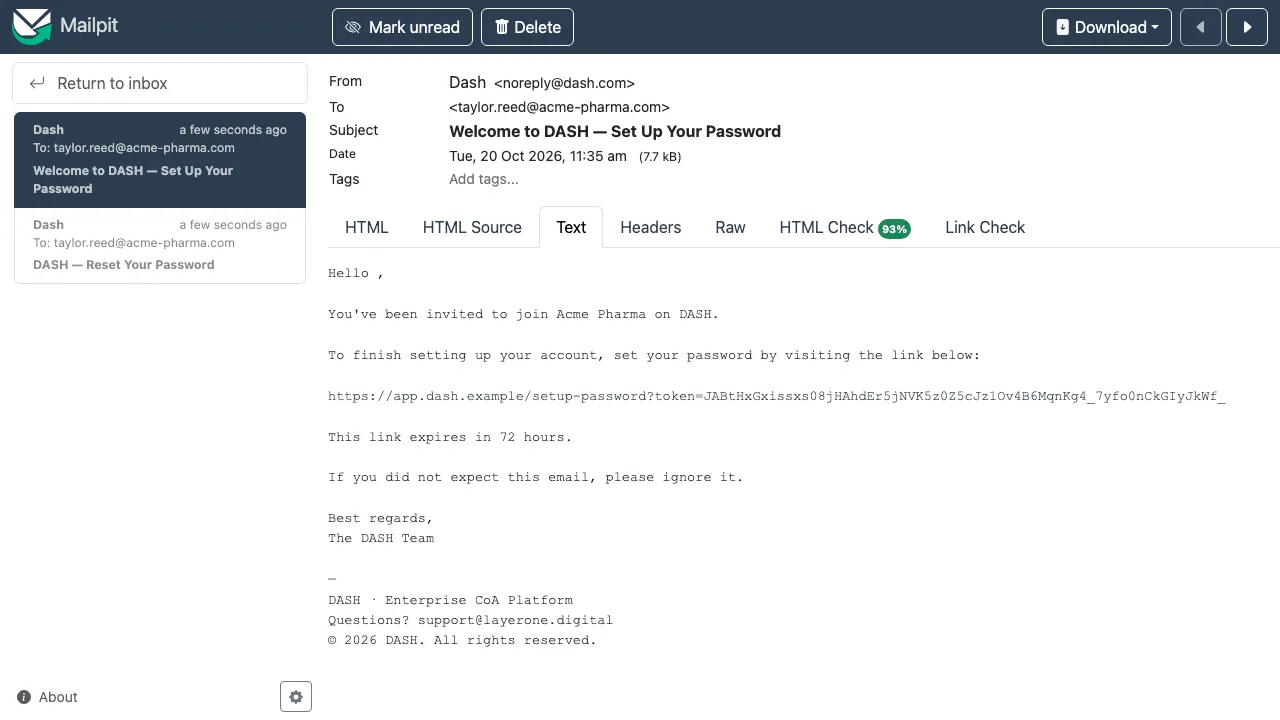
Section titled “What the invited person sees”Someone new to DASH receives an email, Welcome to DASH — Set Up Your Password, containing a setup link. The link works once and expires 72 hours after it was sent.
- They open the link. The Set Password page greets them by name.
- They choose a password that meets the password rules and confirm it.
- DASH returns them to sign-in with “Password set successfully. You can now log in.” Their status changes from Pending to Active.
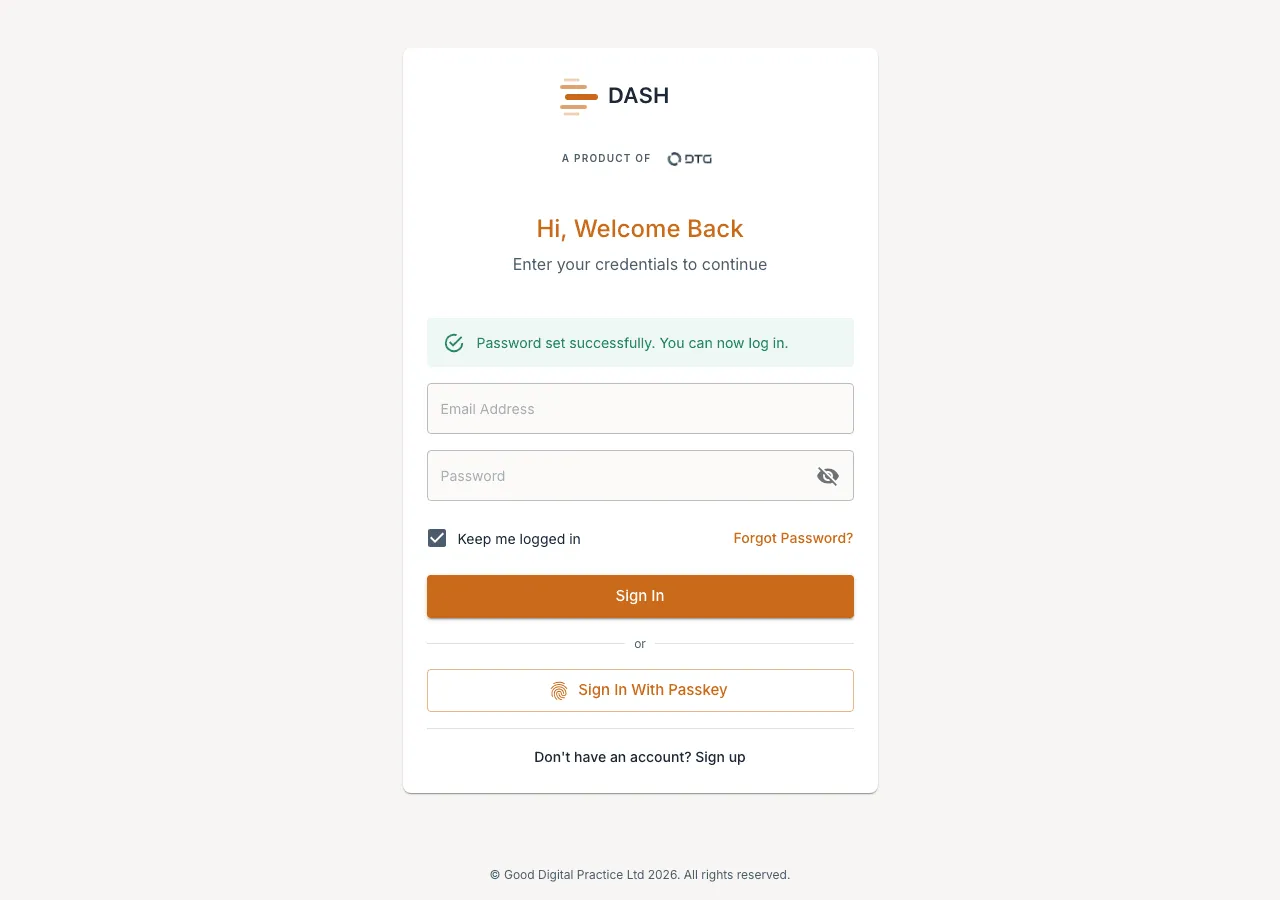
For what they do next, see First login.
Someone who already uses DASH in another account doesn’t get a second identity. DASH adds your account to their existing one, sets them Active straight away and emails them that they’ve been added. They sign in as usual and choose your account on the Select Account screen. The list shows the name they already use in DASH, not the name you typed.
One membership per person
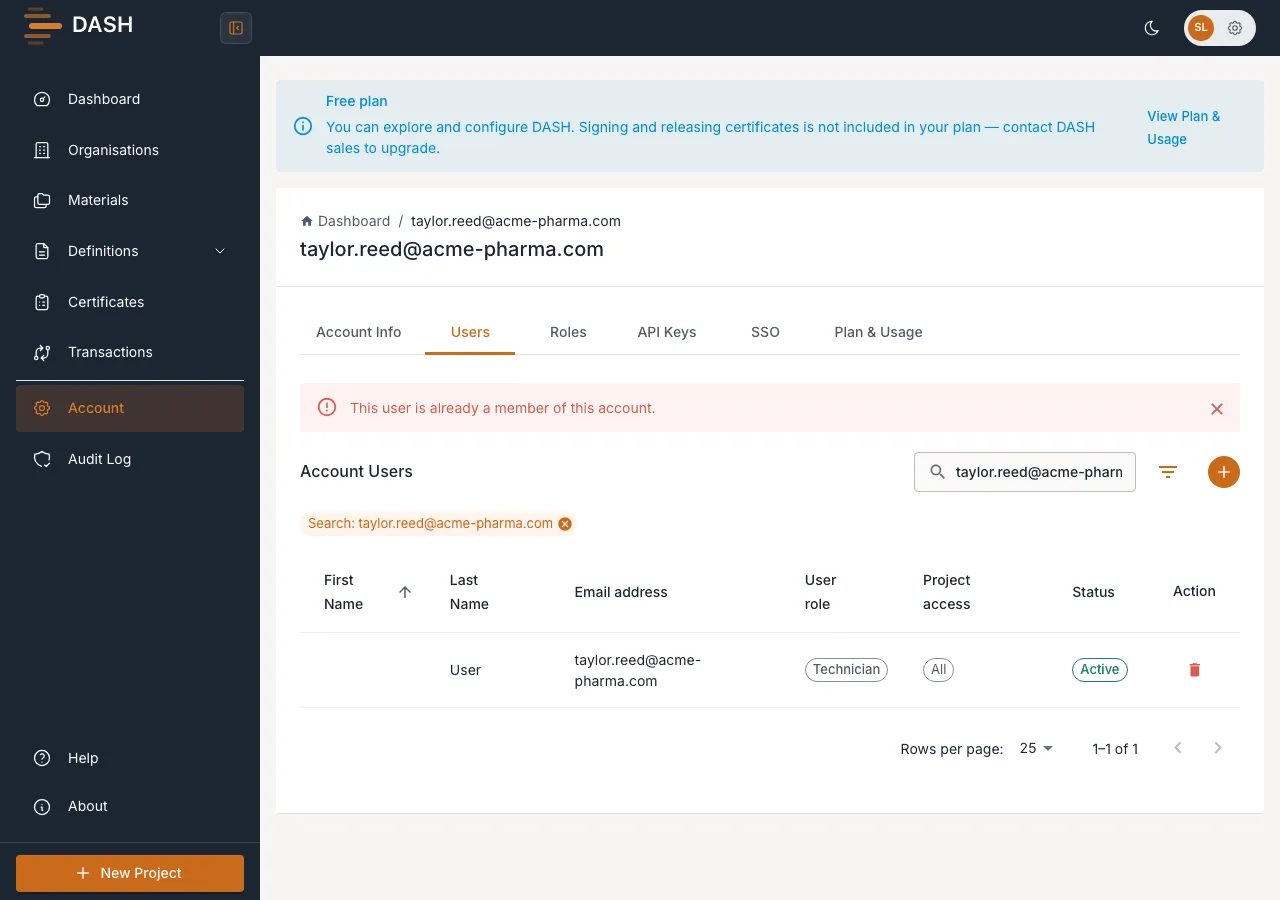
Section titled “One membership per person”A person can hold only one membership in your account. Inviting an email address that’s already a member, whatever their status, is refused with “This user is already a member of this account.” Nothing changes.
If the setup link has expired or been used
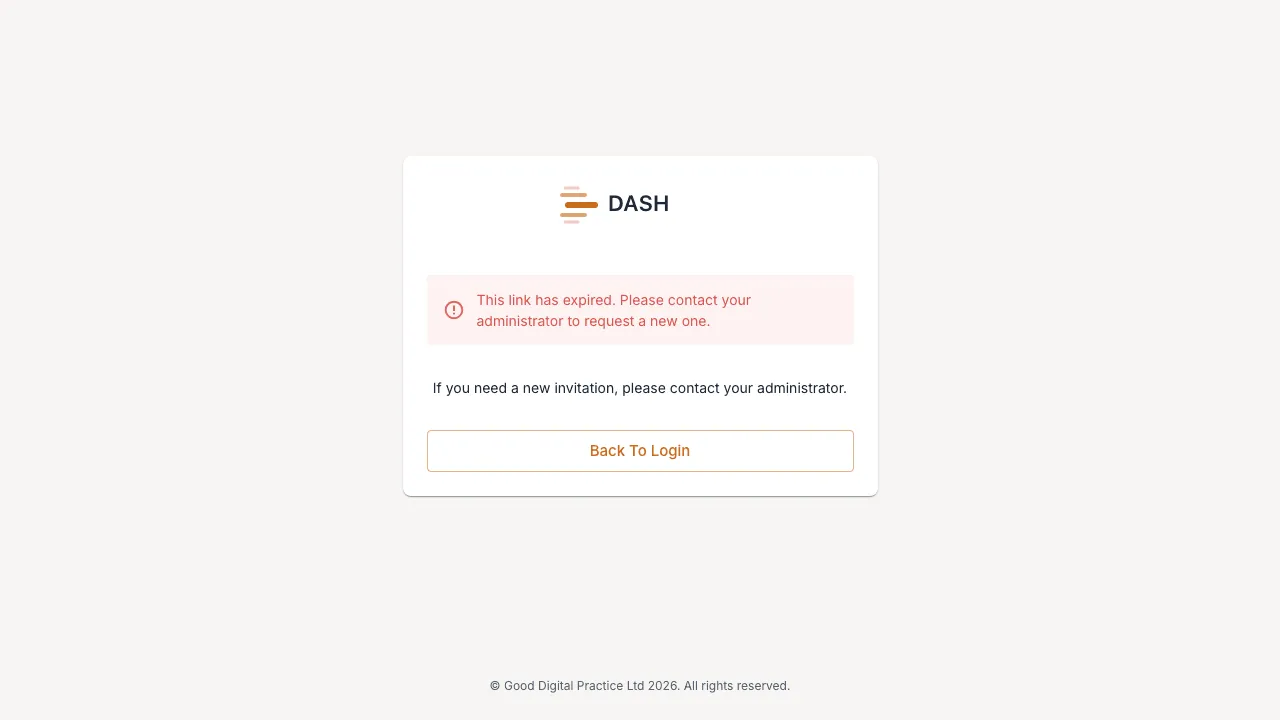
Section titled “If the setup link has expired or been used”The invitee sees one of these messages, and nothing is activated:
- “This link has expired. Please contact your administrator to request a new one.”
- “This link has already been used. Please log in or contact your administrator.”
- “Invalid or expired link. Please contact your administrator.”
Who can invite
Section titled “Who can invite”Only an Admin, or a custom role with account administration rights, can invite. Everyone else sees the Users tab read-only, and DASH refuses an invitation from them even if they find another way to send one.
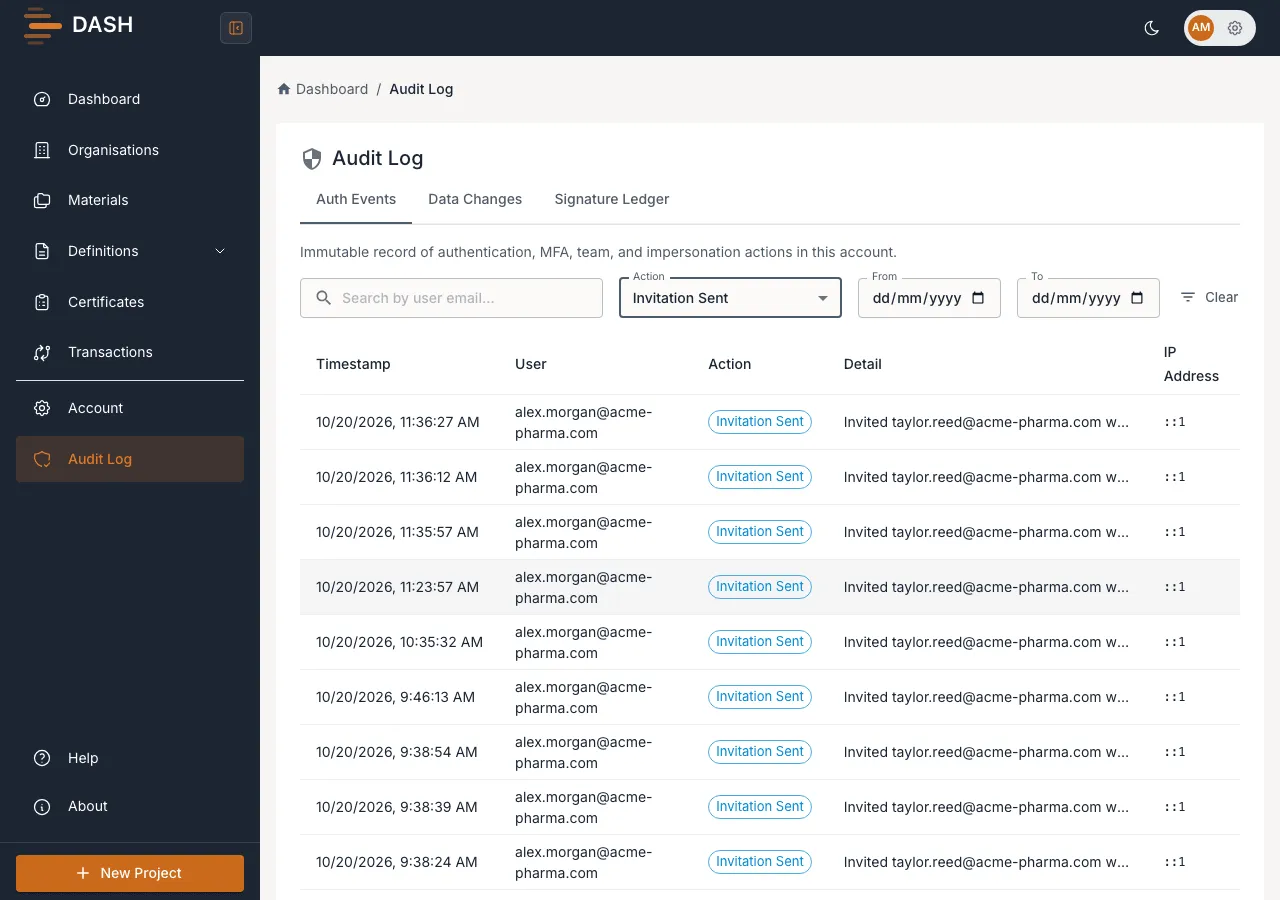
The audit trail
Section titled “The audit trail”Every invitation is recorded as Invitation Sent, naming the person invited, their role and the administrator who invited them. Its acceptance is recorded as Invitation Accepted. Find both under Audit Log → Auth Events, filtered by Action. See Audit log.