

Create an API key
An API key lets one BI tool read your account’s operational figures through the Analytics API. Create one key for each tool or report, so that each can be revoked on its own later.
Generate the key
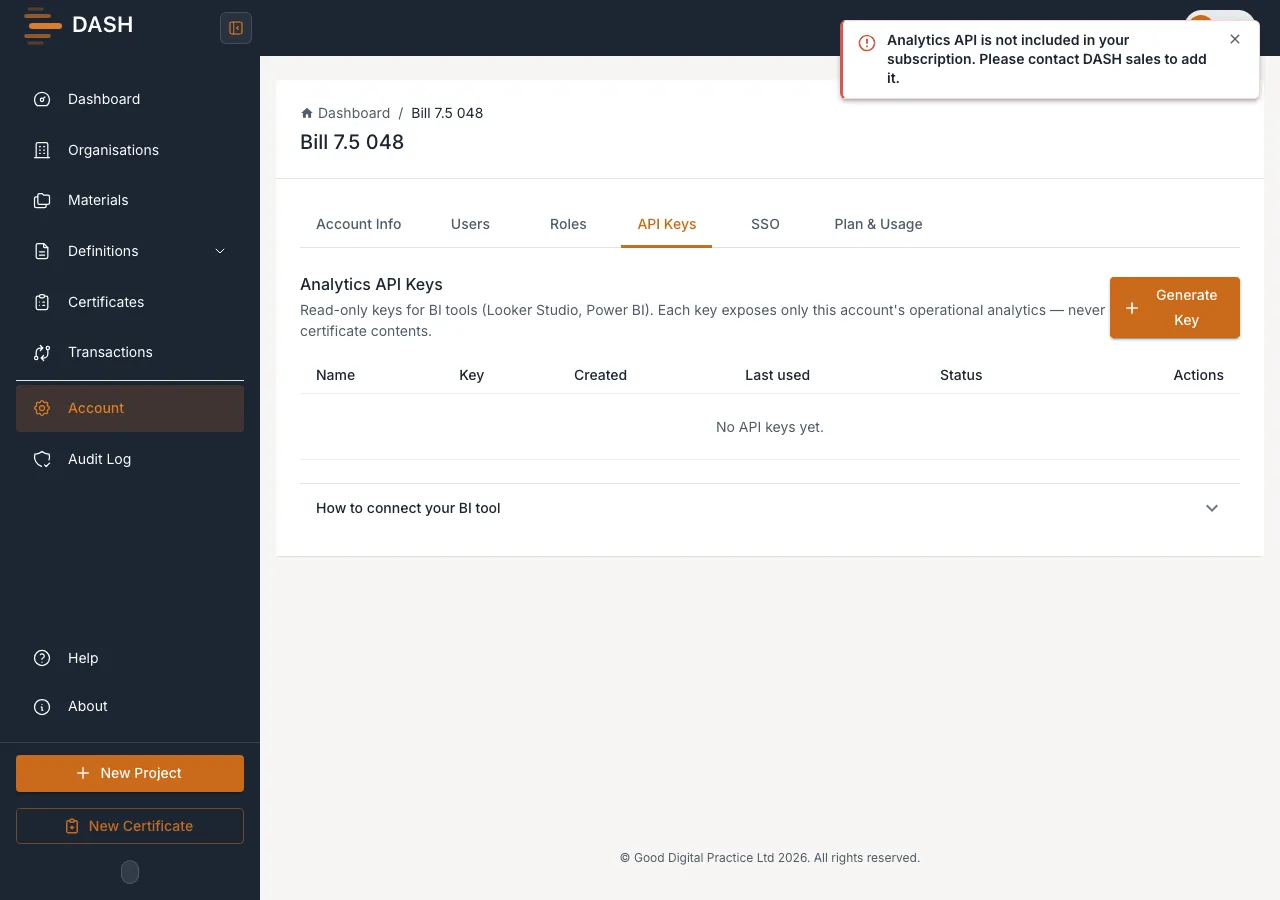
Section titled “Generate the key”- Select Account in the sidebar, then the API Keys tab. The Analytics API Keys list opens. A new account shows “No API keys yet.”
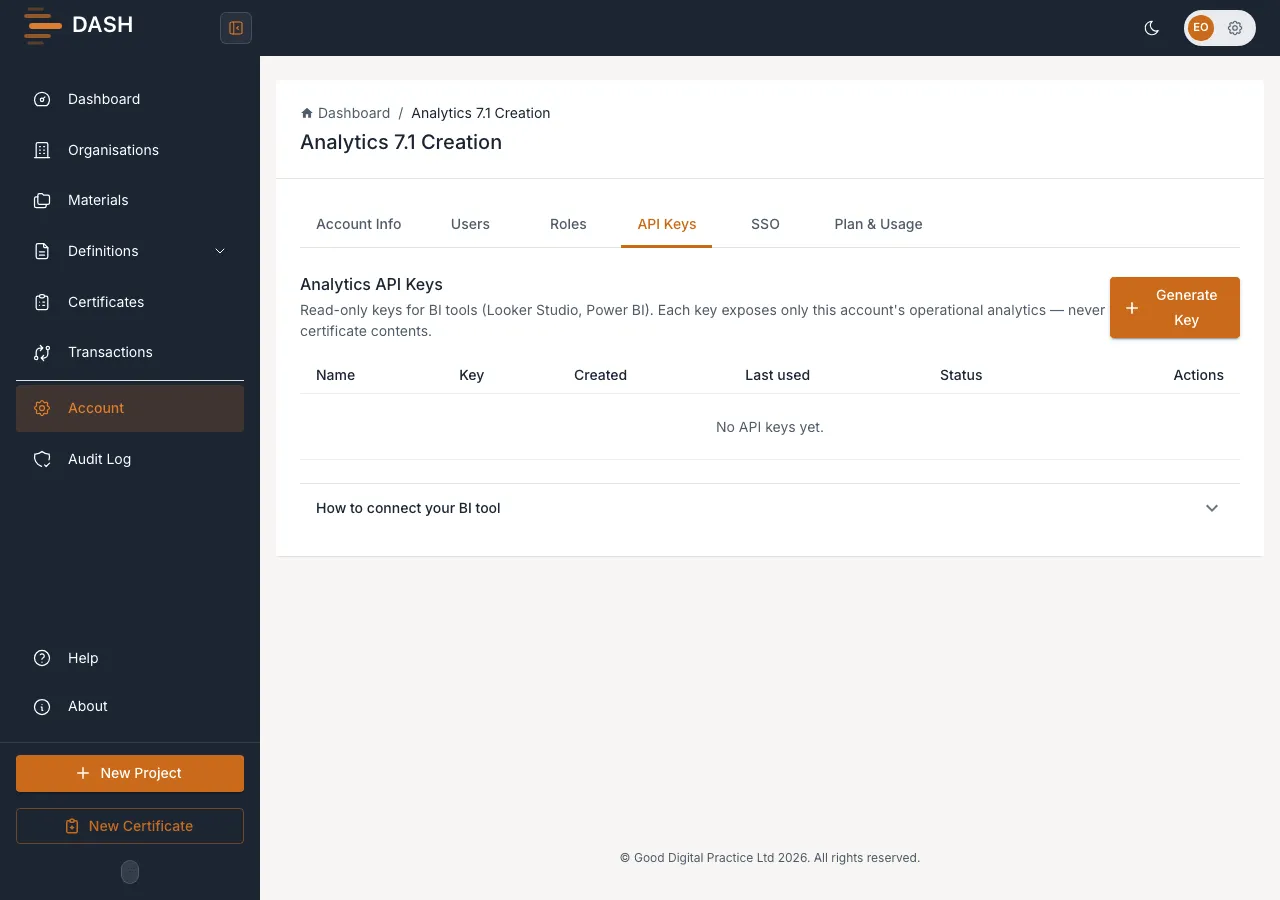
- Select Generate Key. The Generate API key dialog opens: “Give the key a name so you can recognise it later (e.g. the tool or team using it).”
- Type a name in Key name, for example “Power BI — Release KPIs”. A name is required: Generate stays greyed out while the field is empty or holds only spaces.
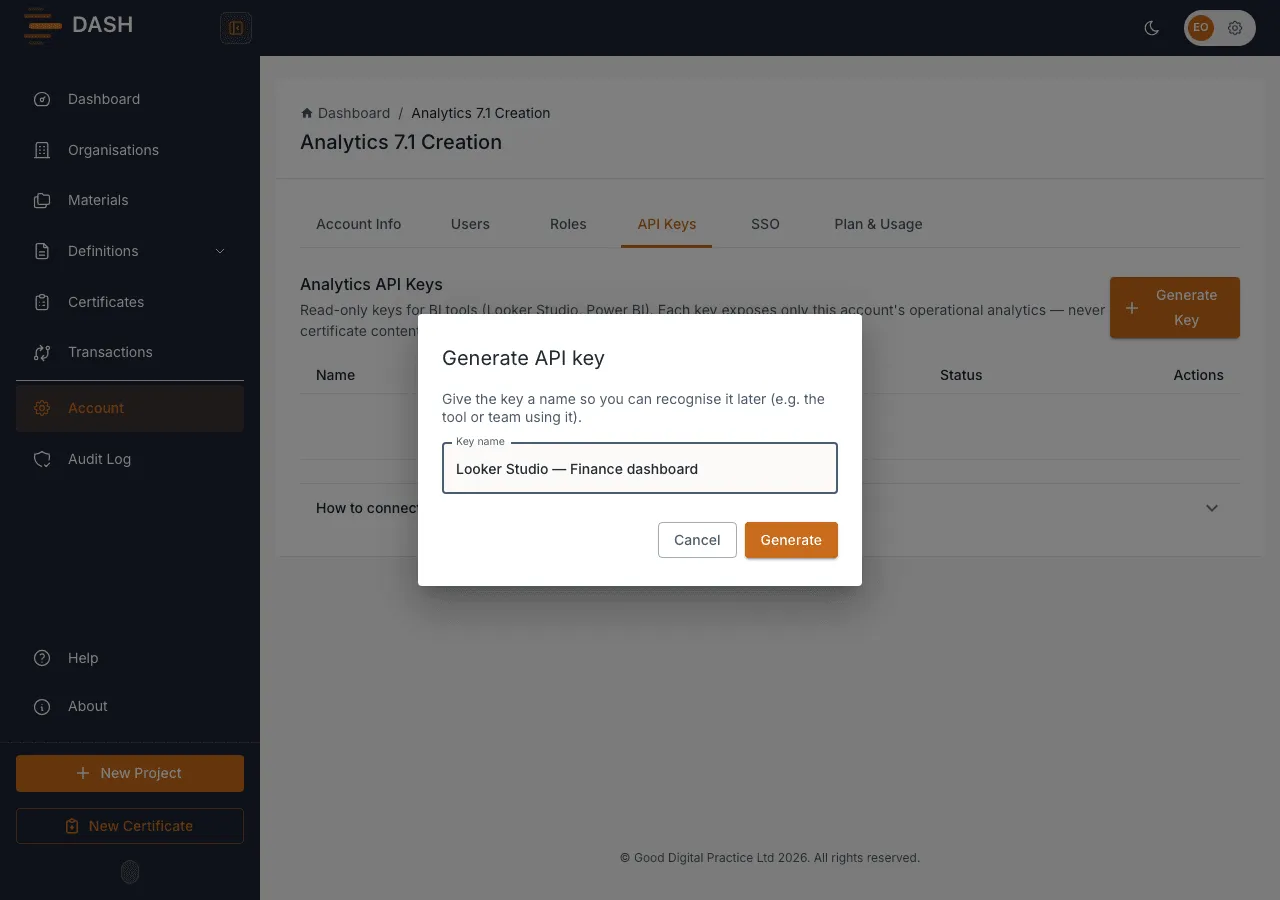
- Select Generate. DASH confirms “API key created” and opens the Copy your API key now dialog.
Copy the key now
Section titled “Copy the key now”The dialog shows the full key once, with the warning “This is the only time the full key is shown. Store it somewhere safe — you cannot retrieve it again.”
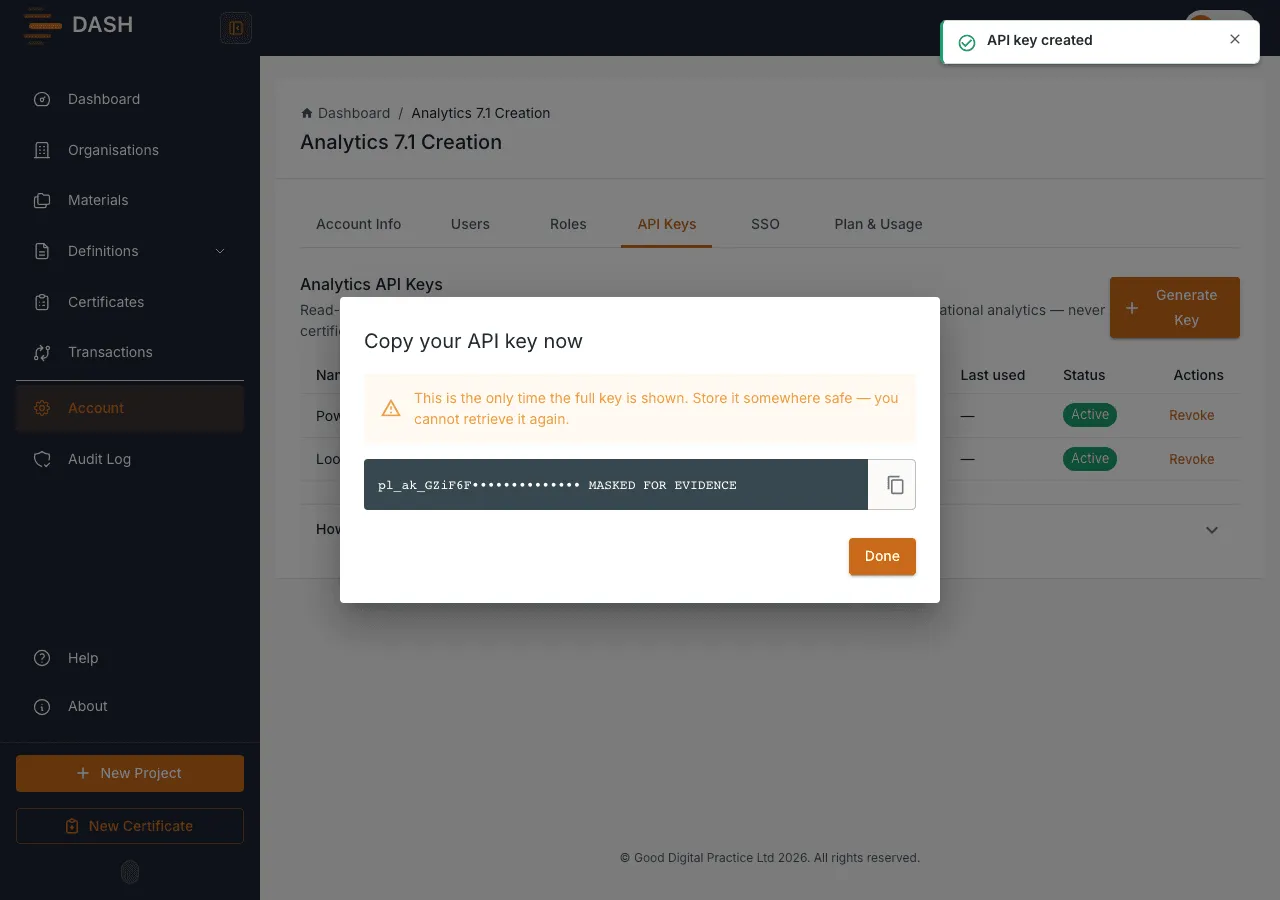
- Select the copy icon beside the key (tooltip Copy). DASH confirms “Copied to clipboard”. If copying fails (“Could not copy — copy it manually”), select the key text and copy it yourself.
- Paste it straight into your BI tool’s connection settings or your password manager.
- Select Done.
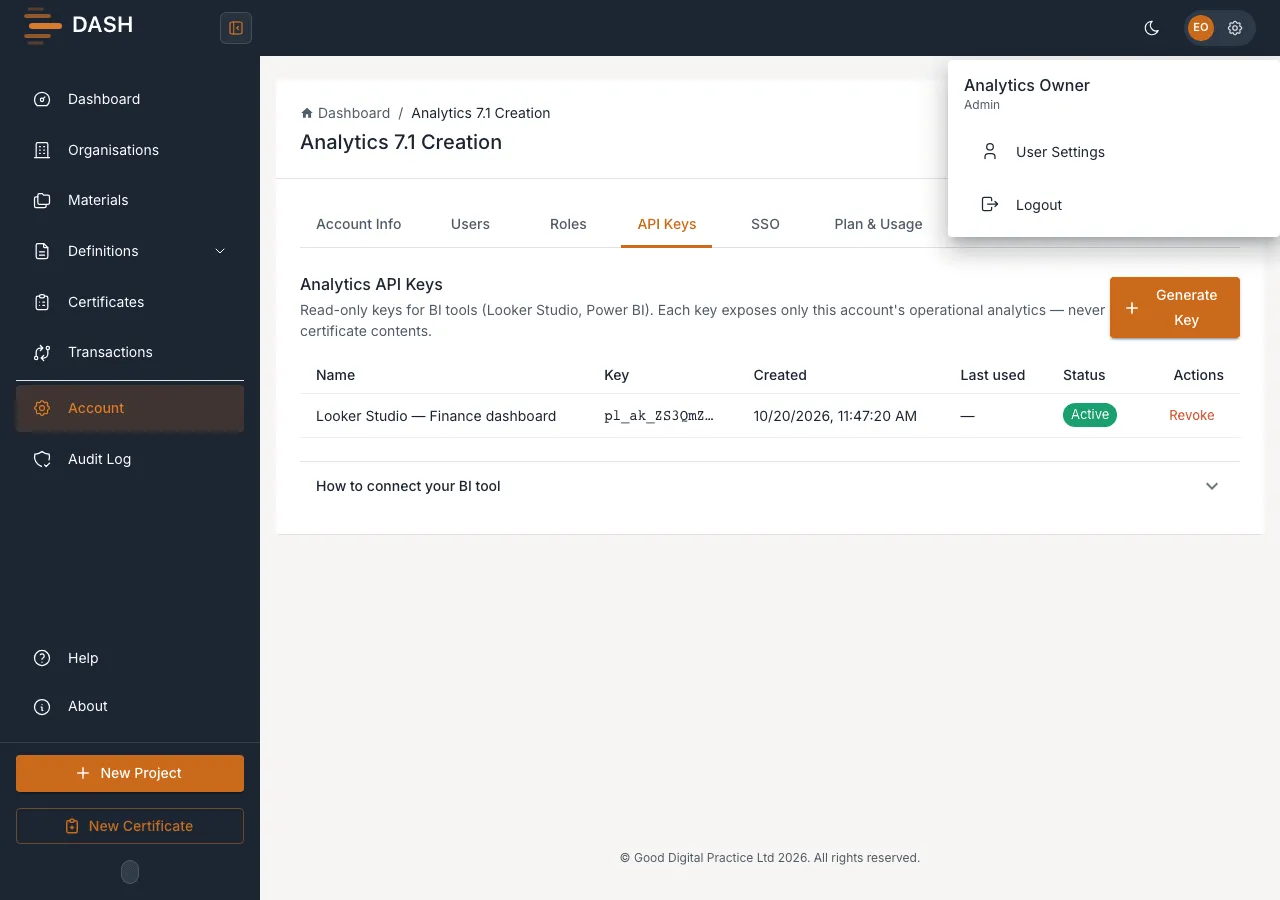
The new key appears in the list with its name, its short prefix (for example pl_ak_EXAMPL…), the
time it was created, Last used “—” and the status Active.
If generating a key is refused
Section titled “If generating a key is refused”| What you see | What it means |
|---|---|
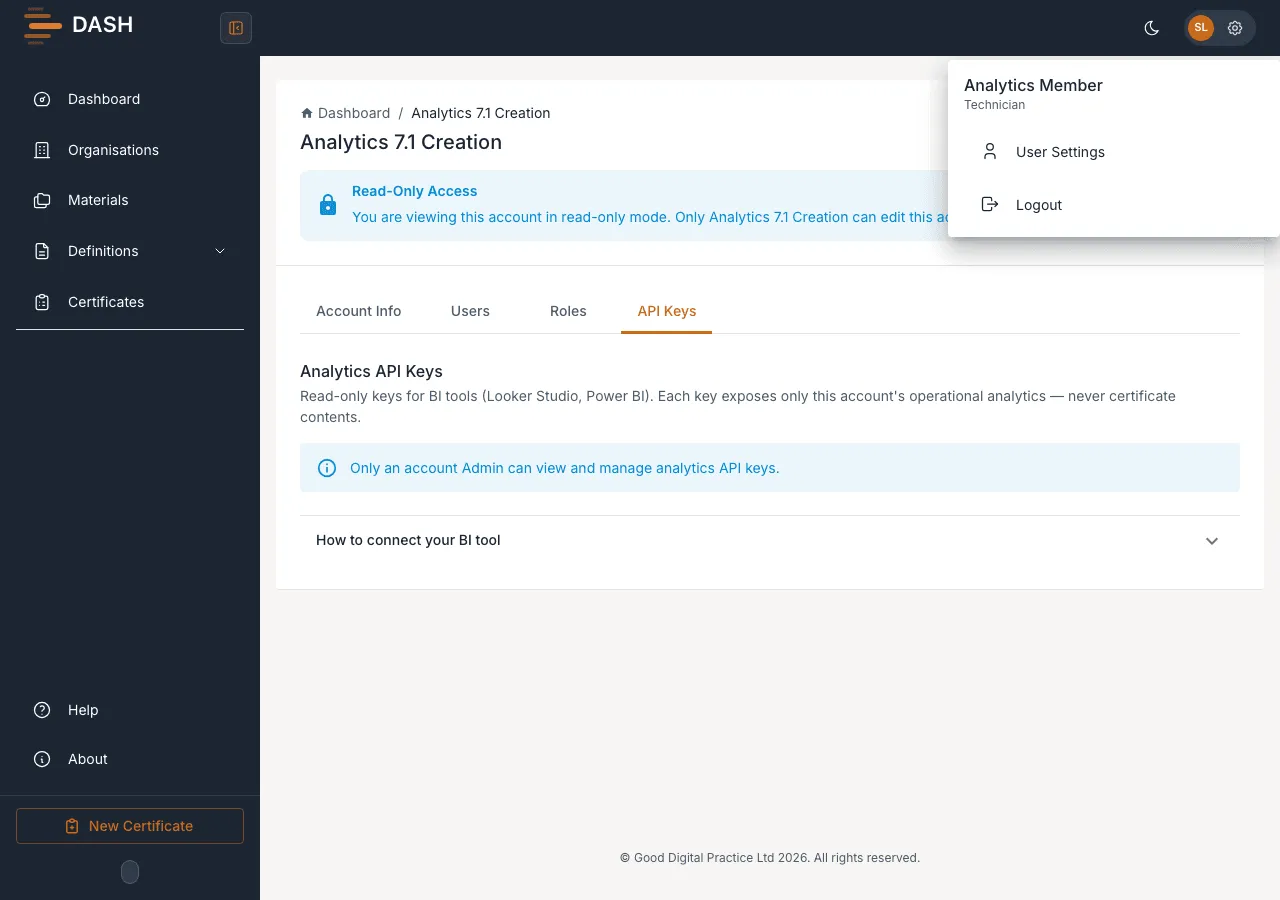
| No Generate Key button, and “Only an account Admin can view and manage analytics API keys.” | You don’t have account administration rights. Ask an Admin. See Permissions. |
| “Analytics API is not included in your subscription. Please contact DASH sales to add it.” | Your plan doesn’t include the Analytics API. No key is created. |
| “You have reached your Analytics API keys limit (n). Please contact DASH sales to increase it.” | Your plan caps the number of keys that aren’t revoked. Revoke a key you no longer use, or contact DASH sales. |
Connect your BI tool
Section titled “Connect your BI tool”Below the key list, the How to connect your BI tool panel shows the API address for your DASH installation, how to send the key, and the available endpoints. Select it to expand it, and give your developer the address it shows along with the key.

The panel is a short summary. The full list of filters, fields and error responses is in the Endpoints reference.
Creating the key is recorded in the Audit Log as Analytics API Key Created. See Key audit trail.