

First login
Welcome to DASH. This page walks you through your very first sign-in and helps you get your bearings once you are in. It takes a couple of minutes.
1. Verify your email
Section titled “1. Verify your email”- Open the email from DASH and select the verification (or setup) link.
- The link is single-use and expires — a verification link lasts 24 hours, and an invitation setup link lasts 72 hours. If yours has expired, request a fresh one from the “link expired” screen or ask your administrator to re-invite you.
- If you were invited, set a password that meets the on-screen policy checklist. Clicking the link activates your membership and sends you to the Login page.
2. Sign in
Section titled “2. Sign in”- On the Login screen, enter your email address and password.
- Select Sign in.
- If you set up an authenticator app or a passkey, you will be prompted for it now. See Authenticator app (TOTP) and Passkeys.
3. Choose an account (if you have more than one)
Section titled “3. Choose an account (if you have more than one)”If your email is a member of several accounts, DASH shows an Account Selection screen instead of taking you straight in.
- Each account is listed with its name and your role in it.
- Select the account you want to work in.
- You are taken to that account’s dashboard. Everything you do from now on applies to that account only.
To switch accounts later, sign out and sign back in, then pick a different account.
4. Get oriented
Section titled “4. Get oriented”Once you are in, take a moment to look around:
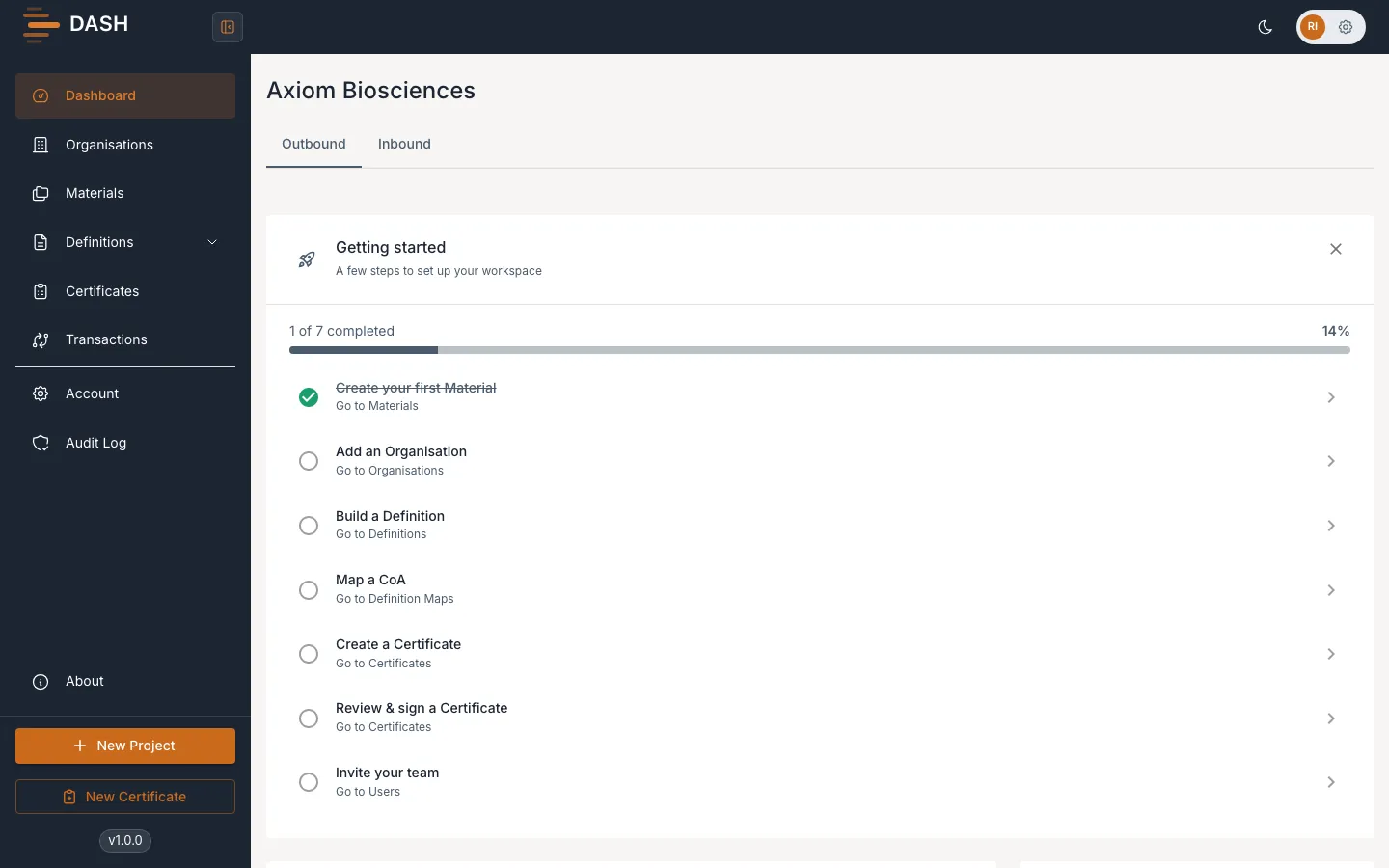
- The left sidebar is your main navigation. What you see depends on your role — for example, the Definitions section only appears if you can read definitions. See Roles & permissions.
- Dashboard — your landing page, with an at-a-glance view of activity. See Dashboard & analytics.
- Organisations, Materials, Definitions, Certificates — the core modules, in the order you typically use them.
- Account (near the bottom) — your account settings, team and, for admins, billing.