

Review & edit mapped data
Before a certificate is signed, you review the data DASH mapped from your source file and confirm it is correct. If something needs presentational tidying, you can make non-destructive edits: hiding a row or overriding a cell value changes what appears on the finished certificate without touching the original ingested data.
Document view vs blocks view
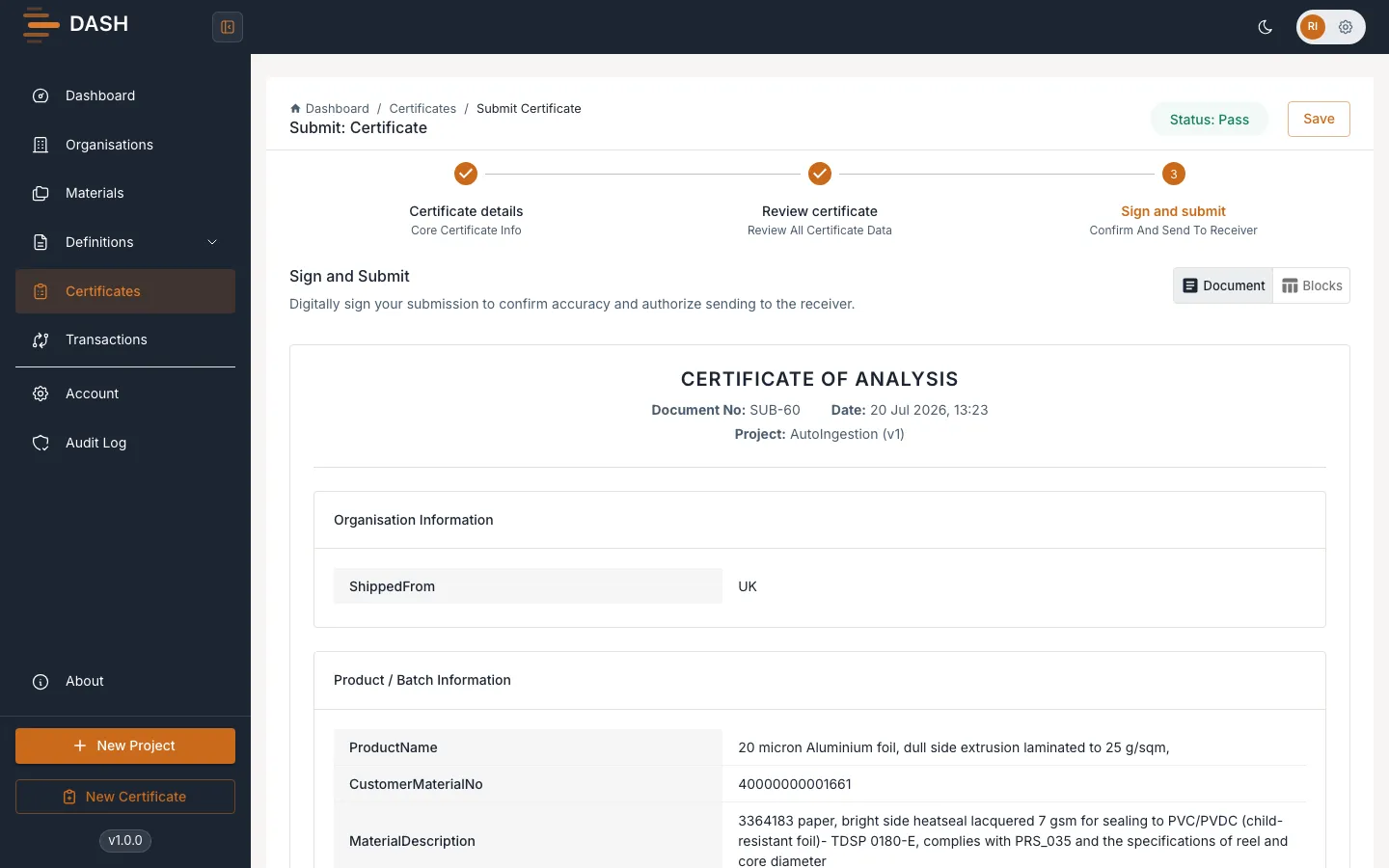
Section titled “Document view vs blocks view”On the Review certificate step (and on the certificate record) you can switch between two views using the toggle in the top corner:
- Document — shows the certificate laid out like the finished CoA document, with the header, product and batch details, and the test results tables. This is the closest preview of what the recipient sees.
- Blocks — shows the same data broken into labelled sections and tables for closer inspection.
1. Check the mapped data
Section titled “1. Check the mapped data”Work through the certificate and confirm the values are right. Cells are tinted to show validation status so you can spot problems quickly, and the Validation details panel below the results lists any error-severity rules that would block signing. If dates are involved, a panel at the top confirms they are shown in the material’s output format and offers a Make comply button for any value that looks like a date but is not being converted.
If the data is wrong at its source, fix it there — correct the source file and re-ingest, or fix the definition map — rather than papering over it with edits. See Validation failures.
2. Make non-destructive edits
Section titled “2. Make non-destructive edits”Non-destructive edits let you adjust the presentation of the certificate. They are stored separately from the ingested input data, so the original values are always preserved and can be restored.
- Select Edit on the document view to enter edit mode.
- Hide a row — hover over a results row and select the Hide row (eye) icon to remove it from the certificate. Select it again to bring the row back.
- Override a cell — select a cell and type a new value. The overridden value is what appears on the output; the original stays on record.
- Select Save to keep your changes, or Cancel to discard them.
3. Continue
Section titled “3. Continue”When the data looks right, move on. A Technician sends the draft for approval; a Quality Person signs it. See Send for approval and Sign a certificate.