

Certificate statuses
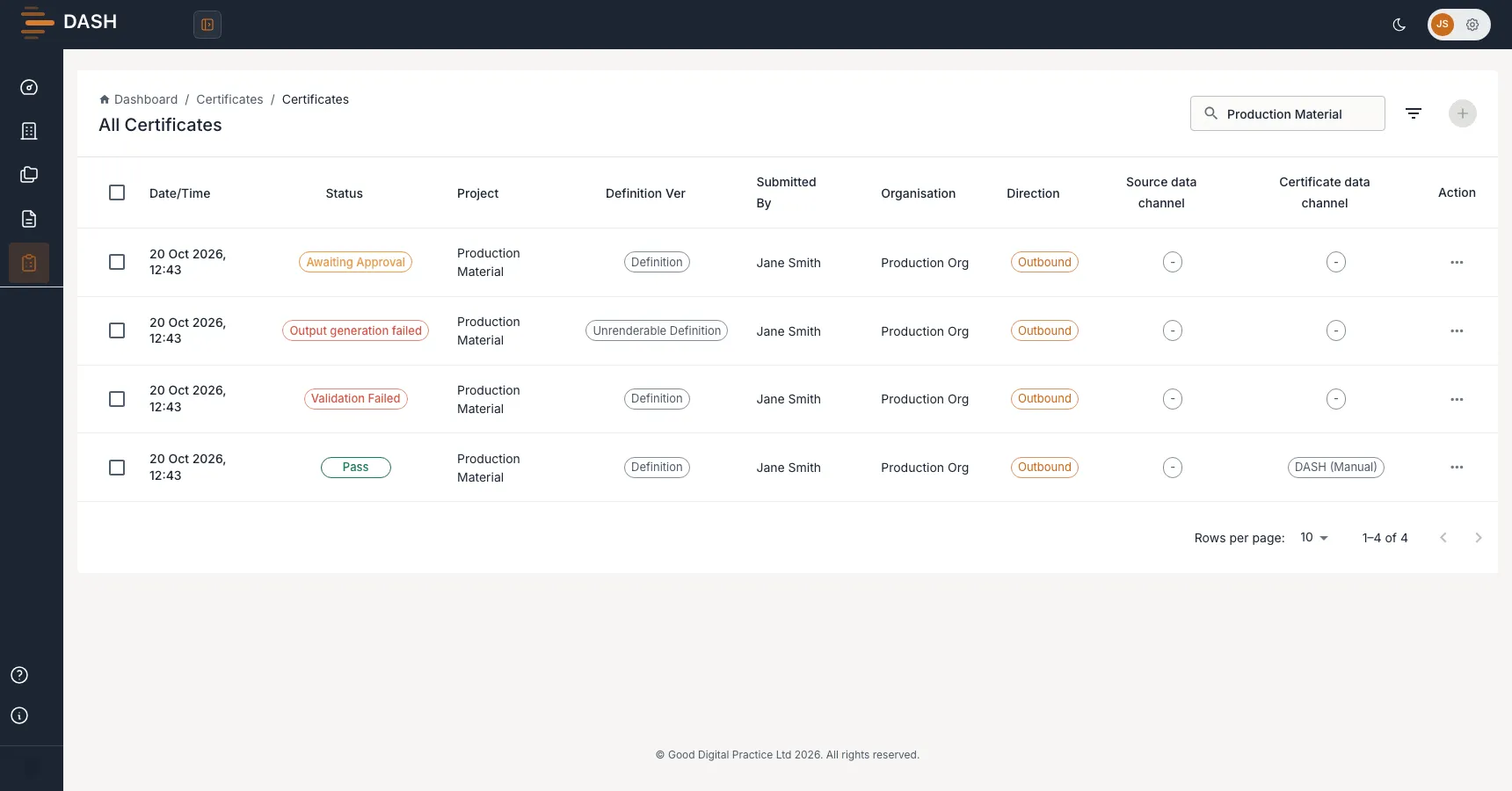
Every certificate shows a status chip: in the Certificates list, on the Material’s Submissions tab, and at the top of the certificate itself (for example Status: Draft). This page lists every chip you can see, what it means, and what to do next.
The status chips
Section titled “The status chips”| Chip | What it means | What to do next |
|---|---|---|
| Draft | A working certificate. It can be edited, sent for approval, signed or deleted. A certificate whose source file is still being read, or could not be read, also shows Draft in the list (see below). | Review the data, then send it to the approver or, if you are the QP, sign it. |
| Awaiting Approval | The draft has been handed to the approver. Nothing has been signed yet. It can still be edited, and deleted if it has never been signed. | The QP (or the first named signer) reviews and signs. |
| Signing In Progress | The Material uses a signing workflow with several signers. At least one has signed, but not all. Its details are locked. | The next named signer signs. The certificate shows whose turn it is. |
| Approved for Submission | Every required signature is in place. The certificate is ready to release. | The QP opens it and selects Submit. |
| Validation Failed | A blocking (error-severity) validation rule failed, either when someone tried to sign or when DASH re-checked the data at submission. Nothing was sent. | Correct the data, usually by uploading a corrected source file, or ask whoever maintains the Definition Map to correct the rule. When validation passes again, the certificate returns to Draft and can be signed. |
| Submitting | The QP has submitted it. DASH is producing the output or sending it to the receiver. | Wait. The record shows Submission in progress… and updates when it finishes. |
| Output generation failed | DASH could not produce the XML or PDF output, so nothing was sent. | The record shows the reason. The QP can select Retry Output Generation on the record. If it keeps failing, see Submission failures. |
| Pass | The certificate was delivered and accepted. It is released. | Nothing. You can export the stored XML and PDF. |
| Fail | The delivery failed or the receiver rejected it. The output was produced and is kept. | Check the Transmission Status on the record. The QP can select Retry Channel Submission to send the same output again, without re-signing. |
How each failure is recovered is covered in Retry a failed certificate and Submission failures.
Conditions that share a chip
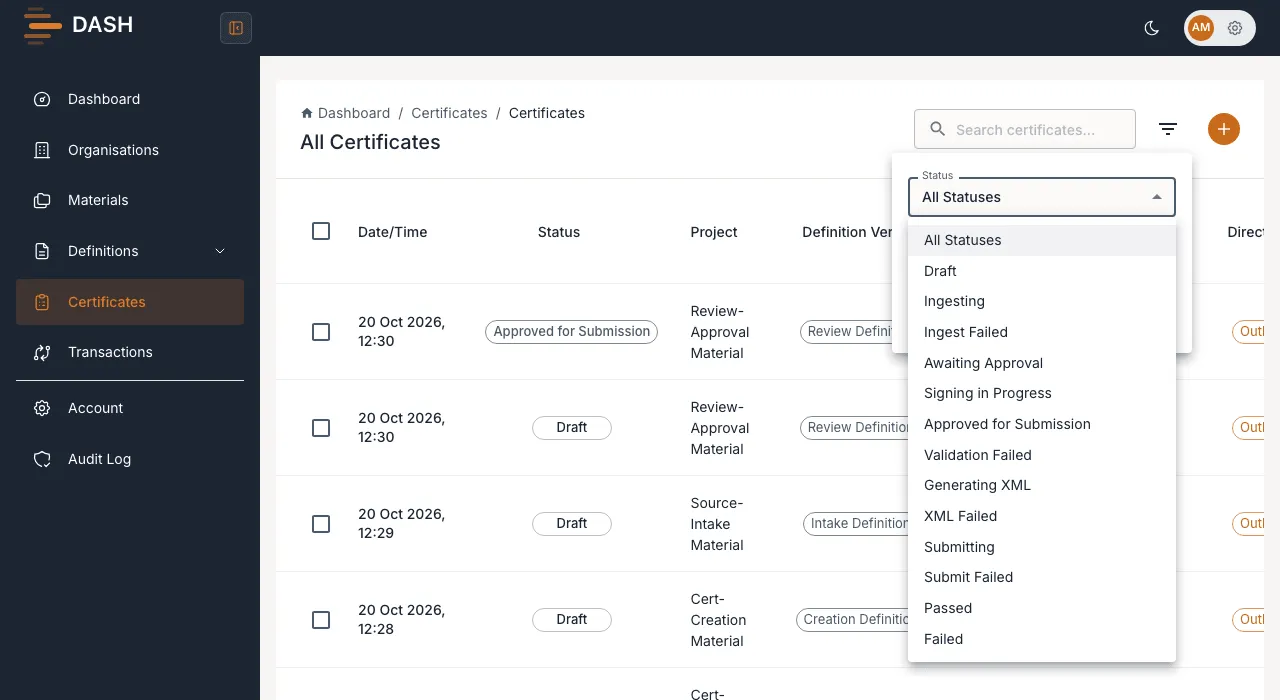
Section titled “Conditions that share a chip”To keep the list readable, some separate conditions are shown under the same chip. You can still tell them apart by opening the certificate, or by using the Status filter, which lists each condition separately.
- Being read, or could not be read. While DASH is still reading the uploaded source file, and
after a file could not be read, the list shows Draft. Open the certificate to see which:
- while it is being read, the header chip reads Status: Ingesting and the upload area says the document is being ingested;
- if reading failed, an Ingestion failed banner gives the reason. Recover it by uploading a corrected file. See Create a certificate.
- Producing output, or on hold for a signing key. Both show Submitting. If the release is waiting for a signing key, the record says “Release on hold until a signing key is available — it will continue automatically.” You don’t need to do anything. See Sealed PDF and long-term validity.
- A failed delivery. Shows Fail. Older certificates may also show Fail for historical reasons.
| Filter label | Chip you’ll see |
|---|---|
| Draft | Draft |
| Ingesting | Draft (header chip Status: Ingesting inside the certificate) |
| Ingest Failed | Draft, with an Ingestion failed banner inside |
| Awaiting Approval | Awaiting Approval |
| Signing in Progress | Signing In Progress |
| Approved for Submission | Approved for Submission |
| Validation Failed | Validation Failed |
| Generating XML | Submitting |
| XML Failed | Output generation failed |
| Submitting | Submitting |
| Submit Failed | Fail |
| Passed | Pass |
| Failed | Fail (older certificates) |
Signing In Progress
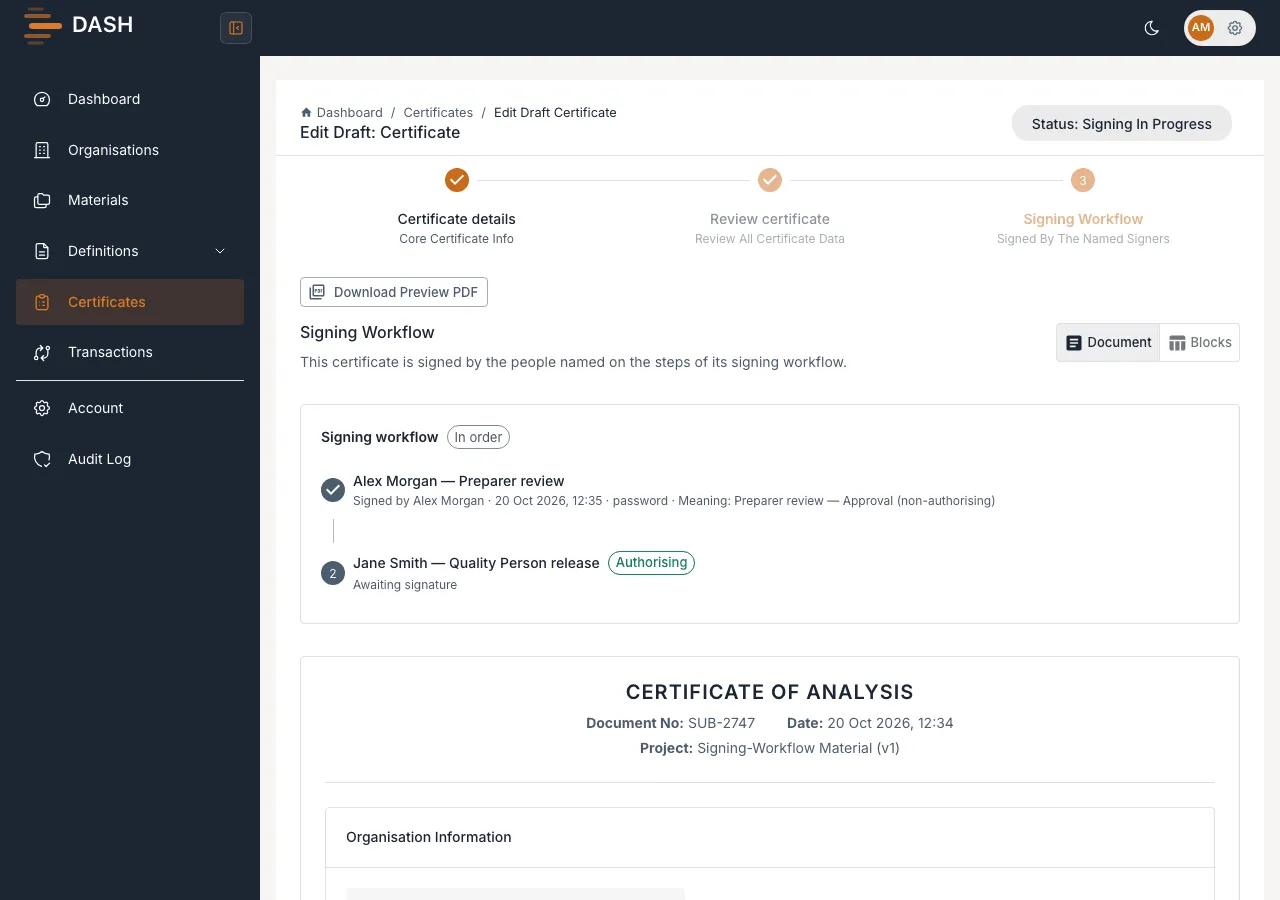
Section titled “Signing In Progress”When a Material has a signing workflow with more than one signer, the certificate moves to Signing In Progress as soon as the first signer signs. It stays there until the last required signature is applied. Only then does it become Approved for Submission. The authorising signer (normally the QP) gives the signature that releases it.
On the certificate’s signing step you can see each step, who has signed, and who is still Awaiting signature. If nothing is left for you to sign, the step is headed Signing Workflow.
See Signing workflows.
Which statuses can be edited or deleted
Section titled “Which statuses can be edited or deleted”| Chip | Edit details or data | Delete |
|---|---|---|
| Draft | Yes | Yes, unless it has ever been signed, or its source file is still being read |
| Awaiting Approval | Yes | Yes, unless it has ever been signed |
| Signing In Progress, Approved for Submission | No. Uploading a new source file voids the signatures (Approved for Submission only) | No |
| Validation Failed | Upload a corrected source file | No |
| Submitting, Output generation failed, Pass, Fail | No | No |
The full rules and the exact messages are in Edit and delete rules.