

Send for approval
When you have prepared a certificate but you cannot sign it yourself, you send it for approval. This moves the certificate from Draft to Awaiting approval and hands it to a Quality Person (QP) or Admin, who is the only person who can sign and submit it. Sending for approval is typically done by a Technician after data entry.
1. Finish reviewing the draft
Section titled “1. Finish reviewing the draft”Before you hand it off, make sure the mapped data is correct and any presentational edits are done — see Review & edit mapped data. Once the certificate is signed it can no longer be edited, so the approver relies on your review being complete.
2. Send to approver
Section titled “2. Send to approver”- Open the draft certificate from the Certificates list. It opens in the wizard.
- Move to the final step. Because you do not have sign permission, this step is labelled Send to Approver.
- Select Send to Approver.
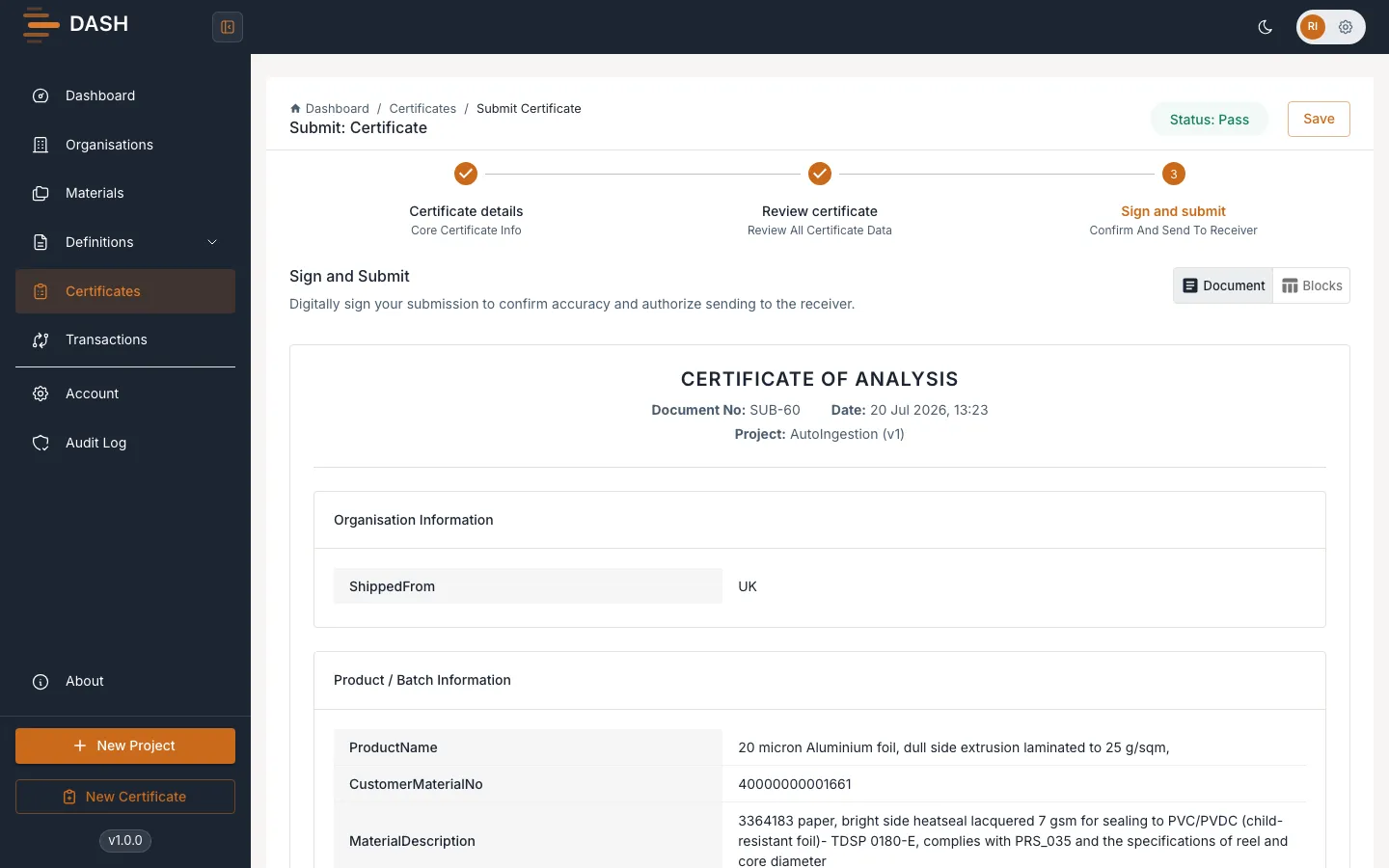
The certificate moves to Awaiting approval and the step shows a Sent to Approver confirmation. A QP or Admin can now pick it up and sign it.
What happens next
Section titled “What happens next”- A QP or Admin reviews and signs the certificate, moving it to Approved for submission — see Sign a certificate.
- While it is awaiting approval the certificate can still be edited if a correction is needed, but it cannot be edited once signed.