Assign roles and segregation of duties
A member’s role decides what they can do everywhere in your account. You set it when you invite them and can change it at any time from their user record. DASH puts a few safeguards around role changes so that administrator rights and signing authority can’t be handed out casually.
Change a member’s role
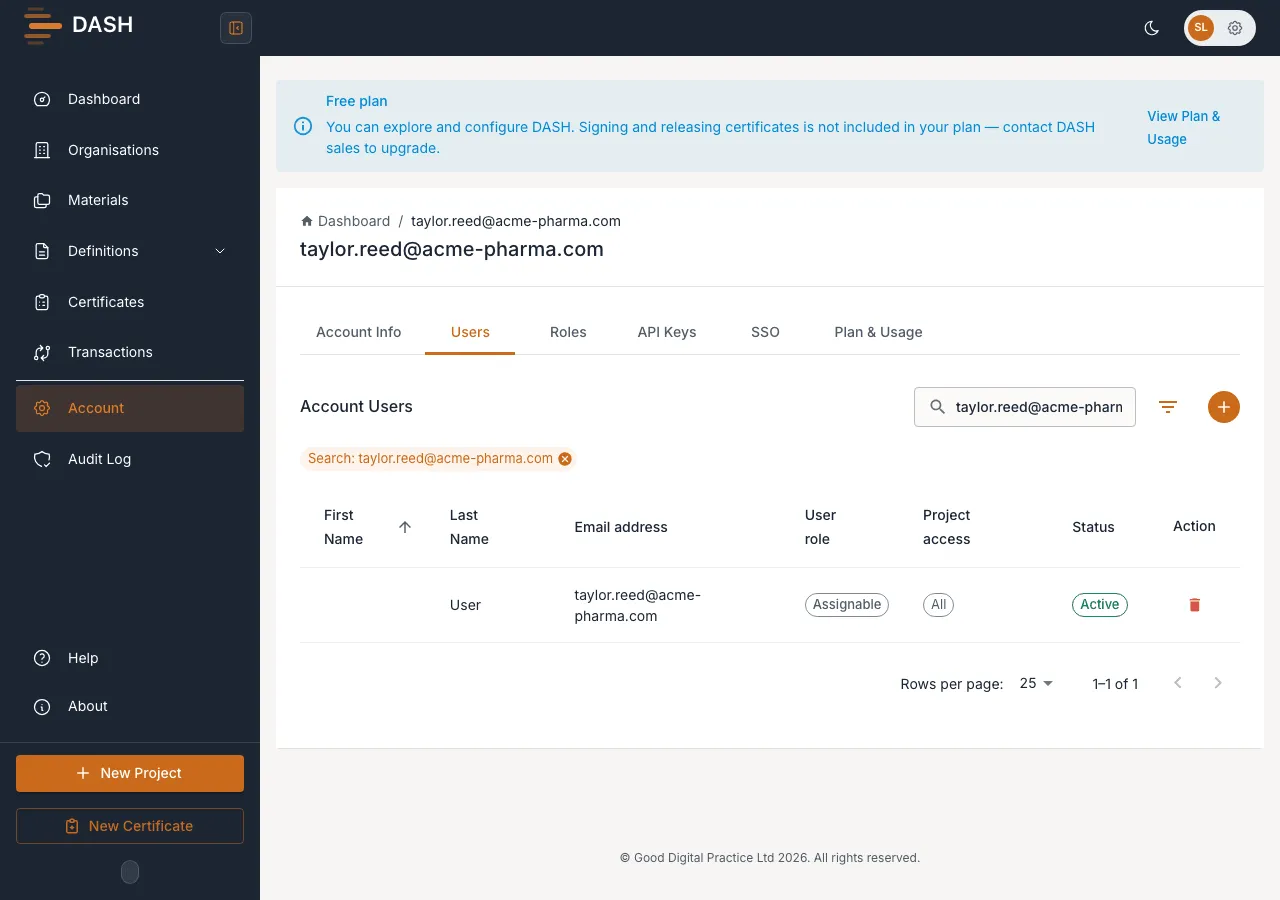
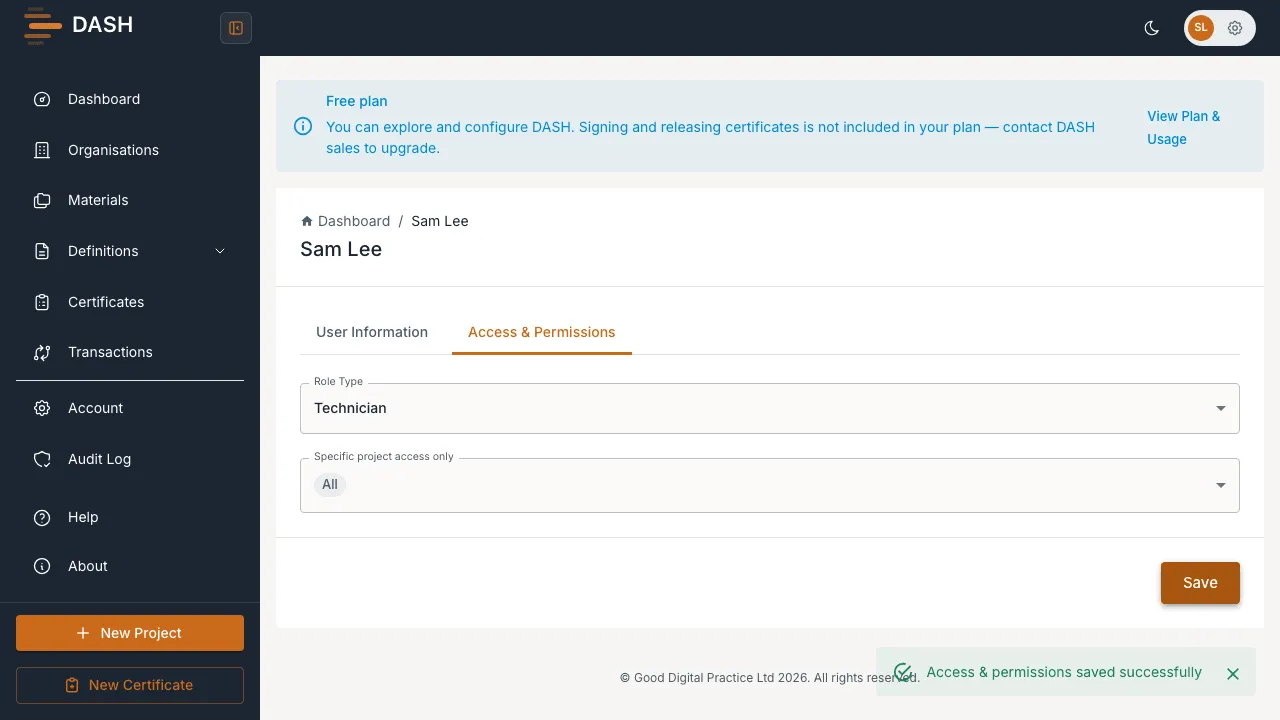
Section titled “Change a member’s role”- Select Account in the sidebar, then the Users tab.
- Select the member’s row. Their user record opens.
- Select the Access & Permissions tab.
- Open Role Type and choose the new role. The list holds the built-in roles and your account’s custom roles.
- Select Save. DASH confirms “Access & permissions saved successfully”.
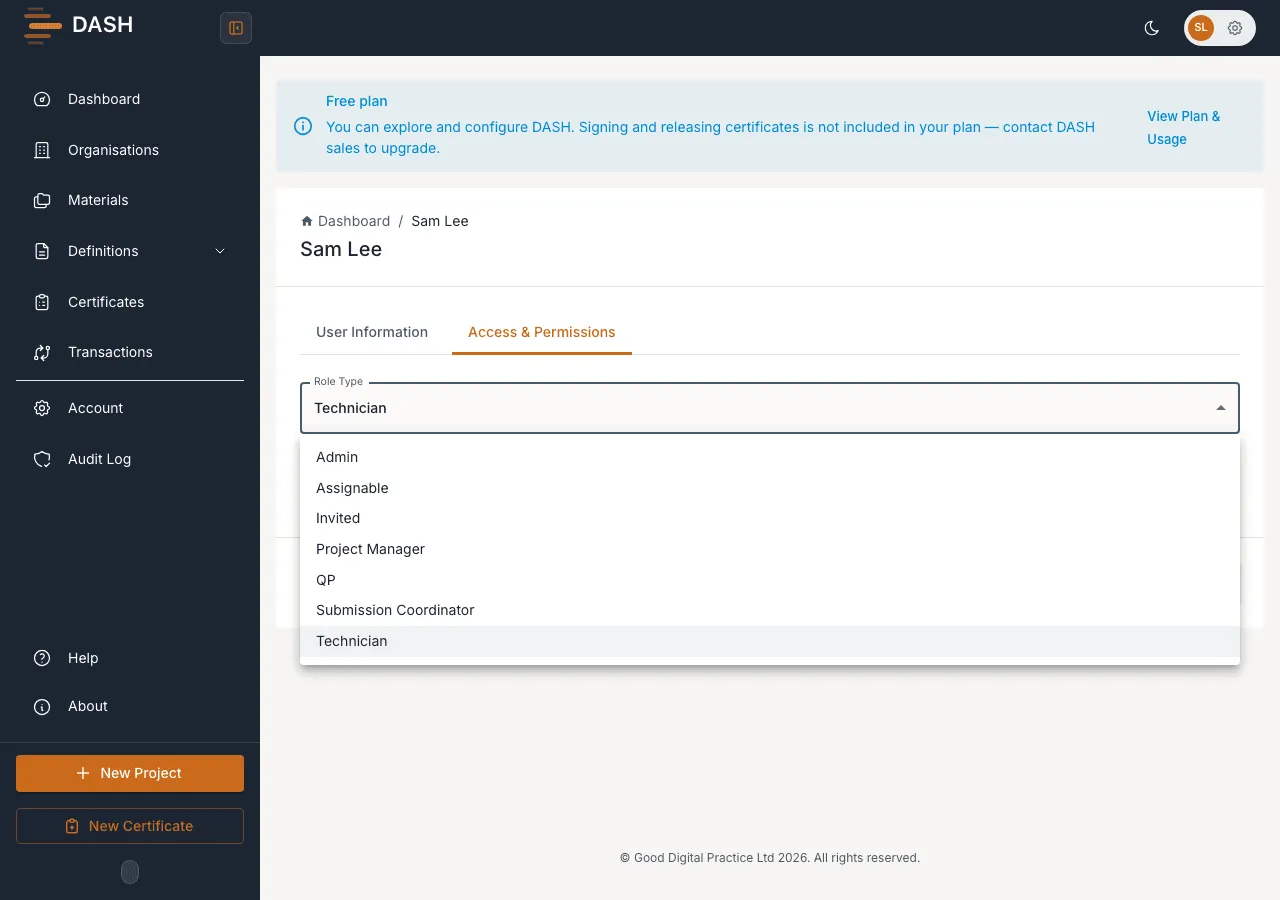
The new role applies straight away, across every area at once. The User role column on the Users tab shows the change.
You can’t change your own role, and the Role Type field on your own record is greyed out. Another administrator has to do it.
Promote someone to Admin
Section titled “Promote someone to Admin”Granting administrator rights needs fresh proof that it’s really you.
- On the member’s Access & Permissions tab, set Role Type to Admin and select Save.
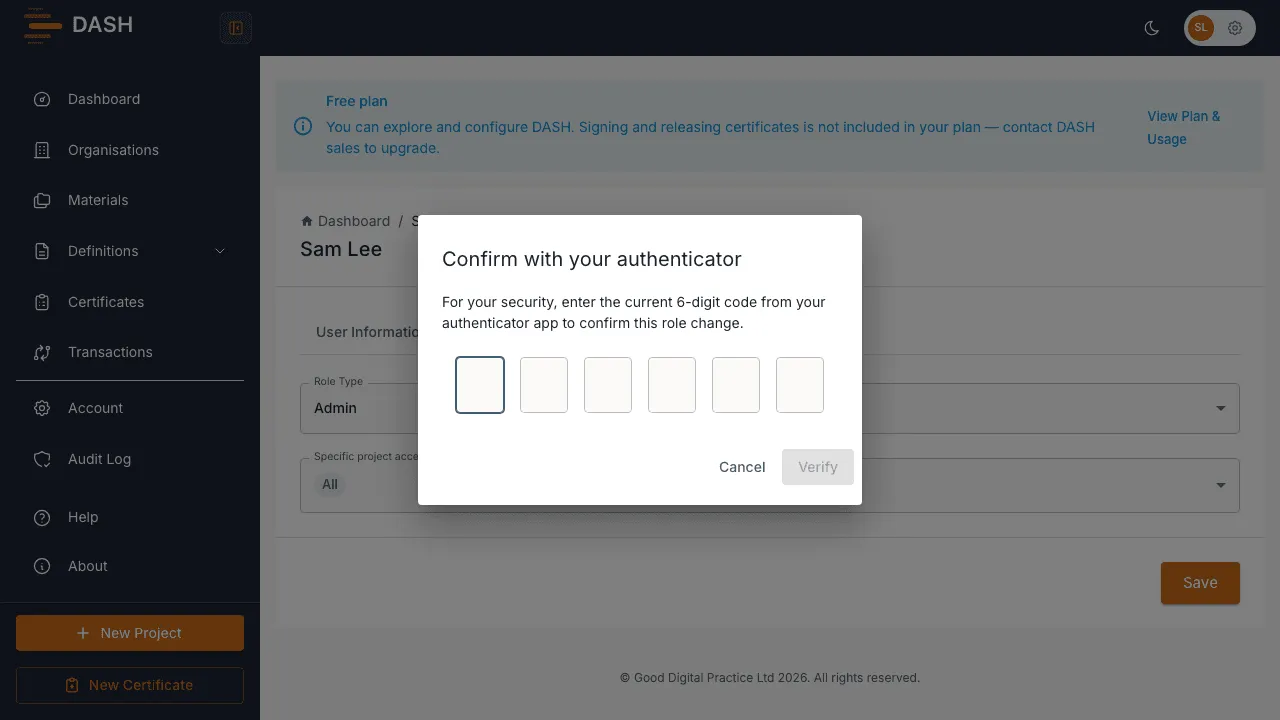
- The Confirm with your authenticator dialog opens: “For your security, enter the current 6-digit code from your authenticator app to confirm this role change.”
- Type the current code from your authenticator app. DASH checks it when you type the sixth digit, or you can select Verify. The promotion is saved.
Things to know:
- Only an authenticator code works here. Your password and passkeys aren’t accepted for this action. If you have no authenticator app, DASH refuses with “This action requires authenticator app (TOTP) enrollment.” (TOTP means the authenticator app.)
- The code covers this one change. Each promotion needs its own code. See Step-up verification.
- Only activated members can be promoted. A member who hasn’t accepted their invitation yet is refused: “This member has not activated their account yet. A member can be promoted to Admin after they have set their password from the invitation email.” An inactive member is refused with “Only an active member can be promoted to Admin.”
- Removing Admin doesn’t need a code. Choosing any other role for an Admin saves straight away.
The account owner’s role is locked
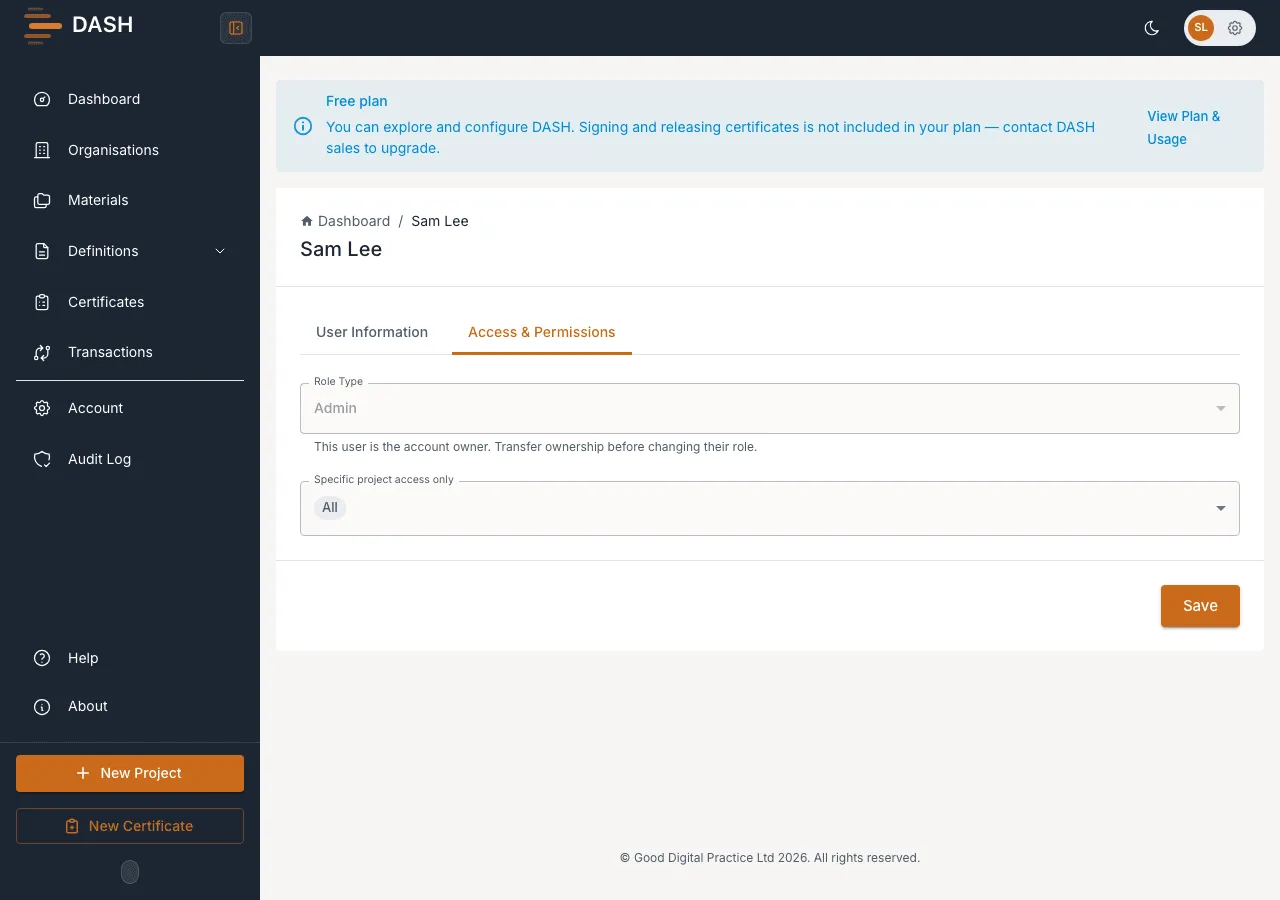
Section titled “The account owner’s role is locked”The account owner is always an Admin. On the owner’s record, Role Type is greyed out with the note “This user is the account owner. Transfer ownership before changing their role.” To change it, transfer ownership to another Admin first. The previous owner keeps the Admin role, and the new owner can then change it.
Segregation of duties DASH always enforces
Section titled “Segregation of duties DASH always enforces”These rules hold whatever roles you create or assign:
- At least one active Admin. Because the owner is always an active Admin, an account can never be left without someone able to manage it. DASH also refuses to deactivate the only active Admin: “Cannot remove the only admin. Promote another user to Admin first.”
- Signing stays with the Quality Person. In the built-in roles, only QP can sign, release and void a signature (Submissions: Sign/submit with Create, Read, Update and Delete). Every other built-in role can only view signatures. That includes Admin, so the person who runs the account can’t release a certificate. Preparing a certificate and releasing it always involve different roles. See Signing authority.
- Named workflow signers. If a Material has a signing workflow, the person named on a non-authorising step can sign that step without the QP role. The final, authorising step still needs a QP. See Signing workflows.
- Plan and role together. Signing also needs a plan that includes regulated release. A QP on a plan without it is refused.
- Admin rights need step-up, as described above.
Who can change roles
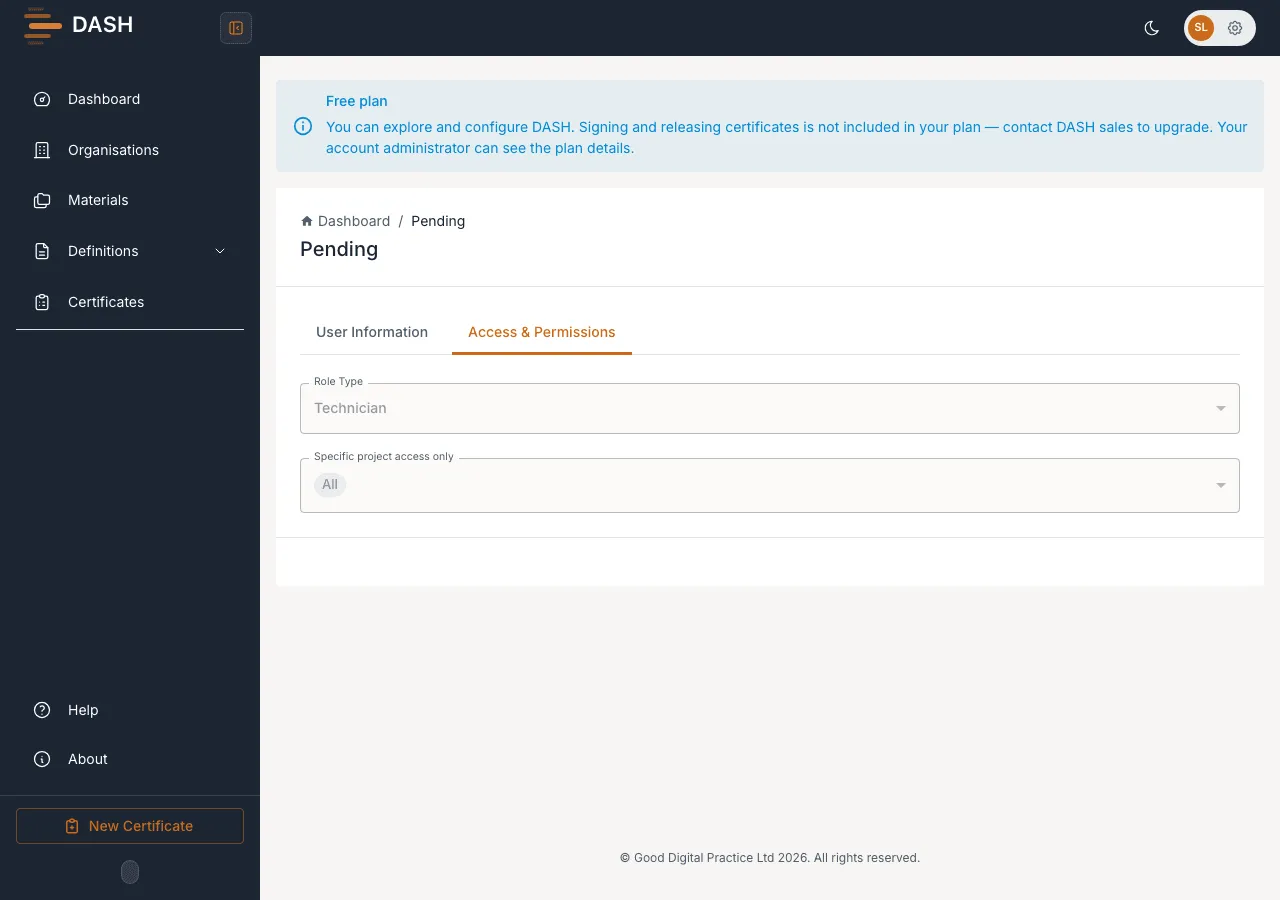
Section titled “Who can change roles”Only members with account administration rights can change roles. Other members see the Users tab with a Read-Only Access banner. On a user record their Role Type is greyed out and there’s no Save button. DASH also refuses the change on the server if they try another way.
The audit trail
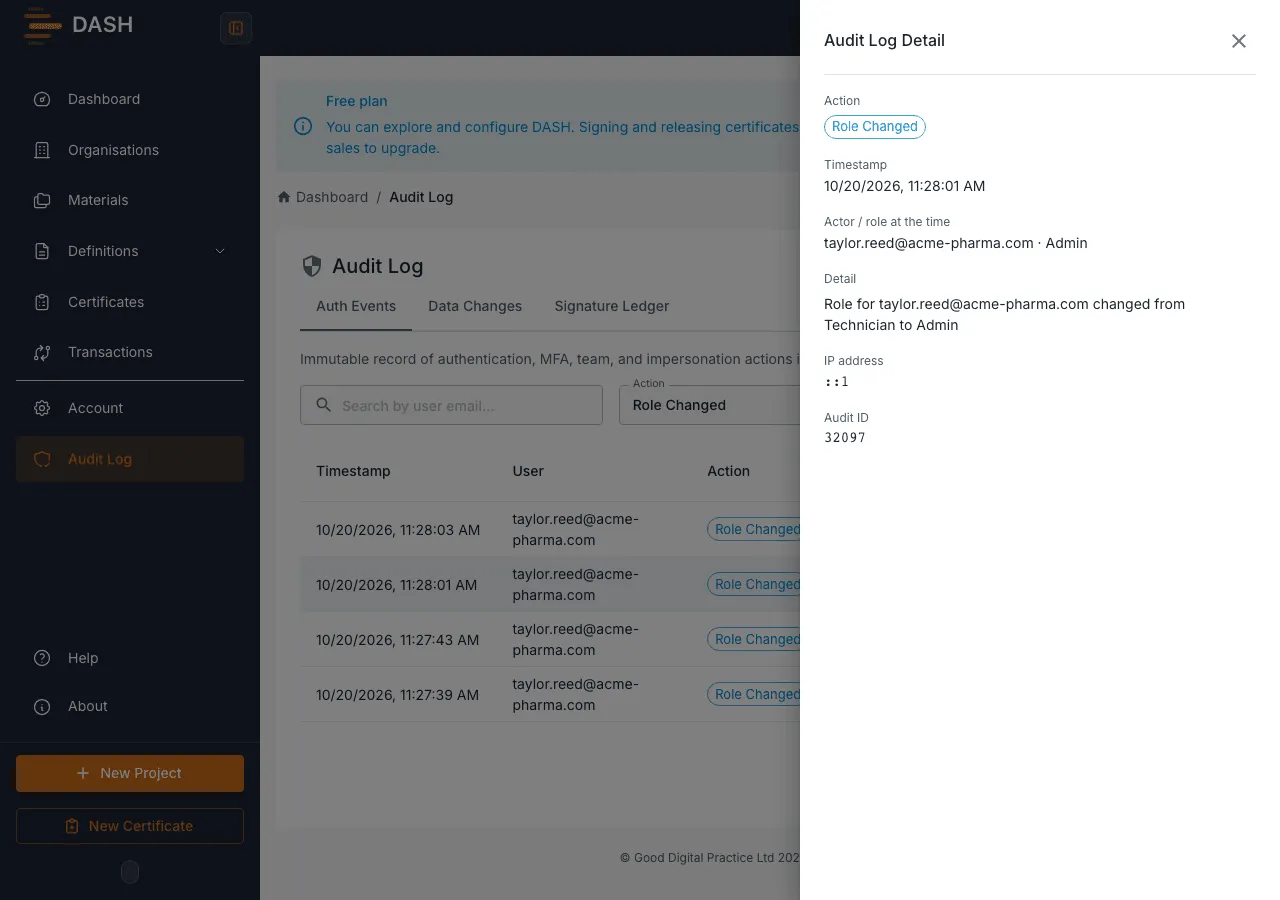
Section titled “The audit trail”Every real role change is recorded as Role Changed, naming the administrator, the member, and the role before and after, for example “Role for sam.lee@acmepharma.example changed from Technician to Admin”. Editing someone’s name or other details doesn’t create a role-change entry. A promotion is also recorded as Promoted to Admin, and a demotion as Demoted from Admin.