

Analytics API overview
The Analytics API lets a business-intelligence (BI) tool such as Power BI, Looker Studio or Tableau read your account’s operational figures: how many certificates you have, in which status, with which Organisations and Materials, and how transmissions are going. It is for reporting only. Nothing can be created, changed or deleted through it.
Two parts: keys in the app, data through the API
Section titled “Two parts: keys in the app, data through the API”| Part | Where | Who uses it |
|---|---|---|
| Key management | Account → API Keys in the DASH app | Your account administrators create, review and revoke keys. |
| Data endpoints | The Analytics API address, called by your BI tool with a key | Your BI tool or reporting developer reads the figures. No one signs in. |
A key belongs to one account. Your BI tool presents it with every request instead of signing in, so a tool that can’t hold a browser session can still read your figures on a schedule.
- To issue a key, see Create an API key.
- To give your developer the technical details, see the Endpoints reference.
- For the headline figures in one request, see Metrics summary.
What the API returns, and what it never returns
Section titled “What the API returns, and what it never returns”The API returns operational fields only: identifiers, names, statuses, counts, dates and times, and durations. For example, for a certificate it returns its status, when it was created and signed, its Material, Organisation and Definition, and who signed it.
It never returns the regulated content of a record:
- no certificate values, extracted or mapped data, edits, stored files or output documents;
- no Definition property schema, and no Definition Map field mappings or source configuration;
- no channel configuration or credentials;
- no transmission request or response bodies, and no error messages (these can hold payload fragments or personal data).
Each resource returns a fixed list of fields. A field added to DASH later is not returned until it is added to that list under change control, so new data can’t leak into your reports by accident. The lists are in the Endpoints reference.
The API Keys tab says the same in one line: “Read-only keys for BI tools (Looker Studio, Power BI). Each key exposes only this account’s operational analytics — never certificate contents.”
Your account’s data only
Section titled “Your account’s data only”Every read made with a key is confined to the account that owns the key. No search, filter, ordering or date range can widen it to another account’s records. If a request names a record that belongs to another account, the API answers as if the record does not exist. It never reveals that the record is there.
How keys are kept safe
Section titled “How keys are kept safe”- Shown once. The full key is displayed only once, in the Copy your API key now dialog when it is created. Store it straight away in your BI tool or a password manager.
- Not recoverable. DASH keeps only an irreversible fingerprint of the key, never the key itself. Neither you, your colleagues nor DASH support can read it back. If a key is lost, revoke it and create a new one.
- Told apart by name and prefix. Each key has the name you gave it and a short, non-secret
prefix:
pl_ak_followed by six characters, for examplepl_ak_EXAMPL…. The prefix is shown in the key list, in the revoke confirmation and in the audit log. It can’t be used to call the API.
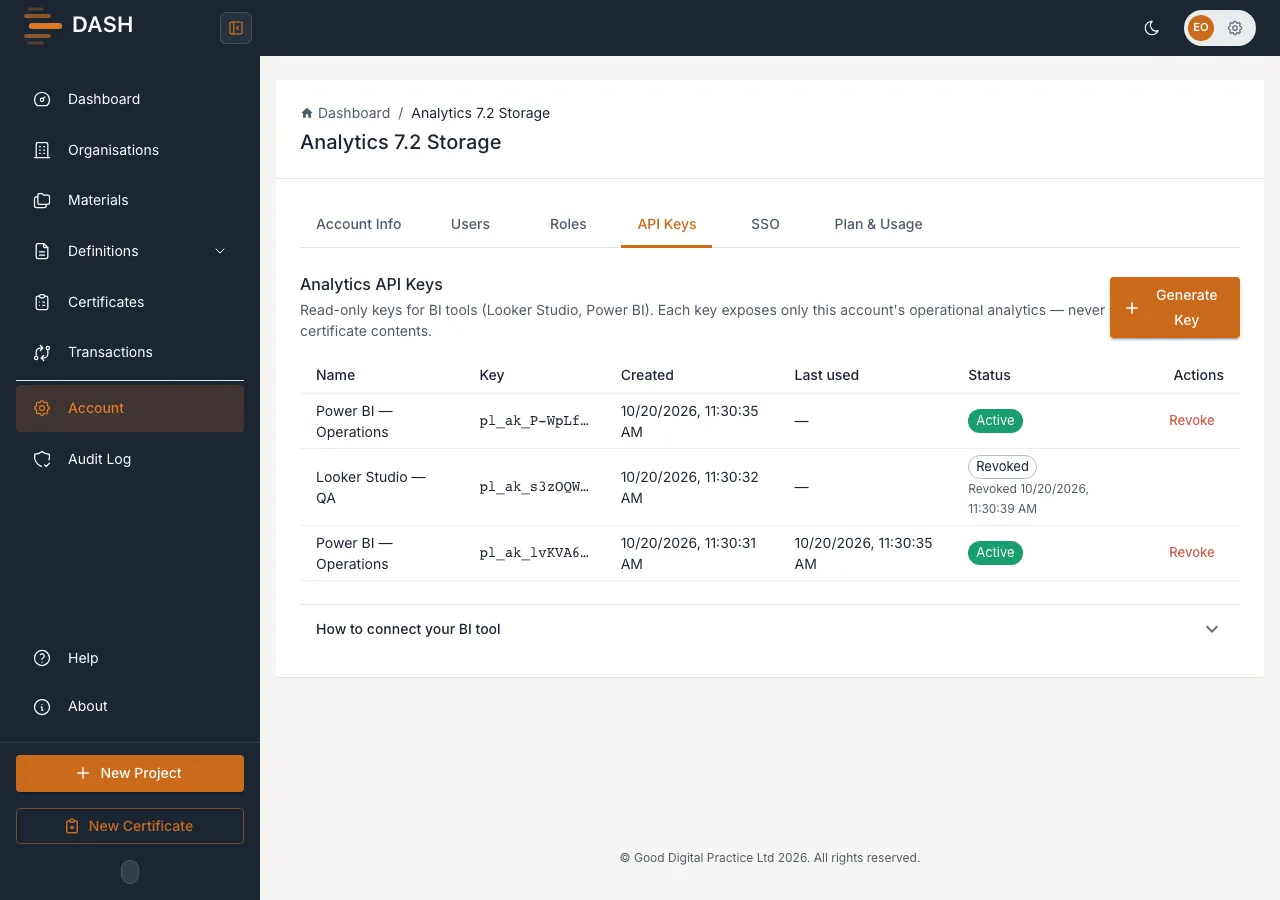
The key list shows, for each key:
| Column | What it shows |
|---|---|
| Name | The name you gave the key, for example “Power BI — Release KPIs”. |
| Key | The non-secret prefix, followed by “…”. |
| Created | When the key was created. |
| Last used | When a BI tool last used it, or “—” if never. See Usage and fair use. |
| Status | Active or Revoked. A revoked key also shows “Revoked” and the date and time. |
| Actions | Revoke, on active keys, for administrators. |
Two keys can have the same name. The prefix tells them apart:
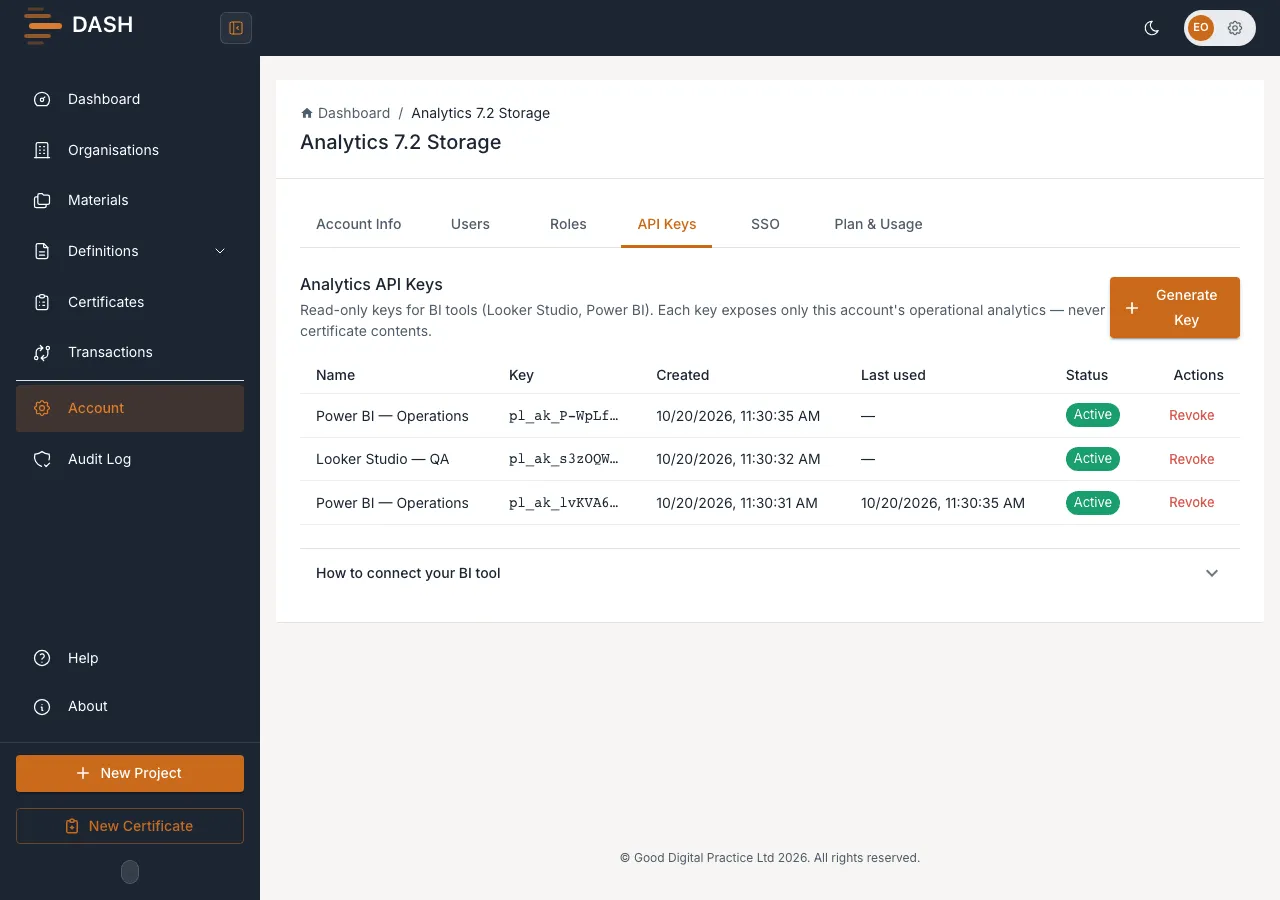
Every key is accountable
Section titled “Every key is accountable”Creating and revoking a key are both written to your account’s Audit Log, with the administrator, the key’s name and prefix, and the time. See Key audit trail.
Related
Section titled “Related”- Create an API key
- Revoke an API key
- Endpoints reference
- Dashboard, the in-app charts, which need no key