

Multi-factor and step-up overview
A password on its own can be guessed, phished or reused elsewhere. DASH lets you add a stronger factor to your account, so that a stolen password is not enough to get in. DASH has no routine password expiry. It relies on these stronger factors instead, and encourages every user to set at least one up.
You manage all of these yourself on your own Security tab. No one else can set them up for you.
Where to find your security settings
Section titled “Where to find your security settings”- Select your avatar in the top-right corner.
- Select User Settings.
- Open the Security tab.
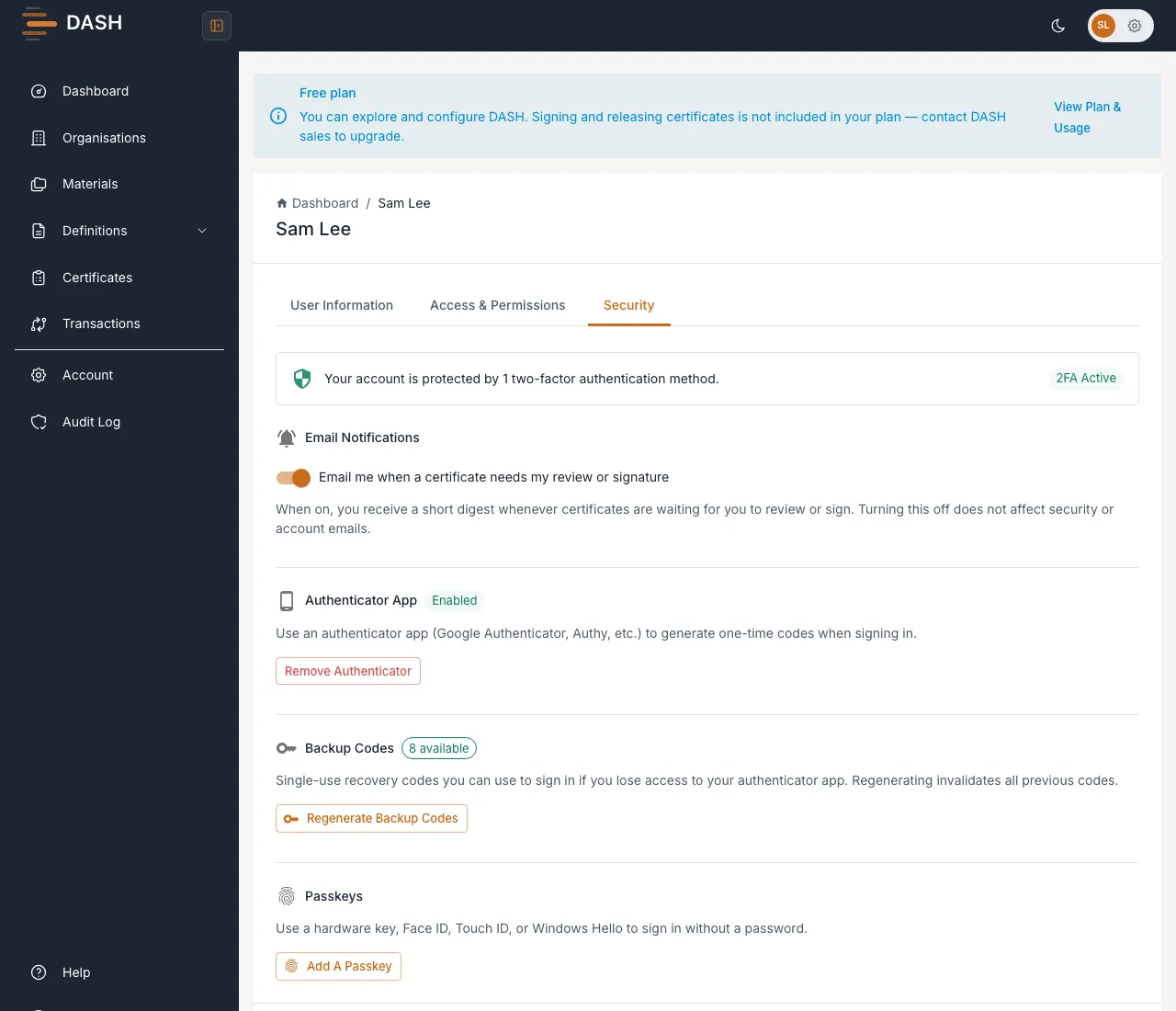
At the top of the tab, a banner tells you how protected your account is. It reads either “No two-factor authentication methods are active on your account.” or “Your account is protected by N two-factor authentication method(s).” with a green 2FA Active chip.
The options
Section titled “The options”| Option | What it is | What it does for you |
|---|---|---|
| Authenticator app | An app on your phone or computer (for example Google Authenticator, Authy or 1Password) that shows a new 6-digit code every 30 seconds | Once it is set up, every password sign-in also asks for a code. It is also the only proof accepted for some administrative actions. |
| Backup codes | Eight single-use recovery codes, issued when you set up the authenticator app | Let you finish signing in if your authenticator device is lost or not to hand |
| Passkeys | A credential held by your device and unlocked with your fingerprint, face or device PIN | Let you sign in with no password and no code. A passkey can also confirm your identity when you sign a certificate. |
The Security tab shows the state of each one:
- Authenticator App: Enabled or Not enabled.
- Backup Codes (shown only while the authenticator is enabled): N available, an amber N left when only one or two remain, or Not generated.
- Passkeys: N registered, with each passkey listed by name.
When DASH asks for your second factor
Section titled “When DASH asks for your second factor”There are two different moments.
At sign-in. If you have an authenticator app enabled, a correct password only gets you as far as the Two-factor verification screen. You are signed in only after you enter a valid code or a backup code. See MFA required at login. If you sign in with a passkey instead, the passkey is your strong factor, so DASH asks for no code.
Registering a passkey does not add a step to password sign-in. Only the authenticator app does that.
Before a sensitive action (step-up). Some actions need fresh proof that it is really you, even though you are already signed in. Each proof covers one action and expires after 10 minutes. See Step-up verification.
| Action | Proof accepted |
|---|---|
| Signing a certificate | Your password, a passkey, or an authenticator code |
| Promoting a user to Admin | An authenticator code only |
| Starting or cancelling an ownership transfer | An authenticator code only |
What gets recorded
Section titled “What gets recorded”Every security change is recorded in the account’s audit trail. This covers setting up or removing an authenticator, generating backup codes, using a backup code, registering, renaming or removing a passkey, and every step-up. Users with Account Admin rights can review these entries in the Audit log.