

Project access scoping
Each member’s project access decides which Materials they can reach. (Materials were once called projects, which is why the field still says “project”.) It works alongside their role: the role sets what they can do, and project access sets which Materials they can do it on.
There are two choices:
- All: every Material in the account, including any created later.
- Specific Materials: only the Materials you tick. Every other Material is hidden from them.
Limit a member to specific Materials
Section titled “Limit a member to specific Materials”- Select Account in the sidebar, then the Users tab, and select the member’s row.
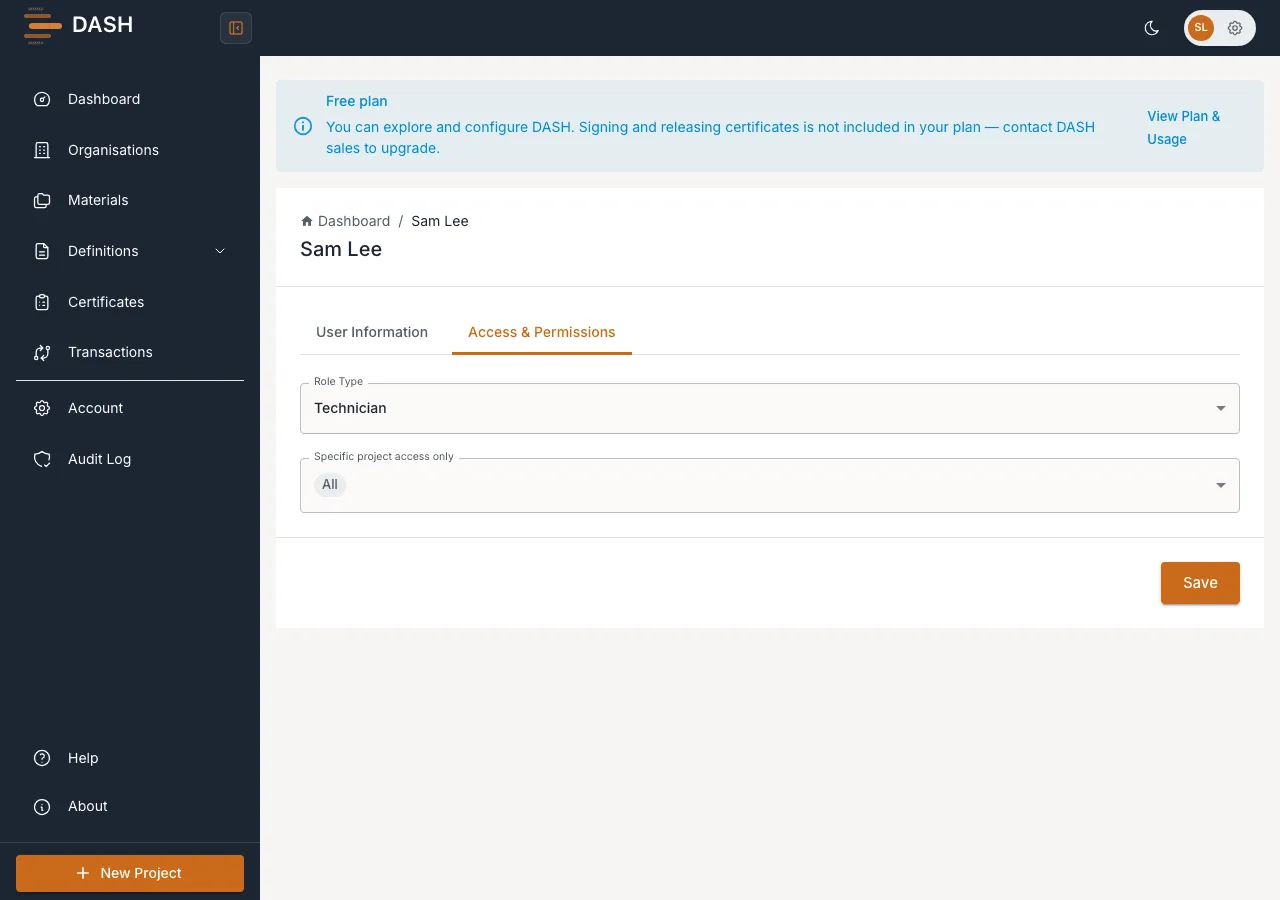
- On their user record, select the Access & Permissions tab. The Specific project access only field shows All if they can reach every Material.
- Open Specific project access only. Untick All, then tick each Material they should reach. While All is ticked, the individual Materials can’t be selected.
- Select Save. DASH confirms “Access & permissions saved successfully”.
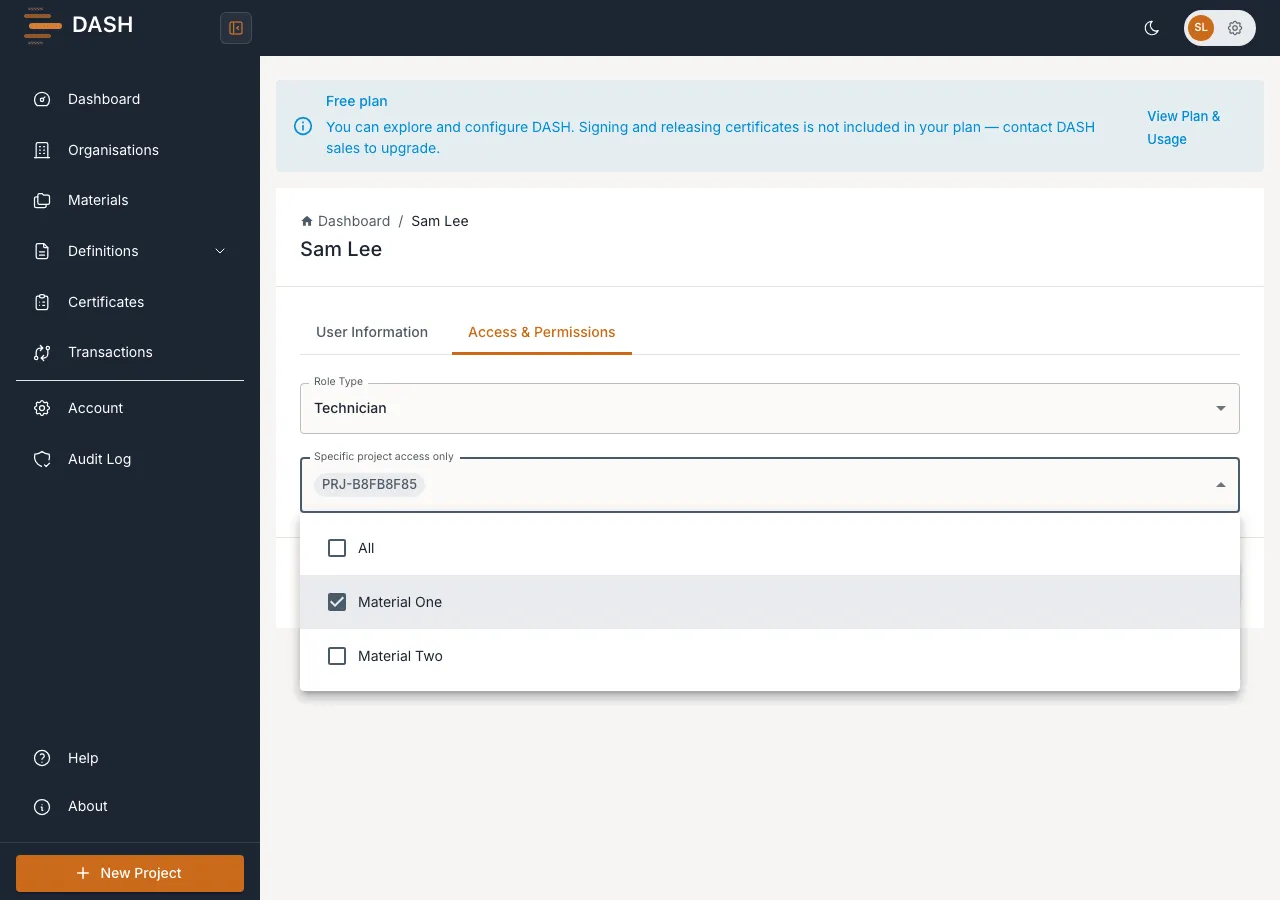
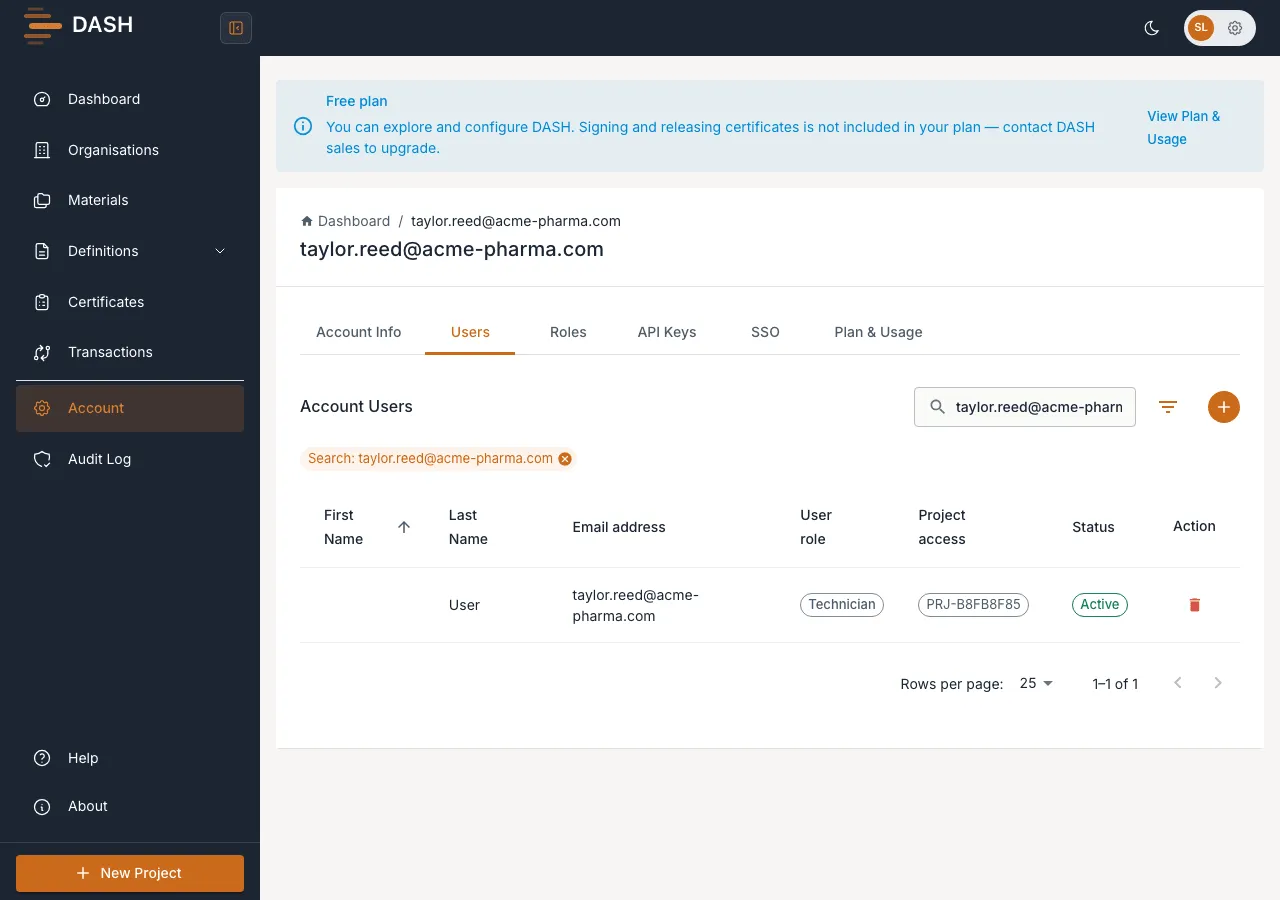
The Project access column on the Users tab then lists the Materials by their ID (for example PRJ-71498D49), not by name. Open a Material to see its ID. If you choose All, the column shows All.
Give a member access to every Material
Section titled “Give a member access to every Material”- On the member’s Access & Permissions tab, open Specific project access only and tick All. Any individual Materials are cleared.
- Select Save.
With All, the member automatically gets every Material created later, with no further step. On a Material’s Users tab they’re shown as Account-wide (“This user has account-wide access to all materials. Manage it from their account membership.”). They can’t be removed from a single Material there. To narrow their access, change it here.
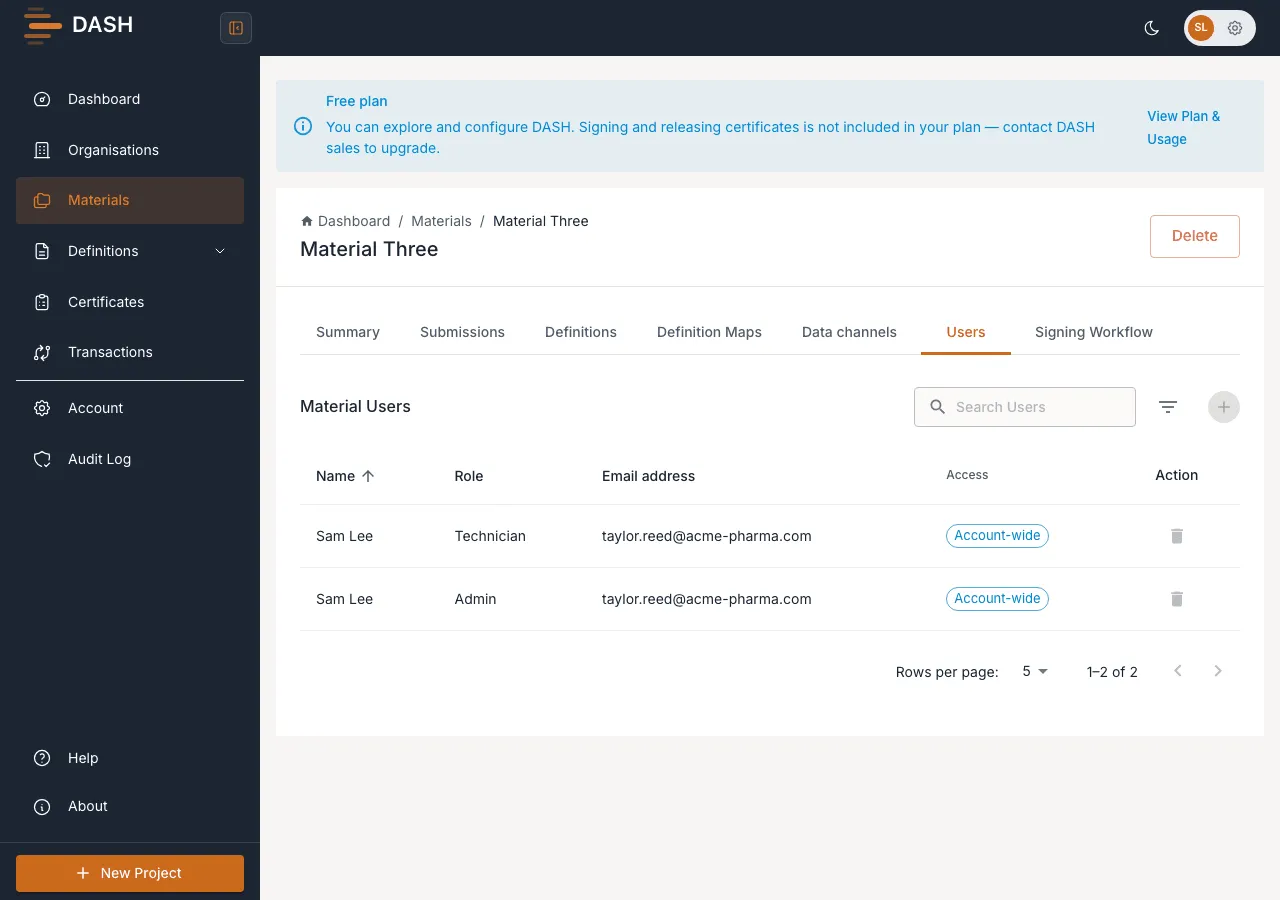
Members with specific access appear on the Material’s Users tab as This material only. You can also add or remove them from there. See Assign users to a Material.
What a limited member sees
Section titled “What a limited member sees”- Their Materials list shows only the Materials they’ve been given.
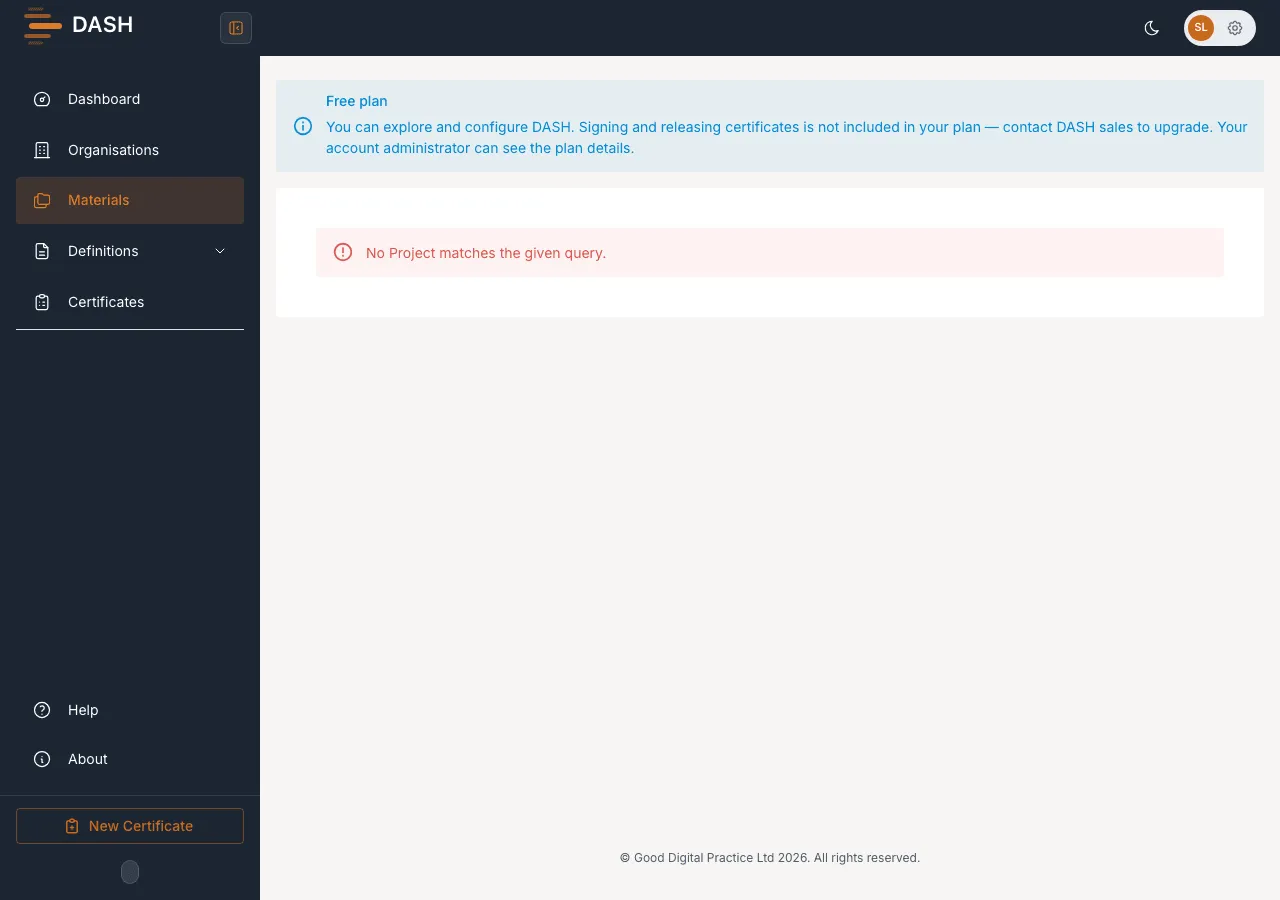
- If they open another Material directly, for example from an old link, DASH shows no data and reports “No Project matches the given query.” The Material’s name isn’t revealed.
- The Material’s Users tab doesn’t list them.
Changes take effect immediately
Section titled “Changes take effect immediately”A change of access applies as soon as you save. When you switch between All and a list, or replace one list with another, the new setting replaces the old one completely. Nothing from an earlier grant is left behind to widen their access. For example, if you move someone from All to one Material, they lose sight of every other Material straight away, including ones they could see while they had All.
Each change is recorded as Material Access Changed in the Audit log, with the access before and after.