

Archive, restore or delete a channel
When you no longer need a channel, you archive it. An archived channel is taken out of new work but keeps its full history, and you can restore it later. Only a channel that nothing has used yet can be deleted outright. This keeps every certificate and transmission record traceable to the channel it went through.
Archive or delete: which applies?
Section titled “Archive or delete: which applies?”| The channel… | What you can do |
|---|---|
| has been used by a certificate, has transmission or intake history, or (for a source) has an approved dry run | Archive only. Delete is refused. |
| has never been used | Delete, or archive if you might want it back |
| is the built-in DASH (Manual) destination | Neither. It is always available. |
| is a source channel that is Active | Pause it first (delete is disabled until then). Archiving pauses it for you. |
Archive a channel
Section titled “Archive a channel”- Open the Material, select Data channels, then the sub-tab the channel is on.
- On the channel’s row, select the archive icon (tooltip Archive channel (hide from new work, keep its history)). The Archive data channel? dialog opens.
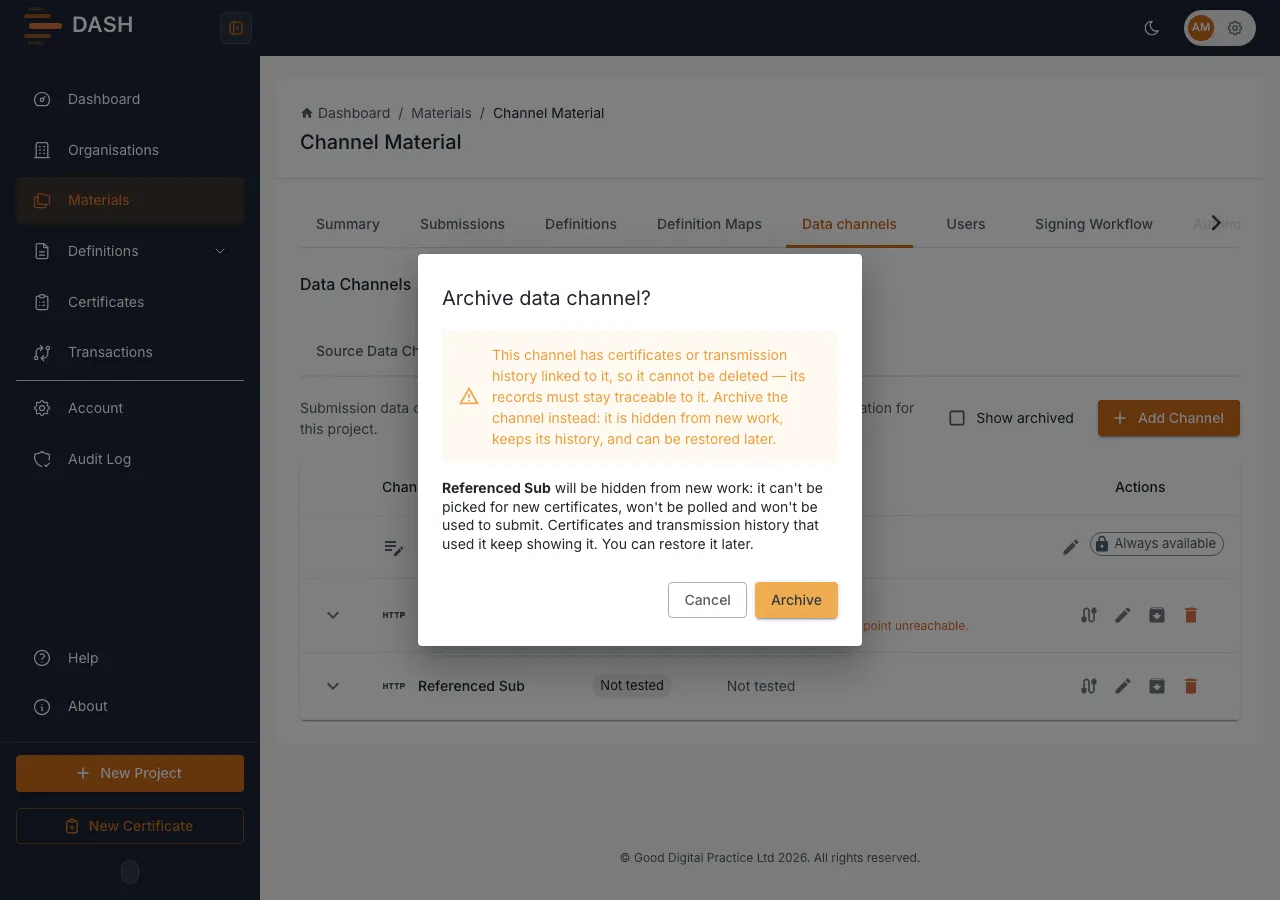
- Read what will happen: the channel “will be hidden from new work: it can’t be picked for new certificates, won’t be polled and won’t be used to submit. Certificates and transmission history that used it keep showing it. You can restore it later.”
- Select Archive.
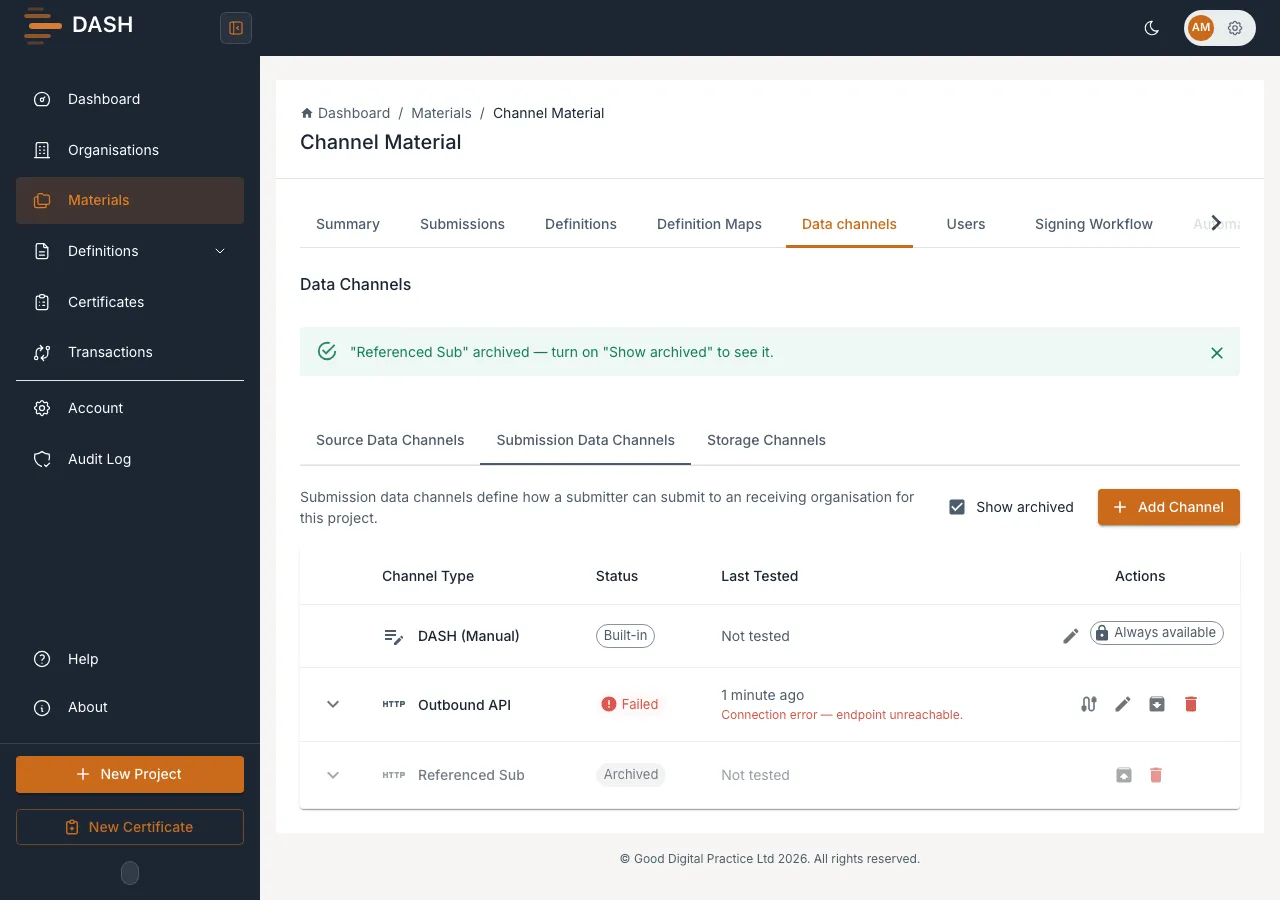
The channel disappears from the list and DASH confirms “[channel name] archived — turn on “Show archived” to see it.“
Delete a channel
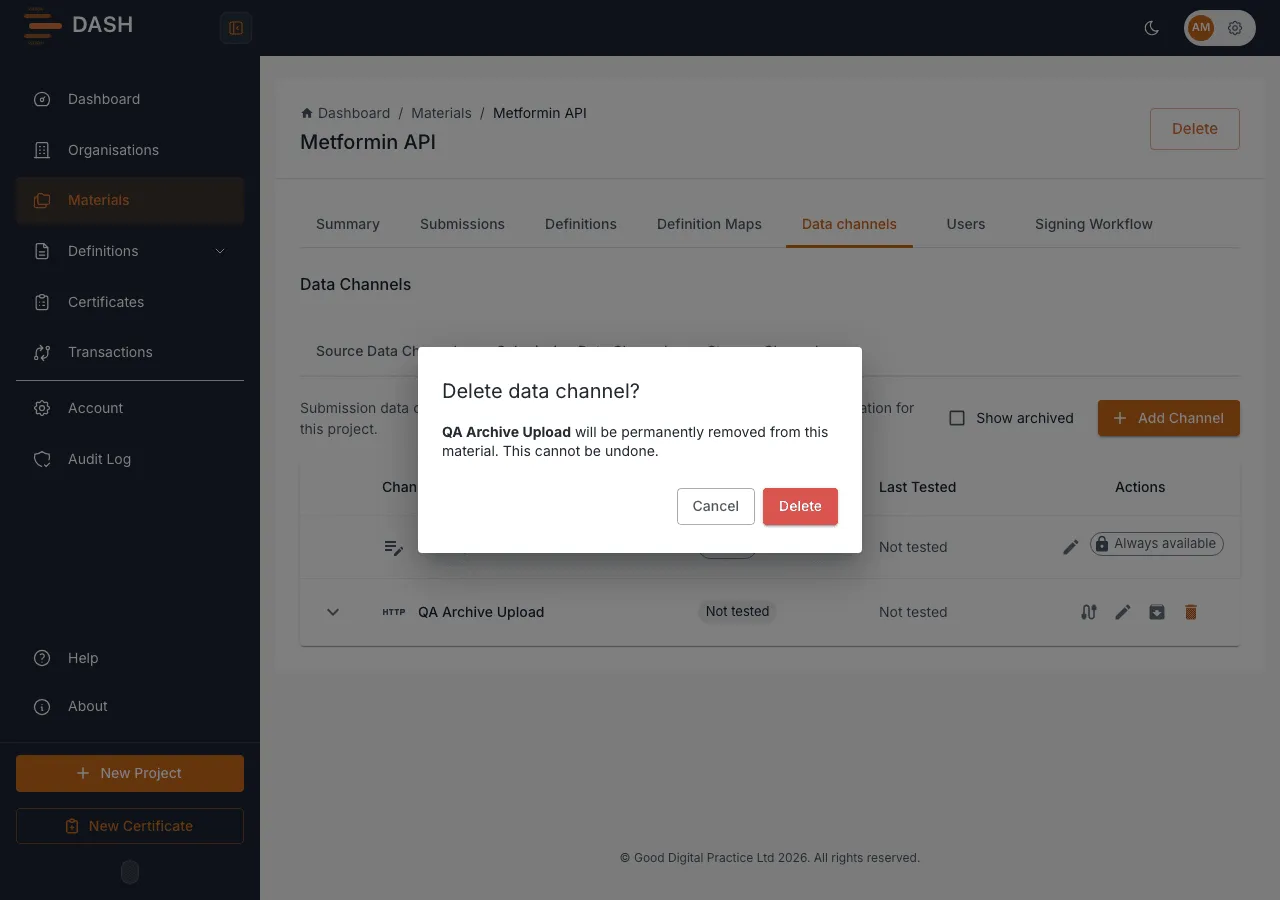
Section titled “Delete a channel”- On the channel’s row, select the red delete icon. The Delete data channel? dialog opens and warns that the channel “will be permanently removed from this material. This cannot be undone.”
- Select Delete.
If the channel has been used, DASH doesn’t delete it. The Archive data channel? dialog opens instead, with the reason: “This channel has certificates or transmission history linked to it, so it cannot be deleted — its records must stay traceable to it. Archive the channel instead: it is hidden from new work, keeps its history, and can be restored later.” Select Archive to archive it, or Cancel to leave it as it is.
What an archived channel looks like
Section titled “What an archived channel looks like”- In the channel list, it is hidden unless you tick Show archived. Then it appears dimmed, with the Archived status chip. You can’t test, edit or automate it; only Restore and delete are offered (and delete is still refused if the channel has been used).
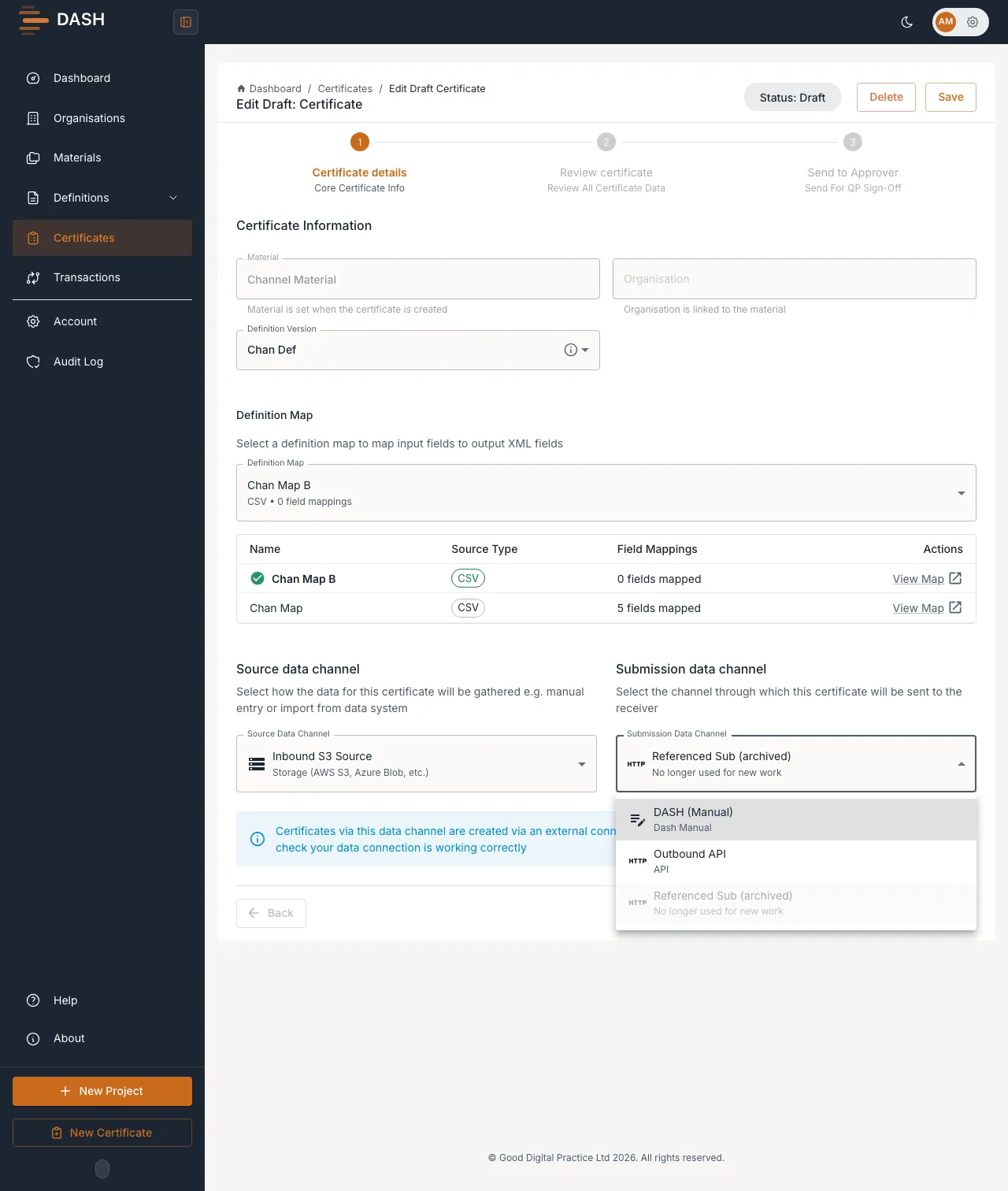
- On certificates that used it, the channel is still named, followed by (archived). In the channel picker it is listed as “No longer used for new work” and can’t be selected.
- For new work, it is never polled and never used to send. A submit or retry through it is refused with “This data channel is archived and cannot be used for new work. Restore the channel, or choose an active channel, and try again.”
Restore an archived channel
Section titled “Restore an archived channel”- Tick Show archived on the channel’s sub-tab.
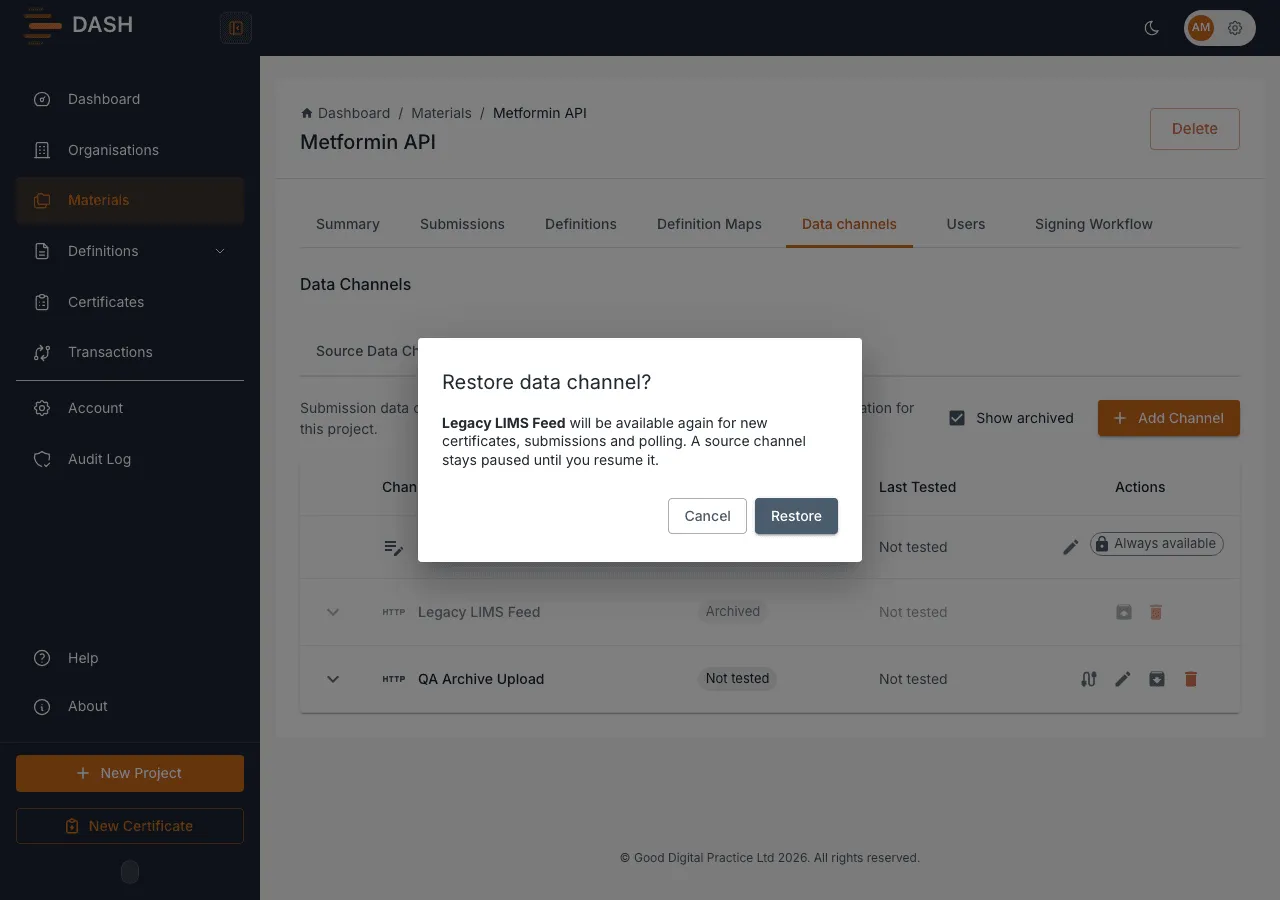
- On the archived row, select the restore icon (tooltip Restore channel). The Restore data channel? dialog opens: the channel “will be available again for new certificates, submissions and polling. A source channel stays paused until you resume it.”
- Select Restore. DASH confirms “[channel name] restored.”
A restored source channel stays Paused. Select Resume on the Automation tab when you want it to poll again. See Configure polling.
If your plan limits the number of channels, restoring counts towards that limit and may be refused with a message asking you to contact DASH sales.
The audit trail
Section titled “The audit trail”Every archive and restore is recorded in the account’s audit log as Data Channel Archived or Data Channel Restored, with who did it, the channel and the Material. See Audit log.