

Verify a domain
An SSO connection only affects people whose email address is on a domain you have verified, for
example everyone @acmepharma.com. Verifying proves that your organisation controls the domain: you
publish a unique DNS record, and DASH checks for it. Until a domain is verified it has no effect on
anyone’s sign-in.
Claim the domain
Section titled “Claim the domain”- Go to Account → SSO and open the connection with the edit (pencil) icon. The Email domains section is at the bottom of Edit SSO Connection. It appears only for a saved connection.
- Type the domain (for example
acmepharma.com, without the@) in the field and select Claim.
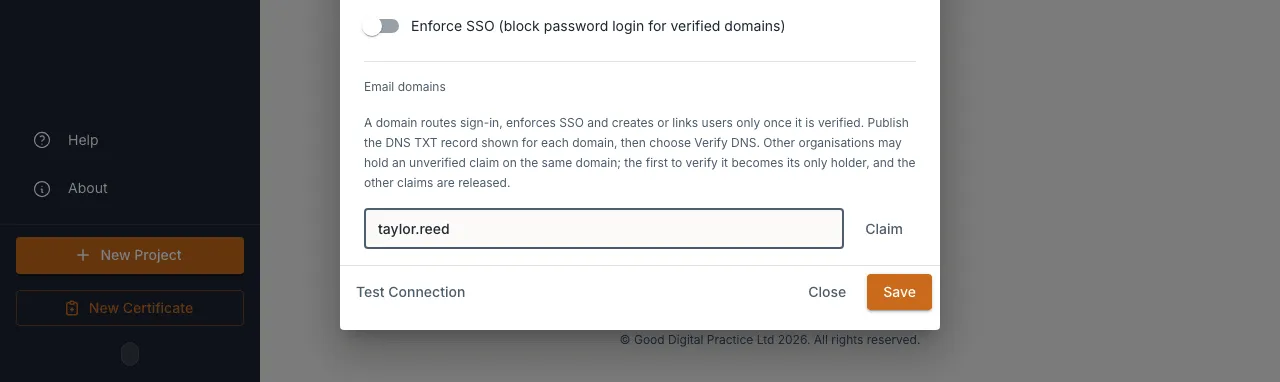
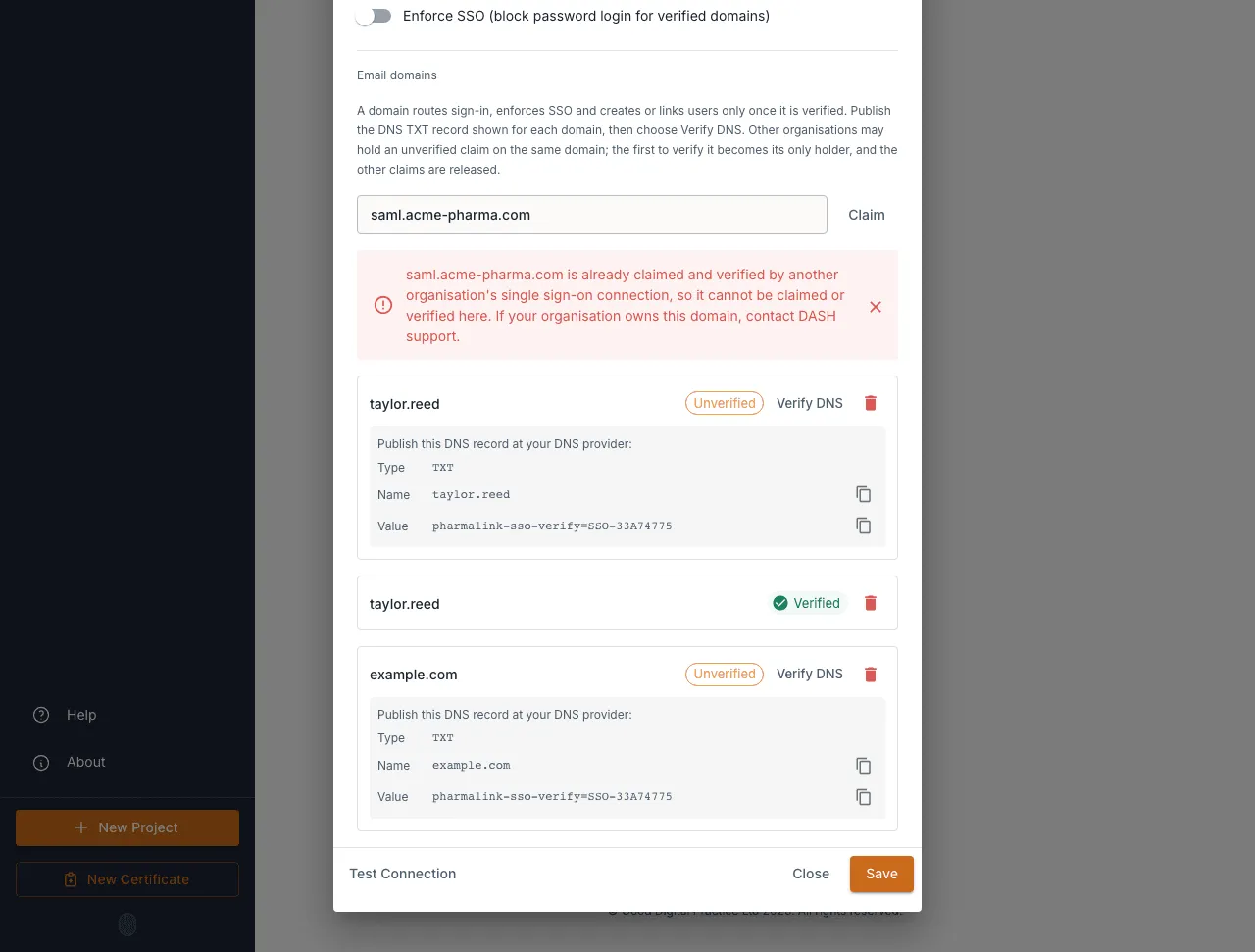
- DASH shows “Domain … claimed. Publish the DNS TXT record shown, then verify.” The domain is listed with an Unverified chip and a box headed “Publish this DNS record at your DNS provider:”, giving the Type (TXT), the Name and the Value. Use the copy icons to copy the name and value exactly.
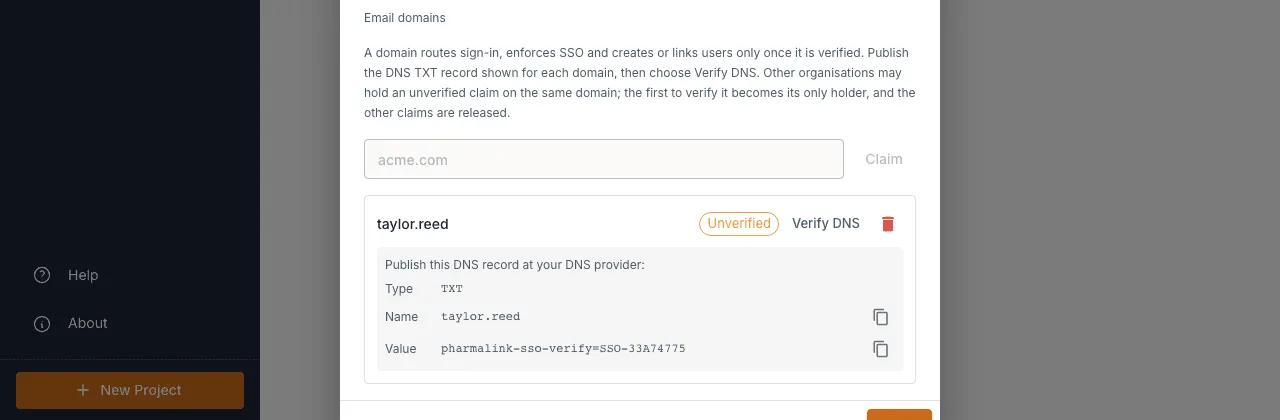
DASH refuses some claims, and says why under the field:
- Public email domains. You can’t claim a shared free-mail or disposable-email domain, such as
gmail.com: “… is a shared free-mail or disposable-email domain and cannot be claimed for single sign-on. Claim your organisation’s own email domain.” - A domain another organisation has verified. “… is already claimed and verified by another organisation’s single sign-on connection, so it cannot be claimed or verified here. If your organisation owns this domain, contact DASH support.” DASH never tells you which organisation holds it.
- A domain this account has already claimed on another of its connections. Verify or remove that claim instead.
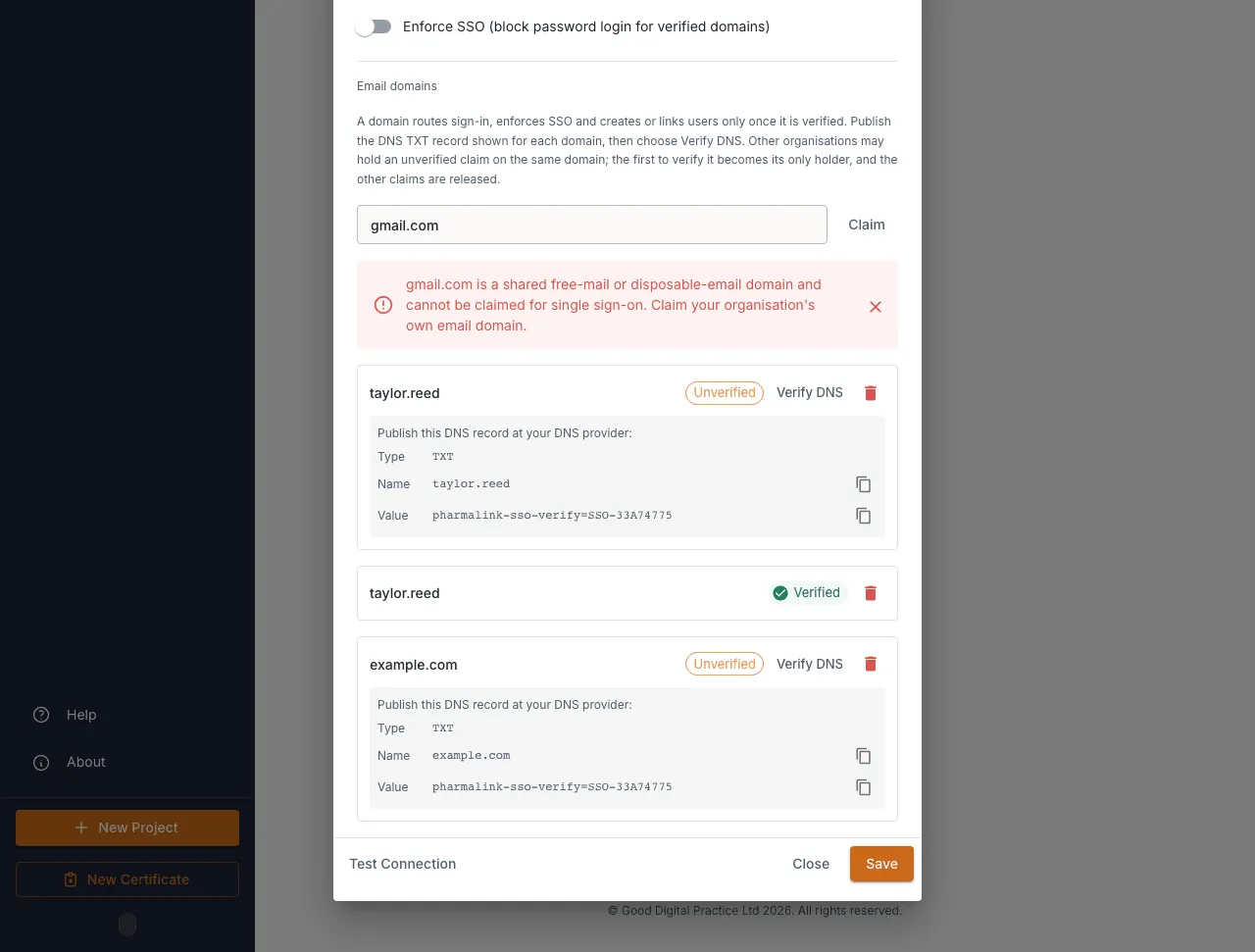
Publish the record and verify
Section titled “Publish the record and verify”- Add the TXT record at your DNS provider, with the Name and Value exactly as shown.
- Back in Edit SSO Connection, select Verify DNS next to the domain. While DASH checks, the button reads Checking….
- If DASH finds the record, it shows “Domain … verified.” and the chip changes to Verified. The DNS record box disappears.
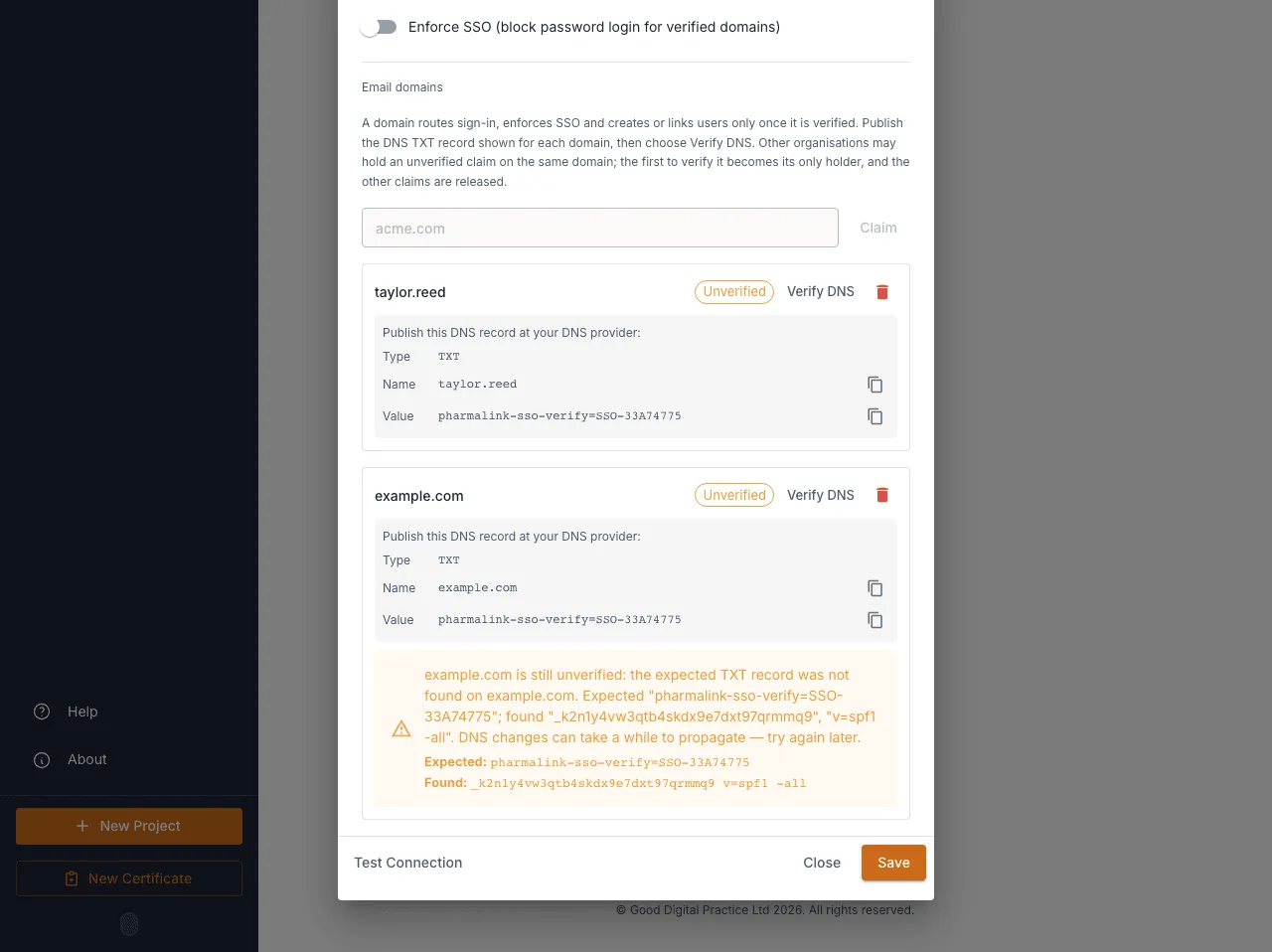
If DASH can’t find the record, the domain stays Unverified and DASH explains why under the domain, with the value it Expected and the records it Found. DNS changes can take a while to spread. Wait, then select Verify DNS again.
You can leave the TXT record in place after verification.
What happens when a domain is verified
Section titled “What happens when a domain is verified”Once the domain is Verified and the connection is Enabled:
- people who type an address on that domain on the sign-in page are offered Continue With … (see Sign in with SSO);
- if you switch on enforcement, it applies to them (see Enforce SSO and break-glass recovery);
- DASH can create or join users from that domain (see Just-in-time provisioning and Account linking).
An Unverified domain does none of this. People on it see the ordinary sign-in page, with no Continue With … button.
First to verify wins
Section titled “First to verify wins”Several organisations may hold an Unverified claim on the same domain at the same time; a claim alone never blocks anyone. The first account to verify the domain becomes its only holder:
- every other organisation’s unverified claim on that domain is released and removed;
- each of those accounts gets an SSO Configuration Changed entry in its Audit Log explaining that its claim was released (without naming the organisation that verified it);
- after that, no other connection can claim or verify the domain.
If you select Verify DNS on a claim that has been released, DASH says “Your claim on … no longer exists. Another organisation may have verified this domain first, which releases every other claim on it. If your organisation owns this domain, contact DASH support.”
Remove a domain
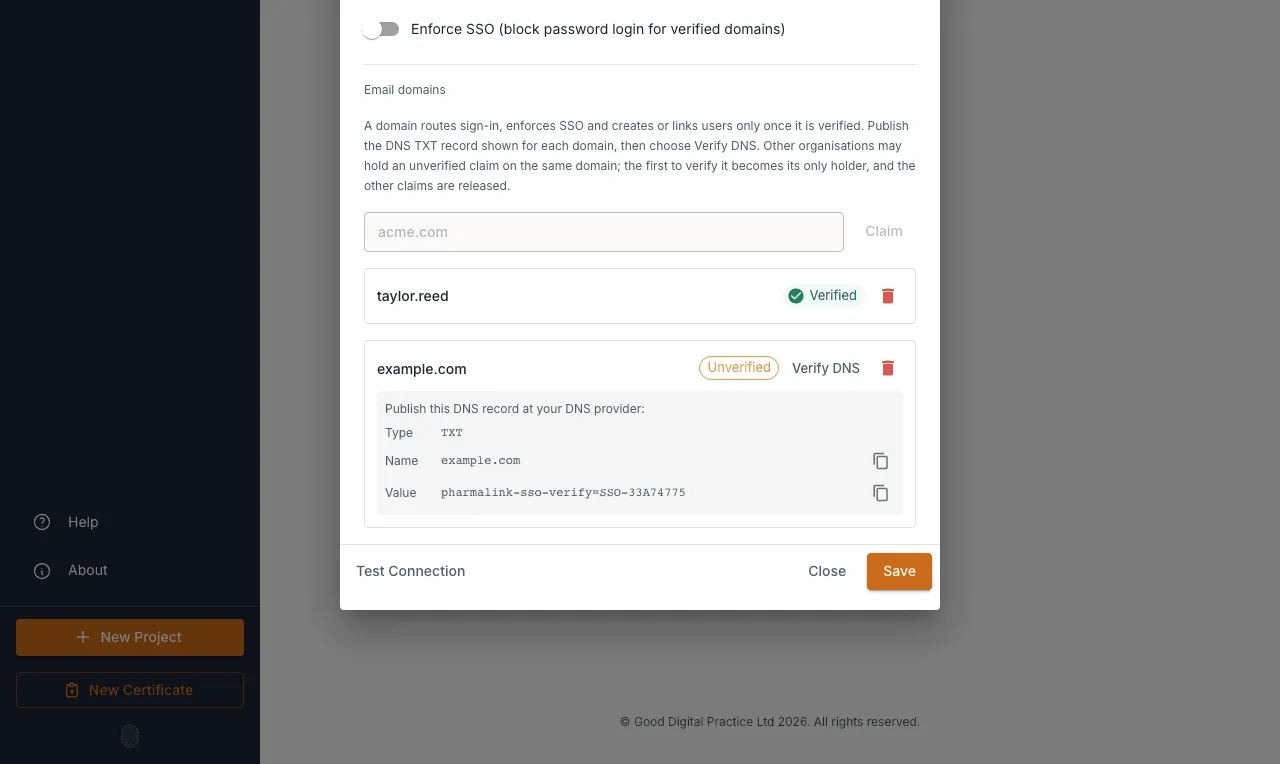
Section titled “Remove a domain”Each domain in the Email domains section shows its state: Verified or Unverified.
- Select the delete (bin) icon next to the domain. The Remove email domain? dialog opens.
- For an unverified domain it says that removing it “withdraws this unverified claim.”
- For a verified domain it warns that removing it “stops it routing sign-in through this connection and ends single sign-on enforcement for its users. To use it again you must claim and verify it afresh.”

- Select Remove. DASH shows “Domain … removed.” and the domain disappears from the list.
Claiming, verifying, removing and releasing domains are all recorded in the Audit Log. See SSO in the audit log.