Signing workflows
By default, a certificate is approved by one signature from a Quality Person (QP). A signing workflow replaces that with a list of named people who must all sign, for example a preparer review followed by the QP’s release. Each Material has at most one workflow, and it applies to every certificate produced from that Material.
How a workflow works
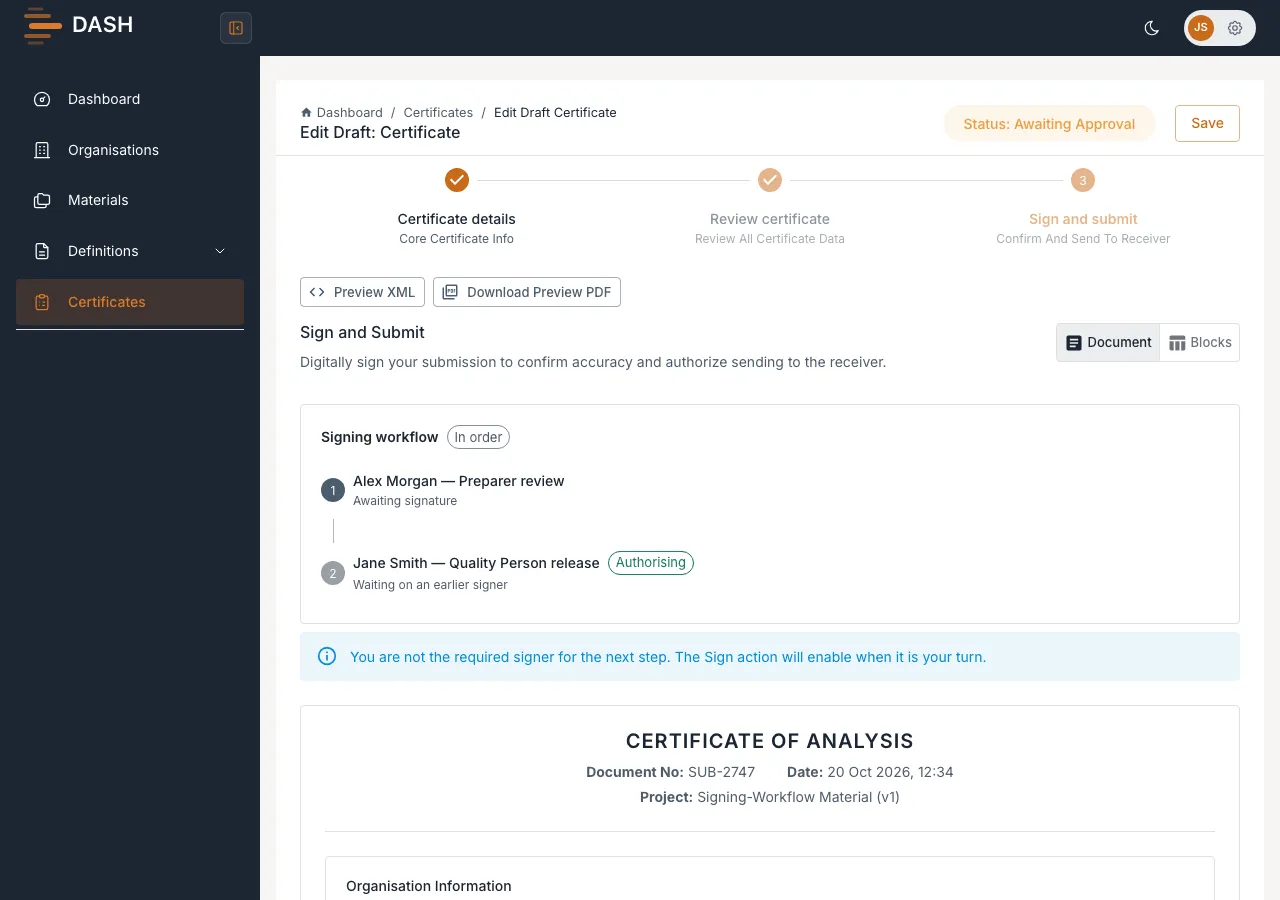
Section titled “How a workflow works”- Each step names one specific person. A step isn’t “any QP”: it is Jane Smith, or Sam Lee. The same person can’t be named on two steps.
- One step is the authorising step. Its signature is the release approval, and that signer becomes the certificate’s recorded signer. Name a Quality Person (QP) here: DASH won’t let anyone else sign the authorising step, even if they are named on it.
- The other steps are approvals. Whoever is named on a non-authorising step can sign it because they are named, whatever their role. Their signature carries the meaning Approval (non-authorising).
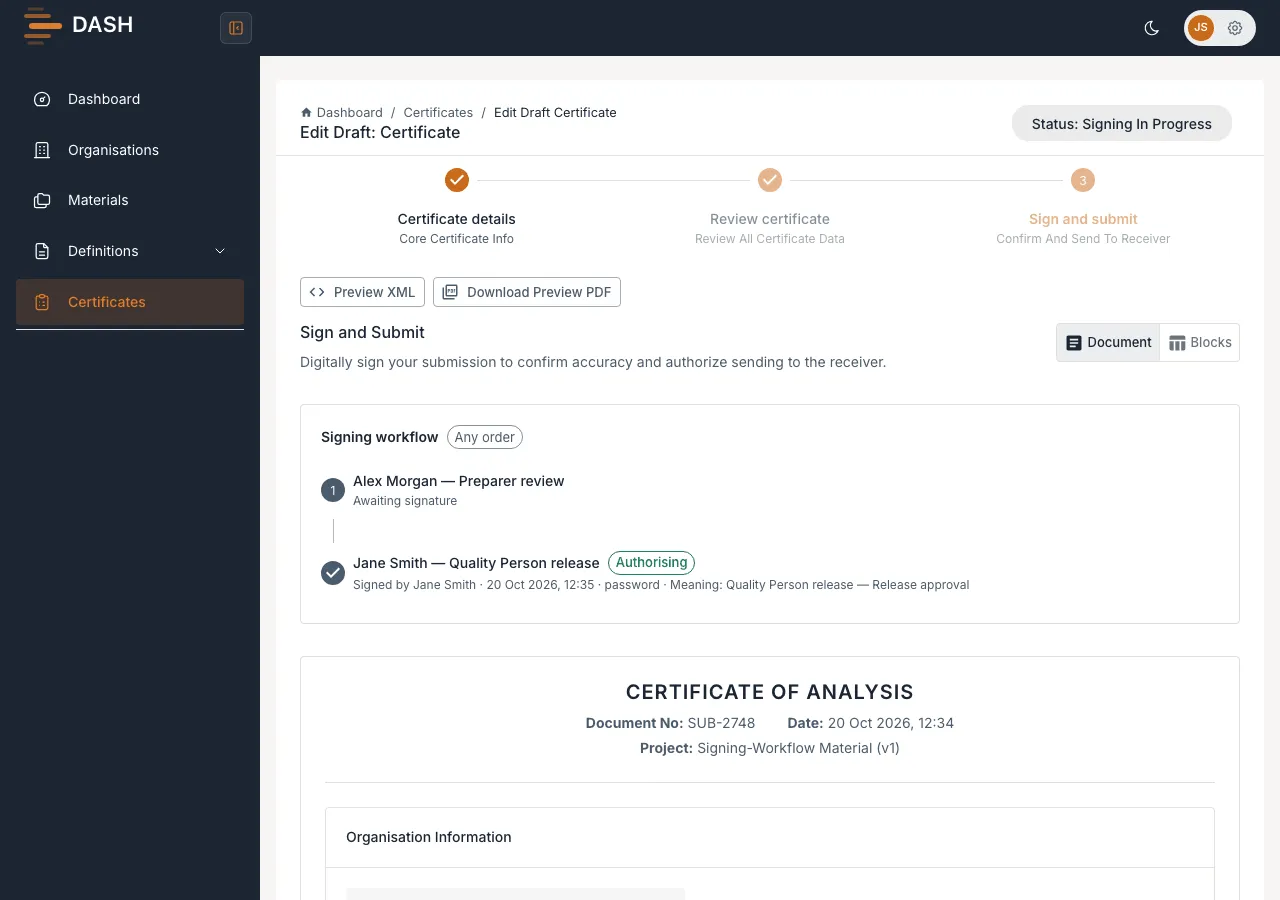
- Every step must be signed. While some steps are signed and others aren’t, the certificate shows Signing In Progress. It becomes Approved for Submission only when every step holds a signature.
- Every signature needs identity confirmation, by password, passkey or authenticator code. See Step-up at signing.
flowchart LR
  S1["Step 1: Sam Lee<br/>Preparer review"] --> S2["Step 2: Jane Smith (QP)<br/>Quality Person release<br/>Authorising"]
  S2 --> R[Approved for Submission]
Set up a workflow
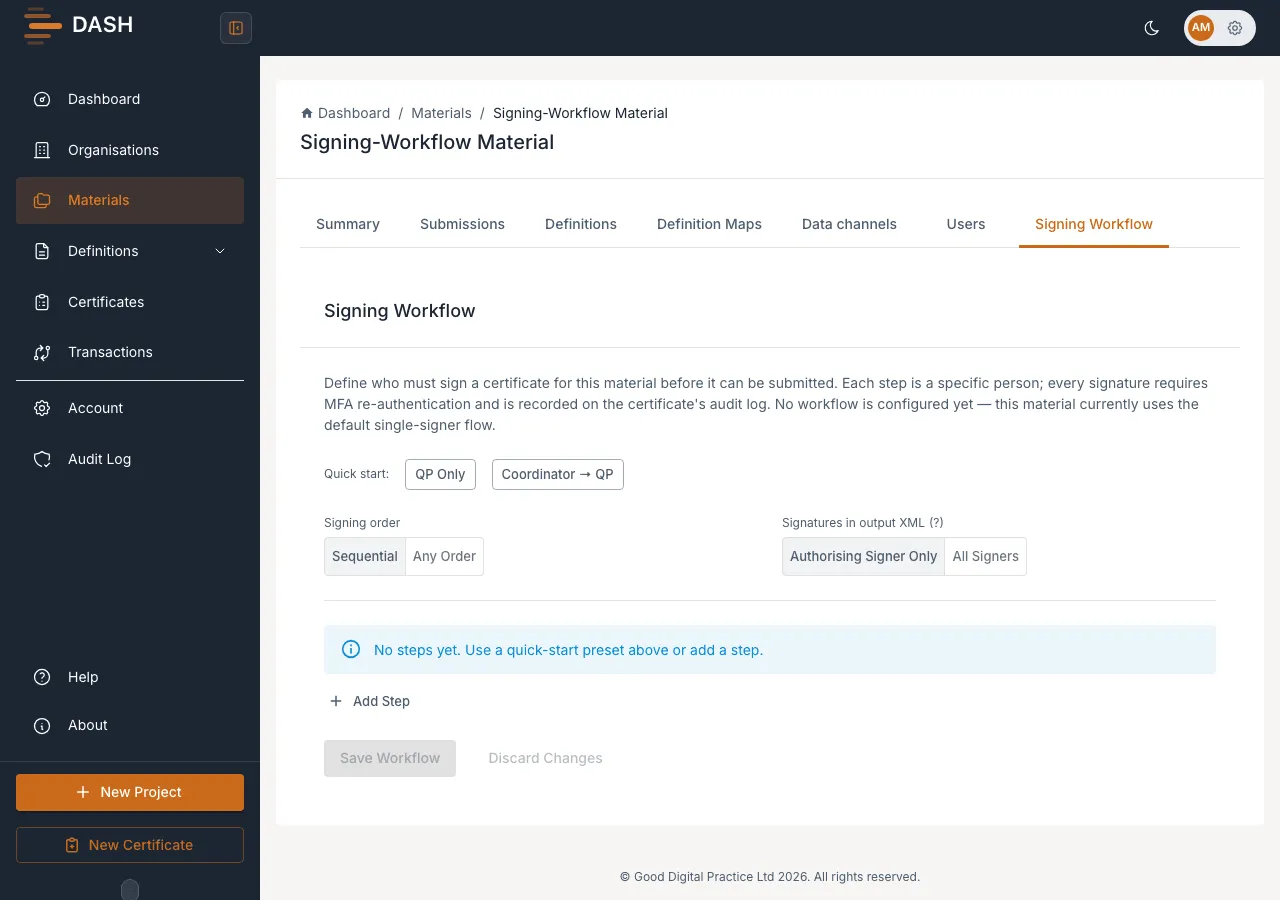
Section titled “Set up a workflow”- Open Materials, select the Material, and open the Signing Workflow tab. If no workflow exists, the tab says the Material uses the default single-signer flow.
- Optionally start from a Quick start preset: QP Only (one step) or Coordinator → QP (two steps, the second authorising). A preset pre-fills the step labels; you still choose each signer, and you can change the labels.
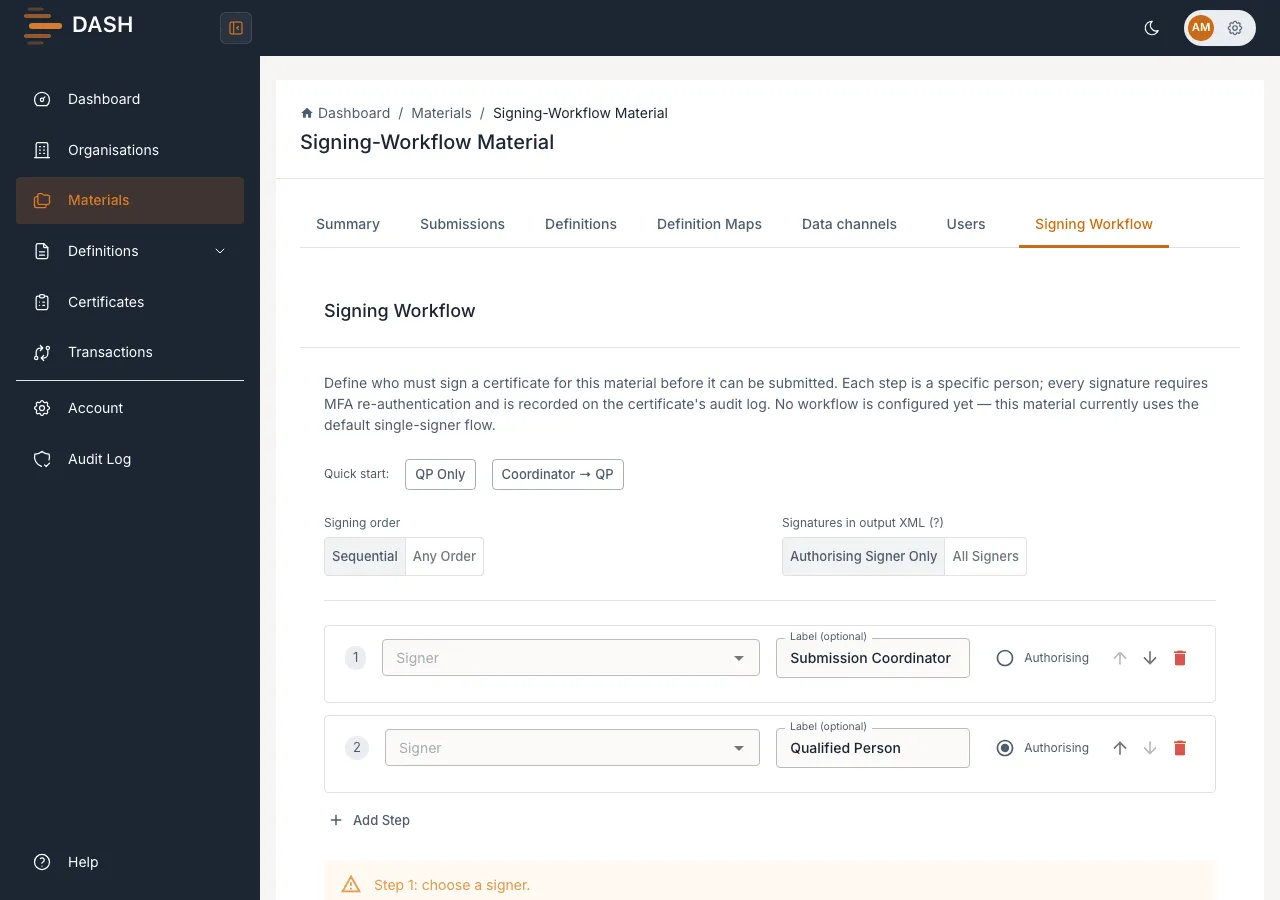
- For each step, choose the Signer from the Material’s members (shown as name and role), and optionally type a Label (optional) such as Preparer review or Quality Person release. The label is shown on the certificate and becomes part of that signature’s meaning.
- Select Add Step to add more steps. Use the up and down arrows to reorder them and the bin icon to remove one.
- Select Authorising on the step whose signature is the release approval. Only one step can be authorising: selecting it on another step moves it.
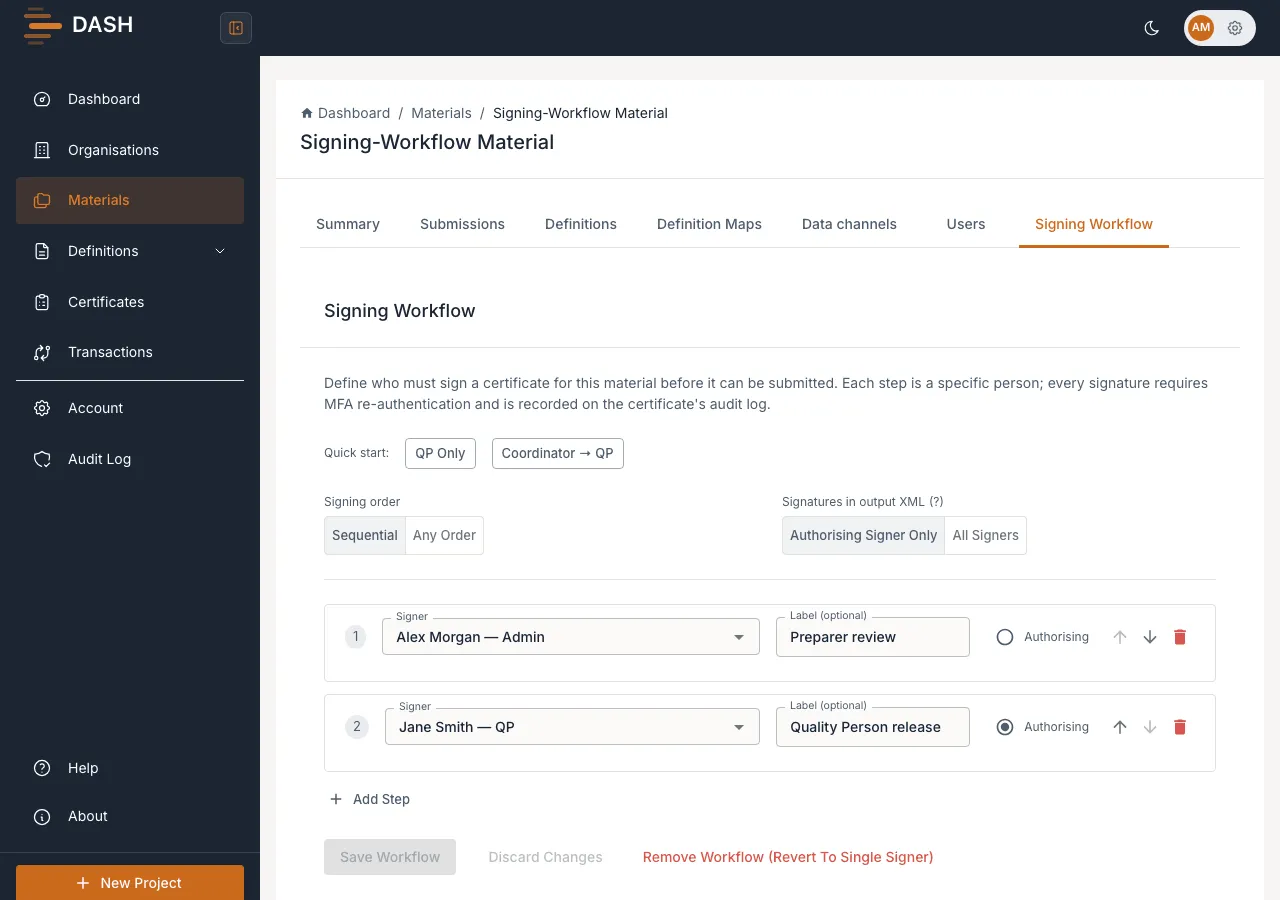
- Under Signing order, choose Sequential or Any Order (see below).
- Under Signatures in output XML, choose Authorising Signer Only or All Signers (see below).
- Select Save Workflow. DASH confirms “Signing workflow saved.”
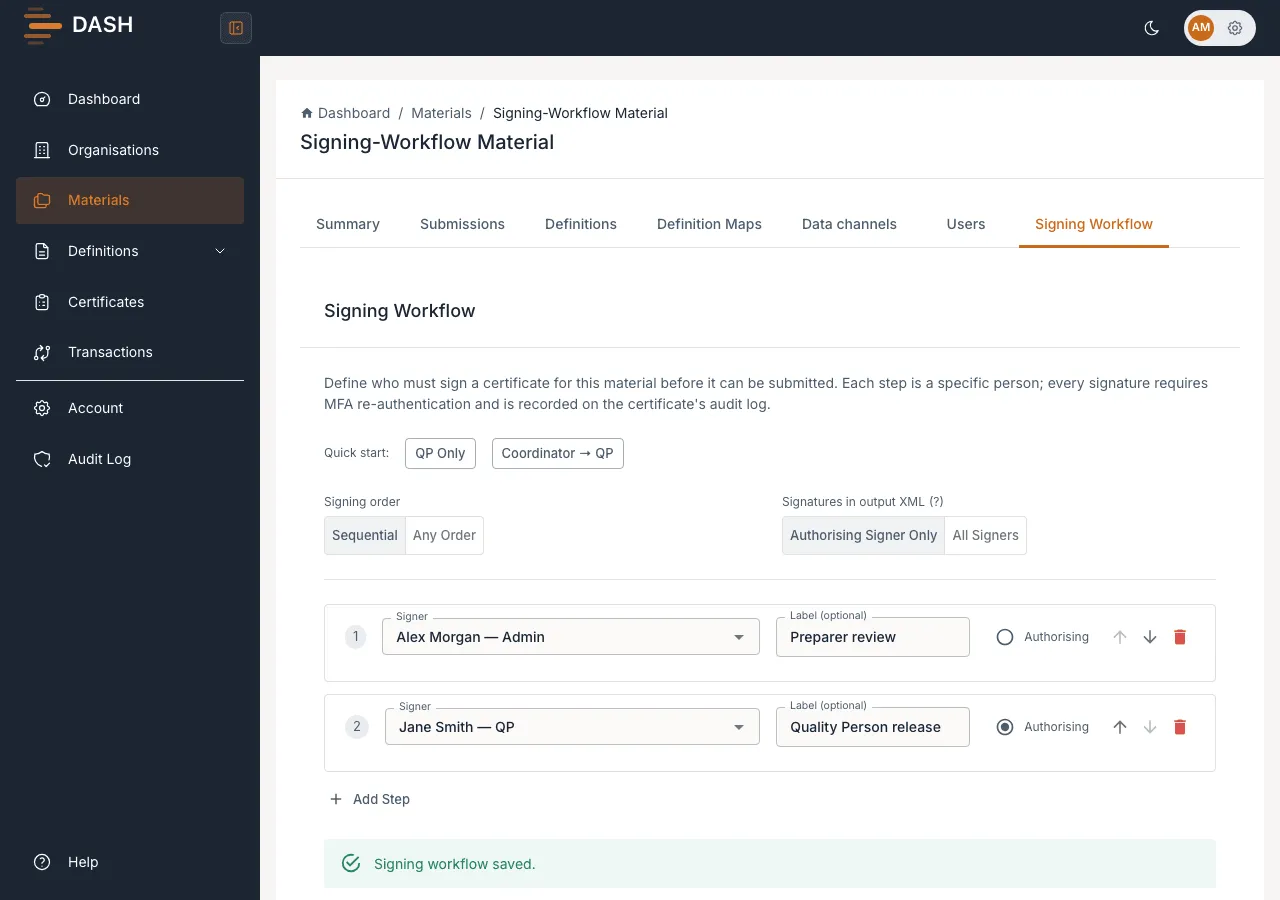
Until you save, Save Workflow stays disabled if something is missing, and a warning names the problem, for example “Step 1: choose a signer.” or “Step 2: this person is already assigned to an earlier step.” Select Discard Changes to go back to the saved version.
Your plan may limit how many steps a workflow can have. If DASH refuses to save for that reason, contact DASH sales.
Choose the signing order
Section titled “Choose the signing order”| Setting on the tab | Shown on the certificate | What it means |
|---|---|---|
| Sequential | In order | Steps must be signed in the order listed. Only the earliest unsigned step can be signed. A later signer sees their step as Waiting on an earlier signer, and DASH tells them “You are not the required signer for the next step. The Sign action will enable when it is your turn.” |
| Any Order | Any order | Each named signer can sign whenever they are ready. The QP can sign before the preparer, for example. |
Use Sequential when the order is itself a control, for example a review that must happen before release.
Choose which signatures go in the XML
Section titled “Choose which signatures go in the XML”Signatures in output XML decides what the regulatory XML sent to the receiver carries:
- Authorising Signer Only: one signature, the authorising signer’s. Use this when the receiver expects a single release signature.
- All Signers: one signature entry for every signer.
Whichever you choose, the PDF copy and the audit trail always record every signer. The (?) next to the setting says the same: “PDF and audit logs always record every signer. This controls only the regulatory XML.”

Change or remove a workflow
Section titled “Change or remove a workflow”- Change it by editing the steps and selecting Save Workflow. Every change is recorded in the audit trail as Signing Workflow Updated.
- You can’t change it while a certificate is mid-signing. If any certificate of the Material is Signing In Progress, DASH refuses with “A certificate for this material is mid-signing. Finish or reset it before changing the workflow.” Finish signing that certificate first.
- Changes never rewrite past signatures. A signature already applied keeps the name, role and meaning recorded when it was signed, even if you relabel the step or the signer’s name changes.
- Remove it with Remove Workflow (Revert To Single Signer). The Material goes back to the default: one signature from a Quality Person (QP). Only an Admin can remove a workflow.
What other roles see
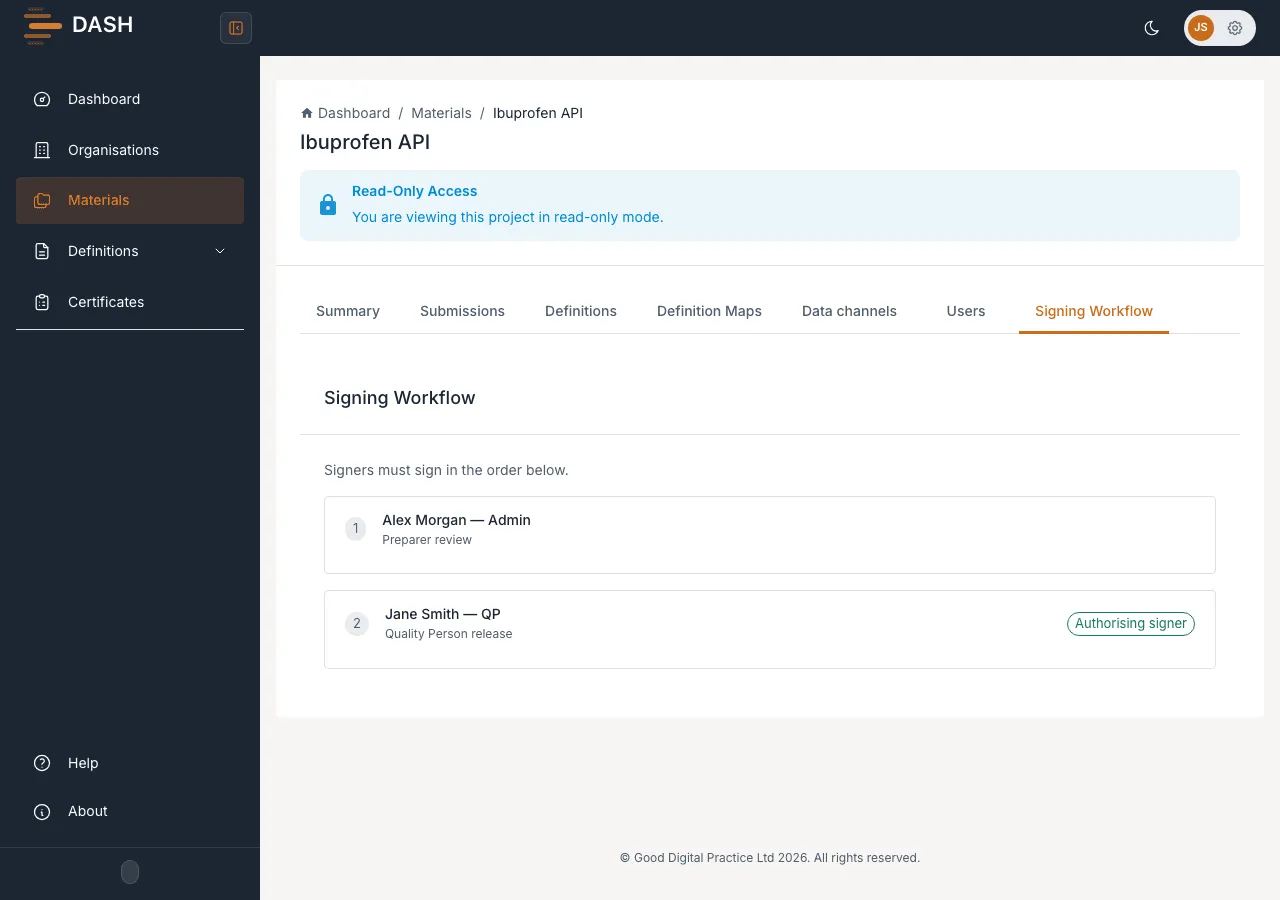
Section titled “What other roles see”Users who can’t edit the workflow see it read-only: each step’s signer and label, the order (“Signers must sign in the order below.” or “All signers must sign, in any order.”), and an Authorising signer chip on the authorising step.