

MFA required at login
Once you have an authenticator app enabled, your password alone no longer signs you in. DASH checks the password, then asks for a code from your authenticator. You don’t get into your workspace until the code is accepted.
Sign in with your authenticator code
Section titled “Sign in with your authenticator code”- On the sign-in screen, enter your Email Address and Password, then select Sign In.
- The Two-factor verification screen opens with the instruction “Enter the 6-digit code from your authenticator app”. You are not signed in yet.
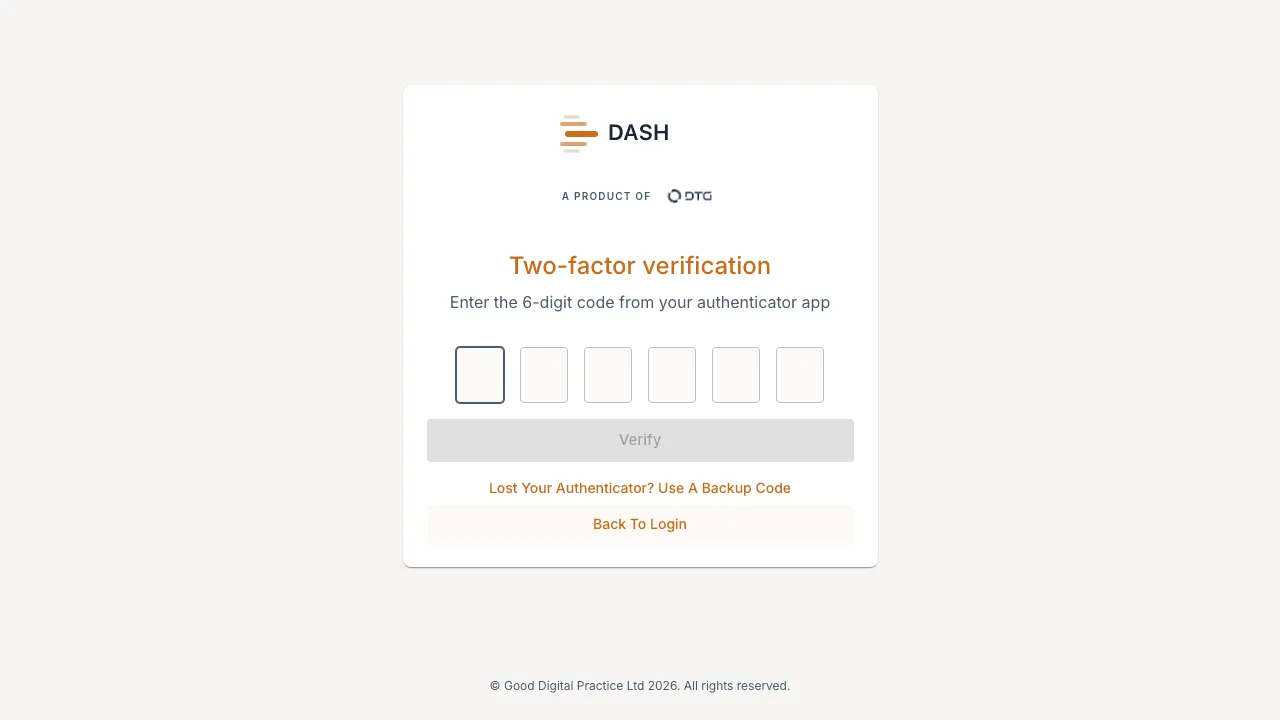
- Open your authenticator app and type the code it currently shows for DASH. DASH checks the code as soon as you type the sixth digit. You can also select Verify.
- When the code is accepted, DASH opens your dashboard. If you belong to more than one account, you choose one on the Select Account screen first. See Select an account.
Other options on this screen:
- Lost Your Authenticator? Use A Backup Code switches to a Backup code field. See Sign in with a backup code.
- Back To Login returns you to the sign-in screen and cancels this attempt.
If you sign in with Sign In With Passkey instead of a password, this screen doesn’t appear. The passkey already counts as a strong factor. See Passkeys.
Rules that protect this step
Section titled “Rules that protect this step”You have five minutes. The verification step stays open for five minutes after your password is accepted. After that, DASH returns you to the sign-in screen with “MFA session expired. Please sign in again.” and you start again from your email and password.
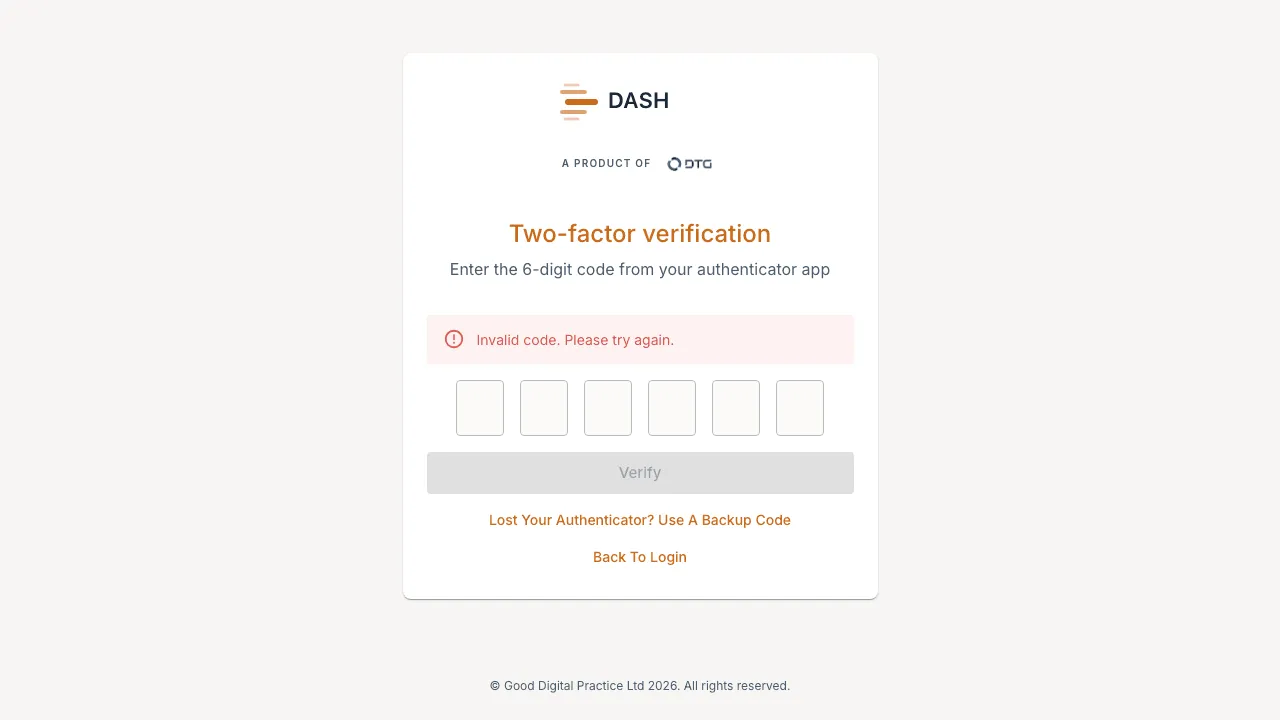
Five wrong codes end the attempt. Each wrong code shows “Invalid code. Please try again.” After the fifth wrong code, DASH abandons the attempt and returns you to the sign-in screen with “Too many invalid attempts. Please sign in again.” You must enter your password again to get a new verification step. This stops anyone guessing codes.
A code works only once. An authenticator code that DASH has already accepted can’t be used again, even while your app is still showing it. This includes the code you just used to set up the authenticator or to sign in on another device. DASH refuses a reused code with the same “Invalid code. Please try again.” message as a wrong code. Wait for your app to show the next code.
What is recorded
Section titled “What is recorded”Each verification step, each wrong or reused code and each abandoned attempt is recorded in the account’s audit trail. Users with Account Admin rights can see these entries on the Auth Events tab of the Audit log.