

How signing works
Signing is the quality gate in DASH. A certificate can’t be submitted to its receiver until the person responsible for releasing it has applied their electronic signature. This page explains who signs, the two ways signing can be set up, and what DASH records when you sign.
Who signs
Section titled “Who signs”- The Quality Person (QP) releases. Only a user holding the Quality Person (QP) role can apply the signature that releases a certificate. This is the authorising signature.
- Named signers can approve earlier steps. If a Material has a signing workflow, the people named on its non-authorising steps (for example a Submission Coordinator doing a preparer review) sign those steps because they are named on them, whatever their role.
- Admins don’t sign by role. An Admin has read-only signing authority. They can follow signing progress but can’t release a certificate.
See Signing authority for the full rules.
Single signer or signing workflow
Section titled “Single signer or signing workflow”Each Material decides how its certificates are signed.
| Set-up | Who signs | When the certificate is approved |
|---|---|---|
| No workflow (the default) | One Quality Person (QP) | As soon as that one signature is applied |
| Signing workflow | Each person named on a step, in a fixed order or in any order | Only when every step is signed. The step marked Authorising is the release approval |
You set up a workflow on the Material’s Signing Workflow tab. See Signing workflows.
flowchart LR
  A[Draft] -->|Send to Approver| B[Awaiting Approval]
  A -->|QP signs directly| D
  B -->|first of several signatures| C[Signing In Progress]
  C -->|last signature| D[Approved for Submission]
  B -->|only or last signature| D
  D -->|Submit| E[Submitting]
  C -.->|source data changed| A
  D -.->|source data changed| A
The chips in the diagram are the status chips you see on the certificate. A dotted line means the signatures are voided: see Void on change. For the full list of statuses, see Certificate statuses.
What happens when you sign
Section titled “What happens when you sign”- DASH checks that the certificate is ready: every required field filled, no failing error-severity validation rule, and the name you typed matches your own. See Pre-signing checks.
- DASH asks you to prove your identity again, with your password, a passkey or an authenticator code. See Step-up at signing.
- The signature is recorded and the certificate moves on to Signing In Progress or Approved for Submission.
The step-by-step procedure is in Sign a certificate.
What a signature records
Section titled “What a signature records”Every signature is a permanent record of:
- who signed: the signer’s name and role as they were at that moment;
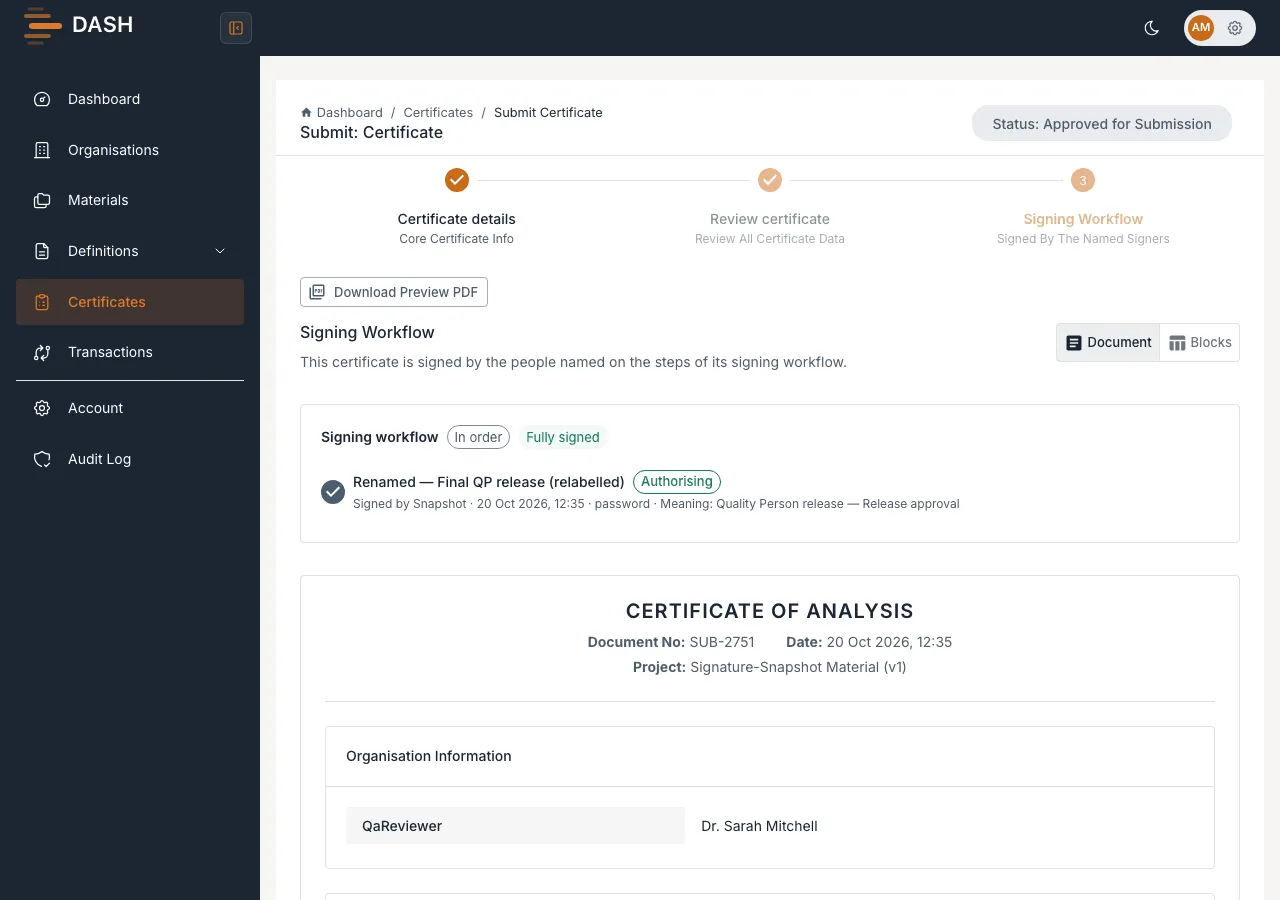
- what it means: the meaning shown to you before you sign, for example Release approval or Approval (non-authorising), prefixed by the step’s label if it has one;
- when it was signed;
- how the signer proved their identity: password, passkey or authenticator code;
- which step of the workflow it satisfied.
The record is a snapshot. If the signer’s name is changed later, or the workflow step is relabelled, the signature still shows exactly what was true when it was applied.
How DASH protects signatures
Section titled “How DASH protects signatures”- A signature never outlives its data. If the source data changes, every signature is voided and signing starts again. The voided signatures are kept for audit. See Void on change.
- Every signing event is chained. Each signature applied, each void, the sealing of the output and the submission are written to a signature ledger in which every entry is bound to the one before it, so nothing can be removed or reordered without detection. Admins can review it under Audit Log → Signature Ledger. See Signature ledger.
- Released outputs are sealed. At release, DASH seals the XML output and the PDF copy so anyone can check later that they haven’t changed. See Sealed PDF and long-term validity.
- Everything is audited. Each signature, each identity check and each void appears in the Audit log.