

XML and PDF outputs
When the QP submits a certificate, DASH produces two outputs from the reviewed data and the signatures applied to it:
- The XML: the machine-readable regulatory record. This is what is sent to the receiver through the Material’s submission data channel. It is sealed with a DASH signing key.
- The PDF: a human-readable certificate of analysis showing the same data and every signature. After release it is sealed as well, so it can be checked for tampering later.
Before release you can preview both. After release you download the stored files, exactly as they were released.
Preview the output before release
Section titled “Preview the output before release”From the Review certificate step onwards, two buttons appear above the certificate in the wizard.
Preview XML opens the XML preview dialog with the XML that a release would produce. It carries a clear label: “Unsigned preview — not stored. This is not the released record: it carries no seal, is not saved and is never transmitted.” Only a user with signing and release authority (the Quality Person (QP)) sees this button.
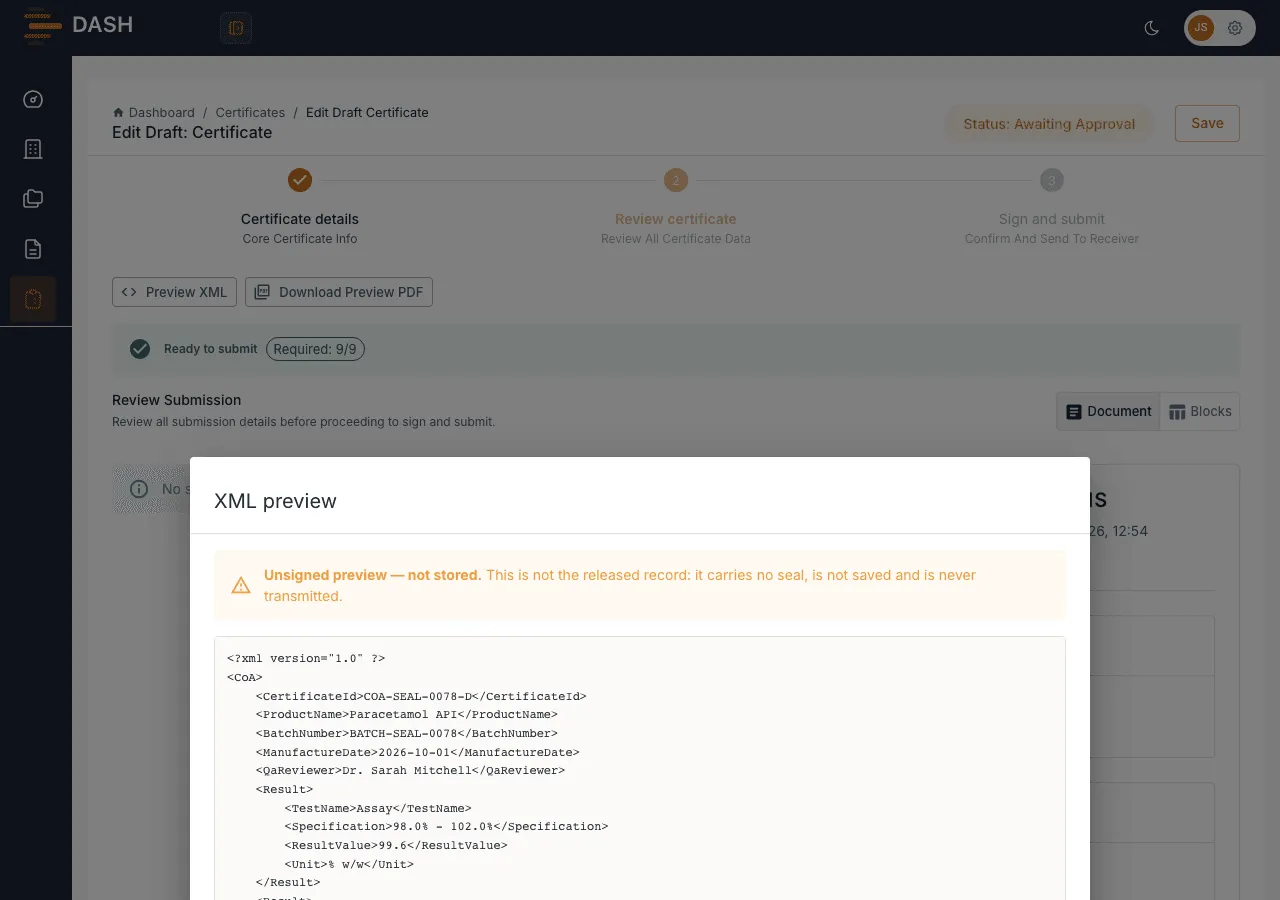
Download Preview PDF downloads the PDF as it would currently look. Every page is stamped UNSIGNED PREVIEW - NOT RELEASED, so it can never be mistaken for the released copy.
Neither preview is saved, sealed or sent anywhere. Generate a new one whenever the data changes.
Once a certificate has been submitted, the XML preview is no longer offered, because the real, sealed XML exists. If a release is on hold waiting for a signing key, a preview from the record’s Verification tab is refused with “This certificate’s release is on hold until a signing key is available; the XML preview is not available meanwhile.”
Download the released XML and PDF
Section titled “Download the released XML and PDF”- Open the released certificate from Certificates. It opens as a read-only record.
- Select Export.
- Choose Export as PDF or Download XML.
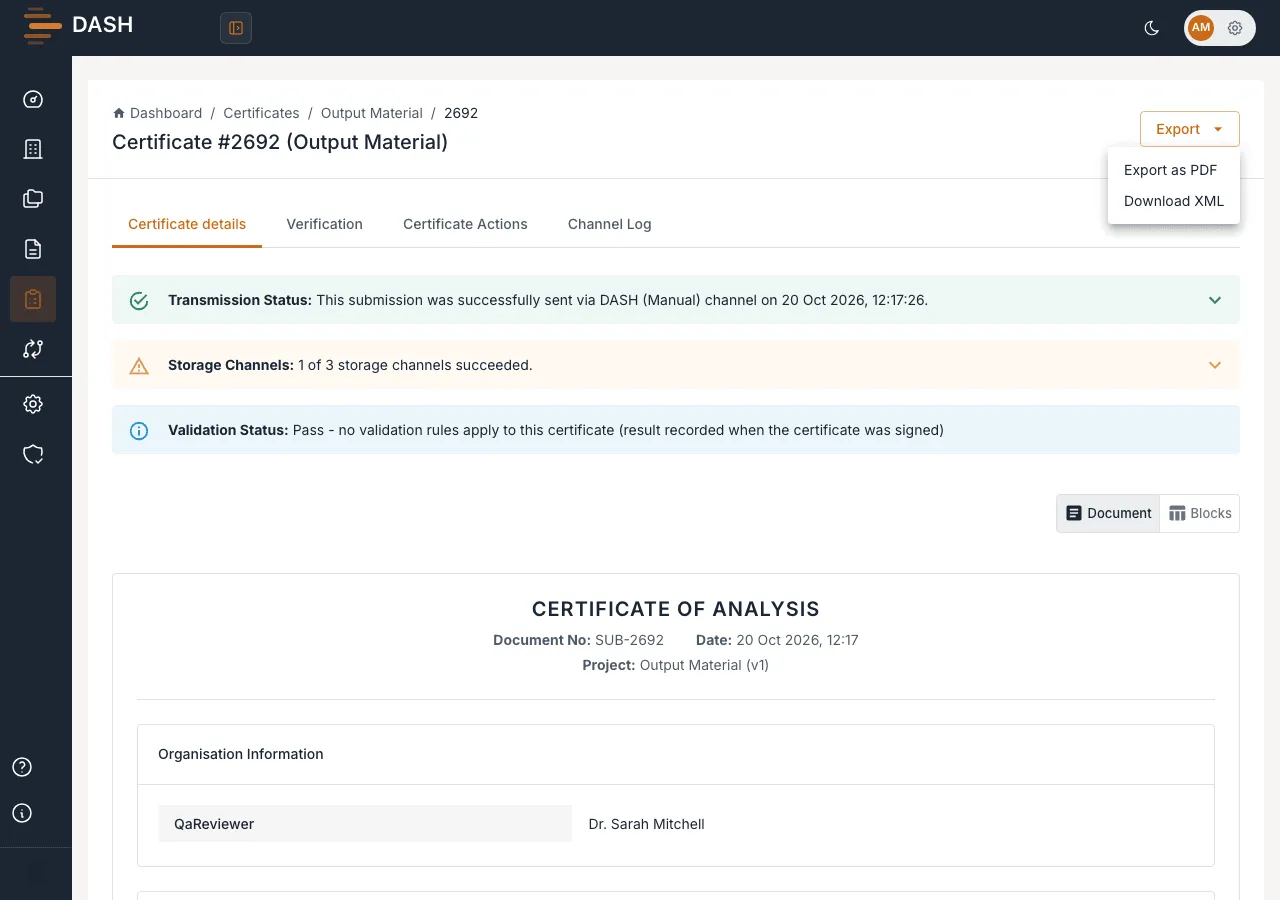
For a certificate with the Pass status, you can also download from the Certificates list: open the row’s more actions menu and choose Download PDF or Download XML.
What you download is the stored file, byte for byte. DASH never regenerates or alters it on download, so the file you retrieve is always the record that was signed and released. Anyone who can view the certificate can download it, for example a Technician. Downloading doesn’t need signing authority, and it is never blocked by your plan.
When the PDF isn’t ready yet
Section titled “When the PDF isn’t ready yet”The PDF is sealed in the background shortly after release. Until then, the menu item reads PDF sealing… and is greyed out, with the tooltip The signed PDF is being sealed. The XML is available straight away.
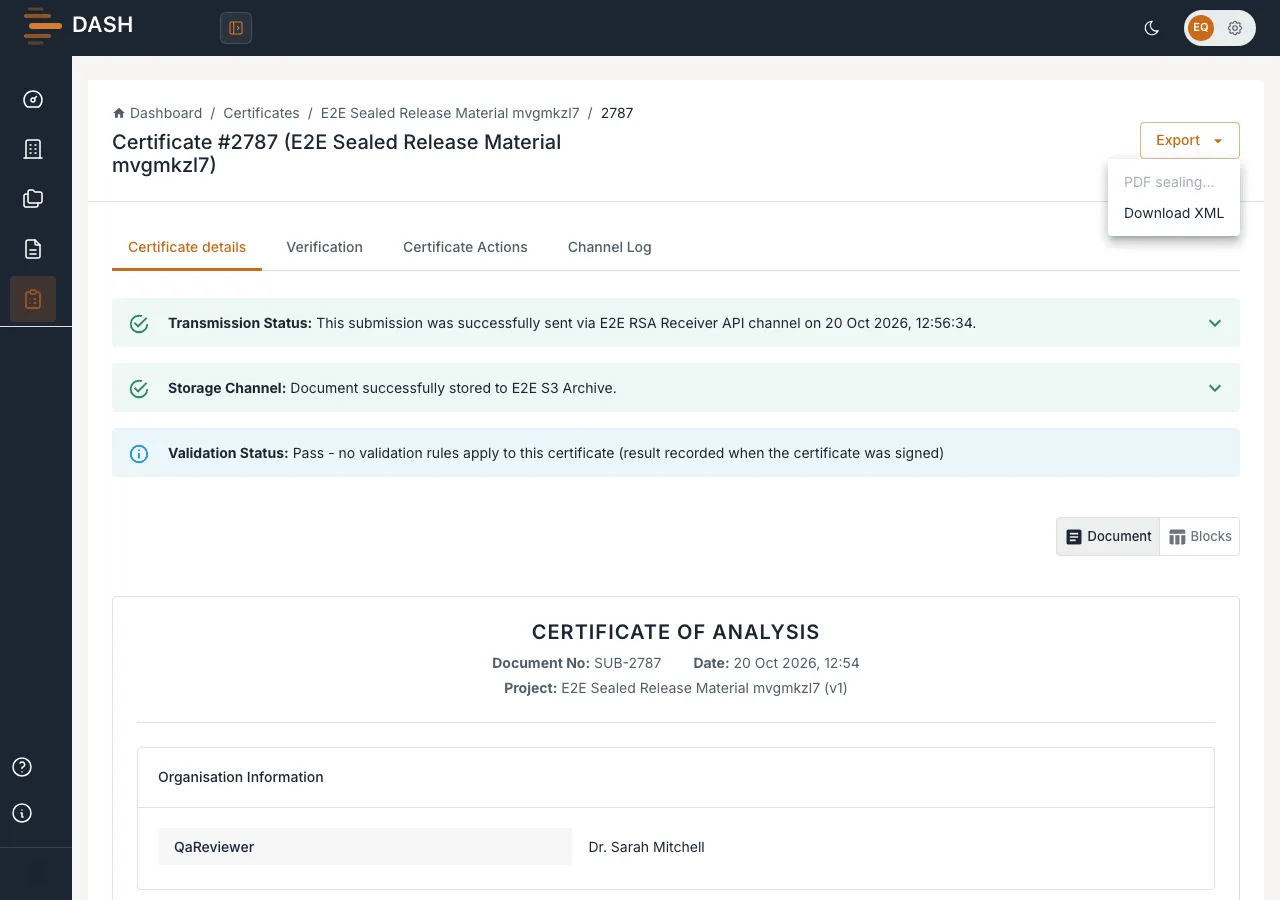
In rare cases the PDF item stays unavailable, with one of these tooltips:
- PDF sealing failed — awaiting quality review: sealing failed and your quality team is reviewing it. Download the XML, which is the regulatory record.
- Released without a signed PDF copy — only the signed XML record is available: no PDF copy was sealed for this release.
To check that a released output hasn’t been altered, open the Verification tab and select Verify Seal. See Sealed PDF and long-term validity.
What goes into the output
Section titled “What goes into the output”The data
Section titled “The data”The output carries the data you reviewed on Review certificate, including any corrections saved with Edit Data on a PDF-sourced certificate. Values converted by the Material’s output conversion appear in their converted form, exactly as shown in the value changes in the released document panel. See Review & edit mapped data.
Dates follow the Output Date & Time Format set on the Material’s Summary tab, for example UK date (day first) — 03/04/2025 or ISO date — 2025-04-03. The same format is used in the XML and the PDF. Choose No conversion — keep original ingested dates to keep dates as they appear in the source. If your suppliers write the day first, tick Source dates are day-first (e.g. 03/04 means 3 April, not 4 March) so DASH reads them correctly. See Material fields & dates.
Your logo
Section titled “Your logo”The PDF letterhead shows your company logo at the top left. An Admin uploads it under Account → Account Info → Company Logo (PNG or JPG, up to 2 MB). If no logo is uploaded, your account name is shown instead. The logo appears only on the PDF, not in the XML.
Uploading a logo is a plan feature (Company logo on certificates). If your plan doesn’t include it, you can’t upload one, but a logo that is already uploaded keeps appearing. See Output branding.
Signatures
Section titled “Signatures”- The PDF always shows every valid signature, each with the signer’s name, role, date and the meaning of the signature. The release signature is captioned Authorised by (electronic signature); earlier signatures in a workflow are captioned Signed by (electronic signature).
- The XML includes signatures according to the Signatures in output XML setting on the Material’s Signing Workflow tab: Authorising Signer Only (the default) or All Signers. As the setting’s tooltip says, “PDF and audit logs always record every signer. This controls only the regulatory XML.”
Whichever option you choose, the audit trail records every signature. See Signing workflows.