

Review auto-created certificates
When a source channel ingests a document it creates a certificate and moves it straight to Awaiting approval. From that point it behaves like any other certificate — you review the mapped data, sign, and submit. Automation just saves you the upload and mapping work.
Find your auto-created certificates
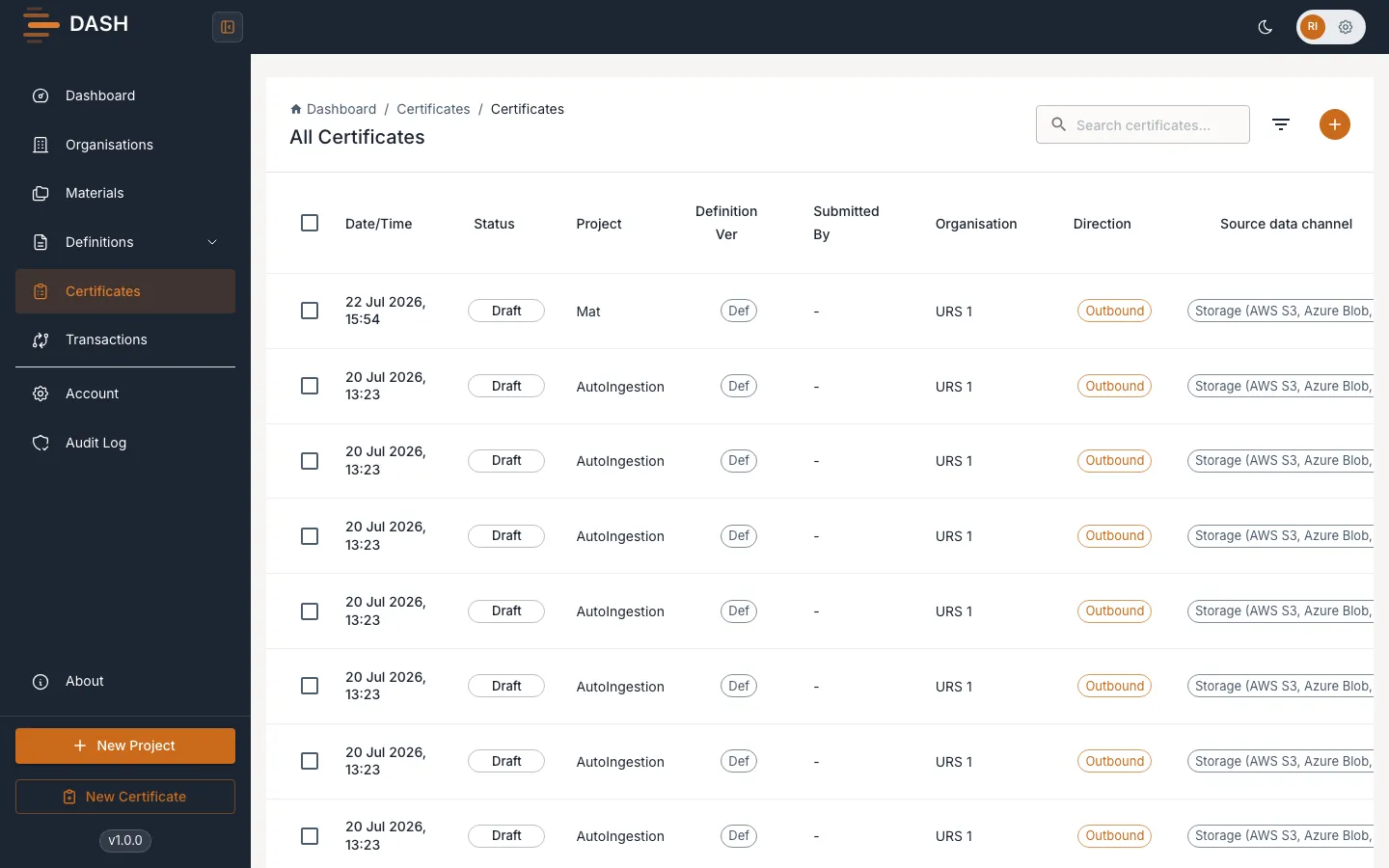
Section titled “Find your auto-created certificates”Open the Certificates list. Auto-created certificates appear alongside the ones you make by hand. Filter or sort by status to bring the newest Awaiting approval items to the top.
The dashboard also surfaces recent activity — the Recent Certificates table and channel trends give you a quick view of what has been ingested lately. See Dashboard & analytics.
Review the mapped data
Section titled “Review the mapped data”- Open the certificate from the list.
- Check the mapped values in the document view — the same review you would do for a certificate you uploaded. See Review & edit mapped data.
- If something was mapped incorrectly, the fix usually belongs in the definition map so every future ingest is correct too. Send the certificate back to draft, correct the map, and re-process.
Sign and submit
Section titled “Sign and submit”Once the data is correct, complete the normal release steps:
- Sign the certificate to move it to Approved for submission. See Sign a certificate.
- Submit it to its data channel and track the outcome. See Submit & track status.