

Locking & archiving
DASH protects the definitions your certificates depend on. Once a certificate has used a definition, that definition is locked and can no longer be edited — this keeps your audit trail intact. When you genuinely need to change a locked definition, you create a new version. When a definition is simply no longer in use, you archive it.
When a definition locks
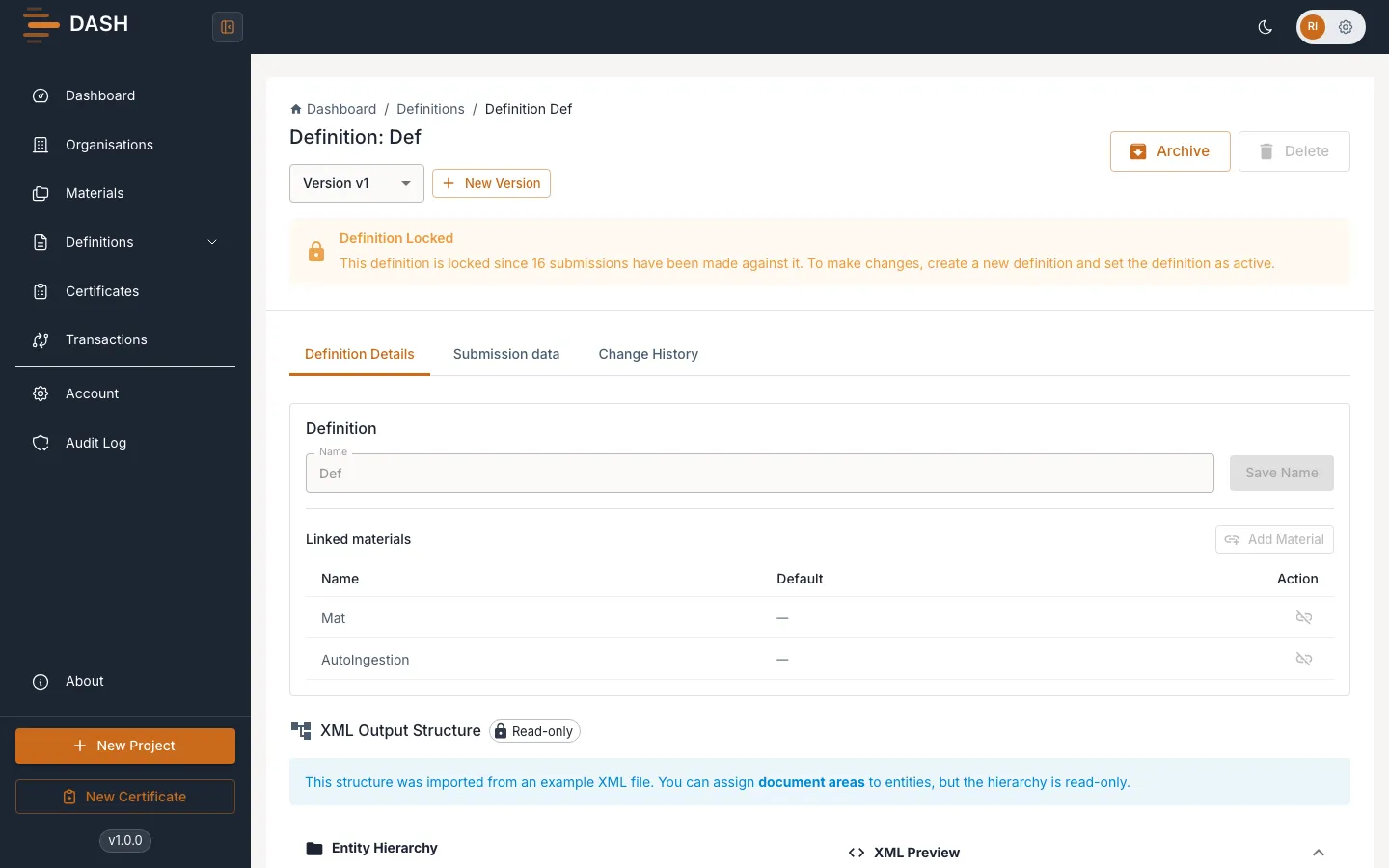
Section titled “When a definition locks”A definition becomes locked as soon as at least one certificate references it. While it is locked, DASH refuses all modifications — editing the definition, adding a property, updating or deleting a property, changing the hierarchy, and importing. The refusal message is:
Cannot modify definition with existing submissions.
The edit controls on a locked definition are disabled so you can see at a glance that it is read-only.
Change a locked definition with a new version
Section titled “Change a locked definition with a new version”To make a change to a locked definition, don’t try to edit it in place — create a new version instead. The new version starts as a fresh, editable copy that shares the definition name; its version number increments automatically.
- Open the locked definition.
- Select New version.
- Edit the new version freely — add, remove or re-parent properties as needed.
- Point new maps and certificates at the new version. Existing certificates keep the version they were built against.
Archive a definition you no longer use
Section titled “Archive a definition you no longer use”Archiving is a reversible soft-hide: it removes the definition from the default list views without deleting it. Archiving is the recommended action for a definition that is no longer in use but is locked (and therefore cannot be deleted).
- In the Definitions list, open the row’s … menu and select Archive — or open the definition and select Archive on the record.
- To bring it back, show archived definitions (below) and select Unarchive.
Delete vs archive
Section titled “Delete vs archive”Deletion is permanent and is only allowed for a definition with no certificates and no maps. A locked definition cannot be deleted — an attempt is refused with “Cannot delete definition with existing submissions.” Archive it instead.