

Key audit trail
An API key is a long-lived way into your account’s reporting data, so DASH records every key it issues and every key it withdraws. Each creation and each revocation is written to your account’s Audit Log, naming the administrator, the key and the time. Together they show the full life of every key.
What is recorded
Section titled “What is recorded”| Event | Recorded when | Detail text |
|---|---|---|
| Analytics API Key Created | An administrator selects Generate in the Generate API key dialog. | “Analytics API key ‘[key name]’ ([prefix]…) created.” |
| Analytics API Key Revoked | An administrator confirms Revoke in the Revoke API key? dialog. | “Analytics API key ‘[key name]’ ([prefix]…) revoked.” |
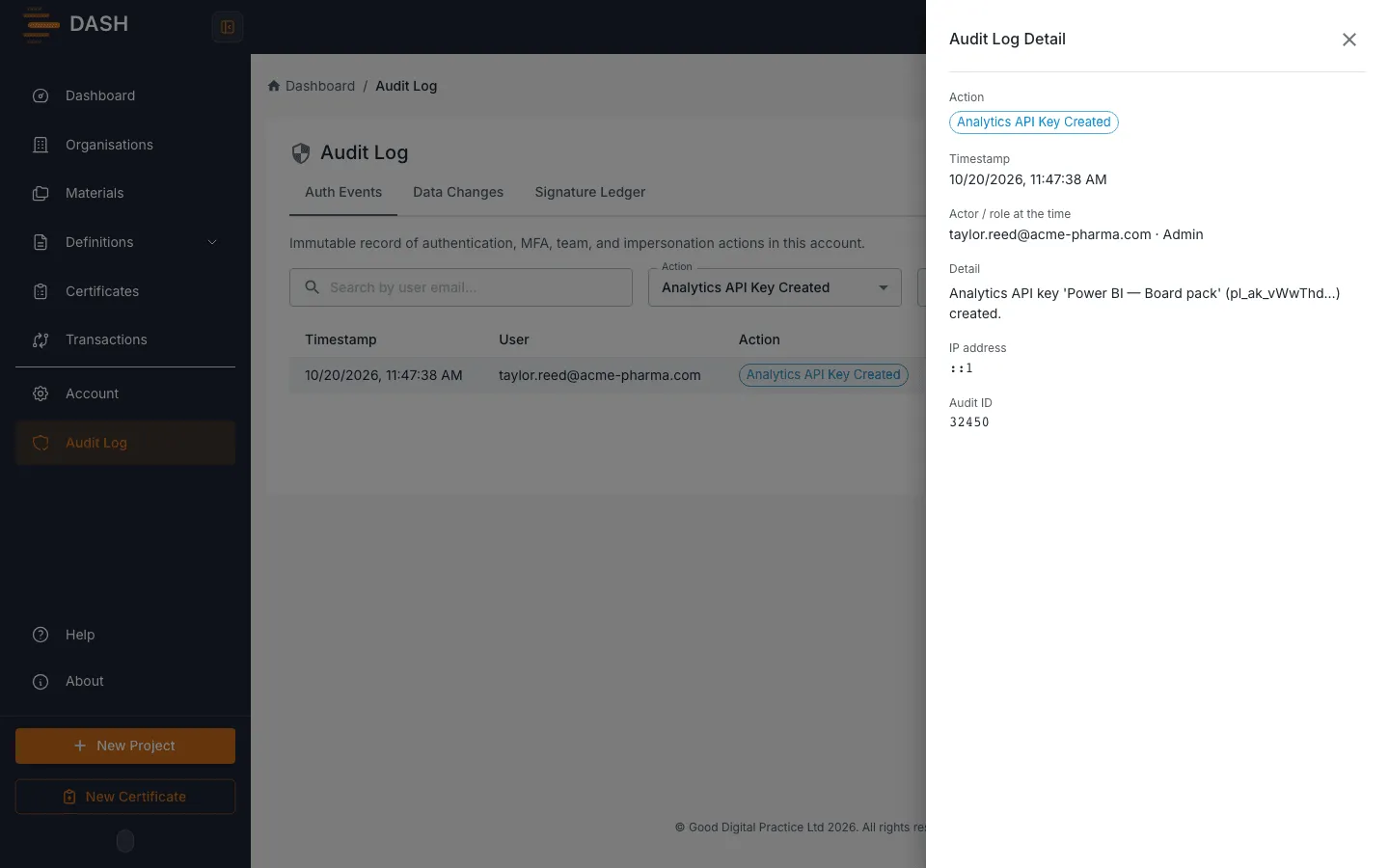
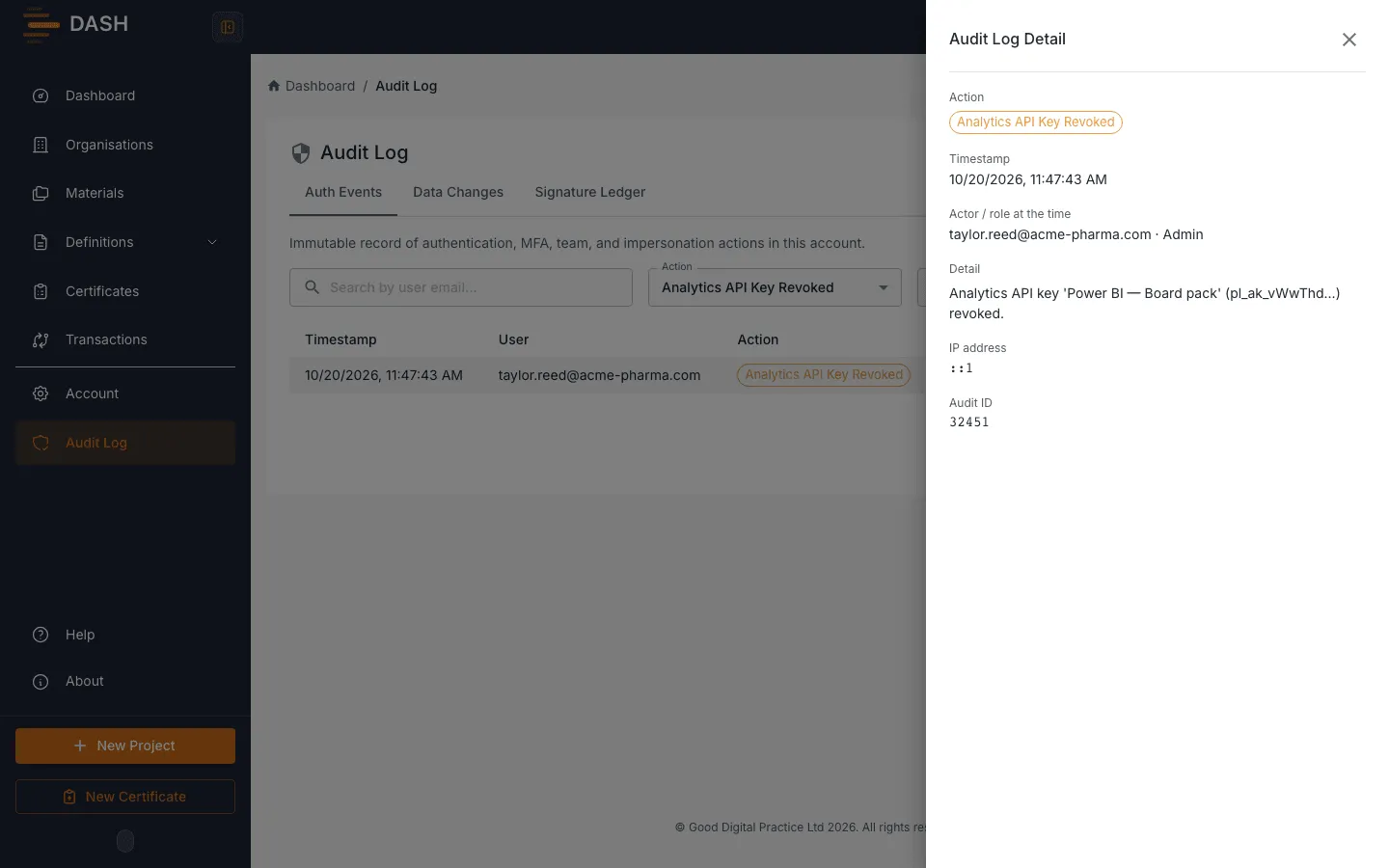
Each entry also records the administrator who acted and their role at the time, the date and time, and the IP address the request came from. The key itself is never recorded. Only its name and non-secret prefix are, which is enough to match the entry to the row on the API Keys tab.
Revoking a key that is already revoked changes nothing and writes no second entry, so each key has at most one creation and one revocation in the log.
Find key creations and revocations
Section titled “Find key creations and revocations”- Select Audit Log in the sidebar. The Auth Events tab opens.
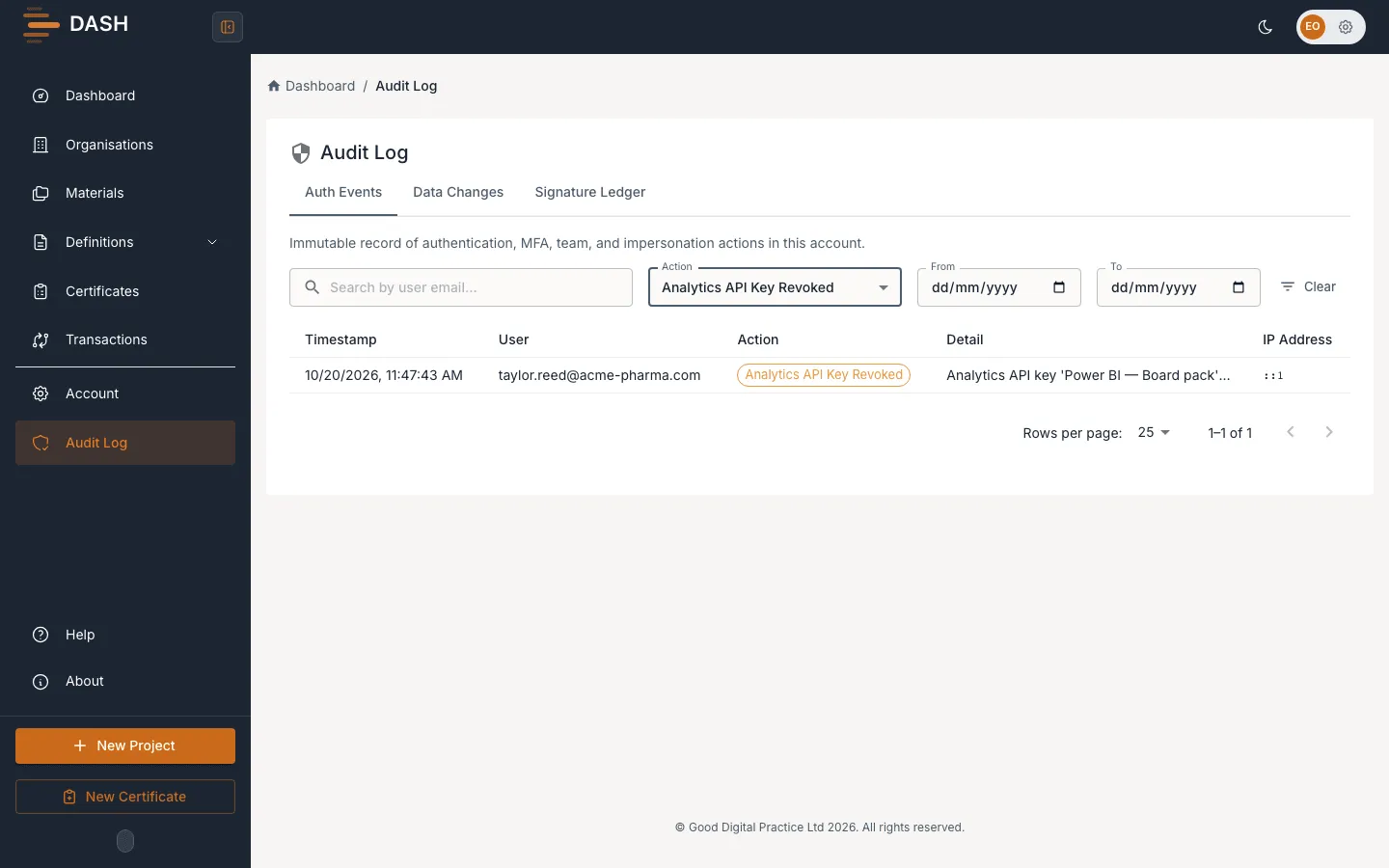
- Open the Action filter and choose Analytics API Key Created or Analytics API Key Revoked. Both are in the Integrations group.
- Narrow the list further if you need to with From and To dates, or by typing an administrator’s email in Search by user email….
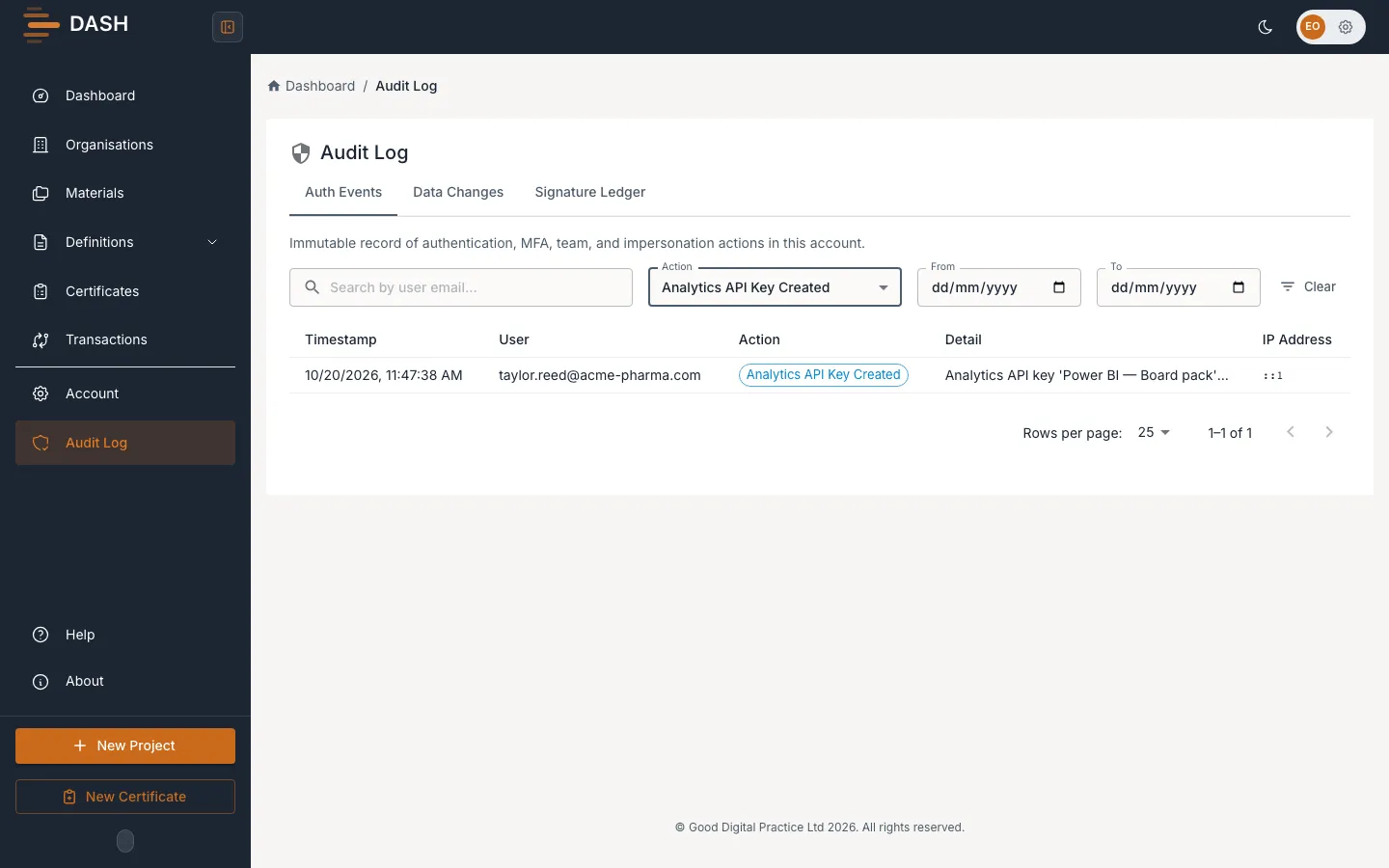
- Select an entry to open the Audit Log Detail panel. It shows the Action, Timestamp, Actor / role at the time, Detail, IP address and Audit ID.
The revocation entry has the same layout:
Use it in a review
Section titled “Use it in a review”To show an auditor the life of one key:
- On Account → API Keys, note the key’s name and prefix, its Created time and, if revoked, its Revoked time.
- In the Audit Log, filter to Analytics API Key Created and find the entry with that prefix. It names who issued the key.
- Filter to Analytics API Key Revoked and find the matching entry. It names who withdrew it and when.
The key’s day-to-day use isn’t logged request by request. Its Last used time is on the API Keys tab. See Usage and fair use.