

Certificates overview
A certificate is the record DASH produces when it takes a source document — such as a certificate of analysis (CoA) — maps its data onto one of your Definitions using a Definition Map, and prepares it for release to a recipient. Each certificate ties together a Material, a Definition version, a Definition Map, and the input data itself.
Every certificate carries a status that tells you exactly where it is in the workflow, from an editable draft through to a signed, submitted record.
The certificate status lifecycle
Section titled “The certificate status lifecycle”A certificate follows a single, predictable path. You send a draft for approval, a Quality Person signs it, and then it is submitted through a background pipeline that generates XML and transmits it to the recipient.
stateDiagram-v2
    [*] --> draft
    draft --> awaiting_approval: send for approval
    awaiting_approval --> approved_for_submission: sign
    approved_for_submission --> generating_xml: submit
    generating_xml --> submitting: XML generated
    submitting --> pass: transmitted
    generating_xml --> xml_failed: XML error
    submitting --> submit_failed: transmission error
    ingesting --> awaiting_approval: data ingested
    ingesting --> ingest_failed: ingest error
    ingest_failed --> ingesting: retry
    xml_failed --> generating_xml: retry
    submit_failed --> submitting: retry
    validation_failed --> generating_xml: retry
    pass --> [*]
What each status means
Section titled “What each status means”| Status | Meaning |
|---|---|
| Draft | Newly created and fully editable. You can review, edit and correct the mapped data. |
| Ingesting | The uploaded file is being parsed. Certificates created by automated ingestion also pass through here. |
| Ingest failed | The file could not be parsed. Editable and retryable. |
| Awaiting approval | Sent for a Quality Person or Admin to sign. |
| Approved for submission | Signed. The data is locked and the certificate is ready to submit. |
| Generating XML | The submission pipeline is rendering the output XML. |
| Submitting | The output is being transmitted to the submission channel. |
| Pass | Successfully submitted. |
| XML failed / Validation failed / Submit failed | The pipeline stopped at that stage. Each is retryable and resumes from the failed step. |
The legacy Fail status is retained on some older records for historical reasons.
Find your certificates
Section titled “Find your certificates”Open Certificates from the main menu to see the list of all certificates for your account. The list shows the date, status, project (material), definition version, who submitted it, the related organisation, and the source and certificate data channels.
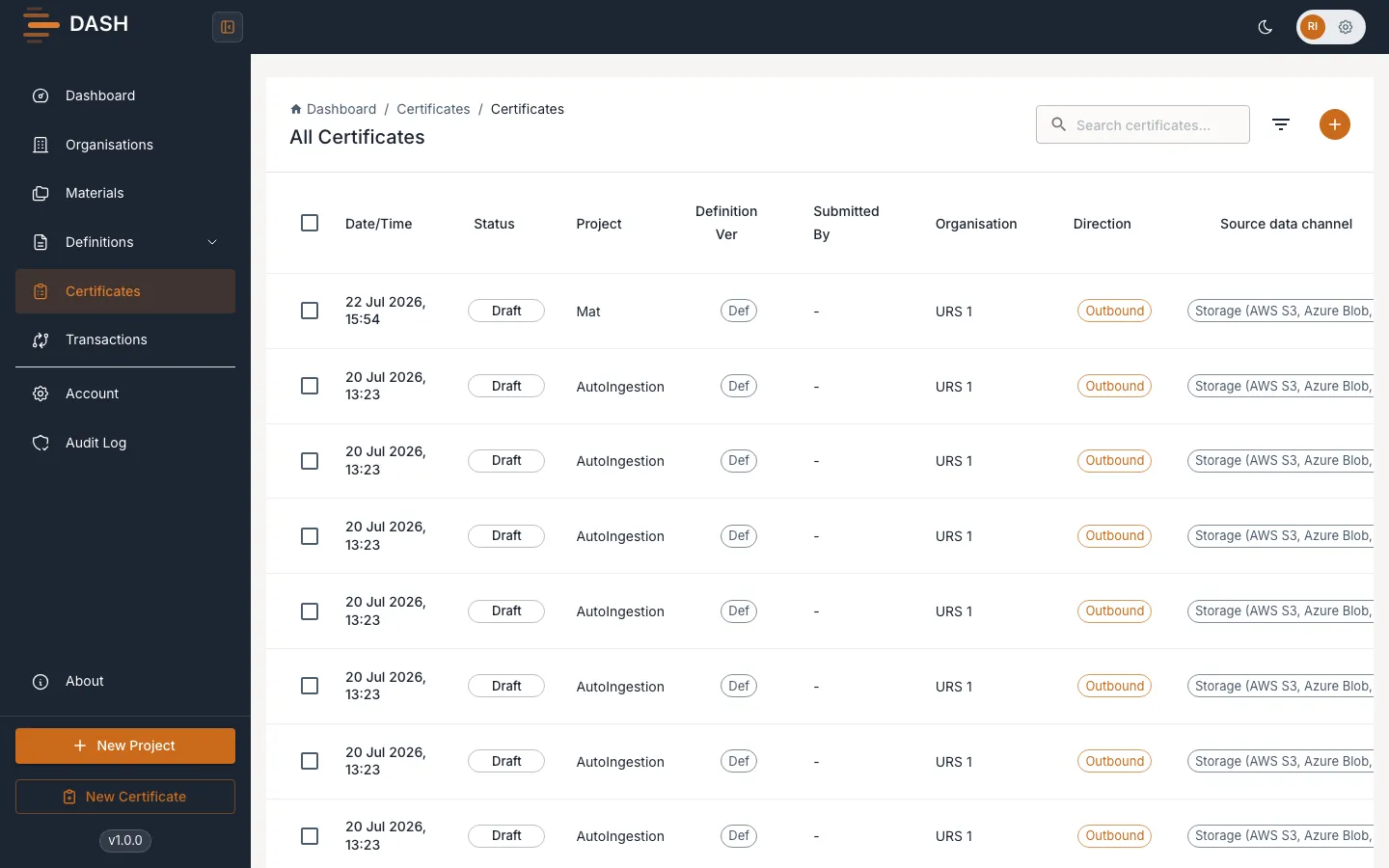
- Search by name using the search box.
- Filter by status, direction or material using the filter menu.
- Select the more actions icon on any row to view a certificate, approve a draft, or download the PDF and XML of a passed certificate.
- Select the + button to create a new manual certificate — see Create a certificate.
Selecting a row opens the certificate. A draft opens in the editing wizard; a signed or submitted certificate opens in a read-only record view.