

Verify your email address
After you register, DASH emails a verification link to the address you signed up with. Following it proves that the mailbox is yours. Until you do, the account cannot be used and you cannot sign in.
Follow the verification link
Section titled “Follow the verification link”- Open the verification email from DASH. It names the account you registered.
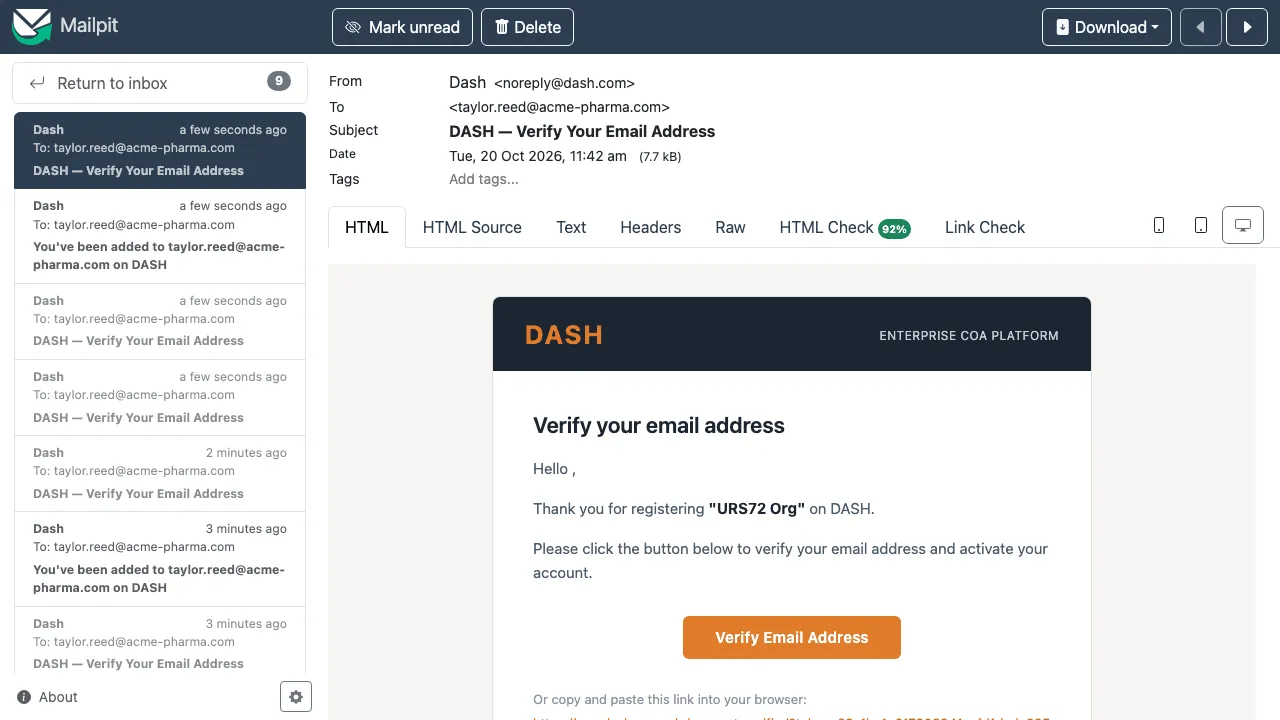
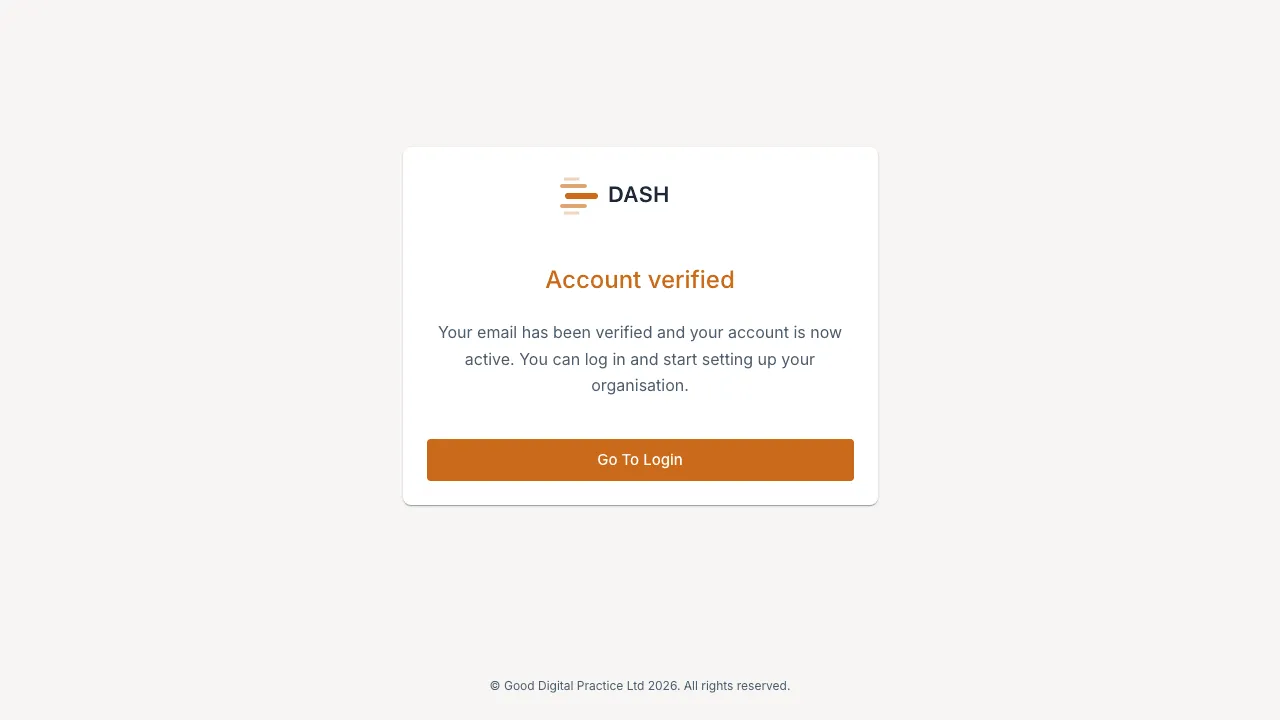
- Select the link in the email. DASH checks it and shows Account verified: “Your email has been verified and your account is now active. You can log in and start setting up your organisation.”
- Select Go To Login. The sign-in page opens with the message “Email verified successfully. You can now log in.”
- Sign in with the email address and password you registered. See Sign in to DASH.
How long the link lasts
Section titled “How long the link lasts”Each verification link:
- works once. After it has activated your account, opening it again does nothing.
- expires 24 hours after it was sent.
- stops working as soon as a newer link is sent to you. Always use the most recent email.
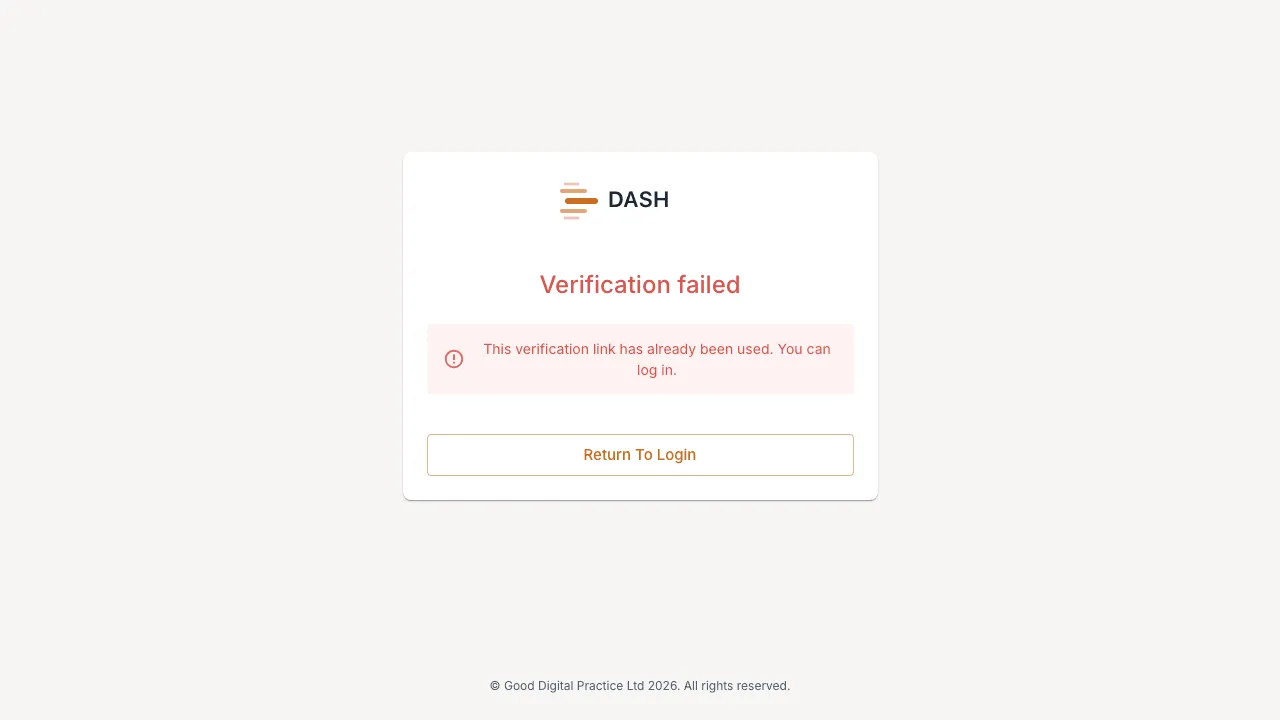
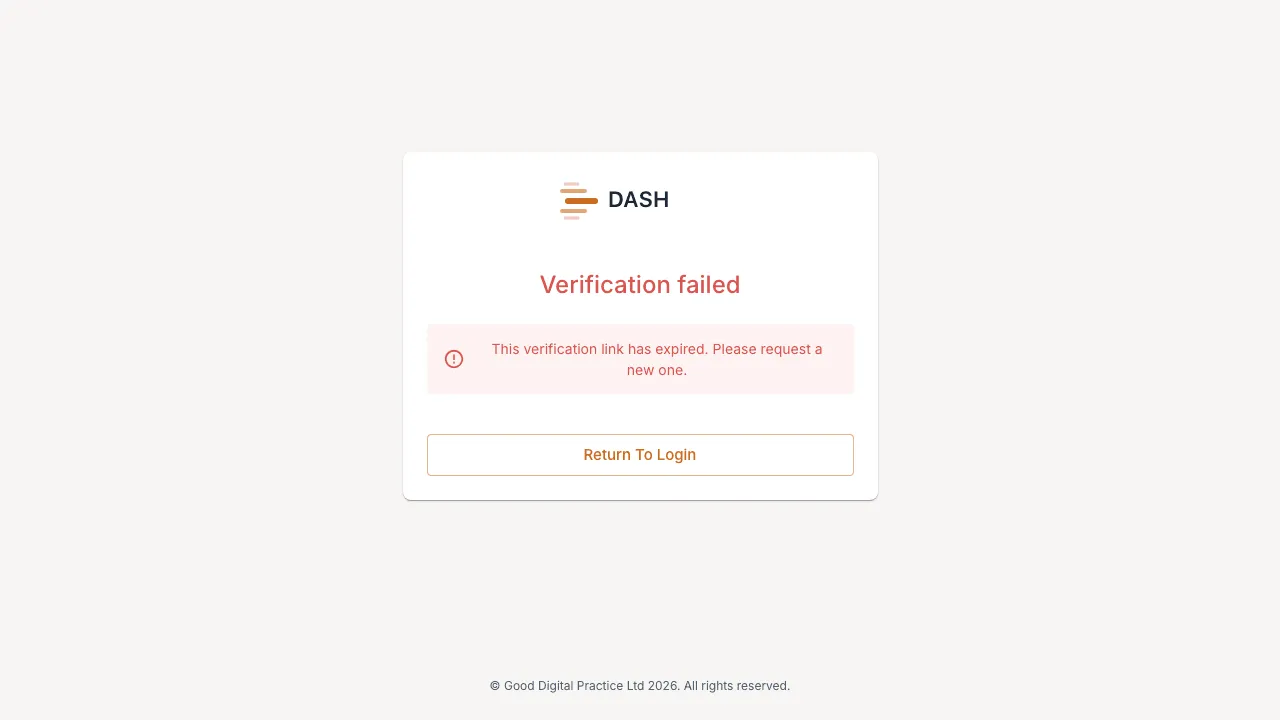
If the link cannot be used, DASH shows Verification failed with the reason and a Return To Login button. Nothing is activated.
| Message | What it means | What to do |
|---|---|---|
| “This verification link has already been used. You can log in.” | The account is already verified, or a newer link has replaced this one. | Try to sign in. If sign-in fails and you never verified, use the newest email you received. |
| “This verification link has expired. Please request a new one.” | More than 24 hours have passed. | See If your link has expired. |
| “Invalid or expired verification link.” | The link is incomplete or not recognised, often because it was cut short when copied. | Open the link directly from the email rather than copying it. |
Resend the verification email
Section titled “Resend the verification email”If the email has not arrived, first check your spam or junk folder. Then, while you are still on the Check your email to verify your account screen:
- Select Resend Verification Email.
- DASH replies “If an account with that email exists and is pending verification, we have sent a new verification email.” The new email carries a fresh link, and any earlier link stops working.
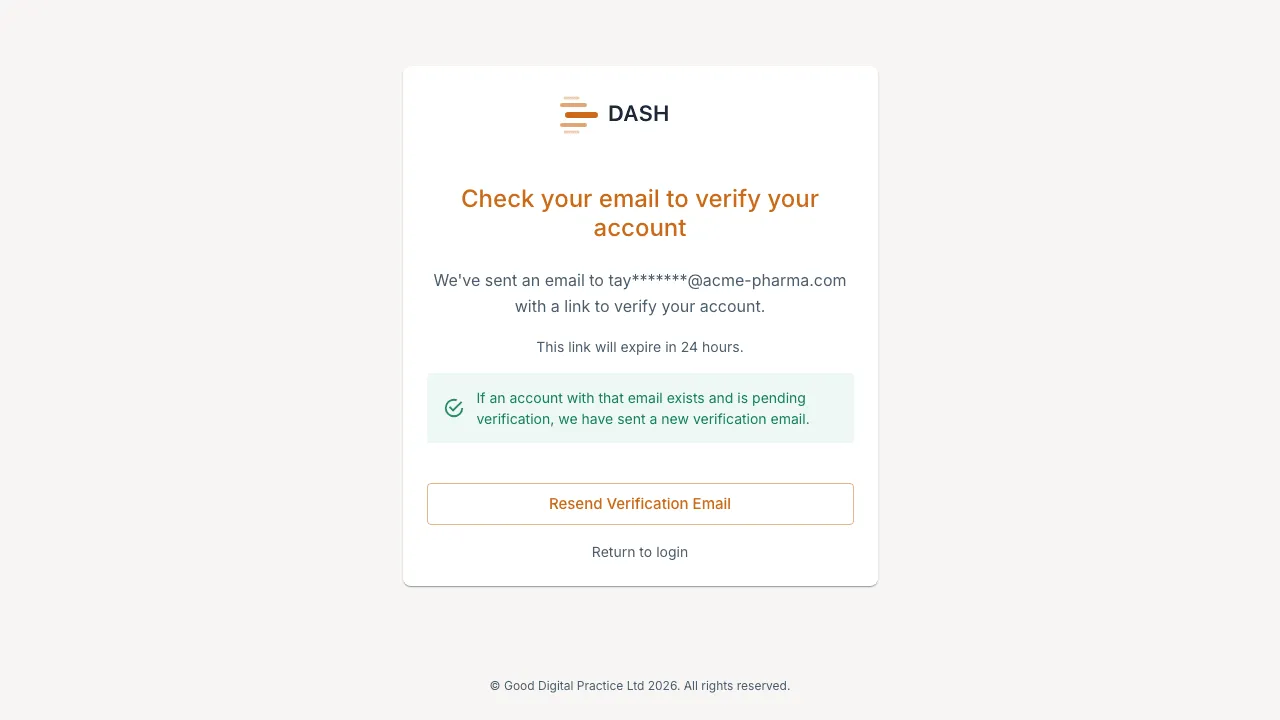
The reply is the same for every address, so it never reveals whether an address is registered or already verified. DASH sends at most three verification emails per address in an hour. If you ask for more, the same reply appears but nothing more is sent. Wait, then try again.
If your link has expired
Section titled “If your link has expired”The Verification failed page tells you to request a new link, but it does not offer a resend button. Registering again with the same address does not send a new link either: the address is already taken, so DASH creates nothing and sends nothing.
If your link expired and you no longer have the Check your email to verify your account screen open, contact DASH support for help completing your verification.