

Account settings
Your account’s settings are on one screen: Account → Account Info. A new account already has every setting and the logo slot in place, so you can start configuring it as soon as you sign in. There’s nothing to provision or ask for first.
What’s on the Account Info tab
Section titled “What’s on the Account Info tab”- Select Account in the sidebar. The page opens on the Account Info tab.
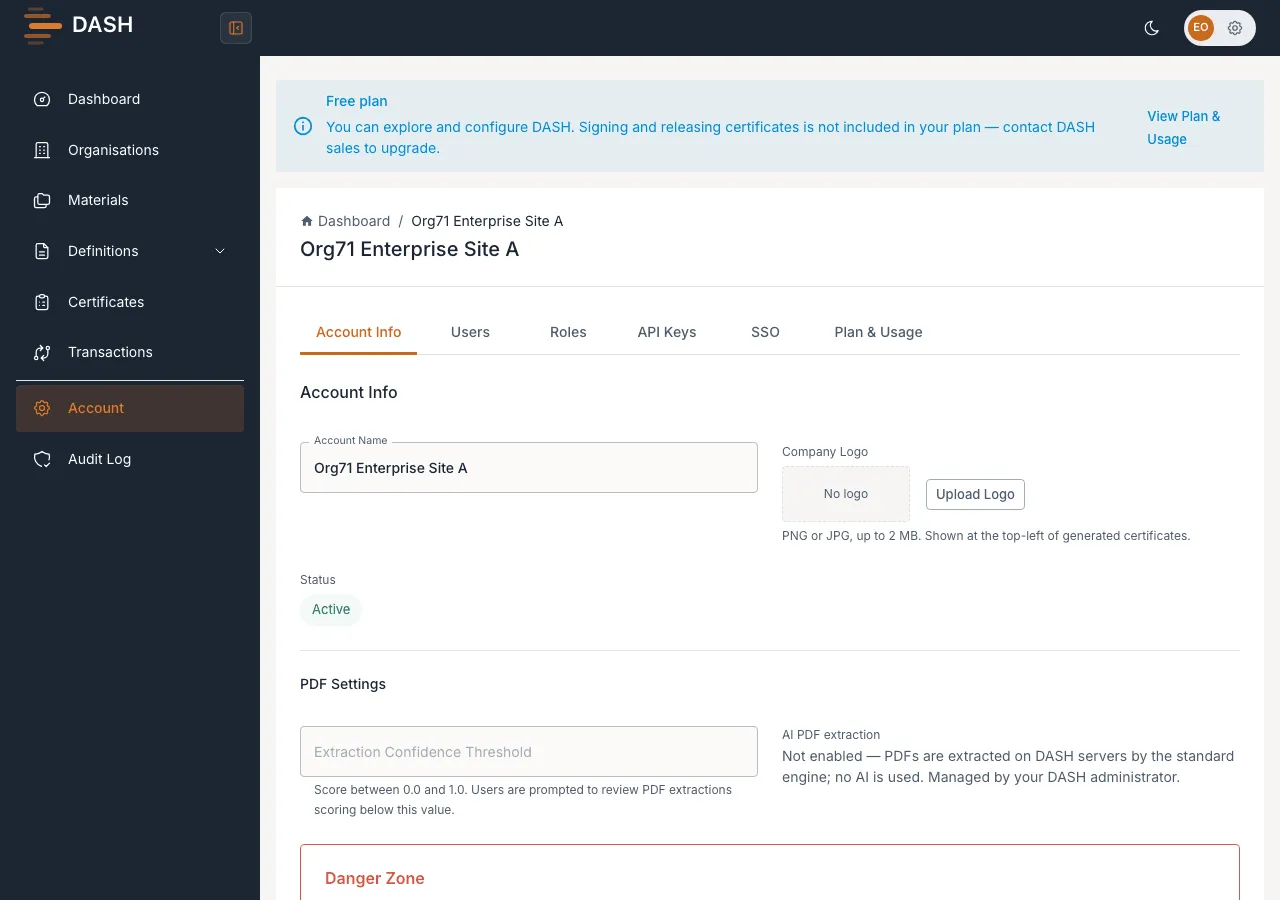
| Setting | What it is | Who changes it |
|---|---|---|
| Account Name | Your organisation’s name in DASH. It shows in the page header, on the Select Account screen and in emails. Every account has its own unique name. | An Admin, here |
| Company Logo | The letterhead image on your certificate PDFs. See Output branding. | An Admin, here |
| Status | Whether the account is Active. This is read-only. | DASH |
| Extraction Confidence Threshold (under PDF Settings) | The score below which DASH warns people to check the values it read from a PDF. | An Admin, here |
| AI PDF extraction | Whether AI extraction is available to your Definition Maps. It reads either “Not enabled — PDFs are extracted on DASH servers by the standard engine; no AI is used.” or “Enabled — …”, followed by “Managed by your DASH administrator.” | DASH, on request. Contact DASH support. |
The Danger Zone at the bottom of the tab appears only for the account owner. It holds Ownership transfer.
Rename the account
Section titled “Rename the account”- On Account Info, change Account Name.
- Select Save at the bottom right. Save stays greyed out until something has changed.
- DASH confirms “Account updated successfully”.
The name must be unique across DASH. If several sites of the same company use DASH, each site has its own account with its own name (for example “Acme Pharma Dublin” and “Acme Pharma Boston”). See Registration.
Set the extraction confidence threshold
Section titled “Set the extraction confidence threshold”When DASH reads values out of a PDF certificate, it scores how confident it is in the result, from 0.0 to 1.0. The threshold is your account’s minimum acceptable score. When a certificate is created from a PDF whose Definition Map scores below it, the review step shows a warning: “The extraction confidence for this PDF is below your account threshold. Please review and correct the extracted values before proceeding.”
- On Account Info, under PDF Settings, enter a value between 0.0 and 1.0 in Extraction Confidence Threshold, for example 0.75. The field explains: “Score between 0.0 and 1.0. Users are prompted to review PDF extractions scoring below this value.”
- Select Save. DASH confirms “Account updated successfully”.
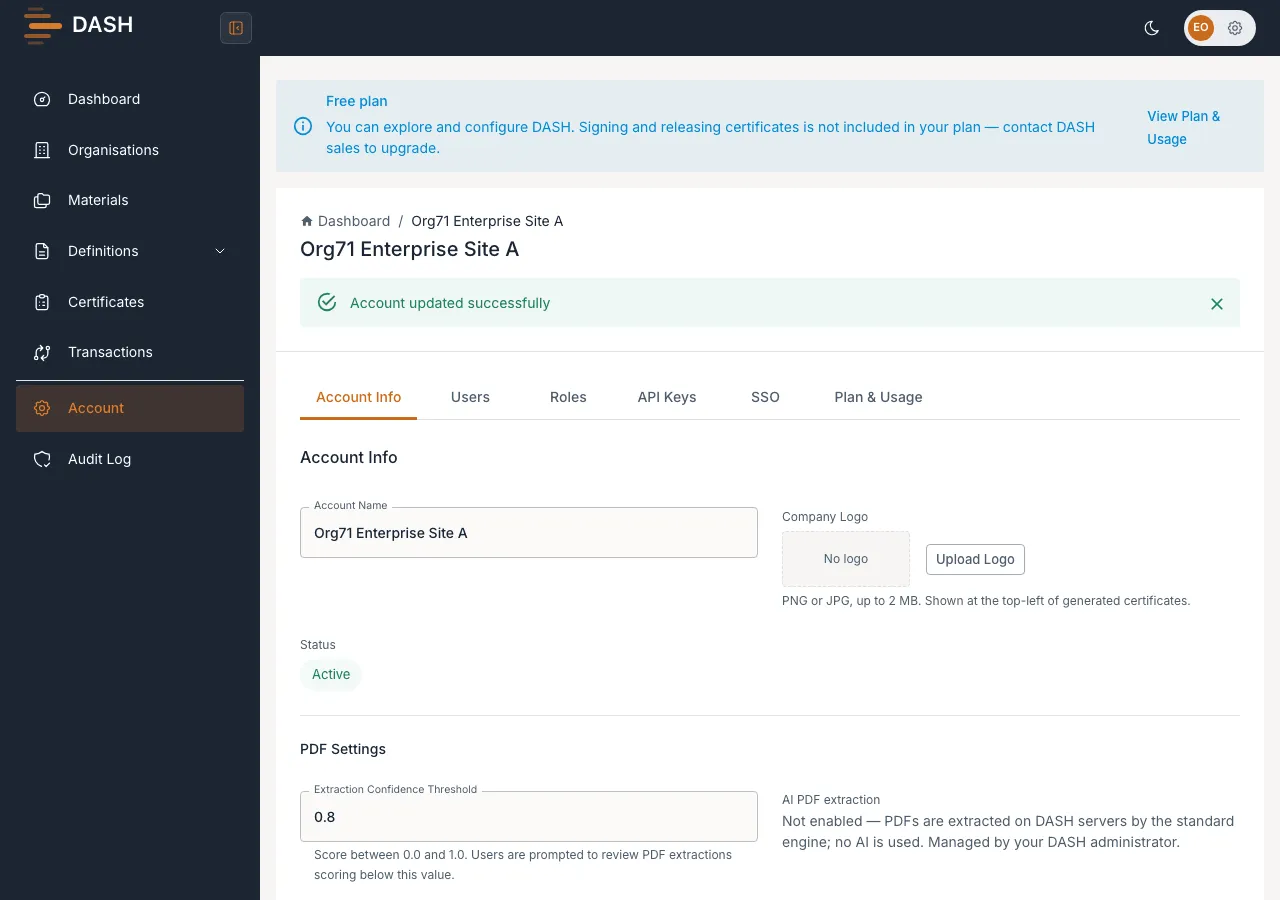
If you leave the field empty, no threshold applies and DASH shows no low-confidence warning. The warning doesn’t block anything. It tells the person reviewing the certificate to check the extracted values before sending it on. For how PDFs are read, see PDF extraction.
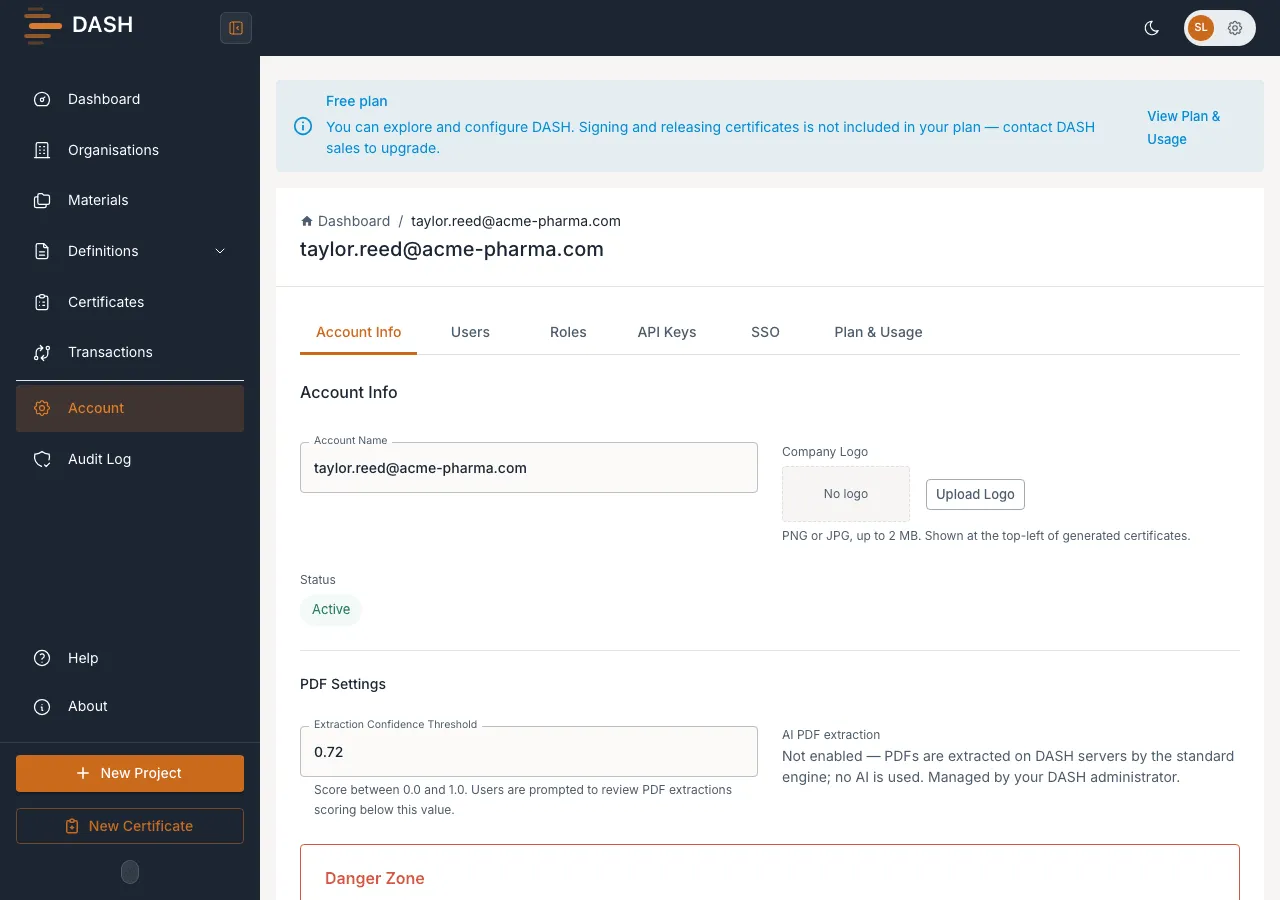
Your settings stay in your account
Section titled “Your settings stay in your account”Settings and branding belong to your account alone. Only members of your account can see them, and only your administrators can change them. Another DASH account never sees or uses your threshold or your logo, even if the same person belongs to both. Each change, including the old and new values, is recorded as Account Updated in the Audit log.