

Material fields & dates
A Material can carry two things that shape every Certificate produced from it: fields that add standard information to your documents, and a date format that normalises the varied date styles that arrive from your sources into one consistent output.
Material fields
Section titled “Material fields”Material fields define the standard information that should appear on every document for this Material — for example a customer number or lot number.
- Open the Material and go to the Material fields section.
- Select Add Field.
- Enter a Field Name, an optional Description, and an optional Value.
- Select Add Field to save it.
Your fields appear in a table of Field Name, Description and Value. Use the row actions to edit or remove a field, and drag the handle to reorder.
Date-format standardisation
Section titled “Date-format standardisation”Documents arrive from many sources — CSV, Excel, PDF and XML — and their dates rarely agree: 01/02/2026, 2026-02-01 and 1 Feb 2026 can all mean the same day. DASH can convert every mapped date to a single output format so your generated XML and PDF are consistent, whatever came in.
You set the format on the Material, in the Output Date & Time Format options (available in the creation wizard and on the Material record):
- Choose a Date format. Leave it on No conversion — keep original ingested dates to pass dates through unchanged, or pick a preset, or Custom… to enter your own pattern.
- Tick Source dates are day-first if your incoming dates put the day before the month — so
03/04is read as 3 April, not 4 March.
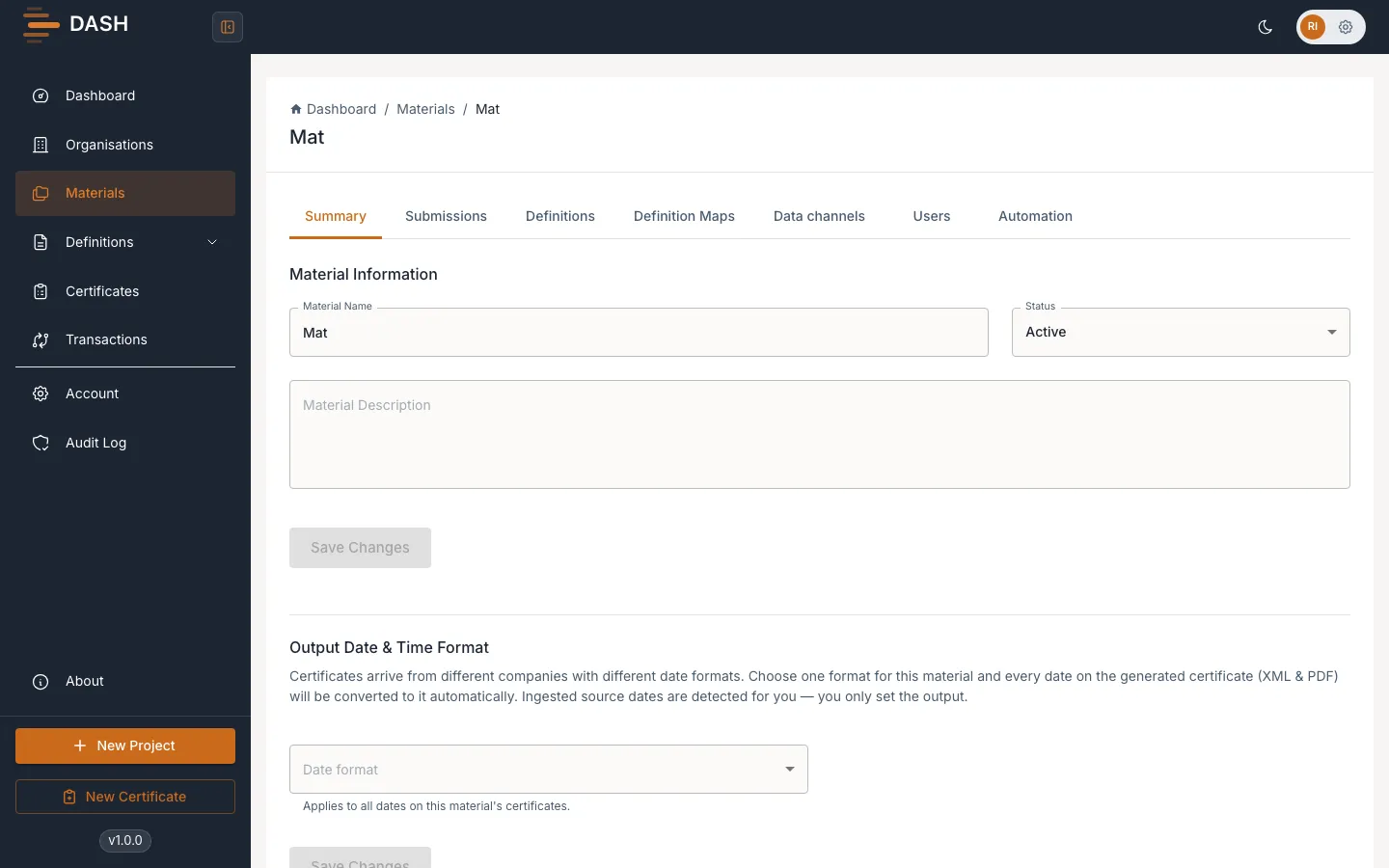
Once set, every mapped date value is converted to this format when a Certificate’s output is generated — for all source formats. The conversion is safe: if a value can’t be interpreted as a date, it’s passed through unchanged rather than being lost.
Fixing a date that isn’t converting
Section titled “Fixing a date that isn’t converting”Sometimes a date sits in a text field and isn’t recognised as a date, so it isn’t converted. During certificate review, DASH can flag such a value and offer a Make comply action to treat that property as a date going forward — see Review & edit mapped data.