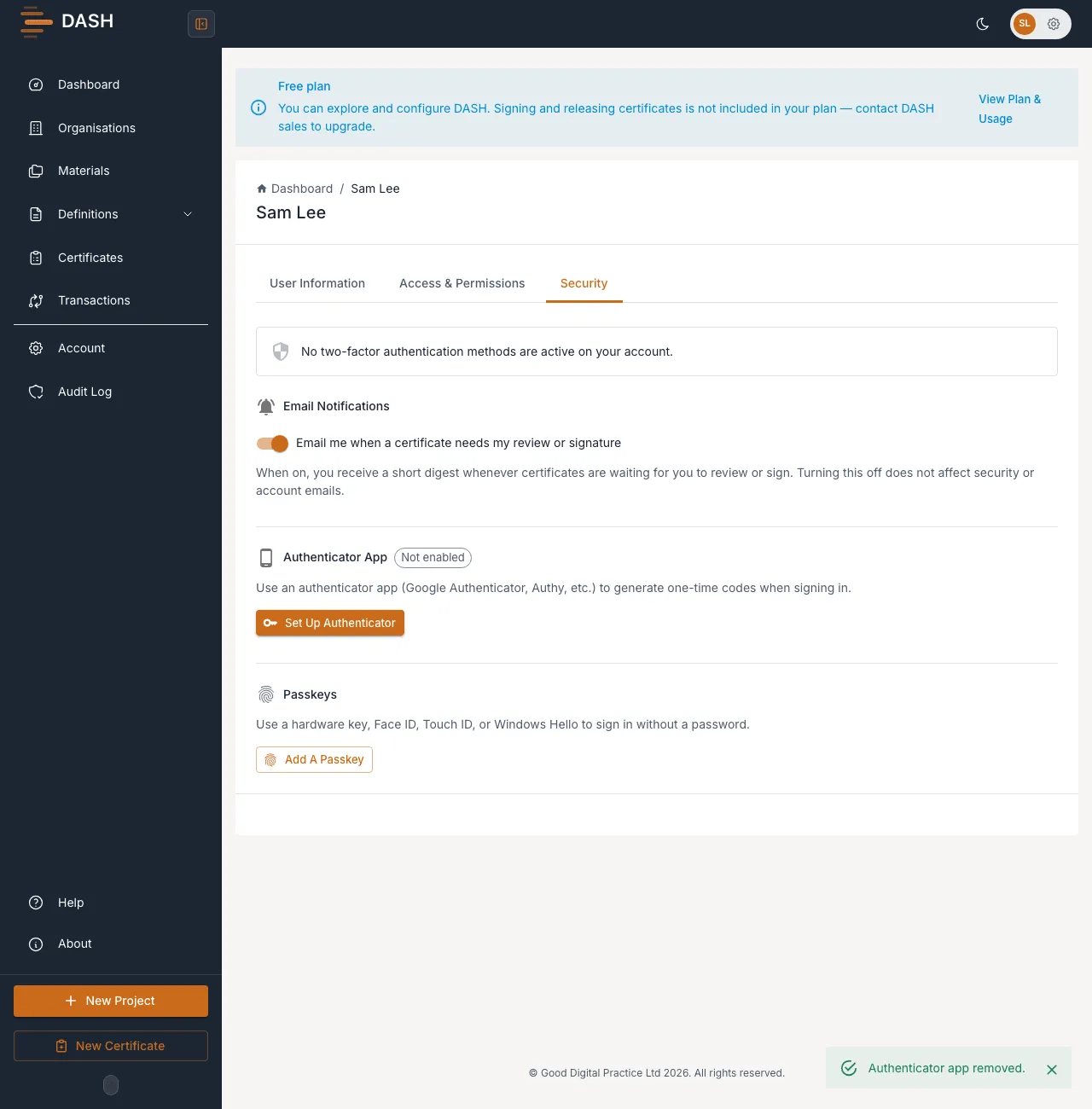
Set up an authenticator app
An authenticator app adds a second step to sign-in. After your password, you type the 6-digit code the app is showing at that moment. Someone who has stolen your password still can’t get in without your device.
You also need the authenticator app to promote a user to Admin or to transfer account ownership. Those actions accept an authenticator code and nothing else.
Set up the authenticator
Section titled “Set up the authenticator”- Select your avatar in the top-right corner, then User Settings.
- Open the Security tab. The Authenticator App section shows Not enabled.
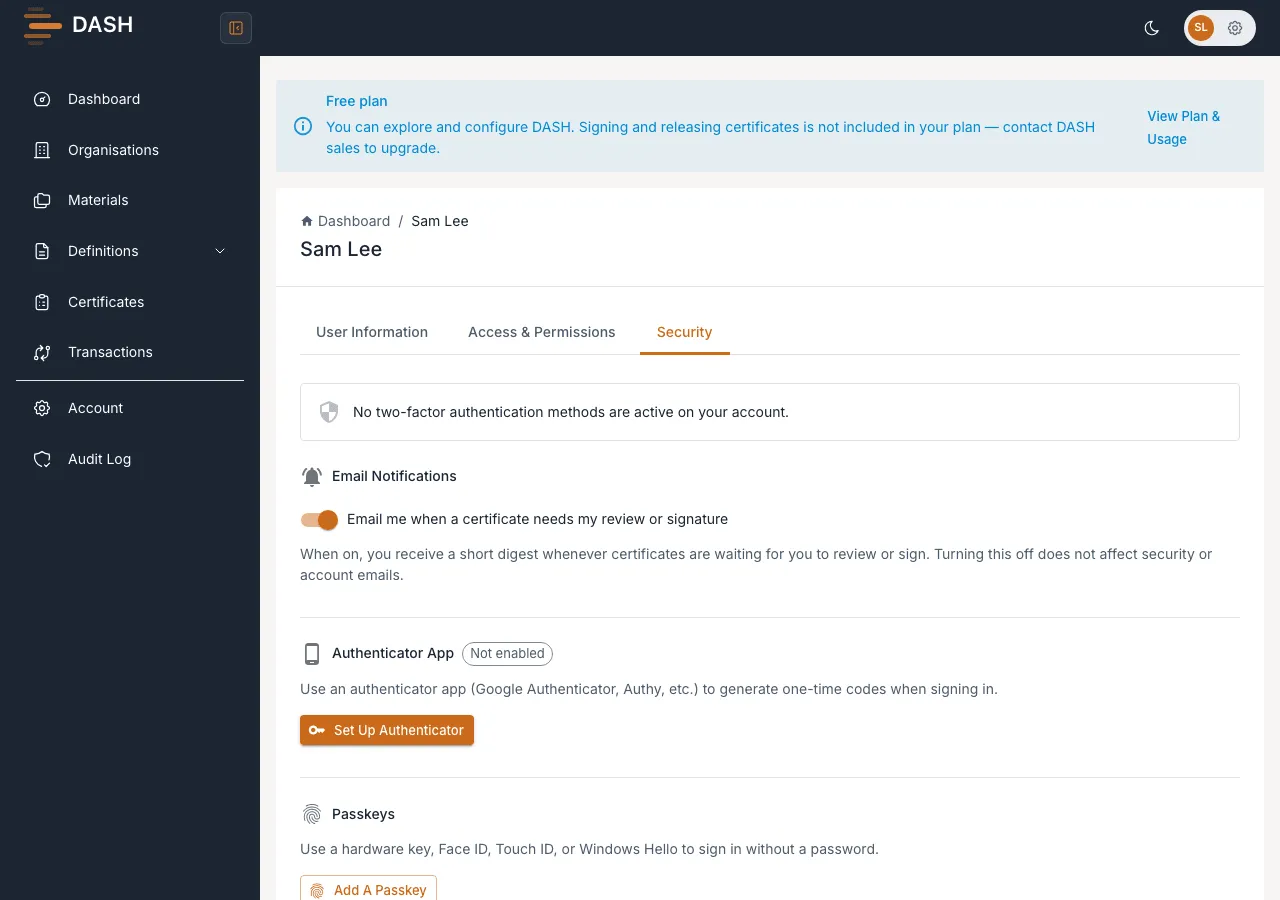
- Select Set Up Authenticator. The Set up authenticator app dialog opens with a QR code.
- In your authenticator app, add a new account and scan the QR code. If you can’t scan it, type the text shown after Manual key: into the app instead.
- Your app now shows a 6-digit code for DASH that changes every 30 seconds. Type the current code into 6-digit code and select Confirm.
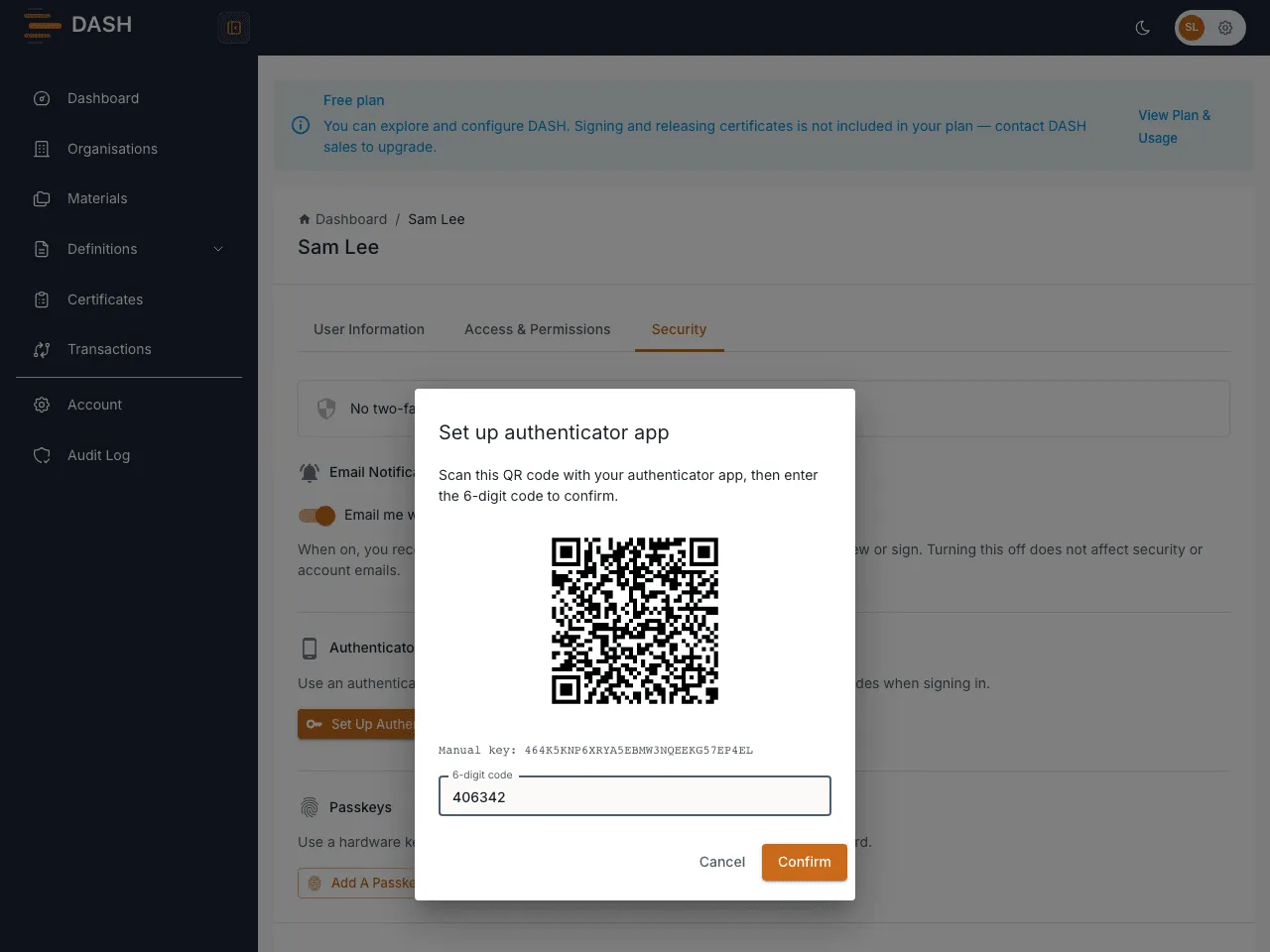
If the code is wrong or has just expired, DASH rejects it and the authenticator is not switched on. Wait for the next code and try again. Until you confirm a code, nothing changes about how you sign in.
Save your backup codes
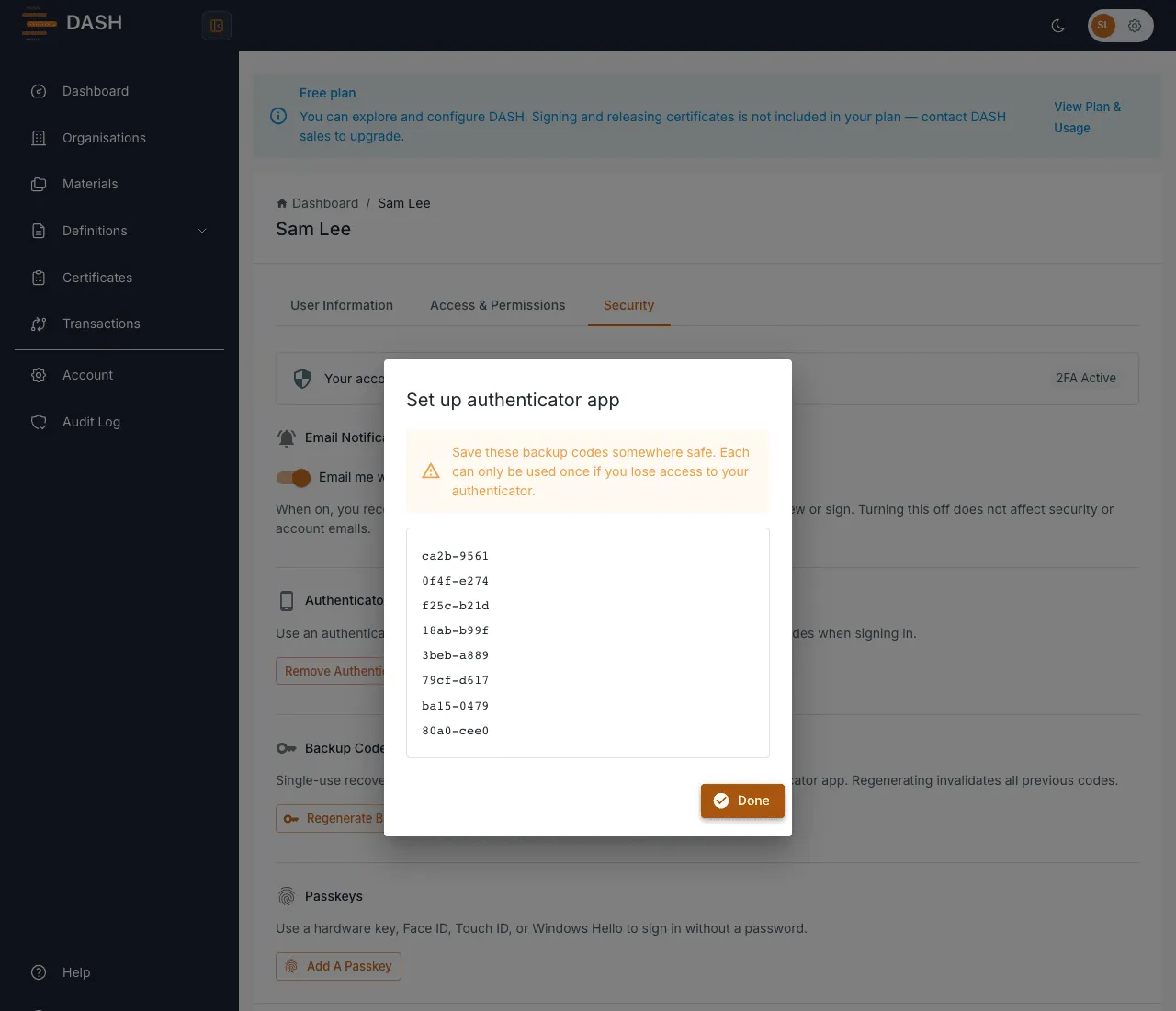
Section titled “Save your backup codes”As soon as the code is accepted, the same dialog shows eight backup codes, each in the form
xxxx-xxxx.
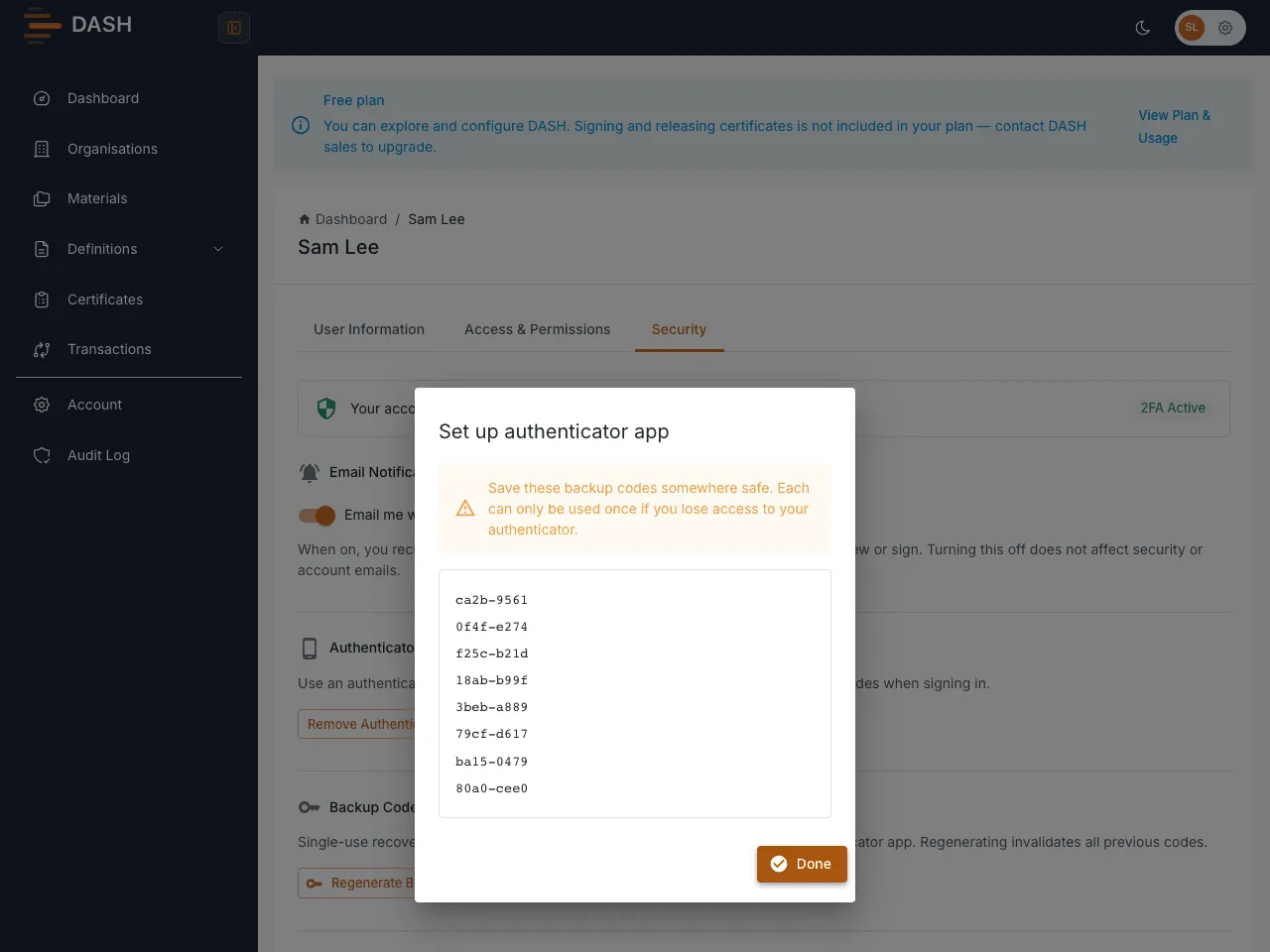
- Copy or print the codes now and store them somewhere safe, away from your authenticator device.
- Select Done.
The Authenticator App section now shows Enabled. The banner at the top reads “Your account is protected by …” with a 2FA Active chip, and a Backup Codes section appears.
From your next sign-in, DASH asks for a code after your password. See MFA required at login.
Remove the authenticator
Section titled “Remove the authenticator”Remove the authenticator only if you are replacing your device or no longer want this protection.
- On the Security tab, select Remove Authenticator.
- The Remove authenticator app dialog asks you to confirm. Its message reads “This will disable TOTP two-factor authentication on your account. Are you sure?” (TOTP means the authenticator app.)
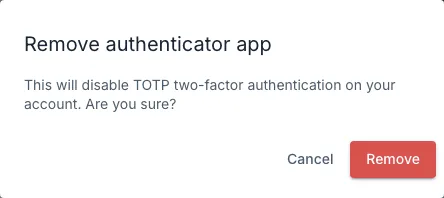
- Select Remove. The message “Authenticator app removed.” appears and the section returns to Not enabled.