SSO in the audit log
Access through your identity provider is as accountable as any other access to DASH. Every SSO sign-in, every refusal, every user created or linked, and every change to your SSO set-up is recorded in your account’s Audit Log. These records sit in the same log as everything else, with the same protections: nobody, including an Admin, can edit or delete them.
Find SSO entries
Section titled “Find SSO entries”- Select Audit Log in the sidebar. The Auth Events tab opens.
- Open the Action filter. SSO actions are grouped under Single Sign-On. Choose one, or search by a user’s email.
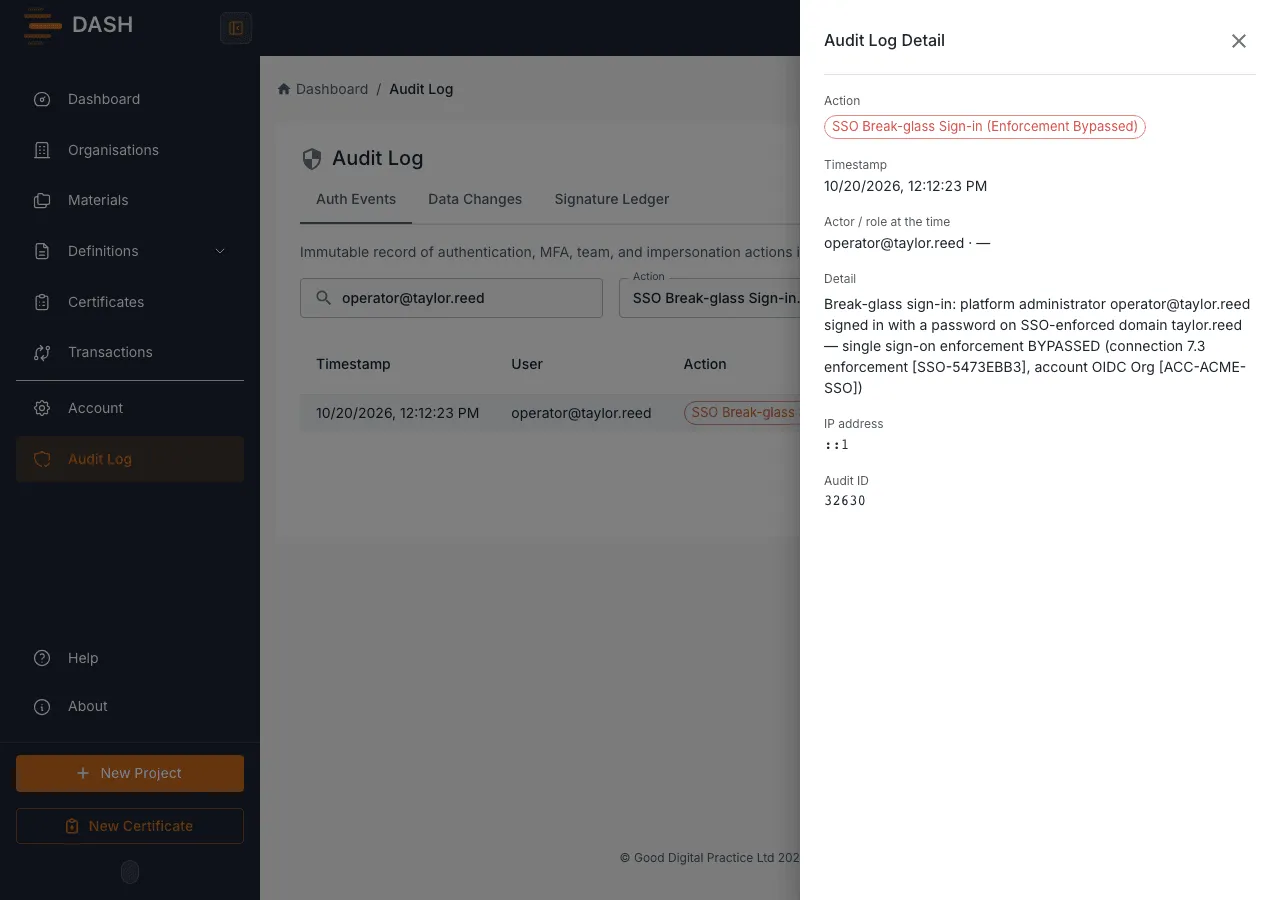
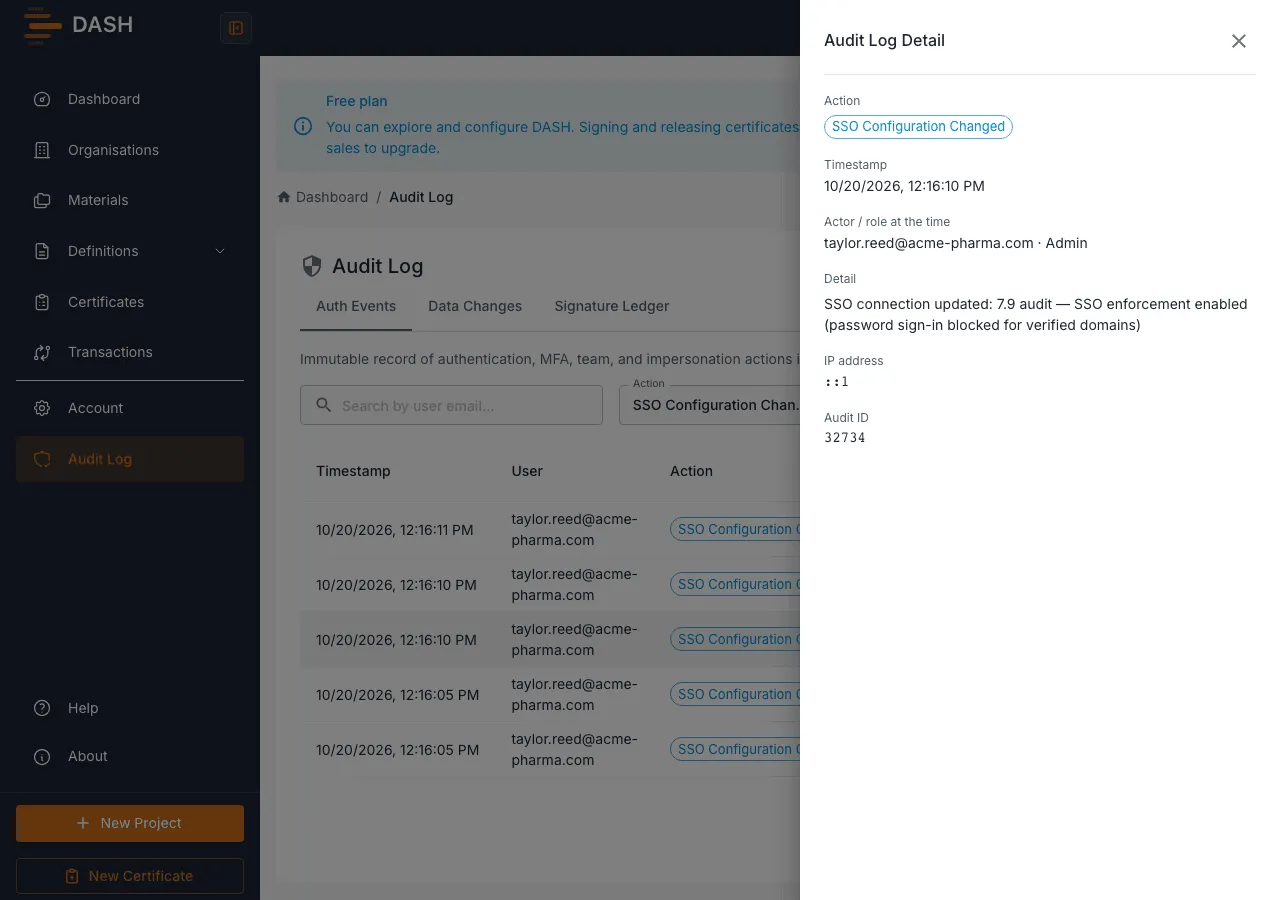
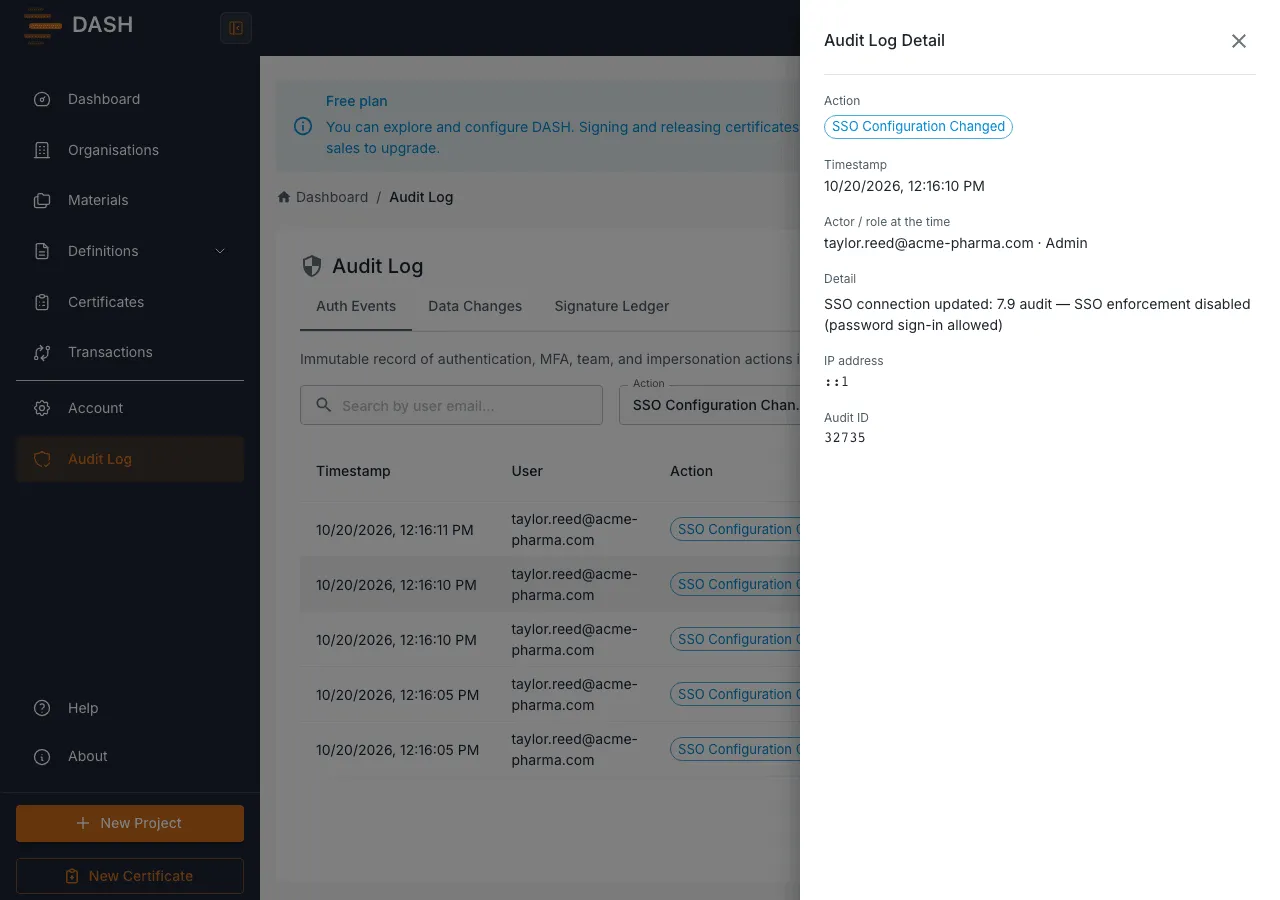
- Select an entry to open Audit Log Detail, which shows who, when, from where and the full detail. The detail is read-only; its only control is Close.
What each SSO entry means
Section titled “What each SSO entry means”| Action | Recorded when | The detail includes |
|---|---|---|
| SSO Login | Someone signs in successfully through your identity provider. | The person and the connection used. A matching Login entry is also recorded. |
| SSO User Provisioned | DASH creates a new user automatically on their first SSO sign-in. | The person, your account and the connection. |
| SSO Linked to Existing User | DASH joins a person who already had a DASH login to your account. | The person, your account and the connection. |
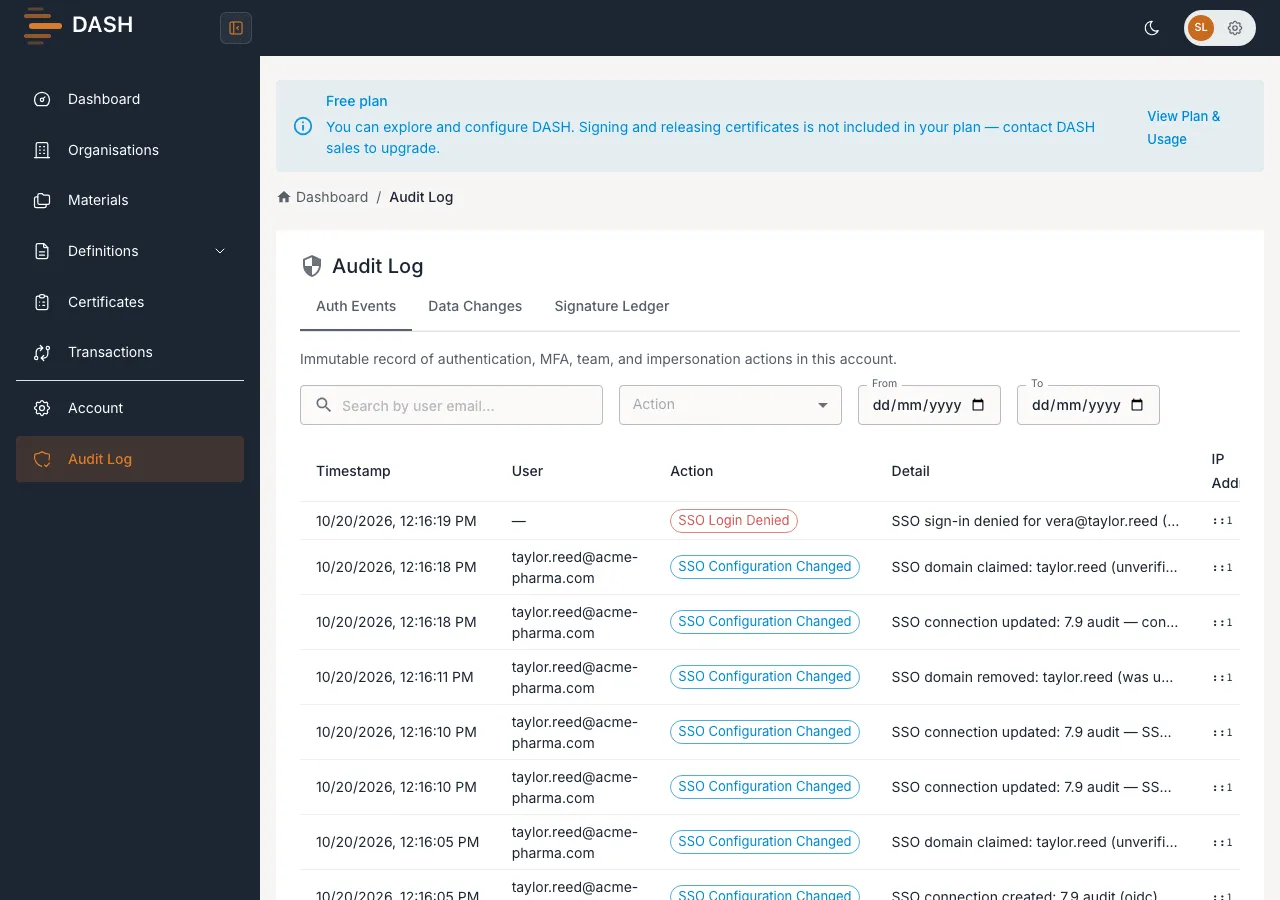
| SSO Login Denied | DASH refuses an SSO sign-in under your settings. | The email address tried (where known), the connection and the reason, such as no usable email, no matching group and no default role, automatic creation not permitted, an unverified email domain, or no free seat. |
| SSO Login Failed | The identity provider’s response couldn’t be verified (for example it was replayed or invalid). | The connection and what failed. |
| SSO Configuration Changed | An Admin creates, changes or deletes a connection, claims, verifies or removes a domain, or switches enforcement on or off; or DASH releases your claim because another organisation verified the domain first. | Who made the change and what changed, for example “SSO enforcement enabled” or “default role changed from Technician to none”. Secrets are never shown. |
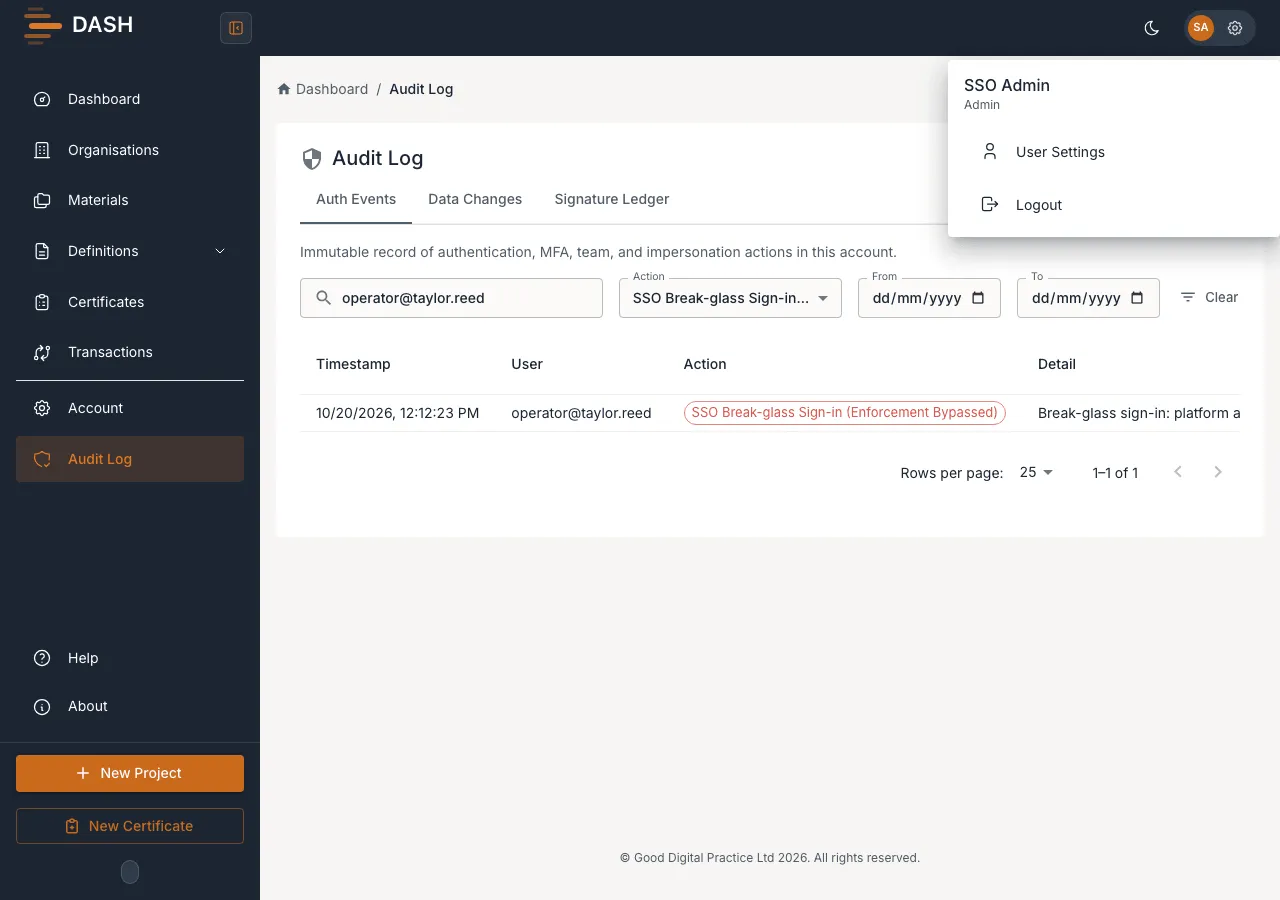
| SSO Break-glass Sign-in (Enforcement Bypassed) | A DASH platform administrator signs in with a password on one of your enforced domains. | The administrator, the domain, the connection and the time. |
Related entries outside the Single Sign-On group:
- Role Changed with “via SSO group mapping” when a person’s role is updated from their groups at sign-in. See Group-to-role mapping.
- User Details Updated when a person’s name is refreshed from your identity provider at sign-in.
- On the Data Changes tab, a Membership record Created each time SSO adds someone to your account.
Sign-ins
Section titled “Sign-ins”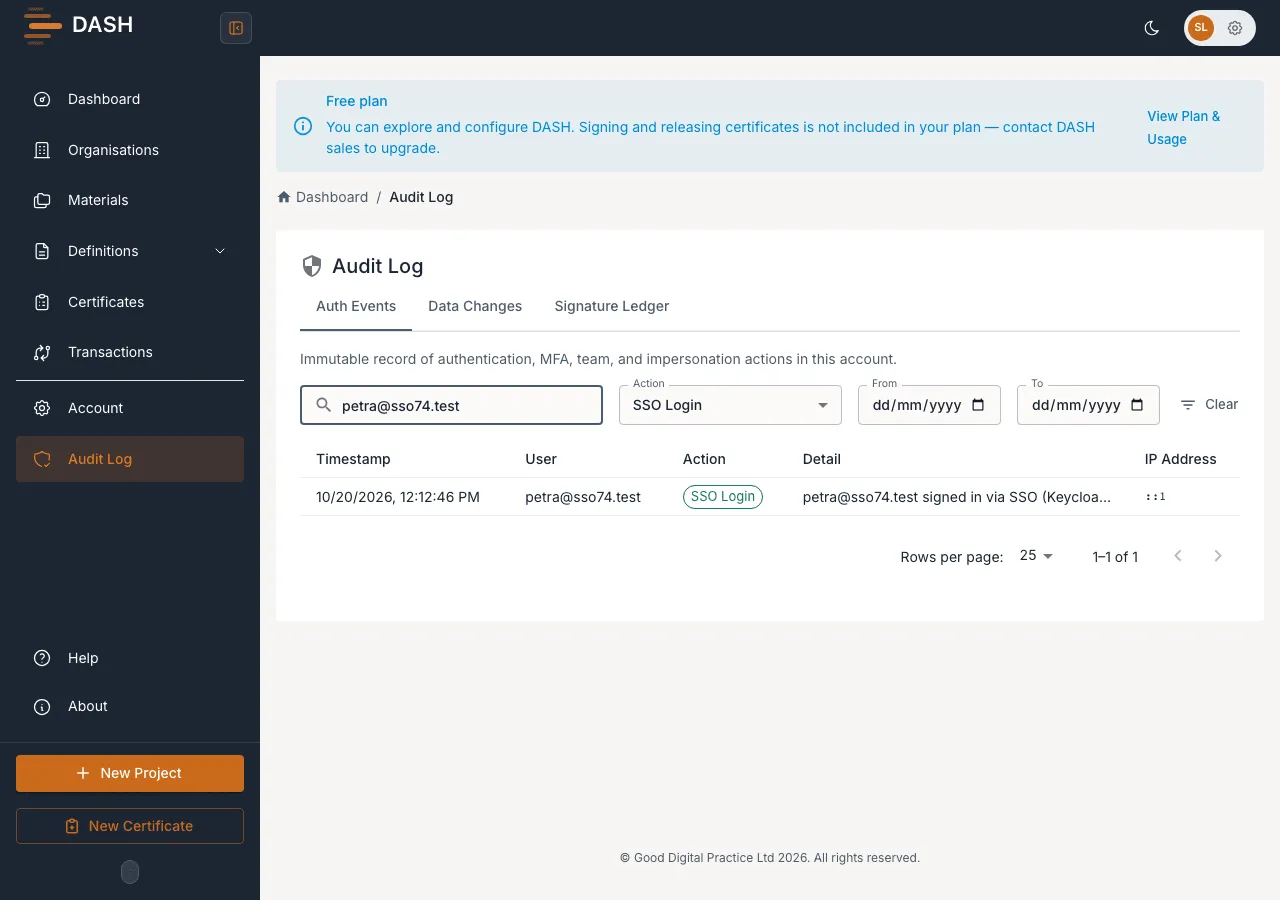
Users created or linked through SSO
Section titled “Users created or linked through SSO”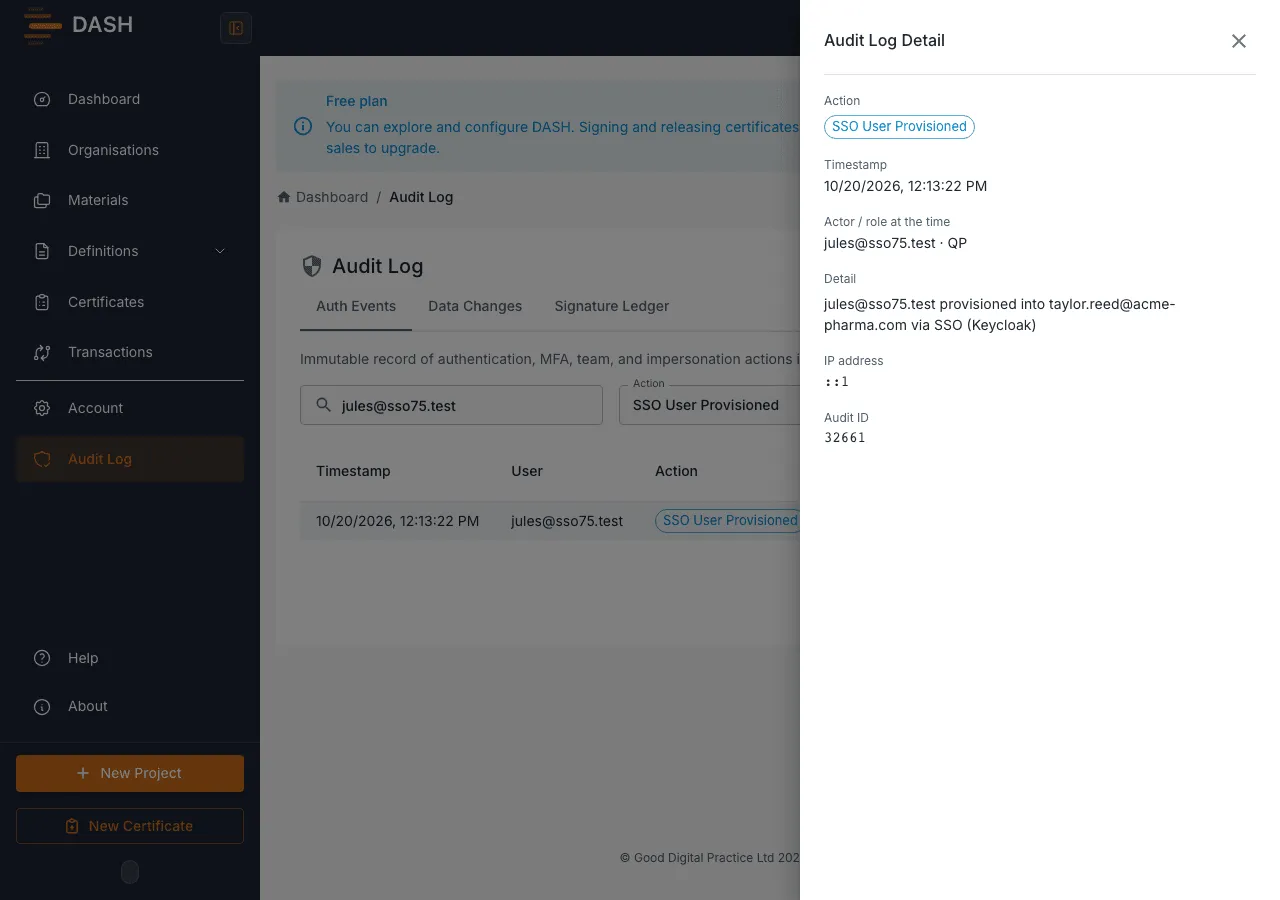
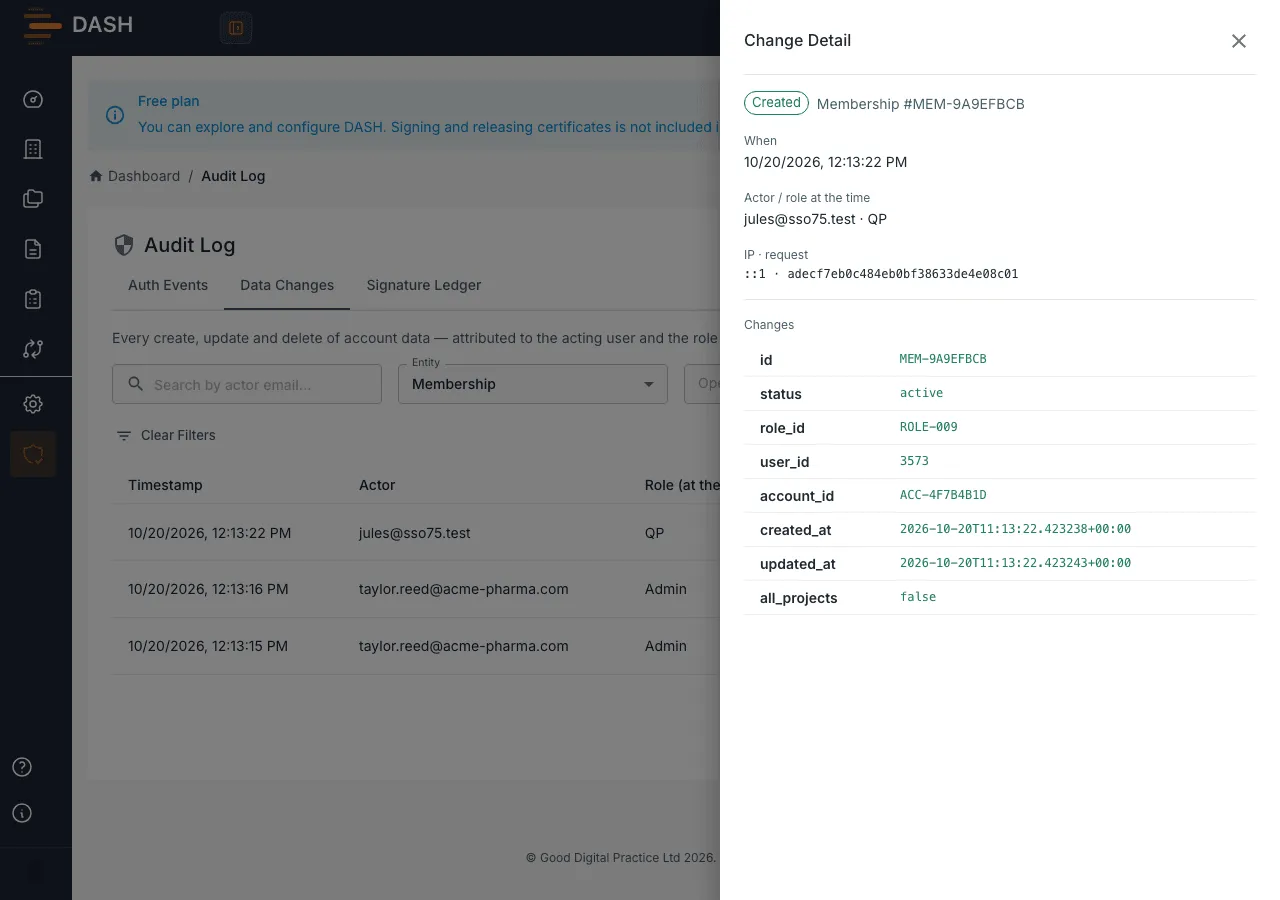
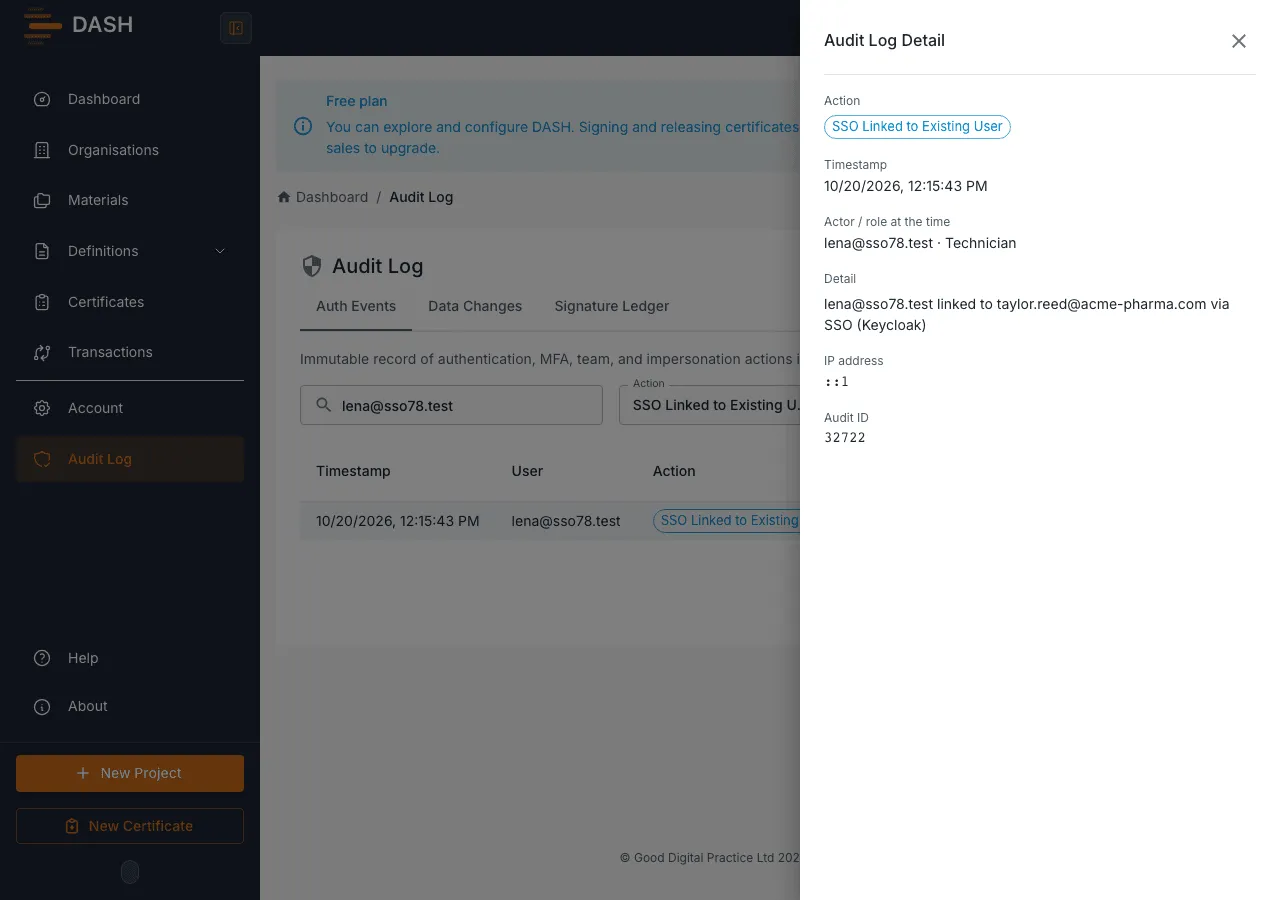
Refusals
Section titled “Refusals”Use SSO Login Denied to see who tried to sign in and why they were refused. A person who has no DASH account shows no user in the list; their email address is in the detail.
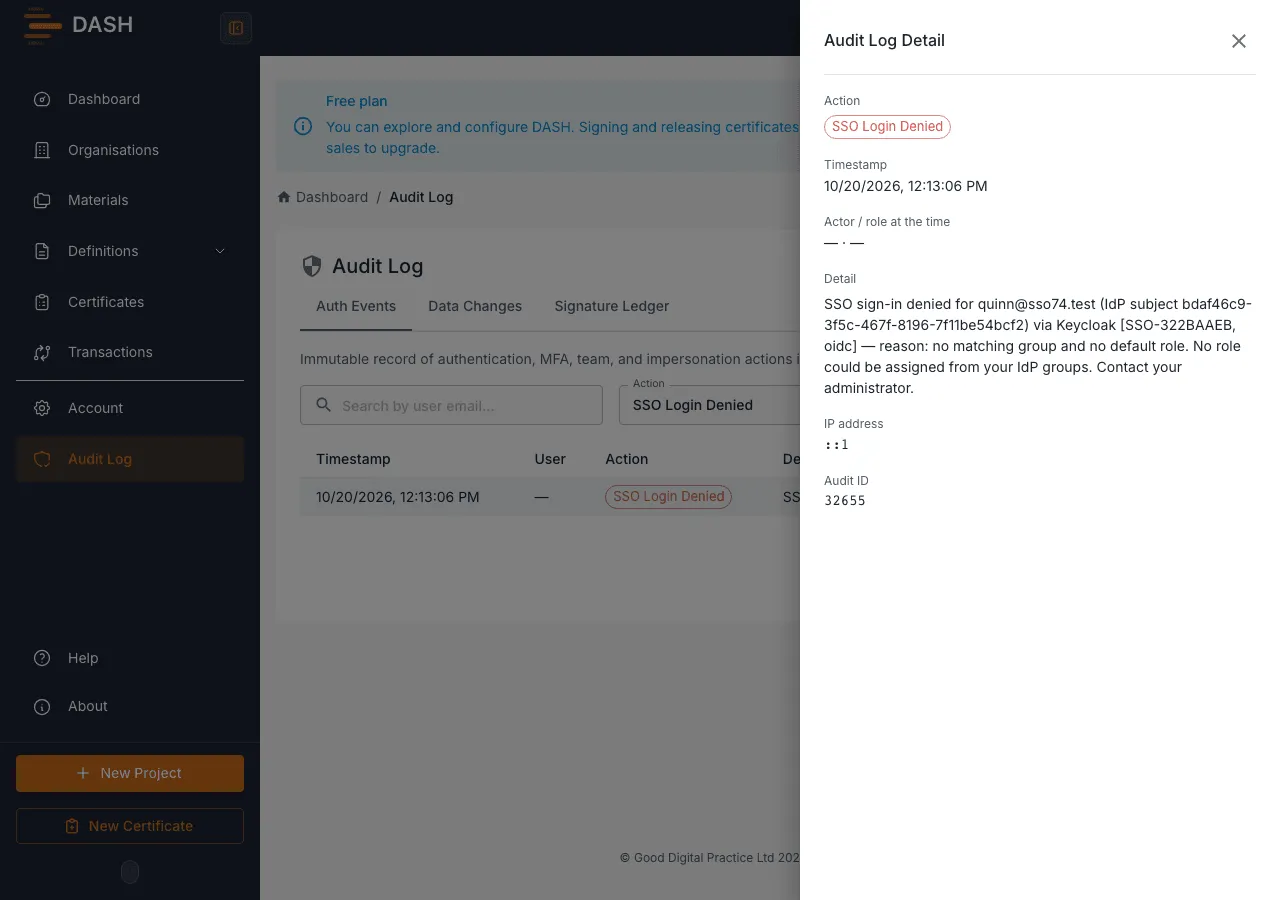
Configuration changes
Section titled “Configuration changes”Each change to your SSO set-up is attributed to the Admin who made it.
Break-glass sign-ins
Section titled “Break-glass sign-ins”Break-glass sign-in is reserved for DASH platform administrators who need to reach an account whose identity provider is unavailable. Each use appears as its own entry, so it can never be mistaken for an ordinary sign-in. Review these entries as part of your periodic access review. See Enforce SSO and break-glass recovery.