

Create a definition map
Creating a map takes three things: a name, the definition it maps onto, and a source type. Once the map exists you upload a sample file so DASH can read its structure and suggest field mappings for you.
Create the map
Section titled “Create the map”- Open Definition Maps from the sidebar.
- Select New Definition Map (the + in the top-right, or the button on the empty-state card).
- In the New Definition Map dialog:
- Enter a Map name (required).
- Choose a Source type: CSV, Excel, XML, JSON or PDF (required).
- Choose the Definition this map translates source documents into (required).
- Select Create.
DASH creates the map and opens its record page, where the mapping interface matches the source type you picked.
Upload a sample to suggest mappings
Section titled “Upload a sample to suggest mappings”On the Field Mapping tab, upload a sample file to have its structure analysed and mappings suggested. This gives DASH a real example to read column headers, cells or fields from.
- For CSV, drag a file onto the Upload Sample CSV File area, or Upload CSV File to browse.
- For XML/JSON, use the Analyze Input File area to upload a sample, then review the fields detected and use Auto-Map All to accept the suggestions.
- For PDF, upload a certificate and let DASH extract the data — see PDF extraction.
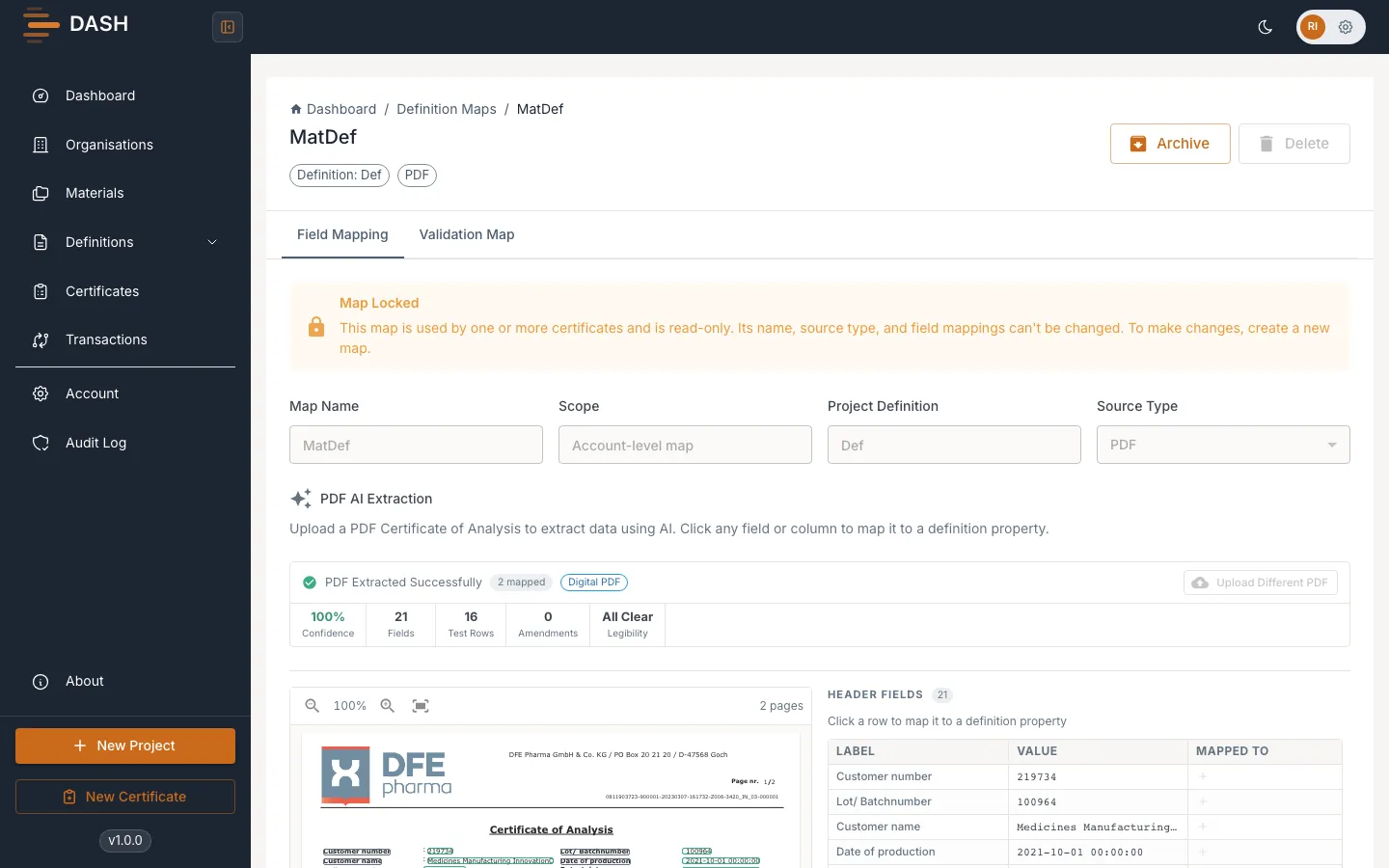
After creating
Section titled “After creating”- Map each source field to a definition property. See CSV & Excel mapping and PDF extraction.
- Add transforms and row rules where needed — see Field transforms & row rules.
- Add validation rules and test the map before you use it on real certificates — see Validation rules and Test with a sample.