Ownership transfer
Every account has one owner: the person who registered it, unless ownership has since been transferred. The owner is an Admin marked Owner in the user list. Only the owner can hand ownership to someone else, and the owner’s own role can’t be changed or deactivated until they do. Transfer ownership when the owner is leaving or the responsibility is moving to someone else.
A transfer takes two people. The owner starts it, and the new owner confirms it from an email.
Start the transfer
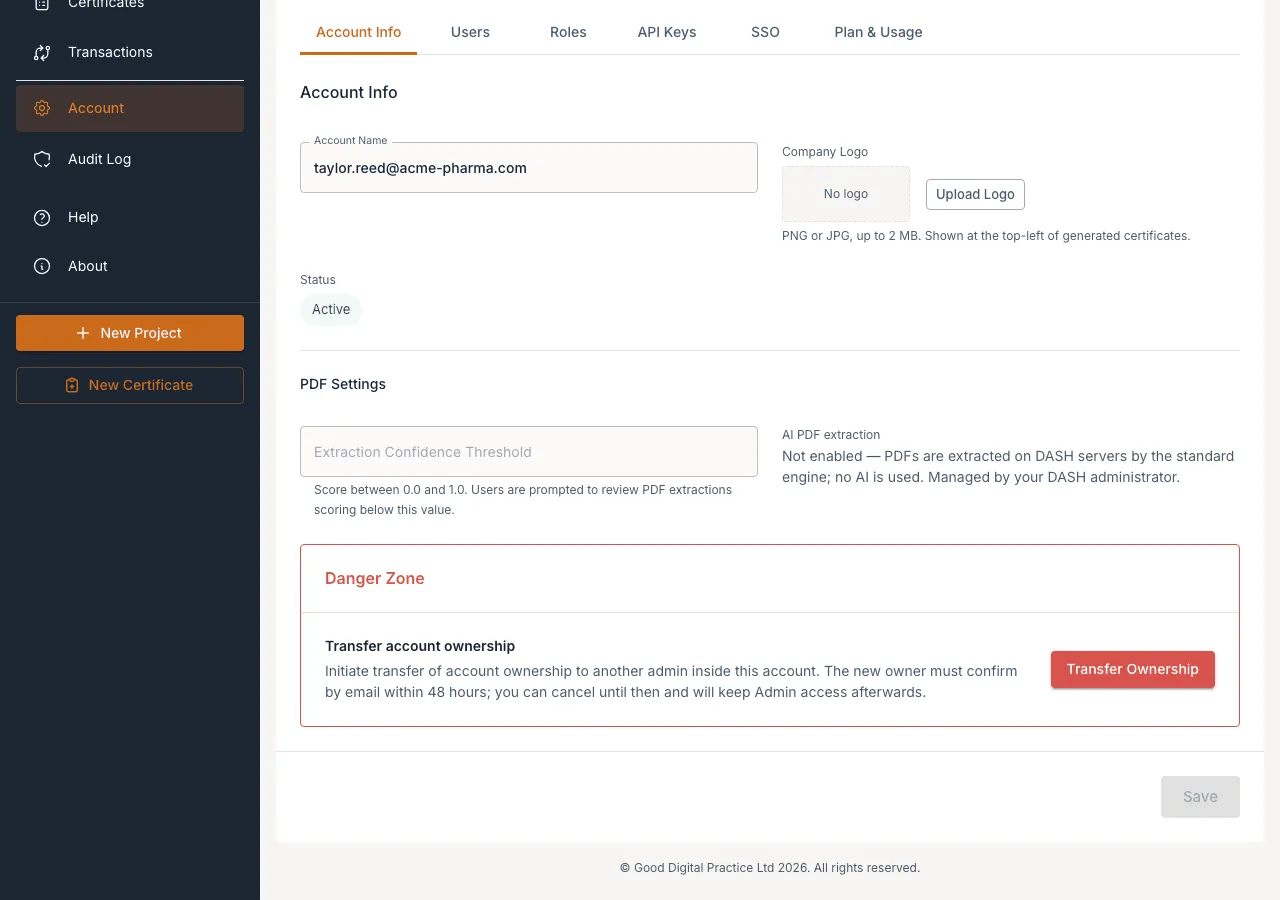
Section titled “Start the transfer”- Select Account in the sidebar. On the Account Info tab, scroll to Danger Zone → Transfer account ownership.
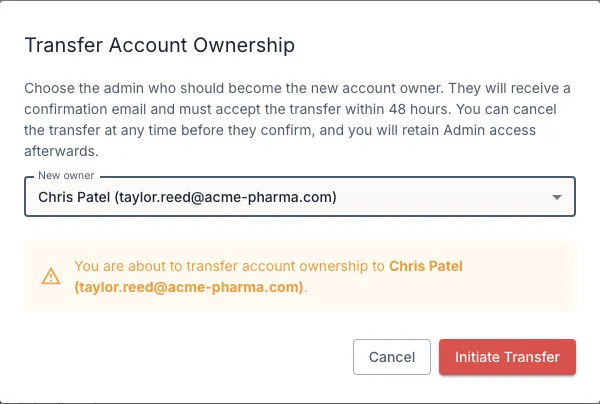
- Select Transfer Ownership. The Transfer Account Ownership dialog opens.
- In New owner, choose the Admin who should take over. The list shows only the account’s other active Admins. DASH shows a warning naming the person you’ve chosen.
- Select Initiate Transfer.
- The Confirm with your authenticator dialog opens: “For your security, enter the current 6-digit code from your authenticator app to initiate this ownership transfer.” Type the current code.
- DASH confirms “Transfer initiated. [email] has been emailed to confirm.”
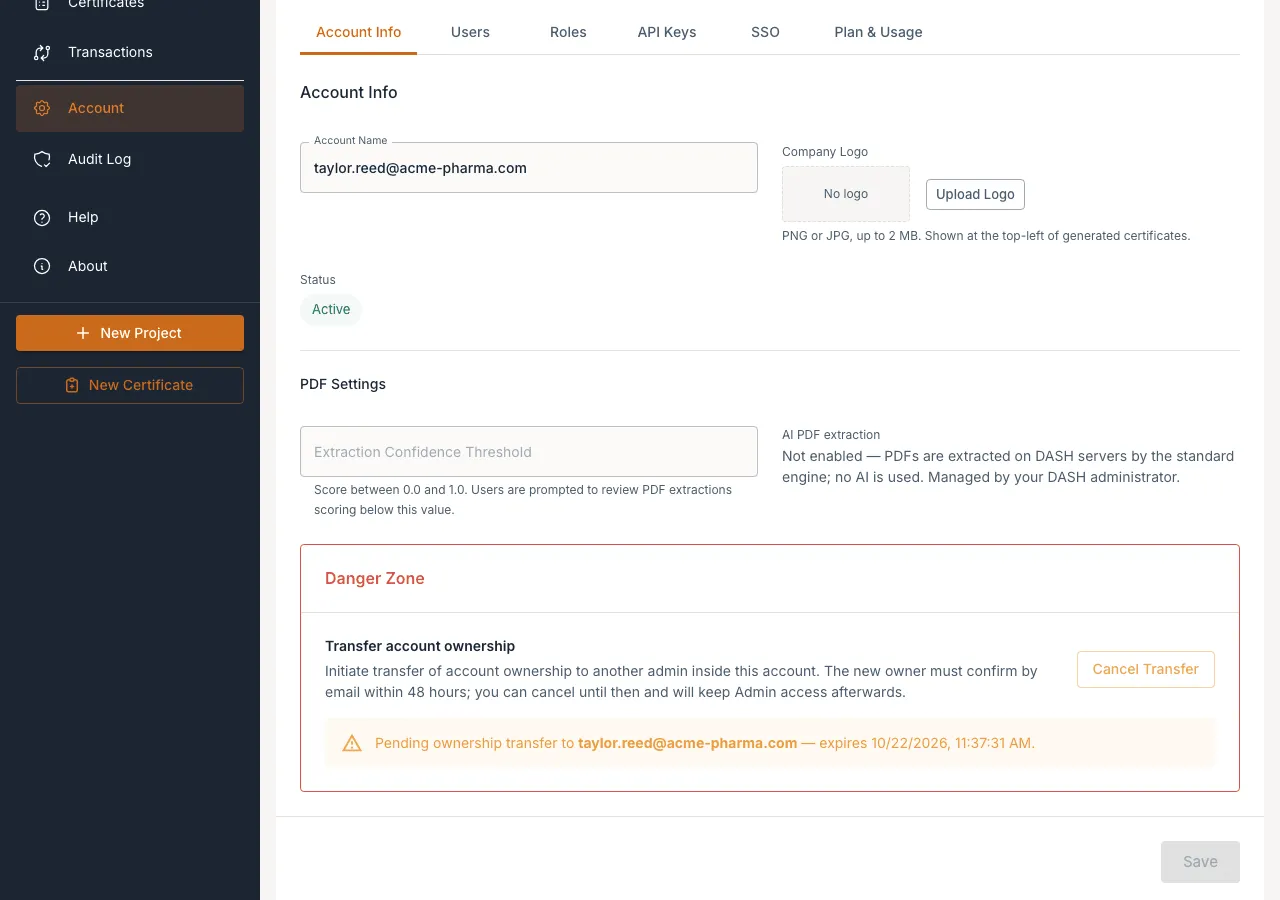
While the transfer is waiting, the Danger Zone shows “Pending ownership transfer to [email] — expires [date and time].” and the button changes to Cancel Transfer. An account can have only one pending transfer at a time.
If you have no authenticator app, DASH refuses inside the dialog with “This action requires authenticator app (TOTP) enrollment.” (TOTP means the authenticator app.) Nothing is sent. See Step-up verification.
The new owner confirms
Section titled “The new owner confirms”The nominee receives an email, DASH — Nominated as account owner for [account]. It explains that they’ve been nominated, and that the current owner will keep Admin access.
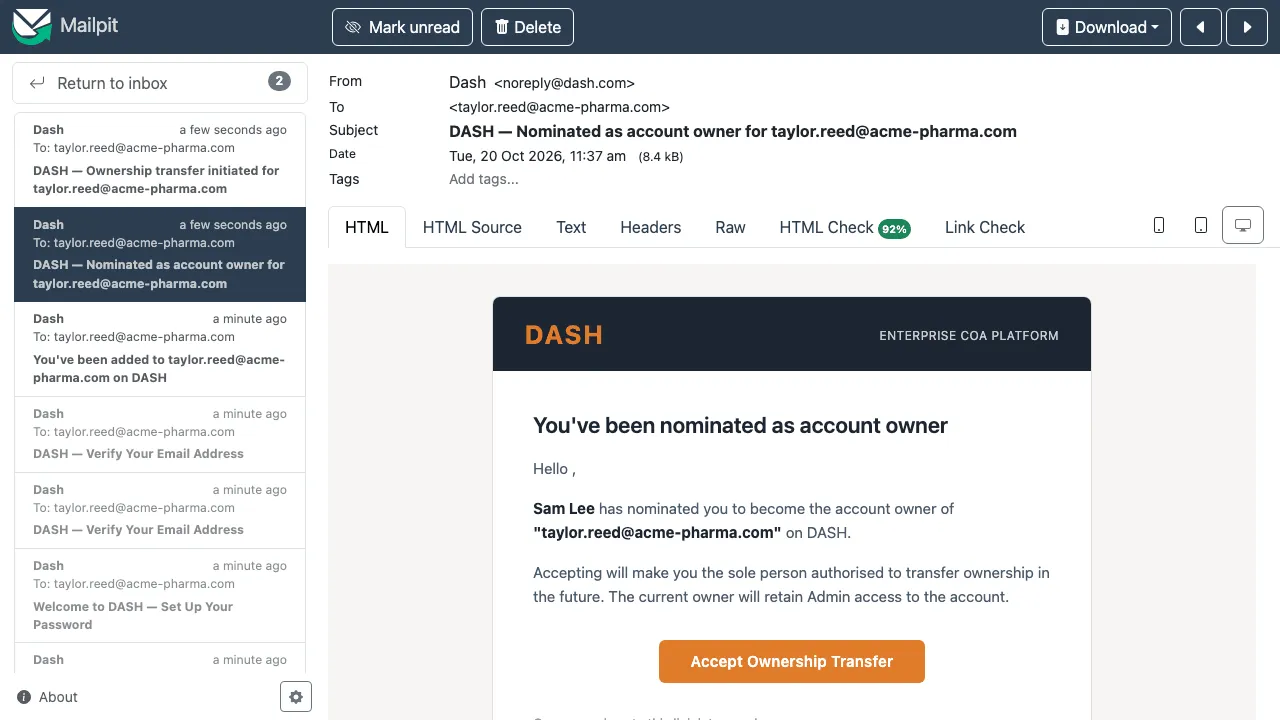
- The nominee selects Accept Ownership Transfer in the email within 48 hours.
- If they aren’t signed in to DASH, they sign in first and are then taken back to the confirmation. They don’t need an authenticator code: opening the link sent to their own mailbox is the proof.
- DASH shows Ownership transferred: “You are now the account owner of [account]. The previous owner retains Admin access.” They can select Go To Dashboard.
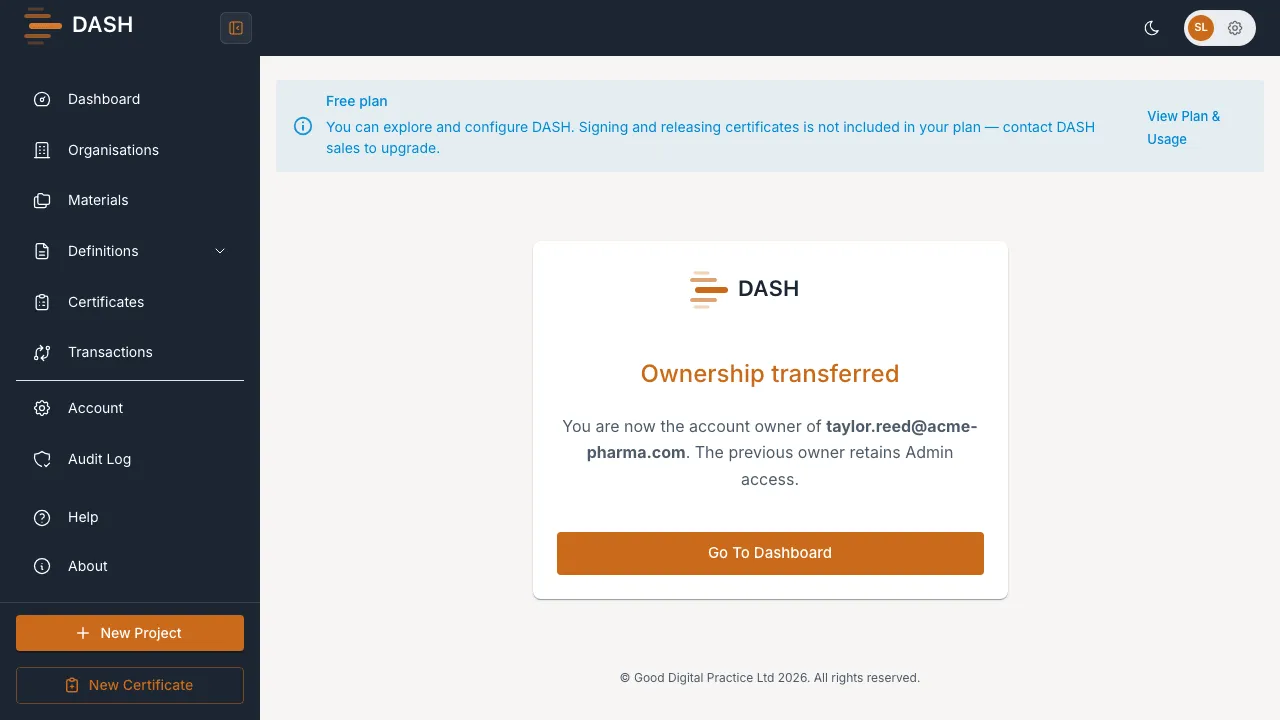
From then on, the Owner chip moves to the new owner in the user list, and the Danger Zone appears on their Account Info tab instead of yours. You stay an Admin. The new owner can change your role later if needed.
Only the nominee can confirm. If anyone else opens the link, DASH refuses with “This transfer link was not issued to you.”
Cancel a pending transfer
Section titled “Cancel a pending transfer”You can cancel at any point before the nominee confirms.
- On Account Info, in the Danger Zone, select Cancel Transfer.
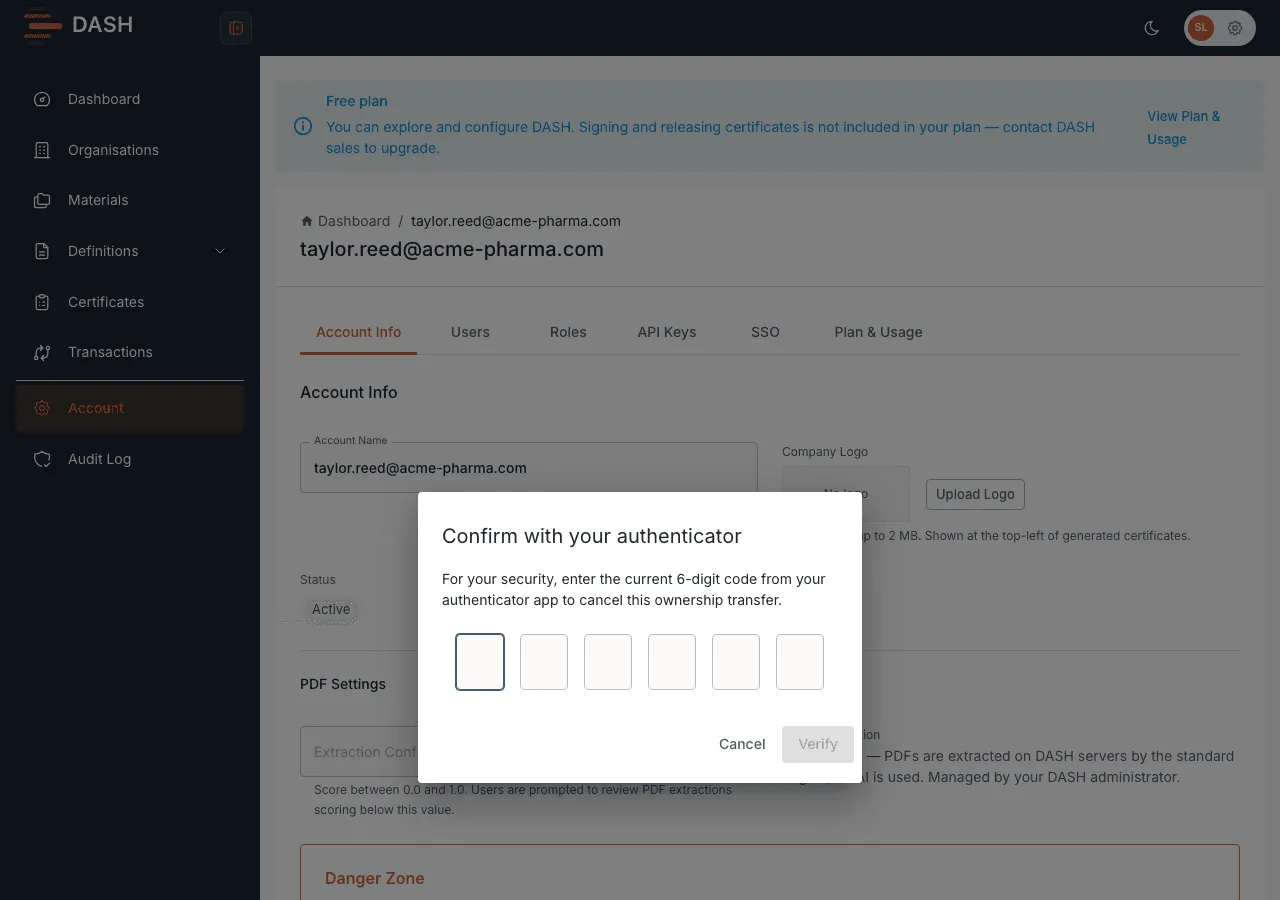
- The Confirm with your authenticator dialog asks for a code “to cancel this ownership transfer”. Type the current code.
- DASH confirms “Ownership transfer cancelled.” and Transfer Ownership is offered again.
If the link has expired or was cancelled
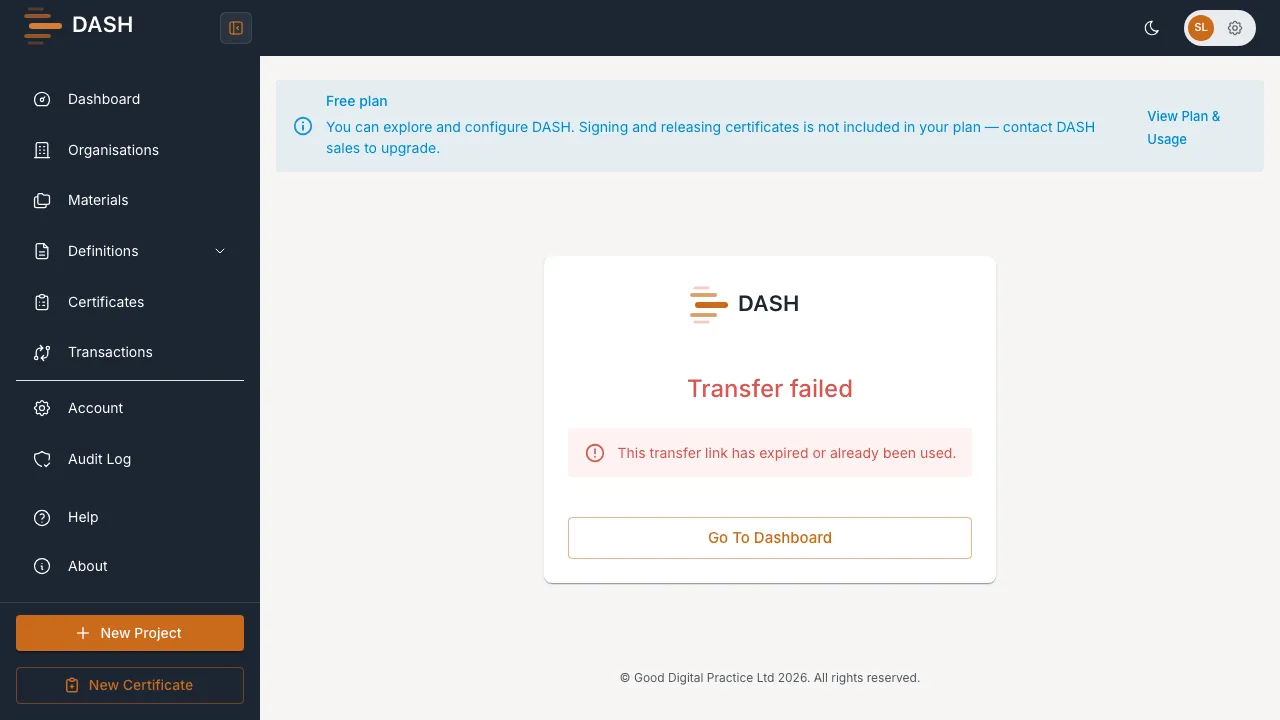
Section titled “If the link has expired or was cancelled”A confirmation link works once and only for 48 hours. If it has expired, has been used, or the transfer was cancelled, the page shows Transfer failed with “This transfer link has expired or already been used.” No ownership changes. To try again, the owner starts a new transfer.
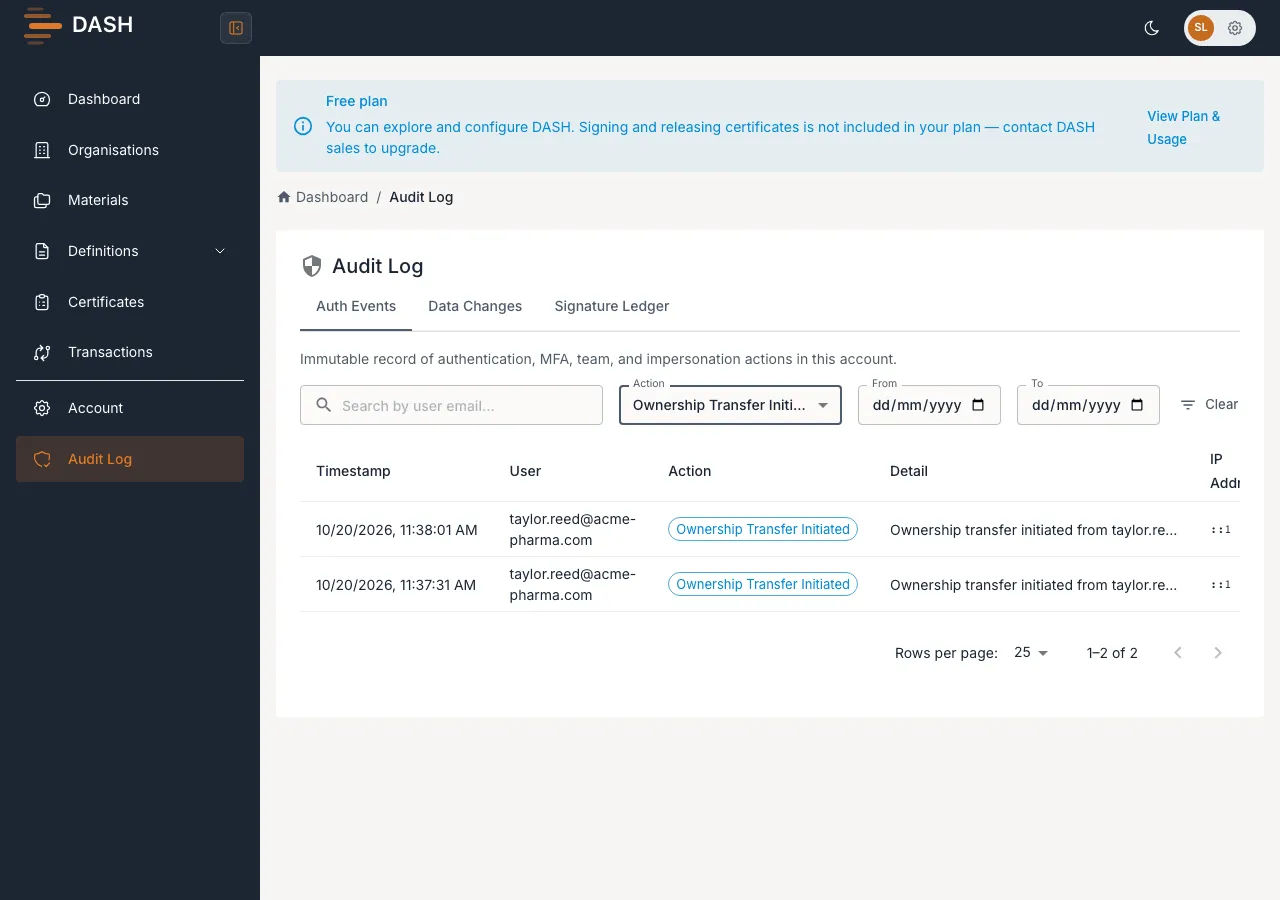
The audit trail
Section titled “The audit trail”Starting, confirming and cancelling a transfer are recorded as Ownership Transfer Initiated, Ownership Transfer Confirmed and Ownership Transfer Cancelled. They’re grouped under Ownership & Impersonation in the Action filter of Audit Log → Auth Events. See Audit log.