

PDF extraction
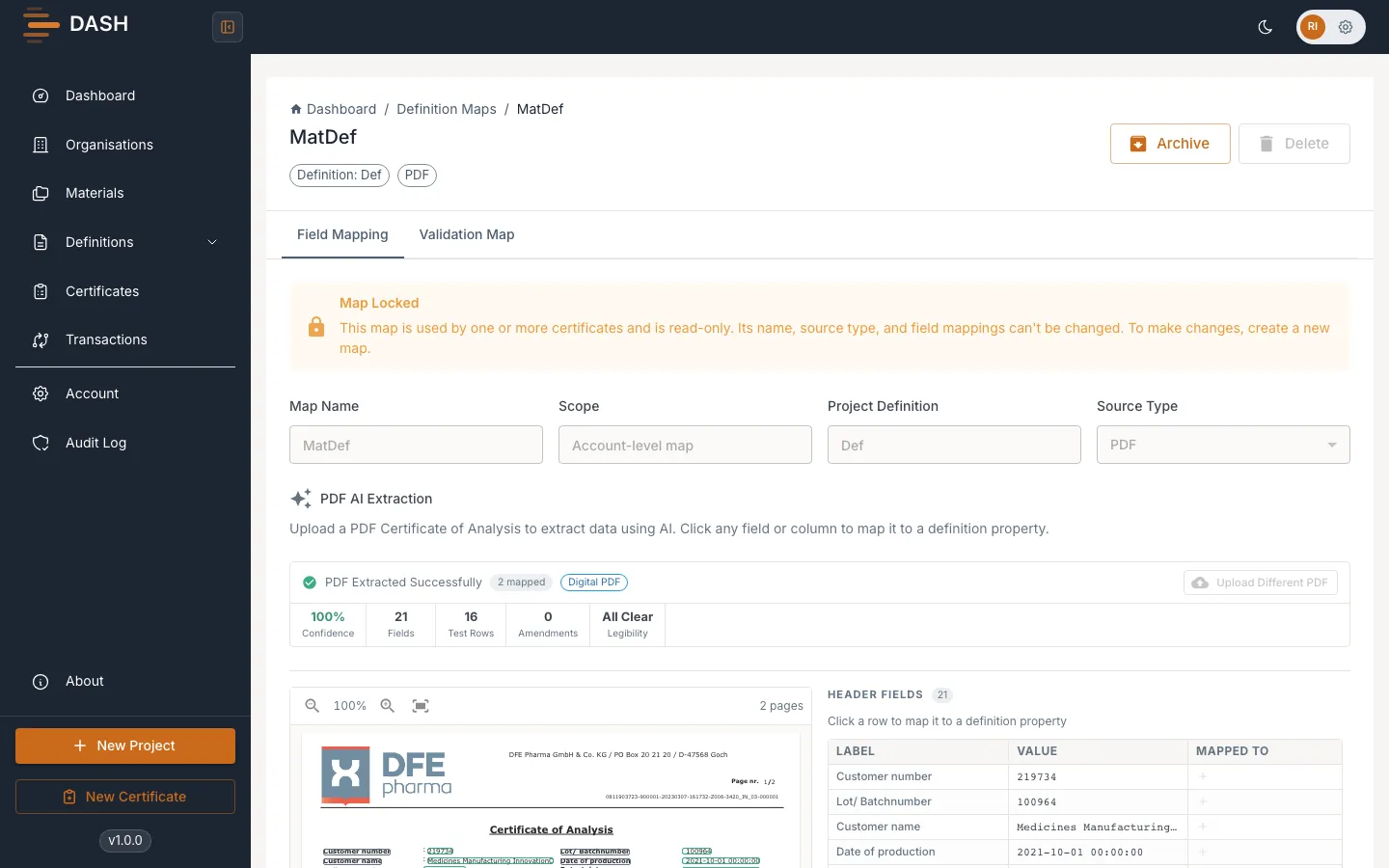
For a PDF source, DASH reads the document for you. You upload a certificate of analysis, DASH extracts its header fields, test-result tables, signatures and other regions, and you click each extracted item to map it to a definition property.
Upload and extract
Section titled “Upload and extract”- Open the map on its Field Mapping tab. The PDF AI Extraction interface prompts you to “Upload a PDF Certificate of Analysis to extract data using AI.”
- Choose the document kind:
- Digital PDF — computer-generated, with no handwritten amendments.
- Scanned PDF — physically printed and scanned; may carry handwritten amendments.
- Drag your PDF onto the upload area, or select it to browse. Extraction runs automatically — you’ll see “Extracting data from PDF with AI…”, which usually takes 10–30 seconds.
- When it finishes, the status reads PDF Extracted Successfully and the extracted content appears, grouped into sections.
Map the extracted fields
Section titled “Map the extracted fields”The extracted content is organised into sections you can map from:
- Header Fields — click a row to map it to a definition property.
- Test Results — click a column header to map it to a repeating property (each row of the table becomes one instance).
- Additional Tables, Signatures, Amendments Detected, Stamps & Marks and Free Text Sections — additional regions DASH detected in the document.
Mapping a test-results column once highlights the matching column in every table that shares the same header, so repeated tables map together.
Preview and re-upload
Section titled “Preview and re-upload”The extracted values act as your preview of what the mapping will produce. To try a different document, select Upload Different PDF and extract again.