

Passkeys
A passkey lets you sign in to DASH with no password and no code. Your device holds the passkey, and you unlock it with your fingerprint, face, device PIN or a hardware security key. Examples are Touch ID, Face ID, Windows Hello or a YubiKey. A passkey resists phishing: it works only on the real DASH site, and it never leaves your device.
Register a passkey
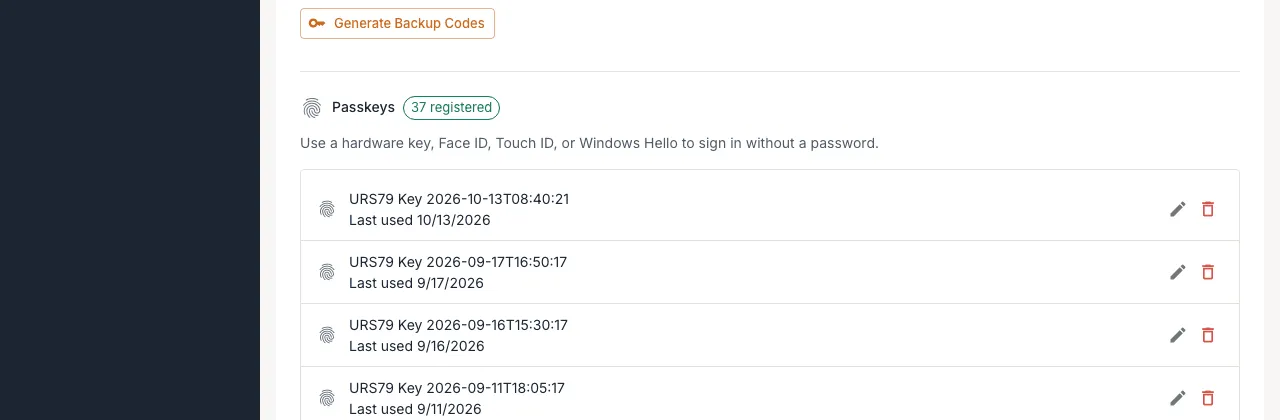
Section titled “Register a passkey”- On the Security tab, scroll to Passkeys and select Add A Passkey.
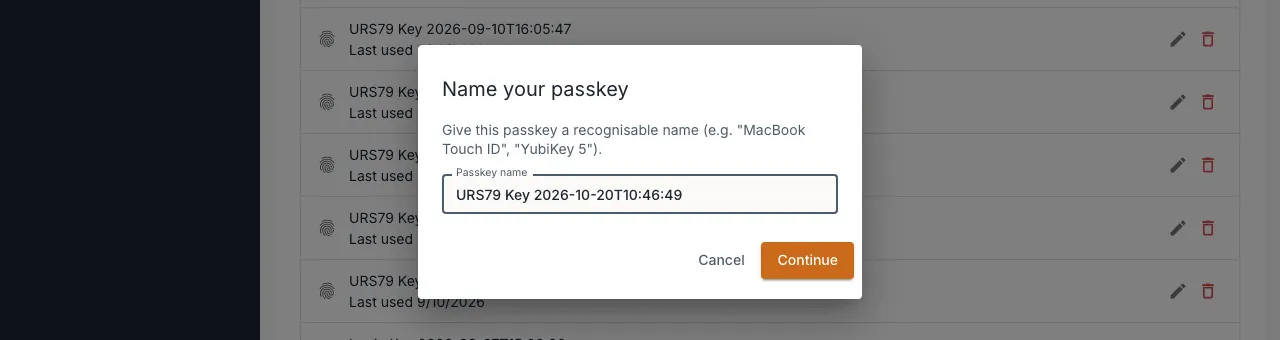
- In the Name your passkey dialog, type a name you will recognise into Passkey name, such as “MacBook Touch ID” or “YubiKey 5”. Select Continue.
- Your device or browser asks you to verify yourself with your fingerprint, face, PIN or security key. Complete that prompt within five minutes.
- DASH shows “Passkey registered successfully.” The new passkey appears in the list, and the Passkeys chip shows how many you have registered.

If you dismiss the device prompt, nothing is saved. Select Add A Passkey to try again.
You can register several passkeys, for example one on your laptop and one on your phone. Then losing one device doesn’t lock you out.
Sign in with a passkey
Section titled “Sign in with a passkey”- On the sign-in screen, leave Email Address and Password empty and select Sign In With Passkey. The button reads Waiting For Device… while your device prompts you.
- Verify yourself on your device.
- DASH opens your dashboard, or the Select Account screen if you belong to several accounts.
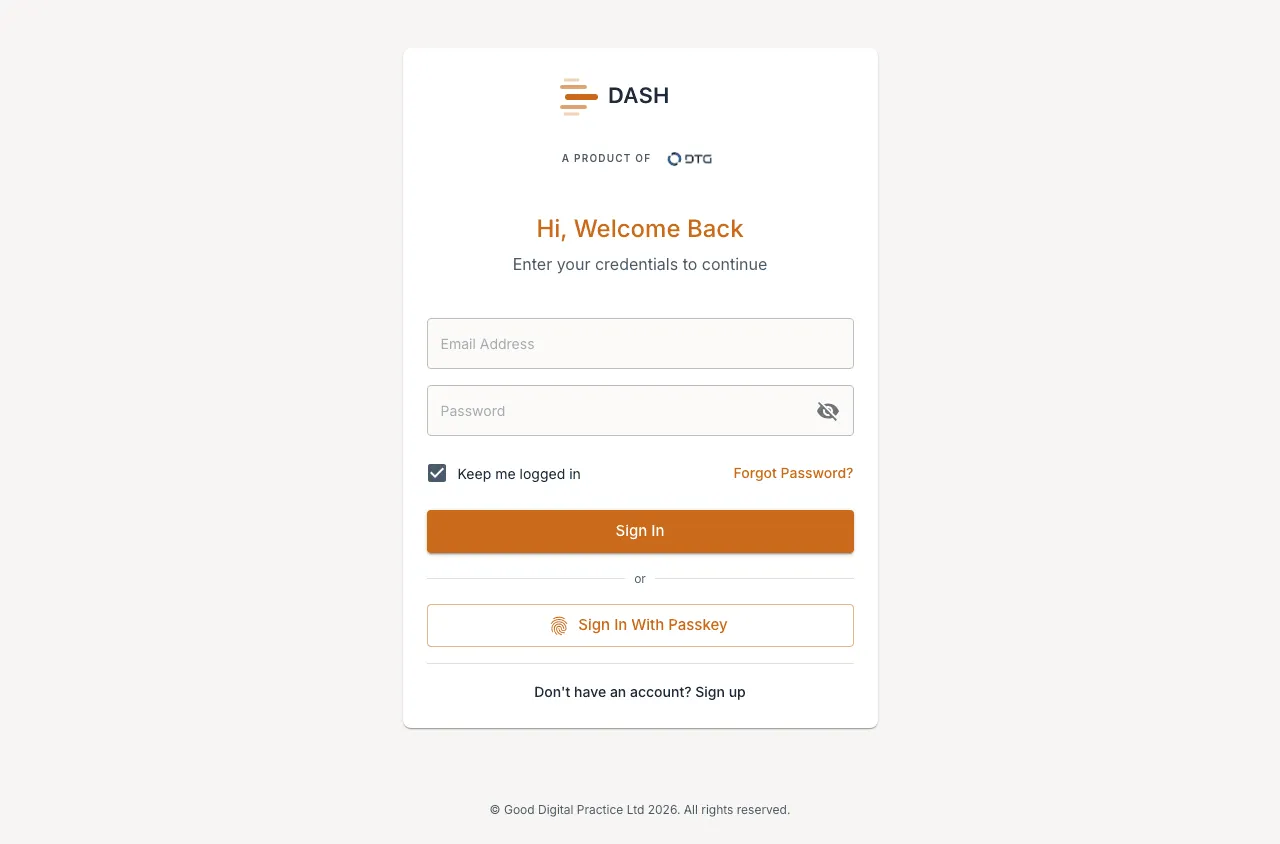
A passkey satisfies the strong-factor requirement on its own, so DASH doesn’t ask for an authenticator code as well.
When a passkey sign-in is refused
Section titled “When a passkey sign-in is refused”DASH refuses a passkey that fails, that it doesn’t recognise, or that shows signs of having been copied. You stay signed out and see a message on the sign-in screen:
- “Credential not found.” The passkey on your device is no longer registered in DASH, for example because you removed it. Sign in another way and register the device again.
- “Passkey authentication failed.” The check didn’t succeed. Try again, or sign in with your password.
- “Account temporarily locked due to too many failed login attempts…” Your address is locked, and the lock applies to passkeys too. Wait for the time shown. See Account lockout.
- You are sent to your company sign-in page instead. Your organisation enforces single sign-on, so DASH-local sign-in (password or passkey) isn’t available. Sign in through your identity provider. See Sign in with SSO.
- You see Select Account after the passkey check. You belong to more than one DASH account. Choose the one you want to work in. See Choose your account at sign-in.
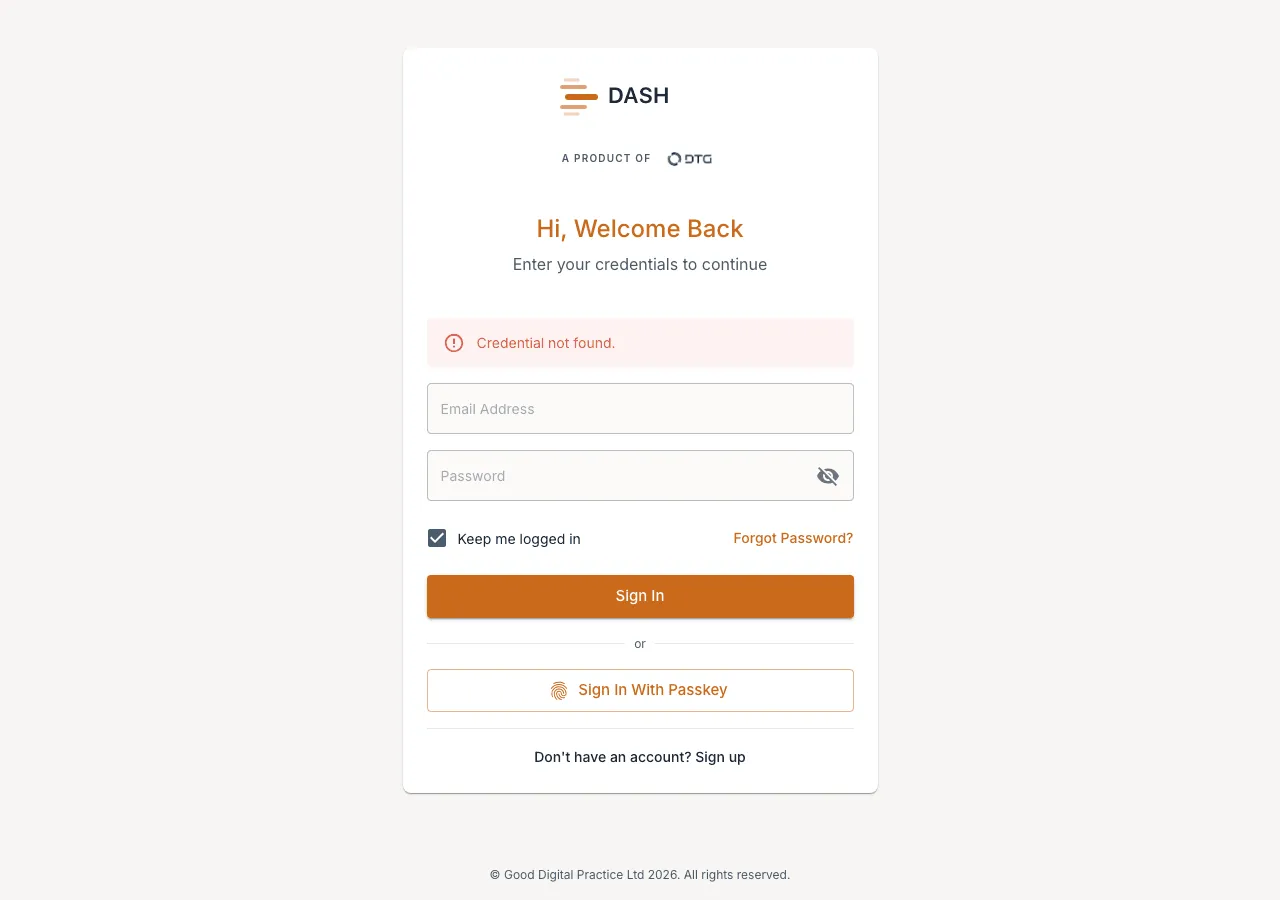
Every refused passkey sign-in is recorded. If a passkey looks as though it has been cloned, DASH records that separately as a security event, shown in the audit log as Passkey Counter Regression, so an administrator can spot it.
Rename or remove a passkey
Section titled “Rename or remove a passkey”Each passkey in the list shows its name and either the date it was added or the date it was last used.
To rename a passkey:
- Select the pencil icon (Rename) next to it.
- Edit the name in the field that opens and select Save. DASH shows “Passkey renamed.”
To remove a passkey, for example when a device is lost, sold or retired:
- Select the bin icon (Remove passkey) next to it.
- The Remove passkey dialog asks “Are you sure you want to remove this passkey? You will no longer be able to use it to sign in.” Select Remove.

- DASH shows “Passkey removed.” That passkey stops working for sign-in straight away, even though the device may still list it.
Registering, renaming, removing and signing in with a passkey are all recorded in the Audit log.
What a passkey can and can’t do
Section titled “What a passkey can and can’t do”| Situation | Passkey accepted? |
|---|---|
| Signing in | Yes, with no password and no code |
| Confirming your identity before signing a certificate | Yes |
| Promoting a user to Admin, or starting or cancelling an ownership transfer | No. These need an authenticator code. |