

Team management
As your account grows you invite colleagues, give each the right role, and occasionally deactivate or reactivate someone. All of this happens in your Account settings. This page walks through it.
Invite a team member
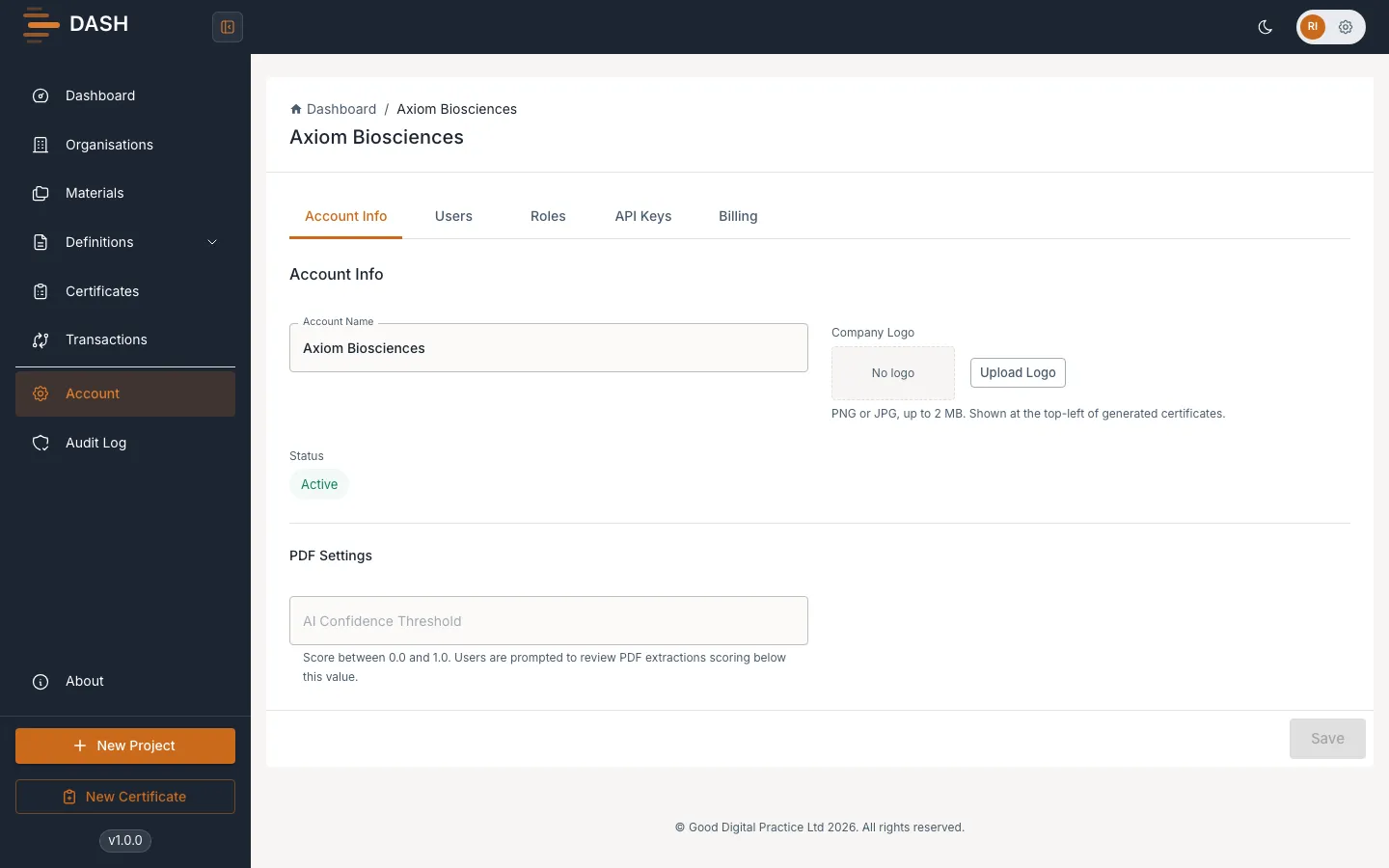
Section titled “Invite a team member”- Open Account from the sidebar and go to the Users tab.
- Choose to invite a user, enter their email address, and select the role they should have. Pick the least-privileged role that fits — see Roles & permissions.
- Send the invitation. DASH emails the invitee a single-use setup link that expires 72 hours after it is issued.
What happens next depends on whether the email is already known to DASH:
- New to DASH: the invitee sets a password meeting the policy and accepts. Their membership becomes Active and they can sign in.
- Already has a DASH account elsewhere: DASH does not create a duplicate user. It simply adds your account to their memberships and emails them that it is now available in their account picker. No password reset is needed — they just sign in and choose your account.
Membership status
Section titled “Membership status”Every membership carries one of three statuses. You can filter the user list by status.
- Pending — invited but not yet accepted.
- Active — a current member with access.
- Inactive — deactivated; the user keeps their former role but has no access until reactivated.
Assign or change roles
Section titled “Assign or change roles”- On the Users tab, open the member and change their role, or use the Roles tab to review what each role grants.
- Demoting an Admin to a lower role takes effect immediately.
- Promoting someone to Admin is a sensitive action — DASH asks you for a current authenticator code first (step-up MFA). See Ownership transfer.
Deactivate and reactivate a user
Section titled “Deactivate and reactivate a user”To remove someone’s access without deleting their history:
- On the Users tab, deactivate the member and confirm in the dialog. They can no longer sign in to this account. If they belong to other accounts, they keep access to those.
- To restore access, filter to Inactive members and Reactivate the person. Their previous role is restored.
All of a user’s membership and audit history is preserved even if their record is ever deleted — historical entries simply show them as “(deleted user)”. Invitations, role changes and deactivations are all recorded in the Audit log.